Attention: Here be dragons
This is the latest
(unstable) version of this documentation, which may document features
not available in or compatible with released stable versions of Godot.
Checking the stable version of the documentation...
Les bases du C#
Introduction
This page provides a brief introduction to C#, both what it is and how to use it in Godot. Afterwards, you may want to look at how to use specific features, read about the differences between the C# and the GDScript API, and (re)visit the Scripting section of the step-by-step tutorial.
C# is a high-level programming language developed by Microsoft. In Godot, it is implemented with the modern .NET runtime.
Attention
Projects written in C# using Godot 4 currently cannot be exported to the web platform. To use C# on the web platform, consider Godot 3 instead. Android and iOS platform support is available as of Godot 4.2, but is experimental and some limitations apply.
Note
Il ne s'agit pas d'un tutoriel complet sur le langage C# dans son ensemble. Si vous n'êtes pas déjà familier avec sa syntaxe ou ses fonctionnalités, consultez le guide Microsoft C# ou cherchez une introduction appropriée ailleurs.
Prérequis
Godot bundles the parts of .NET needed to run already-compiled games. However, Godot does not bundle the tools required to build and compile games, such as MSBuild and the C# compiler. These are included in the .NET SDK, and need to be installed separately.
In summary, you must have installed the .NET SDK and the .NET-enabled version of Godot.
Download and install the latest stable version of the SDK from the .NET download page. Godot 4.5 requires .NET 8 or later, but exporting to Android requires .NET 9 or later.
Important
Veillez à installer la version 64 bits du ou des SDK(s) si vous utilisez la version 64 bits de Godot.
If you are building Godot from source, make sure to follow the steps to enable .NET support in your build as outlined in the Compiler avec .NET page.
Configuration d'un éditeur externe
C# support in Godot's built-in script editor is minimal. Consider using an external IDE or editor, such as Visual Studio Code or Visual Studio. These provide autocompletion, debugging, and other useful features for C#. To select an external editor in Godot, click on Editor → Editor Settings and scroll down to Dotnet. Under Dotnet, click on Editor, and select your external editor of choice. Godot currently supports the following external editors:
Visual Studio 2022
Visual Studio Code
MonoDevelop
Visual Studio pour Mac
JetBrains Rider
Consultez les sections suivantes pour savoir comment configurer un éditeur externe :
JetBrains Rider
Après avoir lu la section "Prérequis", vous pouvez télécharger et installer JetBrains Rider.
Dans le menu Éditeur → Paramètres de l'éditeur de Godot :
Set Dotnet -> Editor -> External Editor to JetBrains Rider.
Dans Rider :
Définissez MSBuild version sur .NET Core.
If you are using a Rider version below 2024.2, install the Godot support plugin. This functionality is now built into Rider.
Visual Studio Code
Après avoir lu la section "Prérequis", vous pouvez télécharger et installer Visual Studio Code (alias VS Code).
Dans le menu Éditeur → Paramètres de l'éditeur de Godot :
Set Dotnet -> Editor -> External Editor to Visual Studio Code.
Dans Visual Studio Code :
Installez l'extension C#.
To configure a project for debugging, you need a tasks.json and launch.json file in
the .vscode folder with the necessary configuration.
Here is an example launch.json:
{
    "version": "0.2.0",
    "configurations": [
        {
            "name": "Play",
            "type": "coreclr",
            "request": "launch",
            "preLaunchTask": "build",
            "program": "${env:GODOT4}",
            "args": [],
            "cwd": "${workspaceFolder}",
            "stopAtEntry": false,
        }
    ]
}
For this launch configuration to work, you need to either setup a GODOT4
environment variable that points to the Godot executable, or replace program
parameter with the path to the Godot executable.
Voici un tasks.json d'exemple :
{
    "version": "2.0.0",
    "tasks": [
        {
            "label": "build",
            "command": "dotnet",
            "type": "process",
            "args": [
                "build"
            ],
            "problemMatcher": "$msCompile"
        }
    ]
}
Now, when you start the debugger in Visual Studio Code, your Godot project will run.
Visual Studio (Windows uniquement)
Téléchargez et installez la dernière version de Visual Studio. Visual Studio inclura les SDK requis si vous avez sélectionné les charges de travail correctes, donc vous n'avez pas besoin d'installer manuellement les choses listées dans la section "Prérequis".
While installing Visual Studio, select this workload:
.NET desktop development
Dans le menu Éditeur → Paramètres de l'éditeur de Godot :
Set Dotnet -> Editor -> External Editor to Visual Studio.
Note
Si vous voyez une erreur comme "Unable to find package Godot.NET.Sdk", votre configuration NuGet peut être incorrecte et doit être corrigée.
Un moyen simple de réparer le fichier de configuration de NuGet est de le régénérer. Dans une fenêtre exploratrice de fichier, allez dans %AppData%\NuGet. Renommez ou supprimez le fichier NuGet.Config. Lorsque vous compilez votre projet Godot à nouveau, le fichier sera automatiquement créé avec des valeurs par défaut.
Pour déboguer vos scripts C# en utilisant Visual Studio, ouvrez le fichier .sln qui est généré après avoir ouvert le premier script C# dans l'éditeur. Dans le menu Déboguer, allez dans le menu Propriétés de débogage pour votre projet. Cliquez sur le bouton Créer un nouveau profil et choisissez Exécutable. Dans le champ Exécutable, naviguez vers le chemin de la version C# de l'éditeur Godot, ou tapez %GODOT4% si vous avez créé une variable d'environnement pour le chemin d'exécutable de Godot. Cela doit être le chemin vers l'exécutable Godot principal, pas la version "console". Pour le Répertoire de travail, tapez un seul point ., signifiant le répertoire courant. Cochez également la case Activer le débogage de code natif. Vous pouvez maintenant fermer cette fenêtre, cliquez sur la flèche vers le bas sur le profil de débogage, et sélectionnez votre nouveau profil de lancement. Appuyez sur le bouton de démarrage vert, et votre jeu commencera à jouer en mode débogage.
Création d'un script C#
Après avoir configuré avec succès C# pour Godot, vous devriez voir l'option suivante lorsque vous sélectionnez Attacher un script dans le menu contextuel d'un nœud de votre scène :
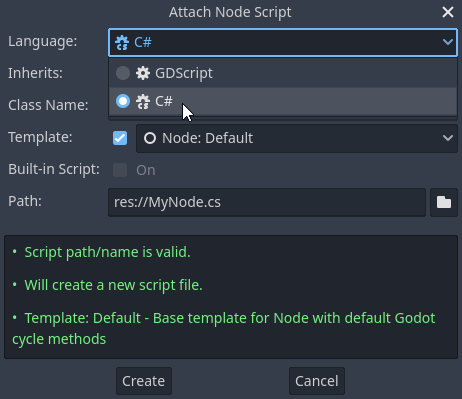
Note that while some specifics change, most concepts work the same when using C# for scripting. If you're new to Godot, you may want to follow the tutorials on Langages de script at this point. While some documentation pages still lack C# examples, most notions can be transferred from GDScript.
Mise en place du projet et flux de travail
When you create the first C# script, Godot initializes the C# project files
for your Godot project. This includes generating a C# solution (.sln)
and a project file (.csproj), as well as some utility files and folders
(.godot/mono).
All of these but .godot/mono are important and should be committed to your
version control system. Everything under .godot can be safely added to the
ignore list of your VCS.
When troubleshooting, it can sometimes help to delete the .godot/mono folder
and let it regenerate.
Exemple
Voici un script C# vierge avec quelques commentaires pour montrer comment il fonctionne.
using Godot;

public partial class YourCustomClass : Node
{
    // Member variables here, example:
    private int _a = 2;
    private string _b = "textvar";

    public override void _Ready()
    {
        // Called every time the node is added to the scene.
        // Initialization here.
        GD.Print("Hello from C# to Godot :)");
    }

    public override void _Process(double delta)
    {
        // Called every frame. Delta is time since the last frame.
        // Update game logic here.
    }
}
As you can see, functions normally in global scope in GDScript like Godot's
print function are available in the GD static class which is part of
the Godot namespace. For a full list of methods in the GD class, see the
class reference pages for
@GDScript and @GlobalScope.
Note
Gardez à l'esprit que la classe que vous souhaitez attacher à votre nœud doit avoir le même nom que le fichier .cs. Sinon, vous obtiendrez l'erreur suivante :
"Cannot find class XXX for script res://XXX.cs"
Différences générales entre C# et GDScript
L'API C# utilise le PascalCase au lieu du snake_case dans GDScript/C++. Dans la mesure du possible, les champs et les getters/setters ont été convertis en propriétés. En général, l'API Godot C# s'efforce d'être aussi idiomatique que possible.
Pour plus d'informations, voir la page Différences de l'API C# par rapport à GDScript.
Avertissement
You need to (re)build the project assemblies whenever you want to see new exported variables or signals in the editor. This build can be manually triggered by clicking the Build button in the top right corner of the editor.

Vous devrez également reconstruire les assemblages de projet pour appliquer les changements dans les scripts "tool".
Les pièges courants et les problèmes connus
As C# support is quite new in Godot, there are some growing pains and things that need to be ironed out. Below is a list of the most important issues you should be aware of when diving into C# in Godot, but if in doubt, also take a look over the official issue tracker for .NET issues.
L'écriture de plugins éditeur est possible, mais elle est actuellement assez compliquée.
L'état n'est actuellement ni sauvegardé, ni restauré lors d'un re-chargement à chaud, à l'exception des variables exportées.
Les scripts C# joints doivent se référer à une classe dont le nom de classe correspond au nom du fichier.
There are some methods such as
Get()/Set(),Call()/CallDeferred()and signal connection methodConnect()that rely on Godot'ssnake_caseAPI naming conventions. So when using e.g.CallDeferred("AddChild"),AddChildwill not work because the API is expecting the originalsnake_caseversionadd_child. However, you can use any custom properties or methods without this limitation. Prefer using the exposedStringNamein thePropertyName,MethodNameandSignalNameto avoid extraStringNameallocations and worrying about snake_case naming.
As of Godot 4.0, exporting .NET projects is supported for desktop platforms (Linux, Windows and macOS). Other platforms will gain support in future 4.x releases.
Pièges communs
You might encounter the following error when trying to modify some values in Godot
objects, e.g. when trying to change the X coordinate of a Node2D:
public partial class MyNode2D : Node2D
{
    public override void _Ready()
    {
        Position.X = 100.0f;
        // CS1612: Cannot modify the return value of 'Node2D.Position' because
        // it is not a variable.
    }
}
This is perfectly normal. Structs (in this example, a Vector2) in C# are
copied on assignment, meaning that when you retrieve such an object from a
property or an indexer, you get a copy of it, not the object itself. Modifying
said copy without reassigning it afterwards won't achieve anything.
The workaround is simple: retrieve the entire struct, modify the value you want to modify, and reassign the property.
var newPosition = Position;
newPosition.X = 100.0f;
Position = newPosition;
Since C# 10, it is also possible to use with expressions on structs, allowing you to do the same thing in a single line.
Position = Position with { X = 100.0f };
You can read more about this error on the C# language reference.
Performance du C# dans Godot
Voir aussi
For a performance comparison of the languages Godot supports, see Quel langage de programmation est le plus rapide ?.
Most properties of Godot C# objects that are based on GodotObject
(e.g. any Node like Control or Node3D like Camera3D) require native (interop) calls as they talk to
Godot's C++ core.
Consider assigning values of such properties into a local variable if you need to modify or read them multiple times at
a single code location:
using Godot;

public partial class YourCustomClass : Node3D
{
    private void ExpensiveReposition()
    {
        for (var i = 0; i < 10; i++)
        {
            // Position is read and set 10 times which incurs native interop.
            // Furthermore the object is repositioned 10 times in 3D space which
            // takes additional time.
            Position += new Vector3(i, i);
        }
    }

    private void Reposition()
    {
        // A variable is used to avoid native interop for Position on every loop.
        var newPosition = Position;
        for (var i = 0; i < 10; i++)
        {
            newPosition += new Vector3(i, i);
        }
        // Setting Position only once avoids native interop and repositioning in 3D space.
        Position = newPosition;
    }
}
Passing raw arrays (such as byte[]) or string to Godot's C# API requires marshalling which is
comparatively pricey.
The implicit conversion from string to NodePath or StringName incur both the native interop and marshalling
costs as the string has to be marshalled and passed to the respective native constructor.
Utilisation des packages Nuget dans Godot
Les packages NuGet peuvent être installés et utilisés avec Godot, comme pour tout projet C#. De nombreux IDE peuvent ajouter des packages directement. Ils peuvent également être ajoutés manuellement en ajoutant la référence du package dans le fichier .csproj situé à la racine du projet :
    <ItemGroup>
        <PackageReference Include="Newtonsoft.Json" Version="11.0.2" />
    </ItemGroup>
    ...
</Project>
Godot automatically downloads and sets up newly added NuGet packages the next time it builds the project.
Profilage de votre code C#
The following tools may be used for performance and memory profiling of your managed code:
JetBrains Rider avec le plugin dotTrace/dotMemory.
Extension autonome JetBrains dotTrace/dotMemory.
Visual Studio.
Profiling managed and unmanaged code at once is possible with both JetBrains tools and Visual Studio, but limited to Windows.