Attention: Here be dragons
This is the latest
(unstable) version of this documentation, which may document features
not available in or compatible with released stable versions of Godot.
Checking the stable version of the documentation...
Groupes
Les groupes dans Godot fonctionnent comme des balises dans d'autres logiciels. Vous pouvez ajouter un nœud à autant de groupes que vous le souhaitez. Ensuite, dans le code, vous pouvez utiliser le SceneTree pour :
Obtenir la liste des nœuds d'un groupe.
Appeler une méthode sur tous les nœuds d'un groupe.
Envoyer une notification à tous les nœuds d'un groupe.
Il s'agit d'une fonctionnalité utile pour organiser les grandes scènes et découpler le code.
Gestion des groupes
Les groupes sont créés en ajoutant un nœud à un nouveau nom de groupe, et de même manière, ils sont supprimés en enlevant tous les nœuds du groupe.
Il existe deux façons d’ajouter/retirer des nœuds à des groupes :
During design, by using the Groups dock in the editor, or the Groups tab in the Globals dock in project settings.
Durant l'exécution, en appelant Node.add_to_group() ou Node.remove_from_group().
Astuce
While not strictly required, it's recommended to use the snake_case naming
convention for group names.
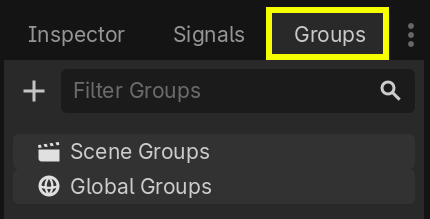
Using the Groups dock
You can create new groups using the Groups dock.
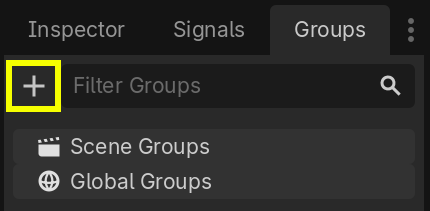
Select a node in the Scene dock then click the add button with the + symbol.
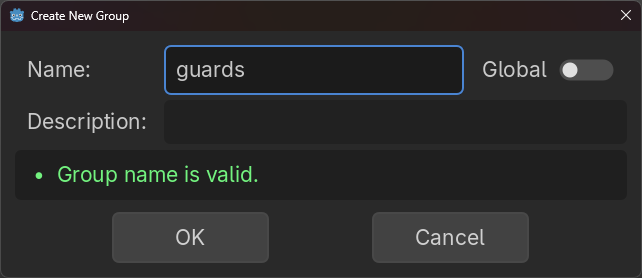
You should now see the Create New Group modal appear. Write the group name in the field.
You can optionally mark the option "Global", which will make the group visible project-wide, and able to be reused in any project scene. This will also allow you to give it a description.
When done, press Ok to create it.
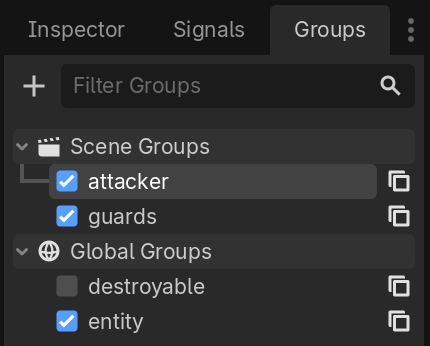
You should see the new groups appear in the Groups dock under Scene Groups if the Global option was unmarked, or under Global Groups if that option was marked.
A selected Node from the Scene dock can be added into groups by marking the checkbox on the left side of the groups in the Groups dock. The node you had selected when creating a new group will be automatically checked.
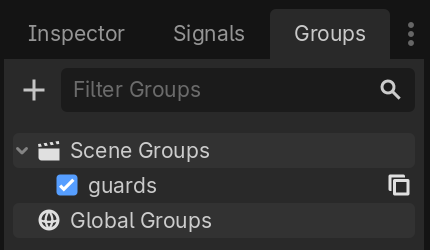
All groups present in the project that were marked as Global, created from any scene, will be visible under Global Groups.
Any other group derived from nodes in the current scene will appear under Scene Groups.
Avertissement
The same underlying logic is used for both Global and Scene groups. Groups with the same name are considered one and the same. This feature is purely organizational.
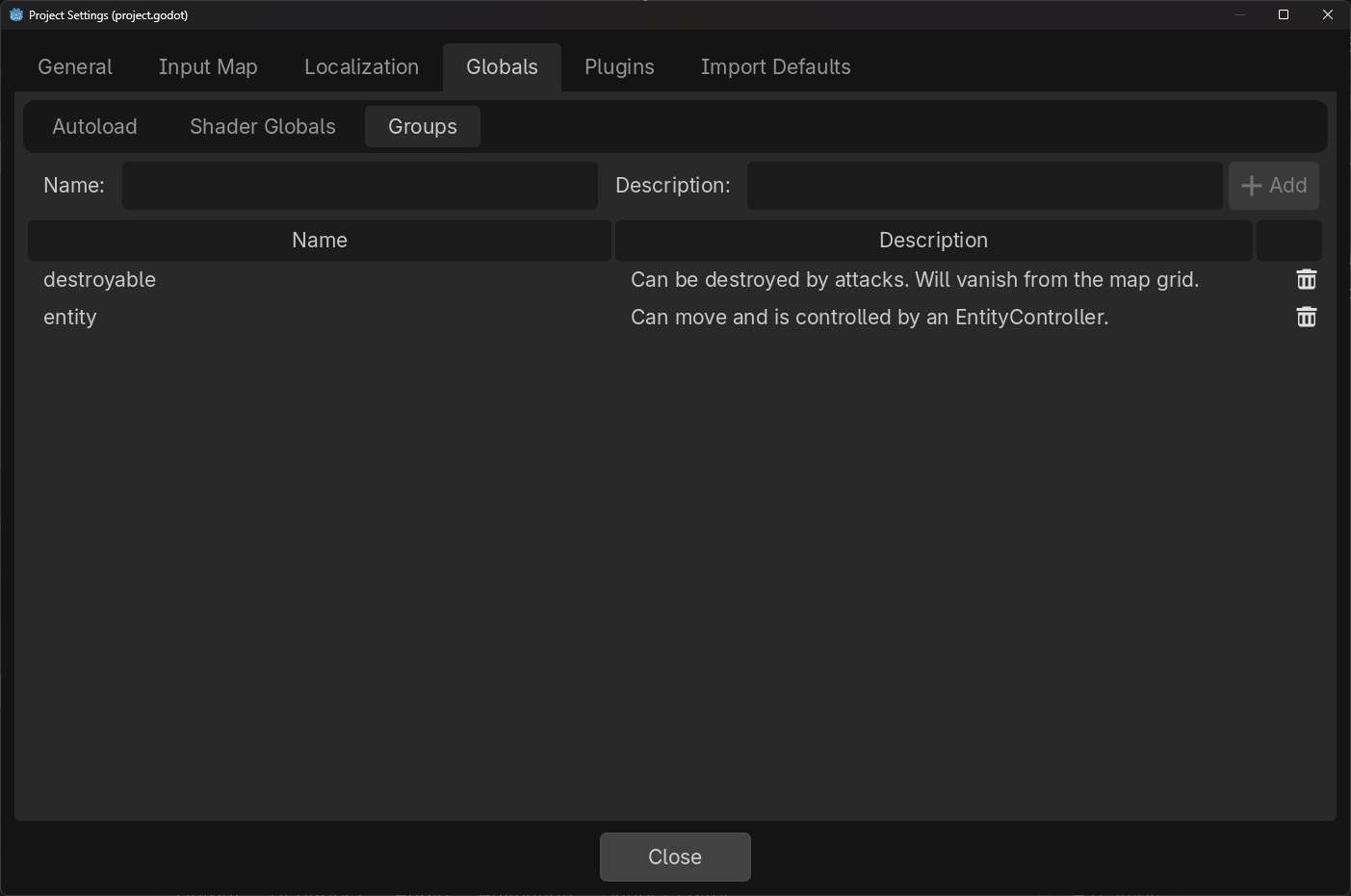
You can manage Global Groups in the Groups tab of the Globals dock, inside Project Settings. There, you will be able to add new global groups, or change existing groups' names and descriptions.
En utilisant le code
Vous pouvez également gérer des groupes à partir de scripts. Le code suivant ajoute le nœud auquel vous attachez le script au groupe guards dès qu'il entre dans l'arbre de scène.
func _ready():
    add_to_group("guards")
public override void _Ready()
{
    base._Ready();

    AddToGroup("guards");
}
Imaginez que vous créez un jeu d'infiltration. Lorsqu'un ennemi repère le joueur, vous voulez que tous les gardes et les robots soient en alerte.
Dans l'exemple fictif ci-dessous, nous utilisons SceneTree.call_group() pour alerter tous les ennemis que le joueur a été repéré.
func _on_player_spotted():
    get_tree().call_group("guards", "enter_alert_mode")
public void _OnPlayerDiscovered()
{
    GetTree().CallGroup("guards", "enter_alert_mode");
}
Le code ci-dessus appelle la fonction enter_alert_mode sur chaque membre du groupe guards.
Pour obtenir la liste complète des nœuds du groupe guards sous forme de tableau, vous pouvez appeler SceneTree.get_nodes_in_group() :
var guards = get_tree().get_nodes_in_group("guards")
var guards = GetTree().GetNodesInGroup("guards");
La classe SceneTree fournit de nombreuses autres méthodes utiles pour interagir avec les scènes, leur hiérarchie de nœuds et les groupes. Elle permet de changer facilement de scène ou de les recharger, de quitter le jeu ou de le mettre en pause et de le remettre en pause. Elle fournit également des signaux utiles.