Attention: Here be dragons
This is the latest
(unstable) version of this documentation, which may document features
not available in or compatible with released stable versions of Godot.
Checking the stable version of the documentation...
在 Linux、*BSD 上編譯
也參考
本頁說明如何從原始碼編譯 Linux 編輯器與匯出樣板二進位檔案。如果你想要的是將專案匯出到 Linux,請參閱 為 Linux 匯出。
系統需求
在 Linux 或其他 Unix 變種系統下編譯時,需具備下列條件:
GCC 9+ 或 Clang 6+。
SCons 4.4+ build system.
pkg-config(用於偵測下方所列開發函式庫)。
開發函式庫:
X11、Xcursor、Xinerama、Xi 與 XRandR 開發函式庫。
Wayland 及 wayland-scanner。
Mesa。
ALSA。
PulseAudio。
可選 - libudev(以
udev=yes編譯)。
各發行版安裝指令
apk add \
  scons \
  pkgconf \
  gcc \
  g++ \
  libx11-dev \
  libxcursor-dev \
  libxinerama-dev \
  libxi-dev \
  libxrandr-dev \
  mesa-dev \
  eudev-dev \
  alsa-lib-dev \
  pulseaudio-dev
pacman -Sy --noconfirm --needed \
  scons \
  pkgconf \
  gcc \
  libxcursor \
  libxinerama \
  libxi \
  libxrandr \
  wayland-utils \
  mesa \
  glu \
  libglvnd \
  alsa-lib \
  pulseaudio
sudo apt-get update
sudo apt-get install -y \
  build-essential \
  scons \
  pkg-config \
  libx11-dev \
  libxcursor-dev \
  libxinerama-dev \
  libgl1-mesa-dev \
  libglu1-mesa-dev \
  libasound2-dev \
  libpulse-dev \
  libudev-dev \
  libxi-dev \
  libxrandr-dev \
  libwayland-dev
sudo dnf install -y \
  scons \
  pkgconfig \
  gcc-c++ \
  libstdc++-static \
  wayland-devel
pkg install -y \
  devel/scons \
  pkgconf \
  xorg-libraries \
  libXcursor \
  libXrandr \
  libXi \
  xorgproto \
  libGLU \
  alsa-lib \
  pulseaudio \
  wayland
emerge --sync
emerge -an \
  dev-build/scons \
  x11-libs/libX11 \
  x11-libs/libXcursor \
  x11-libs/libXinerama \
  x11-libs/libXi \
  dev-util/wayland-scanner \
  media-libs/mesa \
  media-libs/glu \
  media-libs/alsa-lib \
  media-sound/pulseaudio
sudo urpmi --auto \
  scons \
  task-c++-devel \
  wayland-devel \
  "pkgconfig(alsa)" \
  "pkgconfig(glu)" \
  "pkgconfig(libpulse)" \
  "pkgconfig(udev)" \
  "pkgconfig(x11)" \
  "pkgconfig(xcursor)" \
  "pkgconfig(xinerama)" \
  "pkgconfig(xi)" \
  "pkgconfig(xrandr)"
pkg_add pkgin
pkgin -y install \
  pkg-config \
  py313-scons \
  wayland \
  pulseaudio
pkg_add -I \
  scons \
  wayland \
  pulseaudio
sudo apt update
sudo apt install -y \
  python3-pip \
  build-essential \
  pkg-config \
  libx11-dev \
  libxcursor-dev \
  libxinerama-dev \
  libgl1-mesa-dev \
  libglu1-mesa-dev \
  libasound2-dev \
  libpulse-dev \
  libudev-dev \
  libxi-dev \
  libxrandr-dev \
  libwayland-dev
sudo pip install scons
sudo zypper install -y \
  scons \
  pkgconfig \
  libX11-devel \
  libXcursor-devel \
  libXrandr-devel \
  libXinerama-devel \
  libXi-devel \
  wayland-devel \
  Mesa-libGL-devel \
  alsa-devel \
  libpulse-devel \
  libudev-devel \
  gcc-c++ \
  libGLU1
eopkg install -y \
  -c system.devel \
  scons \
  libxcursor-devel \
  libxinerama-devel \
  libxi-devel \
  libxrandr-devel \
  wayland-devel \
  mesalib-devel \
  libglu \
  alsa-lib-devel \
  pulseaudio-devel
編譯
開啟終端機,前往 Godot 原始碼根目錄並輸入:
scons platform=linuxbsd
備註
Godot 4.0 以前,Linux/*BSD 目標稱為 x11,不是 linuxbsd。若要編譯 Godot 3.x,請參閱本說明文件的 3.x 分支。
小訣竅
若你自行編譯 Godot 以進行修改或貢獻開發,建議在 SCons 加上 dev_build=yes 或 dev_mode=yes 選項。詳情請參閱 開發與發行別名。
若一切順利,產生的二進位可執行檔會放在「bin」子目錄中,該檔案包含整個 Godot 引擎,可獨立執行。執行後會打開專案管理員。
備註
若想用 Clang 而不是 GCC 編譯,請使用下列指令:
scons platform=linuxbsd use_llvm=yes
在 OpenBSD 上必須使用 Clang,否則字型無法正確建構。如需支援 RISC-V 架構,亦請使用 Clang 編譯器替代 GCC。
備註
Compiling on some platforms such as OpenBSD may require more memory than
available by default.
To increase the memory limit on OpenBSD within the maximum for the current user,
run ulimit -d {new amount in kB}.
小訣竅
若要為正式發行版本編譯 Godot,可加上 SCons 選項 production=yes,讓最終執行檔更精簡且速度更快。此選項會啟用進階編譯器最佳化與連結時最佳化(LTO)。
LTO (連結時最佳化)編譯需要較長時間並約 7 GB 記憶體。若遇到記憶體不足,可改用 production=yes lto=none 或 production=yes lto=thin,這樣雖然最佳化效果較低但較節省資源。
備註
若希望自編譯 Godot 和官方版本使用不同編輯器設定,可在 bin/ 資料夾內建立 ._sc_ 或 _sc_ 檔案,以啟用 自包含模式。
Compiling with AccessKit support
AccessKit provides support for screen readers.
By default, Godot is built with AccessKit dynamically linked. You can use it by placing
accesskit.so alongside the executable.
備註
You can use dynamically linked AccessKit with export templates as well, rename
the SO to accesskit.{architecture}.so
and place them alongside the export template executables, and the libraries will
be automatically copied during the export process.
To compile Godot with statically linked AccessKit:
Download the pre-built static libraries from godot-accesskit-c-static library, and unzip them.
When building Godot, add
accesskit_sdk_path={path}to tell SCons where to look for the AccessKit libraries:scons platform=linuxbsd accesskit_sdk_path=<...>
備註
你也可以依下列步驟自行編譯 godot-angle-static 靜態函式庫:
Clone the godot-accesskit-c-static directory and navigate to it.
執行下列指令:
cd accesskit-c
cmake -S . -B build -DCMAKE_BUILD_TYPE=Release
cmake --build build
cmake --install build
The AccessKit static library should be built using the same compiler you are using for building Godot.
執行無介面/伺服器版本
若要以 無頭 模式執行,提供自動化專案匯出的編輯器功能,請照常建置:
scons platform=linuxbsd target=editor
接著使用 --headless 指令列參數:
./bin/godot.linuxbsd.editor.x86_64 --headless
若要編譯可搭配 遠端偵錯工具 使用的 伺服器 除錯版本,請輸入:
scons platform=linuxbsd target=template_debug
若要編譯最佳化給專屬遊戲伺服器運作的 伺服器 版本,請輸入:
scons platform=linuxbsd target=template_release production=yes
建構匯出樣板
警告
Linux 二進位檔通常無法在比建置時所用發行版還舊的發行版上執行。若希望二進位檔能在大多數發行版上運作,建議在較舊的發行版(例如 Ubuntu 20.04)上建置。你可以使用虛擬機或容器來建立合適的建置環境。
要建構 Linux 或 *BSD 匯出樣板,請用下列參數執行建構系統:
(32 位元)
scons platform=linuxbsd target=template_release arch=x86_32
scons platform=linuxbsd target=template_debug arch=x86_32
(64 位元)
scons platform=linuxbsd target=template_release arch=x86_64
scons platform=linuxbsd target=template_debug arch=x86_64
請注意,為與宿主平台不同位元(64/32)進行交叉編譯時,有時並不簡單,可能需額外建置 chroot 環境。
若要建立標準匯出樣板,必須將 bin/ 資料夾下產生的檔案複製到:
$HOME/.local/share/godot/export_templates/<version>/
並必須使用下列命名(Godot 會將 *BSD 視為「Linux/X11」):
linux_debug.arm32
linux_debug.arm64
linux_debug.x86_32
linux_debug.x86_64
linux_release.arm32
linux_release.arm64
linux_release.x86_32
linux_release.x86_64
但如果你有自訂模組或自寫 C++ 程式碼,則可在專案的匯出選單中將你的二進位檔設定為自訂匯出樣板。你必須啟用 Advanced Options(進階選項) 才能進行此設定。
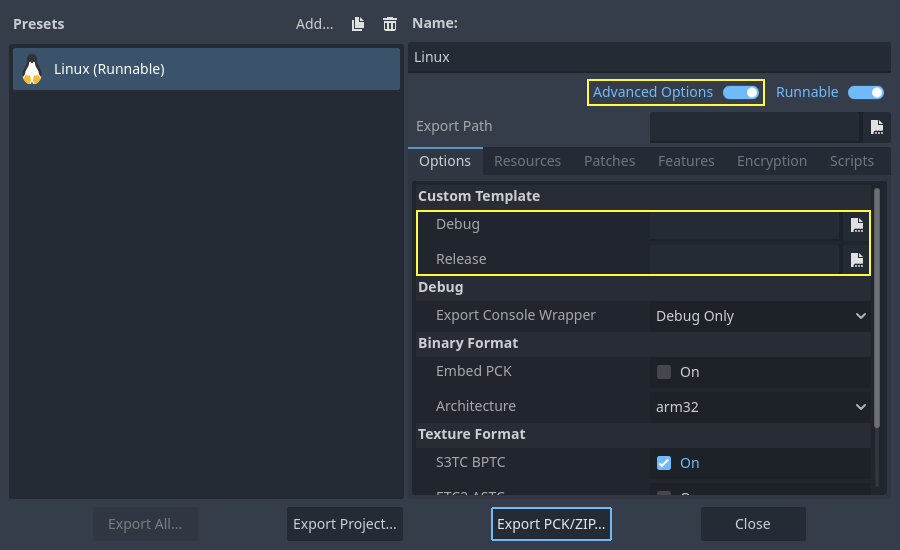
其實你不必複製檔案,只需直接參照 Godot 原始碼資料夾下 bin/ 內的檔案,下次建構時就會自動套用這些自定樣板。
為 RISC-V 裝置進行交叉編譯
要為 RISC-V 裝置交叉編譯 Godot,需準備下列項目:
riscv-gnu-toolchain。雖然我們不會直接使用這個工具鏈,但它會提供需要的 sysroot、標頭檔與函式庫檔案。可選擇多個版本,一般來說工具鏈越舊,產生的二進位檔相容性越好。如不確定,建議 使用這個版本,並下載
riscv64-glibc-ubuntu-20.04-gcc-nightly-2023.07.07-nightly.tar.gz。解壓後記住路徑。mold。這是一個非常快速的連結器,目前是唯一能正確連結 Godot RISC-V 執行檔的工具。下載並解壓後,將其
bin資料夾加入 PATH。可執行mold --help | grep support檢查你的 mold 是否支援 RISC-V。若未出現 RISC-V,則需更新 mold 版本。
為方便參照工具鏈,可設定如下環境變數:
export RISCV_TOOLCHAIN_PATH="path to toolchain here"
如此一來,每次要用到時就不用再手動設定路徑。
完成上述設定後,即可開始建構 Godot。
請進入原始碼根目錄,然後執行下列建構指令:
PATH="$RISCV_TOOLCHAIN_PATH/bin:$PATH" \
scons arch=rv64 use_llvm=yes linker=mold lto=none target=editor \
    ccflags="--sysroot=$RISCV_TOOLCHAIN_PATH/sysroot --gcc-toolchain=$RISCV_TOOLCHAIN_PATH -target riscv64-unknown-linux-gnu" \
    linkflags="--sysroot=$RISCV_TOOLCHAIN_PATH/sysroot --gcc-toolchain=$RISCV_TOOLCHAIN_PATH -target riscv64-unknown-linux-gnu"
備註
RISC-V 的 GCC 在原子操作上有 這些 bug,導致無法正確編譯 Godot,因此必須改用 Clang。請確保 Clang 能夠編譯 RISC-V,可用 clang -print-targets 檢查,確認目標列表中有 riscv64。
警告
上方指令會將 $RISCV_TOOLCHAIN_PATH/bin 加入 PATH,但僅在執行 scons 時適用。由於 riscv-gnu-toolchain 會用其自己的 Clang(在 bin 目錄內),如果將該 bin 目錄永久加入 PATH,可能會影響你系統上的其他 Clang 版本。因此不建議永久修改 PATH。若要用自行安裝的 Clang,也可以省略 PATH="$RISCV_TOOLCHAIN_PATH/bin:$PATH" 這行,但這麼做與 riscv-gnu-toolchain 的相容性可能會有問題。
這個建構指令與一般編譯類似,但有幾個重要差異。ccflags 與 linkflags 是額外的編譯與連結參數,--sysroot 指向模擬 Linux 系統的資料夾,裡面包含所有標頭檔、函式庫及 .so 檔案供 Clang 使用。--gcc-toolchain 指定完整工具鏈位置,-target riscv64-unknown-linux-gnu 則告訴 Clang 目標為 RISC-V 架構與 Linux 系統。
若一切順利,你會在 bin 目錄下看到類似下列的二進位檔:
godot.linuxbsd.editor.rv64.llvm
你可以將這個可執行檔複製到你的 RISC-V 裝置,並在裝置上雙擊啟動,應可正常開啟專案管理員。
日後若需要編譯匯出樣板,只要複製相同的建構指令,將 target 參數改成 template_debug (除錯版)或 template_release (發行版)即可。
以 Clang 與 LLD 加速開發流程
你也可以用 Clang 搭配 LLD 建構 Godot。和預設的 GCC+GNU ld 相比有兩大優點:
LLD 連結速度遠超過 GNU ld 或 gold,可大幅加快迭代流程。
Clang 通常會提供比 GCC 更有幫助的錯誤訊息。
只要從發行版套件管理員安裝 Clang 與 lld,然後以以下 SCons 指令建構即可:
scons platform=linuxbsd use_llvm=yes linker=lld
建構完成後,會在 bin/ 資料夾產生一個以 .llvm 為副檔名的新二進位檔案。
It's still recommended to use GCC for production builds as it's the compiler used for official builds and is more rigorously tested.
若出現以下錯誤:
/usr/bin/ld: cannot find -l:libatomic.a: No such file or directory
有兩種解法:
在 SCons 指令裡加入
use_static_cpp=no參數。請依照 這份說明 設定、建構並安裝
libatomic_ops。然後將/usr/lib/libatomic_ops.a複製到/usr/lib/libatomic.a,或用ln -s /usr/lib/libatomic_ops.a /usr/lib/libatomic.a建立軟連結。這可確保每次更新後都會自動指向最新版libatomic_ops,無需每次手動複製。
以 mold 加速開發流程
若想要比 LLD 更快的連結速度,可以使用 mold。mold 可與 GCC 或 Clang 搭配使用。
sudo apt-get update
sudo apt-get install -y mold
sudo dnf install -y mold
pacman -Sy --noconfirm --needed mold
Once mold is installed, use the following SCons command when compiling Godot:
scons platform=linuxbsd linker=mold
以系統函式庫加速開發
Godot 內建多種第三方函式庫原始碼。 你也可以選擇改用系統內提供的第三方函式庫。這樣 Godot 二進位檔的連結速度會更快,因為第三方函式庫會用動態連結,每次建構引擎(即使只是小幅變更)都不用重複靜態連結。
但不是所有 Linux 發行版都有這些第三方函式庫的套件(或可能不是最新版)。
改用系統函式庫能讓連結時間在慢速 CPU 上減少數秒,但這需要依你的 Linux 發行版手動測試。此外,某些情境下可能無法全部用系統函式庫,因為系統套件或建構系統本身偶有 bug(這類用法測試較少)。
要用系統函式庫編譯 Godot,請在 各發行版安裝指令 所列相依套件基礎上,再安裝這些依賴項:
sudo apt-get update
sudo apt-get install -y \
  libembree-dev \
  libenet-dev \
  libfreetype-dev \
  libpng-dev \
  zlib1g-dev \
  libgraphite2-dev \
  libharfbuzz-dev \
  libogg-dev \
  libtheora-dev \
  libvorbis-dev \
  libwebp-dev \
  libmbedtls-dev \
  libminiupnpc-dev \
  libpcre2-dev \
  libsdl3-dev \
  libzstd-dev \
  libsquish-dev \
  libicu-dev
sudo dnf install -y \
  embree-devel \
  enet-devel \
  glslang-devel \
  graphite2-devel \
  harfbuzz-devel \
  libicu-devel \
  libsquish-devel \
  libtheora-devel \
  libvorbis-devel \
  libwebp-devel \
  libzstd-devel \
  mbedtls-devel \
  miniupnpc-devel \
  SDL3-devel
安裝所有需要的套件後,請用下列指令建構 Godot:
scons platform=linuxbsd builtin_embree=no builtin_enet=no builtin_freetype=no builtin_graphite=no builtin_harfbuzz=no builtin_libogg=no builtin_libpng=no builtin_libtheora=no builtin_libvorbis=no builtin_libwebp=no builtin_mbedtls=no builtin_miniupnpc=no builtin_pcre2=no builtin_sdl=no builtin_zlib=no builtin_zstd=no
On Debian stable, you will need to remove builtin_embree=no as the system-provided
Embree version is too old to work with Godot's latest master branch
(which requires Embree 4).
你可以執行 scons -h,查閱所有有系統替代方案的內建函式庫,搜尋開頭為 builtin_ 的選項。
警告
使用系統函式庫時,產生的二進位檔**無法**於不同 Linux 發行版之間移植。請勿用於要分發給他人的可執行檔,除非你是要為特定 Linux 發行版打包。