Attention: Here be dragons
This is the latest
(unstable) version of this documentation, which may document features
not available in or compatible with released stable versions of Godot.
Checking the stable version of the documentation...
建立腳本範本
Godot 提供了腳本範本的功能,建立新腳本時可於 腳本建立視窗 中選用:
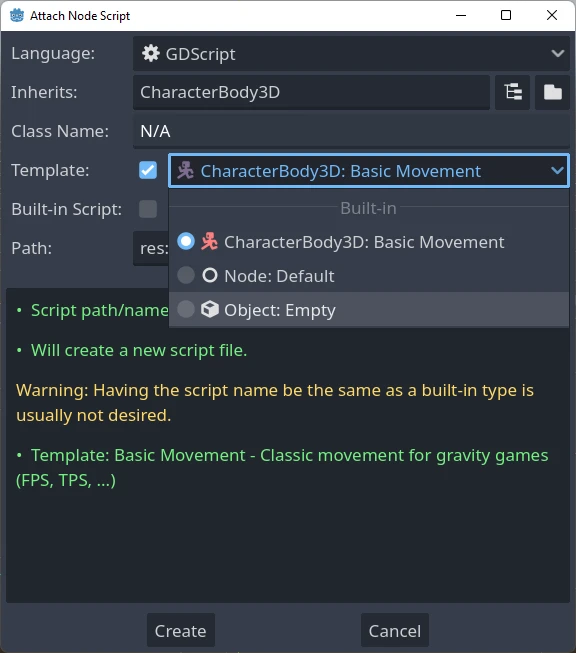
Godot 編輯器內建一組腳本範本,你也可以自行新增範本,並設定為專案或全編輯器預設使用。
範本會連結到特定節點型別,因此建立腳本時只會顯示對應該節點型別或其父類別的範本。例如,如果你為 CharacterBody3D 建立腳本,僅會看到為 CharacterBody3D、Node3D 或 Node 定義的範本。
範本位置
腳本範本有兩種管理方式。
編輯器定義範本
這類範本可用於所有專案,檔案路徑依作業系統而異:
Windows:
%APPDATA%\Godot\script_templates\Linux:
$HOME/.config/godot/script_templates/macOS:
$HOME/Library/Application Support/Godot/script_templates/
如果你不是從 Godot 官方網站下載(例如從 Steam 安裝),資料夾位置可能會不同。你可以在 Godot 編輯器裡選擇「編輯器 > 開啟編輯器資料/設定資料夾」,檔案總管開啟的資料夾中即包含 script_templates 資料夾。
專案定義範本
預設會在專案的 res://script_templates/ 資料夾中搜尋範本。你可以透過編輯器或程式碼修改專案設定 Editor > Script > Templates Search Path 來變更路徑。
若專案內沒有 script_templates 資料夾,則不會載入任何專案範本。
範本組織與命名
編輯器與專案範本的檔案結構如下:
template_path/node_type/file.extension
說明:
template_path是前面提到的兩個路徑其中之一。node_type為此範本適用的節點型別(如 Node 或 CharacterBody3D),區分大小寫。腳本若沒放在正確的型別資料夾下,則不會被偵測到。file是你自訂的範本名稱(如platformer_movement或smooth_camera)。extension為副檔名,對應語言類型(GDScript 用gd,C# 用cs)。
例如:
script_templates/Node/smooth_camera.gdscript_templates/CharacterBody3D/platformer_movement.gd
預設行為與覆寫方式
預設情況下:
範本名稱預設為檔案名稱(去除副檔名,格式化顯示)
說明欄位為空
縮排為 4 個空白字元
不會設定為該節點型別的預設範本
可以在檔案開頭加入中繼標頭來自訂此行為,例如:
# meta-name: Platformer movement
# meta-description: Predefined movement for classical platformers
# meta-default: true
# meta-space-indent: 4
// meta-name: Platformer movement
// meta-description: Predefined movement for classical platformers
// meta-default: true
// meta-space-indent: 4
此範例中,名稱會設定為「平台移動」,並帶有自訂說明,且會成為儲存該檔案之節點型別的預設範本。
以下範例展示了如何在編輯器與專案層級使用自訂範本:
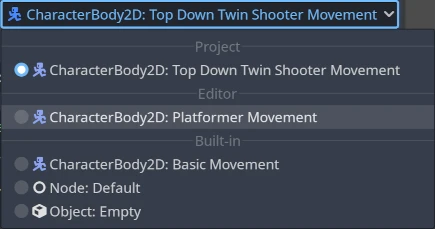
備註
腳本範本的副檔名與一般腳本相同,這可能會導致 Godot 將其誤當作專案腳本。為避免此問題,請在範本資料夾內建立一個空的 .gdignore 檔案,這樣該資料夾就不會在專案檔案系統中出現,但仍可用外部編輯器隨時修改範本。
小訣竅
預設情況下,專案資料夾內所有 C# 檔案都會被編譯。請手動將腳本範本排除於 C# 專案外,以避免編譯錯誤。詳情請參考 Microsoft 文件:從建置中排除檔案。
你可以建立與專案級等同的編輯器級範本,且名稱可與內建範本重複,所有範本都會在新腳本視窗中顯示。
預設範本
若要覆蓋預設範本,請在 Node 目錄(或更特定的型別目錄)下新增自訂範本,並於檔案開頭加上 meta-default: true 標頭。
同一節點型別同時只能有一個預設範本。
以下提供 GDScript 與 C# 的基本節點 Default 範本內容,可作為撰寫自訂範本的參考基礎:
# meta-description: Base template for Node with default Godot cycle methods

extends _BASE_


# Called when the node enters the scene tree for the first time.
func _ready() -> void:
    pass # Replace with function body.


# Called every frame. 'delta' is the elapsed time since the previous frame.
func _process(delta: float) -> void:
    pass
// meta-description: Base template for Node with default Godot cycle methods

using _BINDINGS_NAMESPACE_;
using System;

public partial class _CLASS_ : _BASE_
{
    // Called when the node enters the scene tree for the first time.
    public override void _Ready()
    {
    }

    // Called every frame. 'delta' is the elapsed time since the previous frame.
    public override void _Process(double delta)
    {
    }
}
Godot 編輯器內建多組實用的節點專用範本,例如 CharacterBody2D 與 CharacterBody3D 的 basic_movement,以及 EditorPlugin 的 plugin 範本。
範本預留字列表
以下為目前支援的所有內建範本預留字列表與說明。
基本預留字
預留字 |
說明 |
|---|---|
|
Godot 命名空間名稱(僅 C# 使用)。 |
|
新類別名稱。 |
|
新類別名稱的 |
|
新腳本繼承的基礎型別。 |
|
縮排預留字。實際縮排空白字元的種類與數量,會根據 EditorSettings 中的 |
型別預留字
Godot 3.x 以前有支援型別提示的預留字(如 %INT_TYPE%、%STRING_TYPE%、%FLOAT_TYPE%、%VOID_RETURN%),套用範本時會自動取代。
這些預留字在 Godot 4.x 已不再適用,但若於 EditorSettings 關閉 text_editor/completion/add_type_hints,則下列數種基本型別的參數與回傳型別提示會自動移除:
intStringArray[String]floatvoid:=會自動轉換為=