Attention: Here be dragons
This is the latest
(unstable) version of this documentation, which may document features
not available in or compatible with released stable versions of Godot.
Checking the stable version of the documentation...
Visual Studio Code
備註
本文檔用於說明如何貢獻遊戲引擎,而不是教你把 Visual Studio Code 當作 C# 或 GDScript 編輯器使用。若要在外部編輯器撰寫 C# 或 GDScript,請見 C# 外部編輯器設定指南 或 GDScript 使用外部文字編輯器。
Visual Studio Code 是由 Microsoft 推出的免費跨平台程式碼編輯器(請勿與 Visual Studio 搞混)。
匯入專案
若使用 clangd 擴充,請執行
scons compiledb=yes。於 Visual Studio Code 主畫面,透過 File > Open Folder... 開啟 Godot 根目錄。
按下 Ctrl + Shift + P 開啟命令面板,輸入 Configure Task。
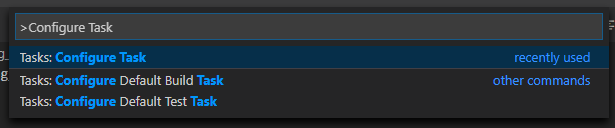
選擇 Create tasks.json file from template 選項。

然後選擇 Others。
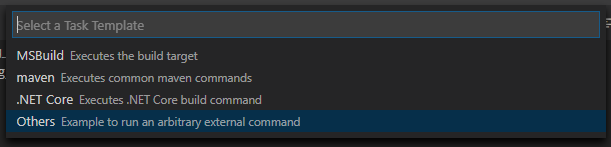
如果沒有 Create tasks.json file from template 這個選項,請確認資料夾內沒有同名檔案,或自行手動建立
.vscode/tasks.json。更多工作相關資訊請見:Tasks in Visual Studio Code。在
tasks.json檔案找到"tasks"陣列,新增一組設定內容:.vscode/tasks.json{ "label": "build", "group": "build", "type": "shell", "command": "scons", "args": [ // enable for debugging with breakpoints "dev_build=yes", ], "problemMatcher": "$msCompile" }
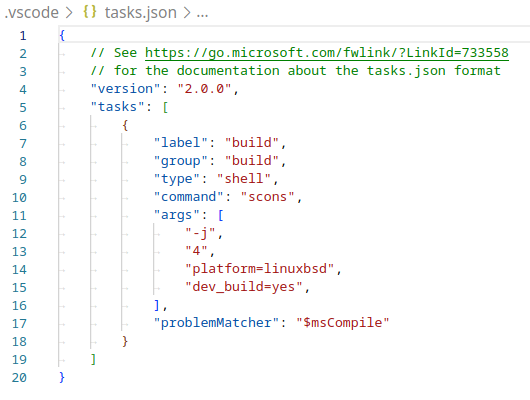
填妥的 tasks.json 範例。
參數可依你自身需求調整,完整參數列表請見 建置系統介紹。
除錯專案
如需執行與除錯專案,必須在 launch.json 新增設定。
按下 Ctrl + Shift + D 開啟執行(Run)面板。
若缺少
launch.json,系統會提示你建立新檔案。
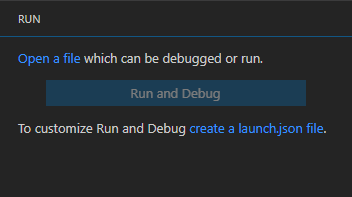
選擇 C++ (GDB/LLDB),若有平台專屬選項請依需求選擇,並依實際情況調整下方範例設定。
在
launch.json檔案找到"configurations"陣列,新增一組設定內容:
{
  "name": "Launch Project",
  "type": "lldb",
  "request": "launch",
  // Change to godot.linuxbsd.editor.dev.x86_64.llvm for llvm-based builds.
  "program": "${workspaceFolder}/bin/godot.linuxbsd.editor.dev.x86_64",
  // Change the arguments below for the project you want to test with.
  // To run the project instead of editing it, remove the "--editor" argument.
  "args": [ "--editor", "--path", "path-to-your-godot-project-folder" ],
  "stopAtEntry": false,
  "cwd": "${workspaceFolder}",
  "environment": [],
  "externalConsole": false,
  "preLaunchTask": "build"
}
{
  "name": "Launch Project",
  "type": "cppdbg",
  "request": "launch",
  // Change to godot.linuxbsd.editor.dev.x86_64.llvm for llvm-based builds.
  "program": "${workspaceFolder}/bin/godot.linuxbsd.editor.dev.x86_64",
  // Change the arguments below for the project you want to test with.
  // To run the project instead of editing it, remove the "--editor" argument.
  "args": [ "--editor", "--path", "path-to-your-godot-project-folder" ],
  "stopAtEntry": false,
  "cwd": "${workspaceFolder}",
  "environment": [],
  "externalConsole": false,
  "setupCommands":
  [
    {
      "description": "Enable pretty-printing for gdb",
      "text": "-enable-pretty-printing",
      "ignoreFailures": true
    },
    {
        "description": "Load custom pretty-printers for Godot types.",
        "text": "source ${workspaceRoot}/misc/utility/godot_gdb_pretty_print.py"
    }
  ],
  "preLaunchTask": "build"
}
{
  "name": "Launch Project",
  "type": "cppvsdbg",
  "request": "launch",
  "program": "${workspaceFolder}/bin/godot.windows.editor.dev.x86_64.exe",
  // Change the arguments below for the project you want to test with.
  // To run the project instead of editing it, remove the "--editor" argument.
  "args": [ "--editor", "--path", "path-to-your-godot-project-folder" ],
  "stopAtEntry": false,
  "cwd": "${workspaceFolder}",
  "environment": [],
  "console": "internalConsole",
  "visualizerFile": "${workspaceFolder}/platform/windows/godot.natvis",
  "preLaunchTask": "build"
}
{
  "name": "Launch Project",
  "type": "lldb",
  "request": "launch",
  "program": "${workspaceFolder}/bin/godot.macos.editor.x86_64",
  // Change the arguments below for the project you want to test with.
  // To run the project instead of editing it, remove the "--editor" argument.
  "args": ["--editor", "--path", "path-to-your-godot-project-folder"],
  "cwd": "${workspaceFolder}",
  "preLaunchTask": "build"
}
{
  "name": "Launch Project",
  "type": "lldb",
  "request": "launch",
  "program": "${workspaceFolder}/bin/godot.macos.editor.arm64",
  // Change the arguments below for the project you want to test with.
  // To run the project instead of editing it, remove the "--editor" argument.
  "args": ["--editor", "--path", "path-to-your-godot-project-folder"],
  "cwd": "${workspaceFolder}",
  "preLaunchTask": "build"
}
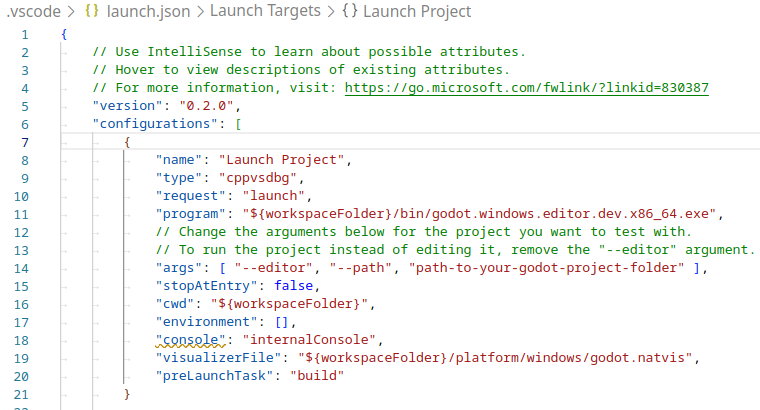
填妥的 launch.json 範例。
備註
因偶發的效能問題,在類 Unix 系統上建議使用 LLDB 而非 GDB。請確認針對使用 lldb 的設定已安裝 CodeLLDB 擴充功能。
若遇到 lldb 問題,可考慮改用 gdb(參考 LinuxBSD_gdb 設定)。
注意 lldb 在 LLVM 編譯環境下表現較佳,詳情請參考 在 Linux、*BSD 上編譯。
program 欄位的名稱依你建置參數而異,例如 64 位元 LinuxBSD 編輯器開發版為 godot.linuxbsd.editor.dev.x86_64。
Configuring IntelliSense
針對 C/C++ 擴充模組:
若遇到標頭檔 include 錯誤,請調整 c_cpp_properties.json 設定檔。
首先請先建置專案,因為某些檔案需先產生。
你可透過圖形介面或直接編輯文字檔來調整 C/C++ 設定檔:

針對你的平台新增 include 路徑,例如
${workspaceFolder}/platform/windows。新增編輯器
TOOLS_ENABLED、除錯版DEBUG_ENABLED,以及測試TESTS_ENABLED等巨集定義。請確認 compiler path 指向你實際使用的編譯器。不同平台細節可參考 建置系統介紹。
Windows 下的
c_cpp_properties.json範例:.vscode/c_cpp_properties.json{ "configurations": [ { "name": "Win32", "includePath": [ "${workspaceFolder}/**", "${workspaceFolder}/platform/windows" ], "defines": [ "_DEBUG", "UNICODE", "_UNICODE", "TOOLS_ENABLED", "DEBUG_ENABLED", "TESTS_ENABLED" ], "windowsSdkVersion": "10.0.22621.0", "compilerPath": "C:/Program Files/Microsoft Visual Studio/2022/Community/VC/Tools/MSVC/14.39.33519/bin/Hostx64/x64/cl.exe", "cStandard": "c17", "cppStandard": "c++17", "intelliSenseMode": "windows-msvc-x64" } ], "version": 4 }
你也可以用 scons 參數
compiledb=yes,並在 C/C++ 設定介面進階選項將compileCommands設為compile_commands.json。這個參數可加入
tasks.json的建置任務,方便每次新增或移動檔案時重新產生。
Linting class reference XML files
如需對 class reference XML 檔案進行語法檢查,請安裝 vscode-xml 擴充套件。
Displaying documentation on hover
By installing the Godot Hover Docs extension, you can make class reference documentation appear when hovering symbols in C++ source or header files. The information is sourced from local XML files, so it works offline.
備註
This is only effective for symbols that are documented in the class reference XML, i.e. those that are exposed to the scripting API. Internal engine symbols will not show documentation on hover, unless they have a comment right above their declaration.
疑難排解
如遇問題,歡迎到 Godot 社群頻道 求助。