Attention: Here be dragons
This is the latest
(unstable) version of this documentation, which may document features
not available in or compatible with released stable versions of Godot.
Checking the stable version of the documentation...
群組
Godot 中的群組功能類似於其他軟體的標籤。你可以將一個節點加入任意數量的群組。之後,你可以在程式碼中透過 SceneTree 進行以下操作:
取得群組中的節點清單。
對群組內所有節點呼叫某個方法。
向群組內所有節點發送通知。
這個功能對於管理大型場景及降低程式碼耦合度非常有用。
管理群組
群組是在你將節點新增到一個新的群組名稱時建立的,當某一個群組中的所有節點都被移除時,該群組也就不存在了。
有兩種方式可以將節點加入或移除群組:
During design, by using the Groups dock in the editor, or the Groups tab in the Globals dock in project settings.
執行階段時,使用 Node.add_to_group() 或 Node.remove_from_group() 來加入或移除群組。
小訣竅
While not strictly required, it's recommended to use the snake_case naming
convention for group names.
Using the Groups dock
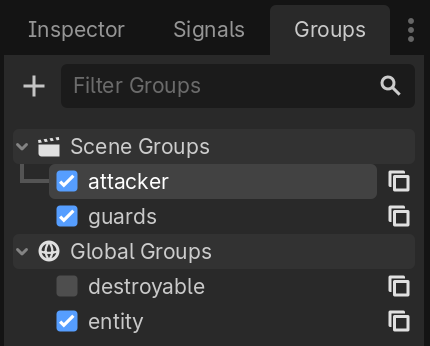
You can create new groups using the Groups dock.
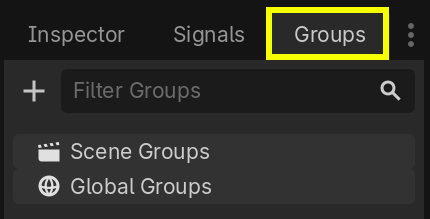
在「場景」面板中選擇一個節點,然後點選帶有「+」符號的新增按鈕。
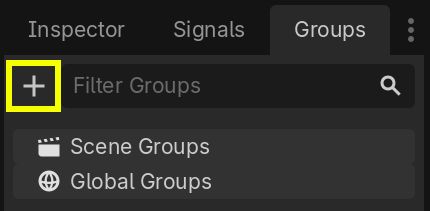
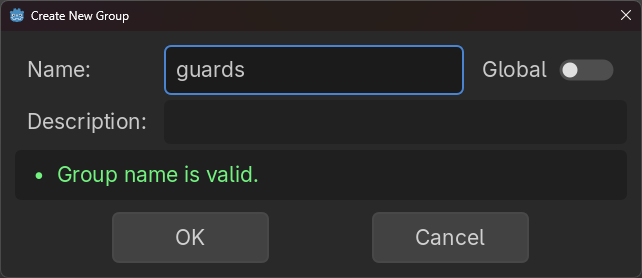
此時會跳出「建立新群組」的視窗,請在欄位中輸入群組名稱。
你可以選擇勾選「全域」選項,這樣該群組將會在整個專案中可見,並可於任何場景重複使用。此時也能為群組新增描述。
完成後,按下「確定」以建立群組。
You should see the new groups appear in the Groups dock under Scene Groups if the Global option was unmarked, or under Global Groups if that option was marked.
在「群組」分頁中,勾選群組名稱左側的核取方塊即可將場景面板選中的節點加入群組。新建群組時,當前選中的節點會自動被勾選加入該群組。
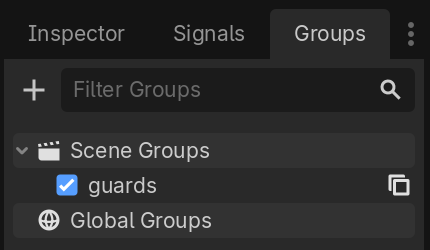
所有在專案中被設為全域的群組,不論在哪個場景建立,都會在「全域群組」下顯示。
其他從目前場景節點建立的群組則會顯示在「場景群組」下。
警告
全域群組和場景群組的底層邏輯完全相同,只是歸類方式不同。具有相同名稱的群組會被視為同一個群組。這個設計純粹是為了組織方便。
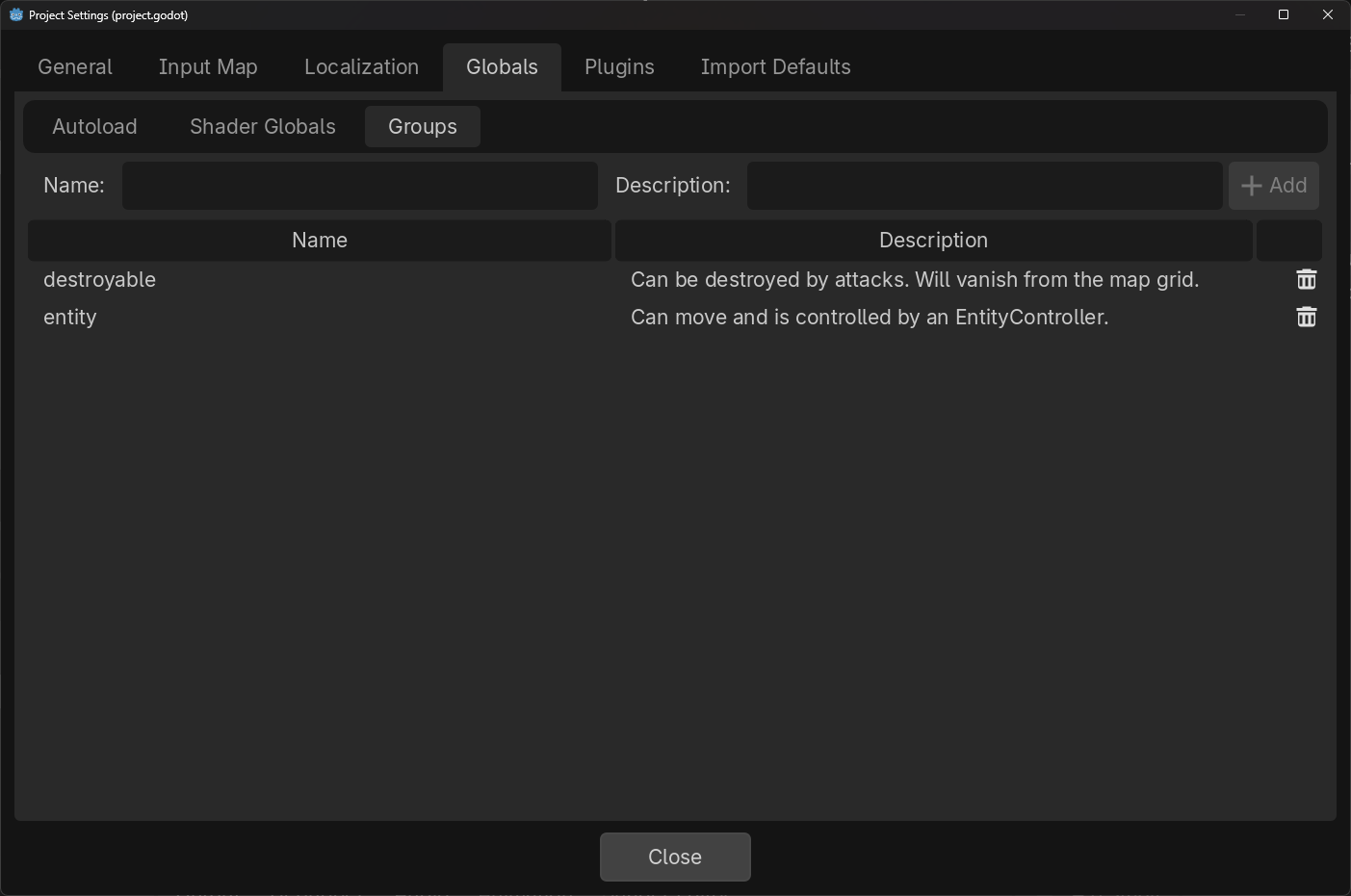
You can manage Global Groups in the Groups tab of the Globals dock, inside Project Settings. There, you will be able to add new global groups, or change existing groups' names and descriptions.
使用程式碼
你也可以用腳本來管理群組。下列程式碼會在節點進入場景樹時,將其加入 guards 群組。
func _ready():
    add_to_group("guards")
public override void _Ready()
{
    base._Ready();

    AddToGroup("guards");
}
假設你正在開發一款潛行遊戲。當有敵人發現玩家時,你希望所有守衛與機器人都進入警戒狀態。
在下方的範例中,我們使用 SceneTree.call_group() 來通知所有敵人,玩家已被發現。
func _on_player_spotted():
    get_tree().call_group("guards", "enter_alert_mode")
public void _OnPlayerDiscovered()
{
    GetTree().CallGroup("guards", "enter_alert_mode");
}
上述程式碼會對 guards 群組所有成員呼叫 enter_alert_mode 方法。
如果你想取得 guards 群組所有節點的陣列,可以呼叫 SceneTree.get_nodes_in_group():
var guards = get_tree().get_nodes_in_group("guards")
var guards = GetTree().GetNodesInGroup("guards");
SceneTree 類別還提供許多實用方法,方便你操作場景、節點階層與群組,例如可以輕鬆切換或重新載入場景、結束遊戲、暫停與取消暫停等。此外也有很多實用訊號可供使用。