Attention: Here be dragons
This is the latest
(unstable) version of this documentation, which may document features
not available in or compatible with released stable versions of Godot.
Checking the stable version of the documentation...
為 Windows 匯出
也參考
這個頁面描述的是如何將 Godot 專案匯出到 Windows。如果你想要找的是從源碼編譯編輯器或匯出範本二進位檔案,請閱讀 在 Windows 上編譯。
要為 PC 發行遊戲最簡單的方法就是複製可執行檔 (Windows 上為 godot.exe ,其餘為 godot),壓縮資料夾並將壓縮檔傳送給其他人。但我們通常不想這麼做。
通過匯出系統,Godot 提供一種更優雅的方法來在 PC 平台上發行。為 PC 平台匯出時 (Linux, Windows, macOS),匯出工具會以所有的專案檔案建立成一個 data.pck 檔案。該檔案會內涵一個特別最佳化過的二進位,這個二進位檔更小、更快,而且不包含編輯器與除錯工具。
架構
There are 3 different processor architectures that exported Godot projects can run on in Windows:
x86_64
x86_32
arm64
The default is x86_64, this is the most common architecture of PC processors today. All modern Intel and AMD processors as of writing this are x86_64.
x86_32 will give you a 32bit executable that can run on 32bit-only versions of Windows as well as modern versions which are 64bit. It is not recommended to use this option unless you are trying to get your project to run on an old 32bit version of Windows. And it should be noted that no 32bit versions of Windows receive Microsoft support anymore.
arm64 processors are modern but less common than x86_64, and run Windows on ARM. Snapdragon X Elite is an example of a modern Windows ARM processor. Using this export option will allow your project to run natively on arm processors without Microsoft's Prism emulator. Executables made using this option will not run on regular Windows with an x86_64 processor. If you're uploading your project to a platform that allows multiple executables, such as itch.io, and are confident a Snapdragon X Elite processor is powerful enough to run it, we would recommend providing an ARM version. Prism emulation is far from perfect, and Godot does not require you to build or design your game in any special way to run on ARM.
更改可執行檔圖示
Godot 會自動使用專案設定中設為專案圖示的影像,並在匯出專案時轉換為 ICO 檔案。若你想手動建立 ICO 檔,以便更精細地控制各種解析度下的顯示效果,請參考 手動更改 Windows 應用程式圖示。
PCK embedding
PCK embedding is only supported on executables up to ~3.89 GB in size. This metric includes both the executable and embedded PCK size, so in practice, the PCK file may only weigh up to ~3.75 GB. This can also vary depending on build options when using a custom export template.
程式碼簽章
Godot 支援在匯出時自動進行程式碼簽章。要啟用此功能,請在 Windows 系統安裝 Windows SDK,或在其他作業系統安裝 osslsigncode。你還需要一份套件簽章憑證,建立方式可參考 這裡。
設定
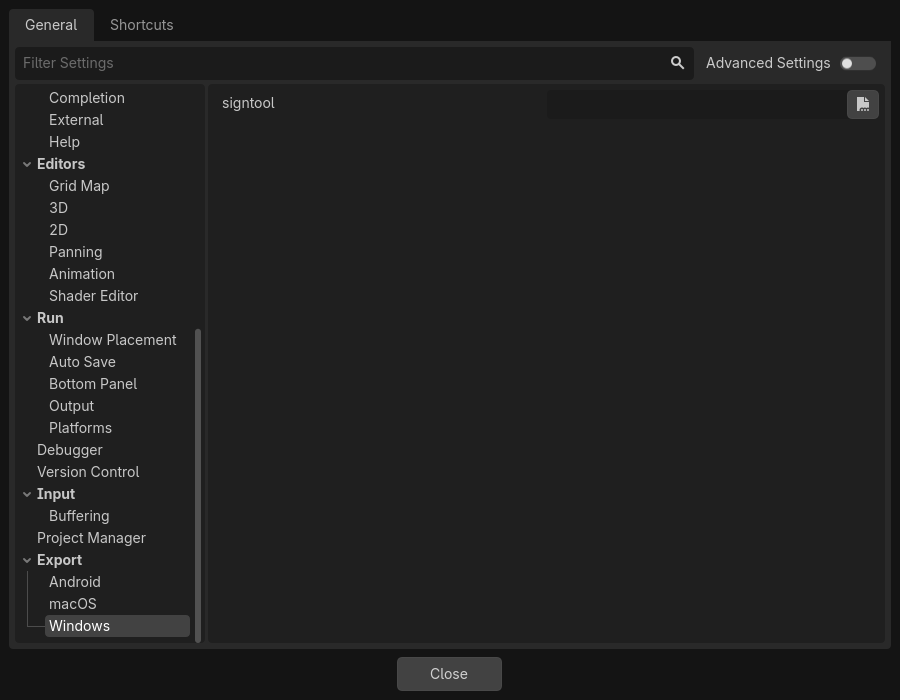
需要更改兩個地方的設定。首先,在編輯器設定中的 匯出 > Windows 下。點擊“Sign Tool”設定旁邊的資料夾,如果您使用的是 Windows,請導覽至並選擇“SignTool.exe”,如果您使用的是其他作業系統,請選擇“osslsigncode”。
第二個位置是 Windows 匯出預設,可以在 專案 > 匯出... 中找到。新增 Windows 桌面預設(如果尚未新增)。在選項下有一個程式碼簽章類別。
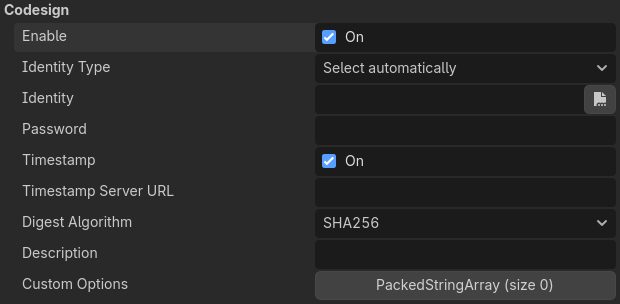
Enabled must be set to true, and Identity must be set to the signing
certificate. The other settings can be adjusted as needed. Once this is done
Godot will sign your project on export.
環境變數
您可以使用下列環境變數在編輯器外部設定匯出選項。在匯出過程中,這些值會覆寫您在匯出選單中設定的值。
匯出選項 |
環境變數 |
|---|---|
加密/加密金鑰 |
|
選項/協同設計/身分型別 |
|
選項/協同設計/身份 |
|
選項/程式碼設計/密碼 |
|
匯出選項
完整的可用匯出選項列表請見 EditorExportPlatformWindows 類別參考。