Attention: Here be dragons
This is the latest
(unstable) version of this documentation, which may document features
not available in or compatible with released stable versions of Godot.
Checking the stable version of the documentation...
Android Studio
Android Studio 是由 Google 與 JetBrains 提供的免費 Android 開發 IDE,基於 IntelliJ IDEA,內建功能豐富的編輯器,支援 Java 與 C/C++。可用於 Godot 核心引擎與 Android 平台相關原始碼的開發。
匯入專案
在 Android Studio 的歡迎畫面中選擇 Open。
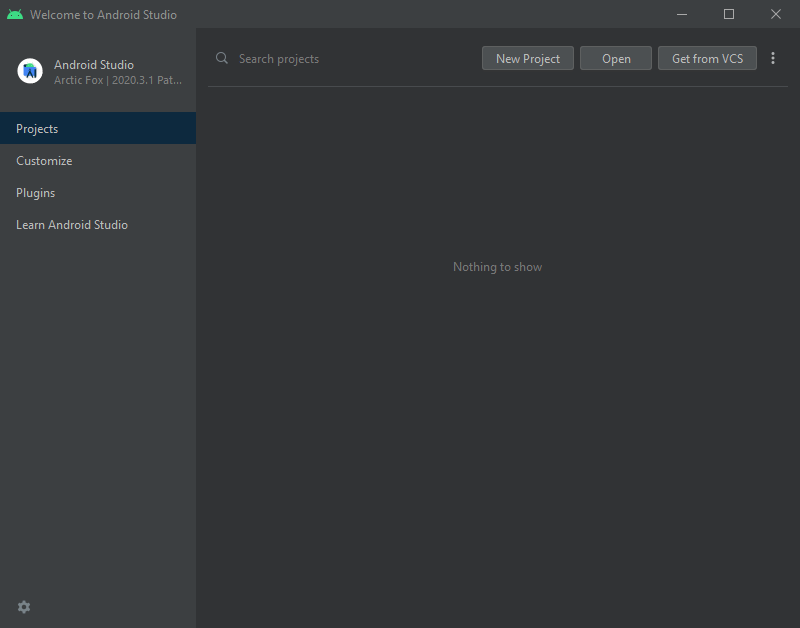
Android Studio 的歡迎畫面。
前往
<Godot 根目錄>/platform/android/java並選擇settings.gradle檔案。Android Studio 會匯入並建立專案索引。
Android Studio 專案結構
Godot Android 專案是以 Android Studio 的模組方式 組織的:
lib module:
Located under
<Godot root directory>/platform/android/java/lib, this is a library module that organizes the Godot java and native code and make it available as a reusable Android library.The generated Godot Android library is made available for other Android modules / projects via MavenCentral, along with its documentation.
editor module:
Located under
<Godot root directory>/platform/android/java/editor, this is an application module that holds the source code for the Android and XR ports of the Godot Editor.This module has a dependency on the lib module.
app module:
Located under
<Godot root directory>/platform/android/java/app, this is an application module that holds the source code for the Android build templates.This module has a dependency on the lib module.
建置與除錯 editor 模組
要建置
editor模組:要除錯
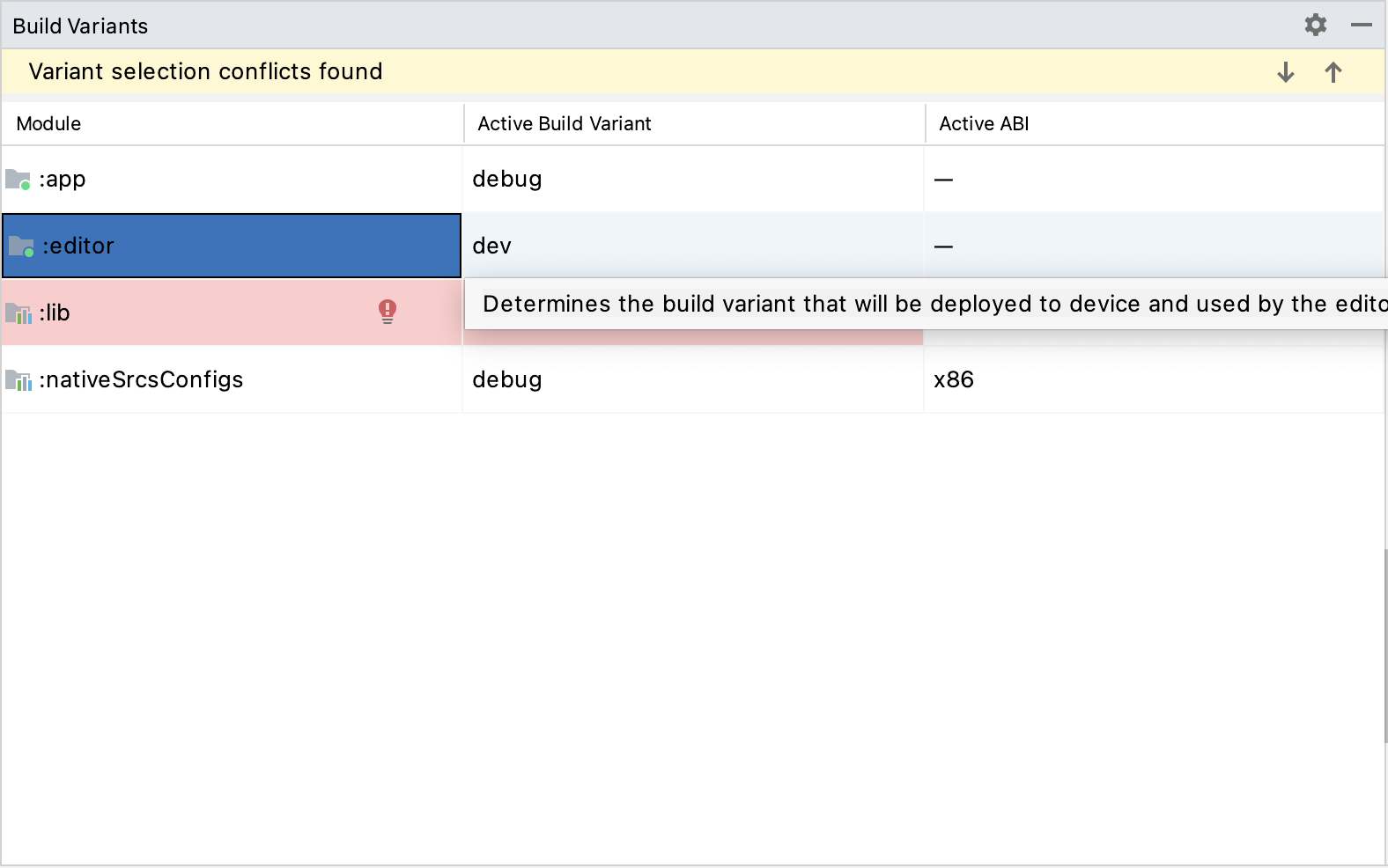
editor模組:在上方選單選擇 View > Tool Windows > Build Variants 開啟 Build Variants 視窗。
In the Build Variants window, make sure that in the Active Build Variant column, the
:editorentry is set to one of the Debug variants.
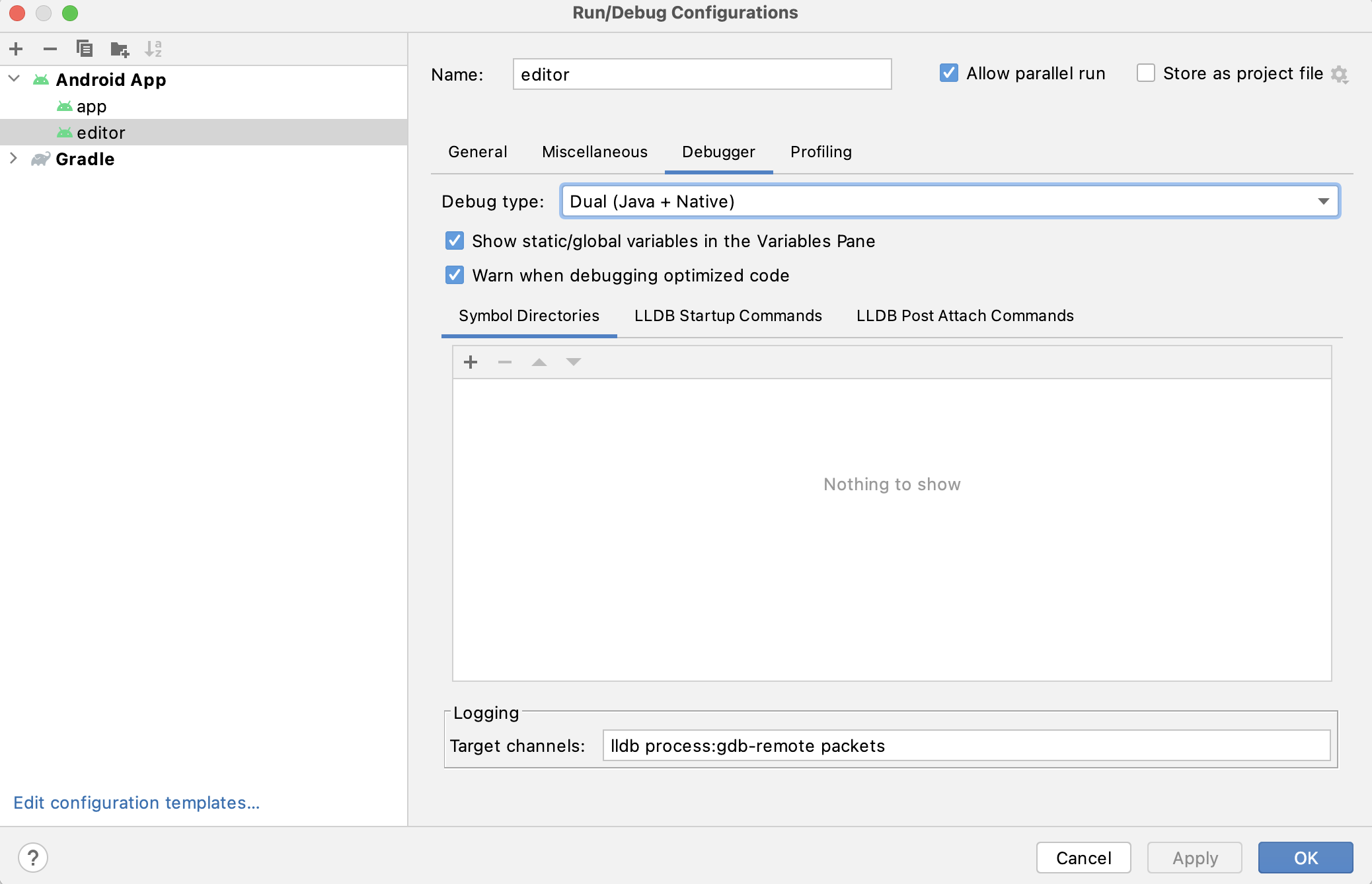
於上方選單點選 Run > Edit Configurations... 開啟 運作/除錯設定 視窗。
於 運作/除錯設定 視窗中,選擇
editor條目,並於 Debugger 區塊將 Debug Type 設為Dual (Java + Native)Click the
+sign under the Symbol Directories section, and add theplatform/android/java/lib/libs/tools/debugdirectory.
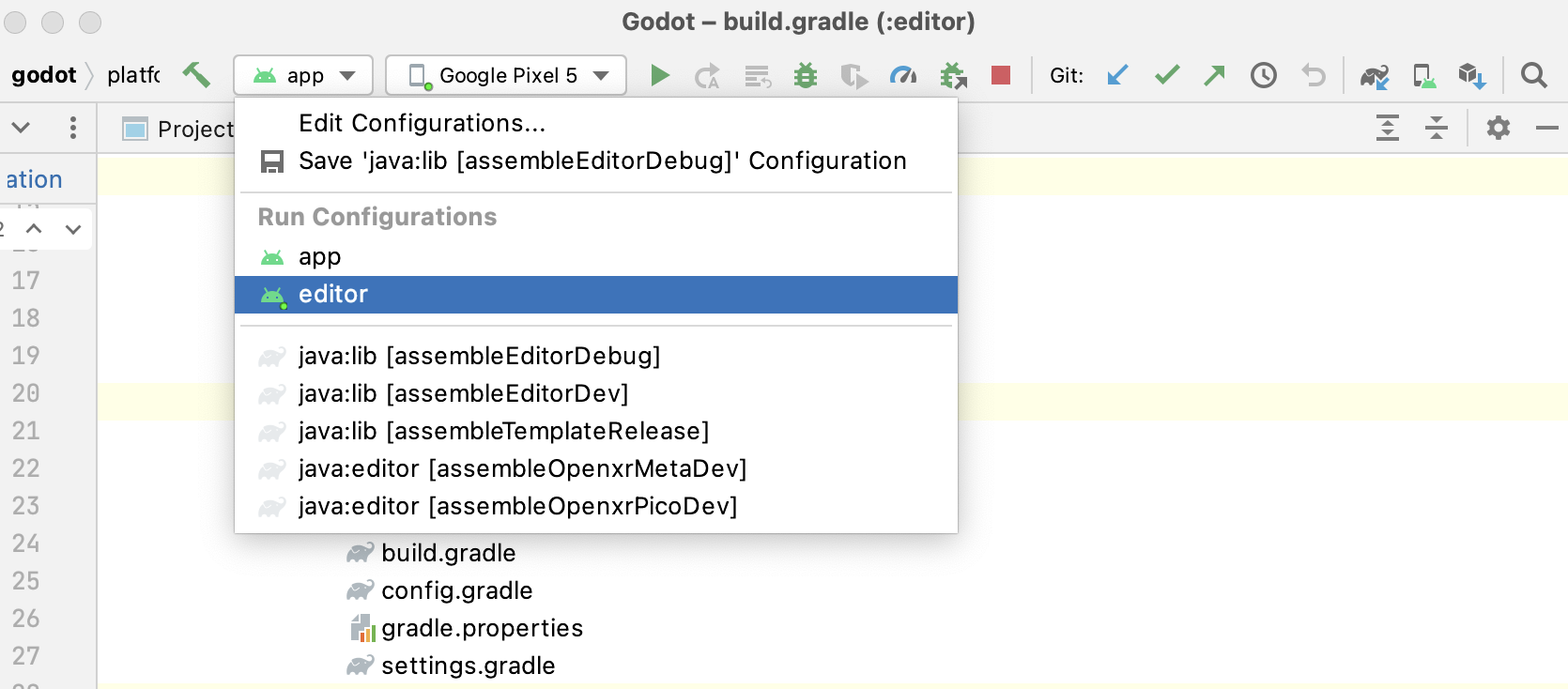
從上方選單選擇 Run > Debug 'editor' 或點擊 偵錯圖示。
建置與除錯 app 模組
The app module requires the presence of a Godot project in its assets directory (<Godot root directory>/platform/android/java/app/src/main/assets) to run.
This is usually handled by the Godot Editor during the export process.
While developing in Android Studio, it's necessary to manually add a Godot project under that directory to replicate the export process.
Once that's done, you can follow the instructions below to run/debug the app module:
要建置
app模組:要除錯
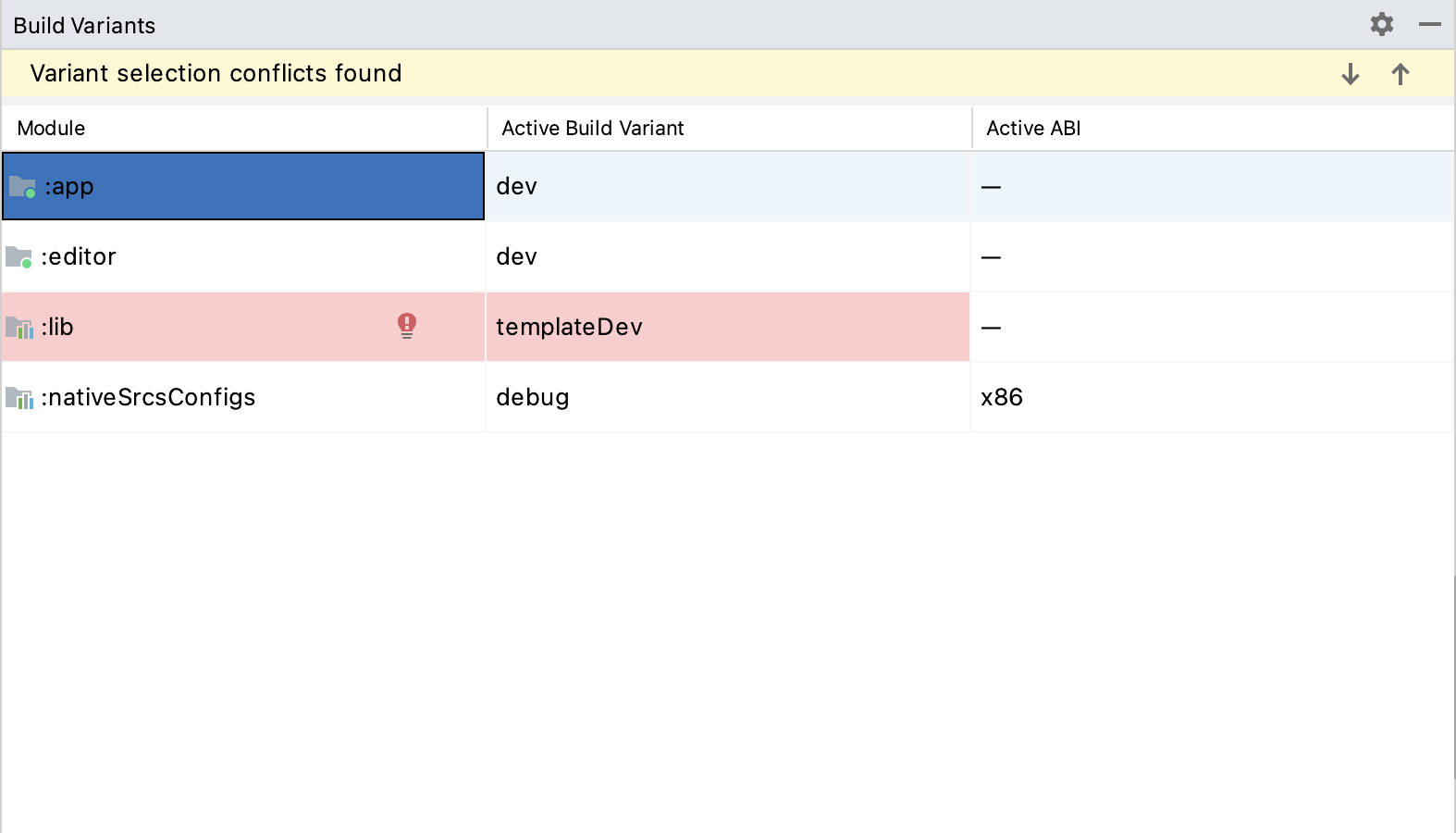
app模組:在上方選單選擇 View > Tool Windows > Build Variants 開啟 Build Variants 視窗。
In the Build Variants window, make sure that in the Active Build Variant column, the
:appentry is set to one of the Debug variants.
於上方選單點選 Run > Edit Configurations... 開啟 運作/除錯設定 視窗。
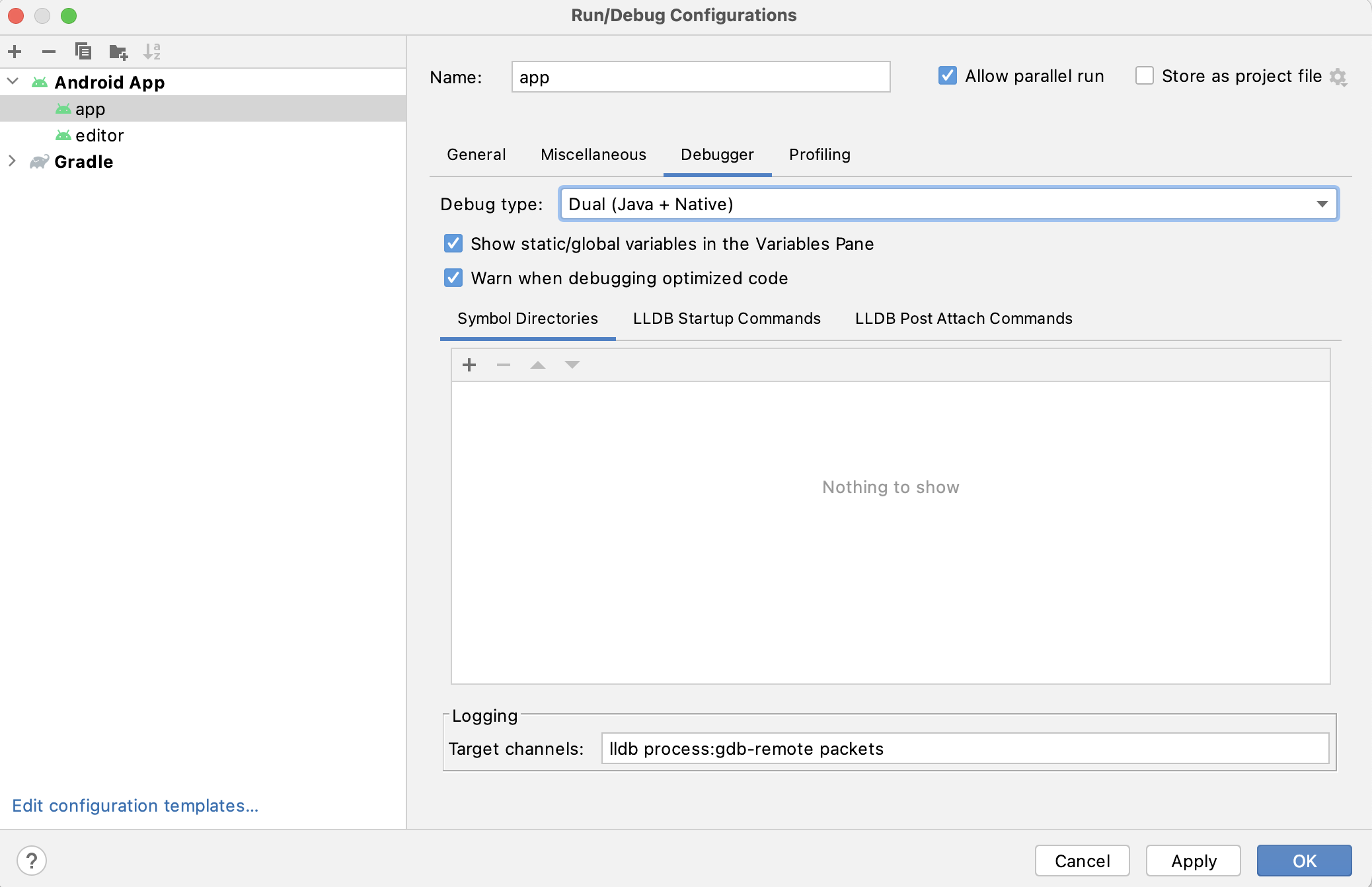
於 運作/除錯設定 視窗中,選擇
app條目,並於 Debugger 區塊將 Debug Type 設為Dual (Java + Native)Click the
+sign under the Symbol Directories section, and add theplatform/android/java/lib/libs/debugdirectory.
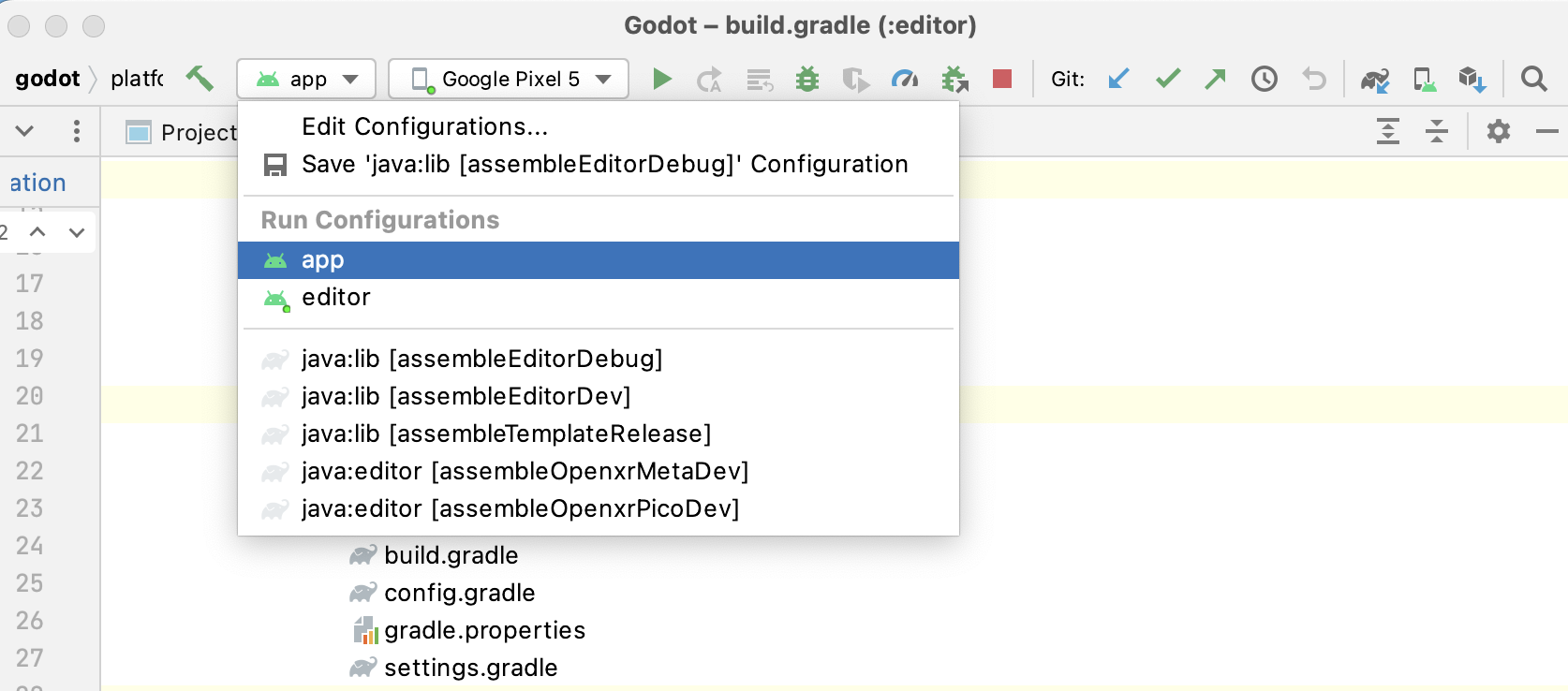
從上方選單選擇 Run > Debug 'app' 或點擊 偵錯圖示。
若遇到任何問題,請至 Godot Android 開發頻道 詢問協助。