Attention: Here be dragons
This is the latest
(unstable) version of this documentation, which may document features
not available in or compatible with released stable versions of Godot.
Checking the stable version of the documentation...
Xcode
Xcode 是僅限 macOS 的免費 IDE,可從 Mac App Store 下載。
匯入專案
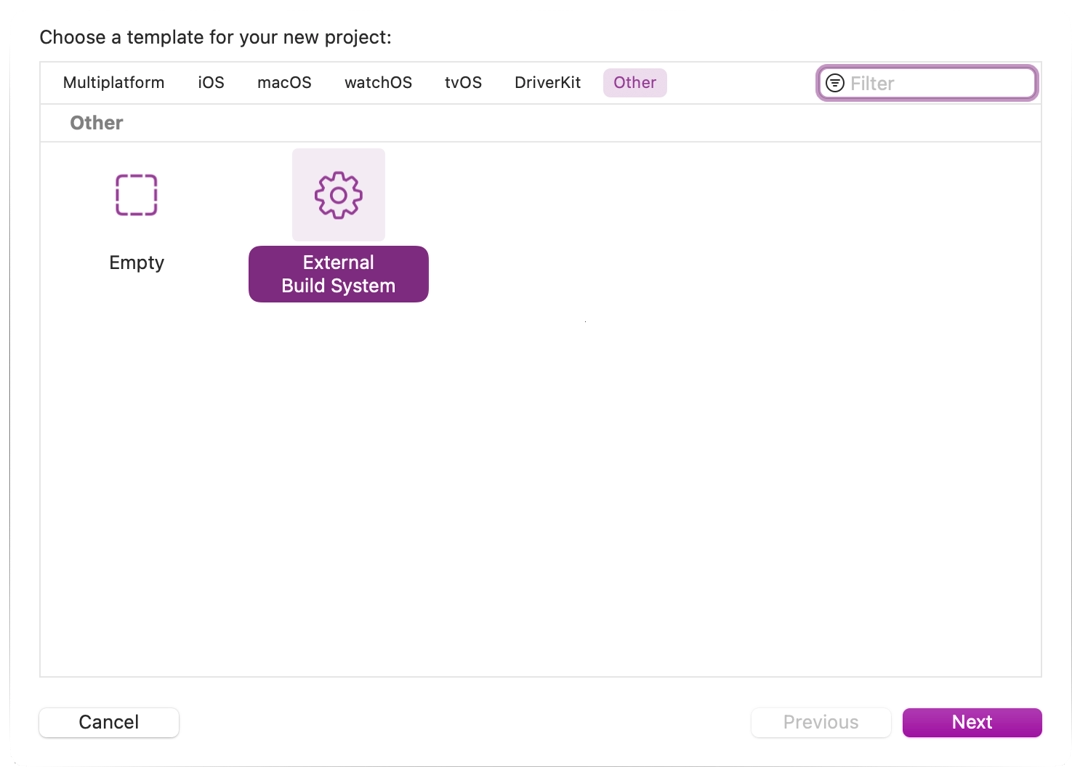
在 Xcode 主畫面選擇 Other > External Build System 樣板建立新專案。
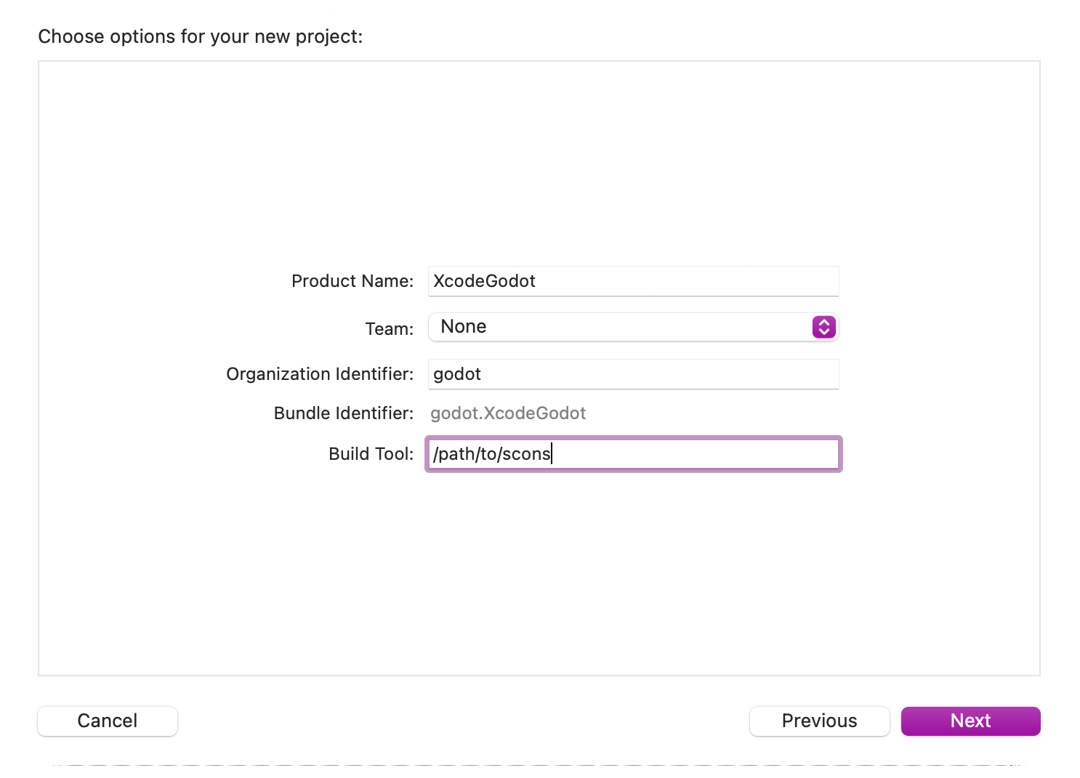
接著為專案命名,並在建置工具中設定 scons 執行檔的路徑(可在終端機輸入
where scons查找)。
在 Targets 區段開啟主要建置目標,並切換到 Info 分頁。
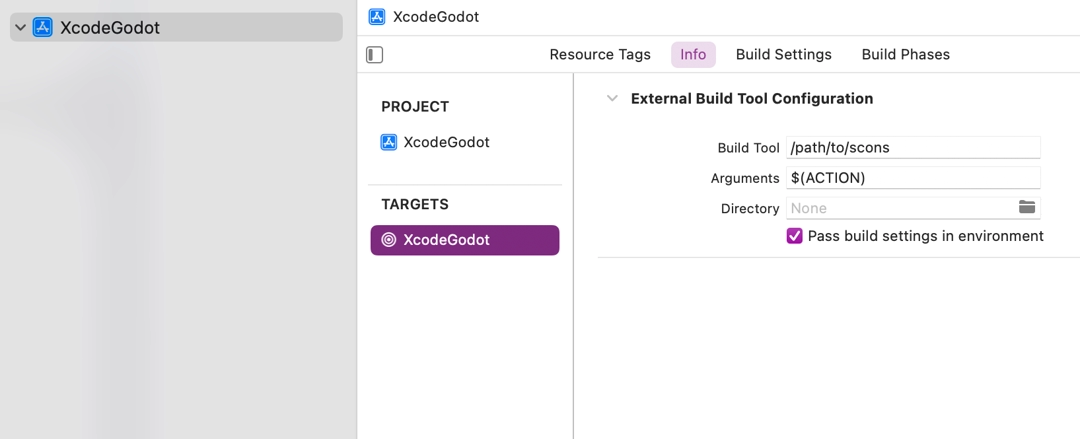
請依下列設定填寫表單:
參數
所有可用參數請見 建置系統介紹。
目錄
Godot 根目錄的完整路徑
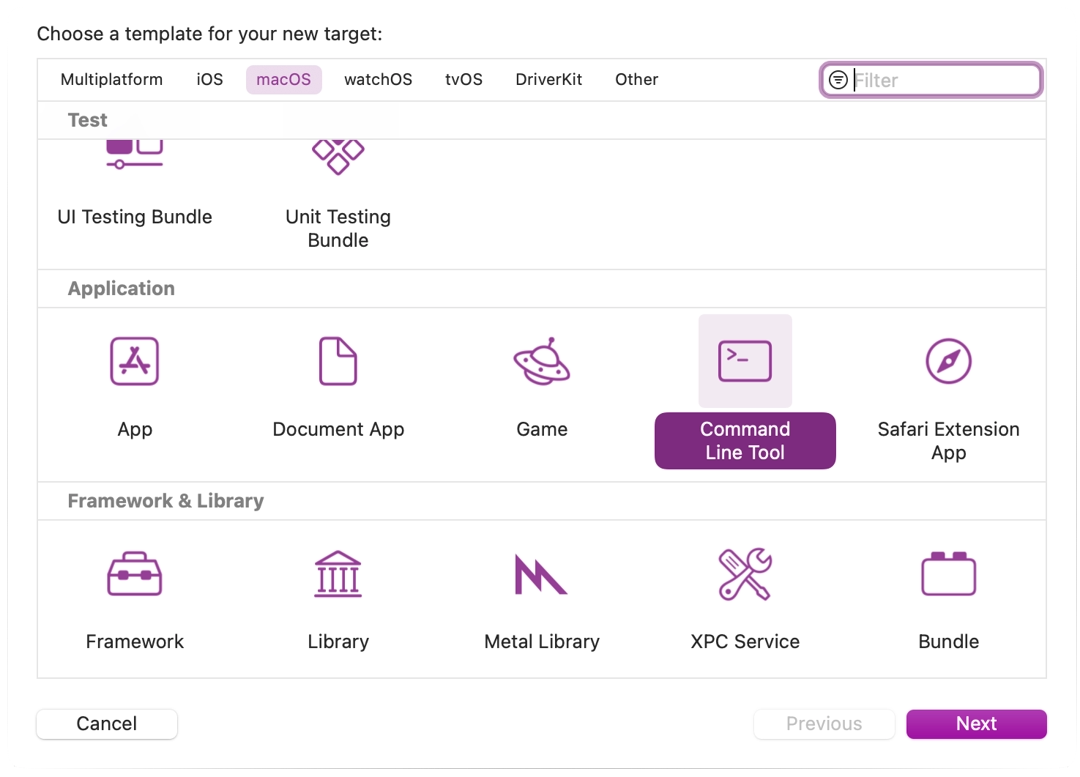
選擇 File > New > Target... 新增一個 Command Line Tool 目標,讓 Xcode 用來建立索引。
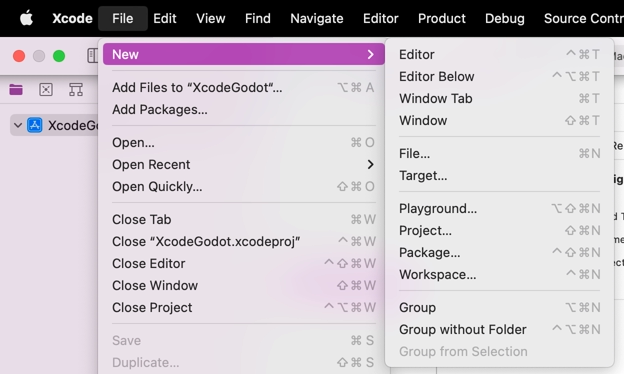
選擇 macOS > Application > Command Line Tool。
備註
可將此目標命名為 GodotXcodeIndex (或其它易於辨識的名稱),以避免誤用於編譯。
針對此建置目標,切換到 Build Settings,搜尋 Header Search Paths。
將 Header Search Paths 設為 Godot 根目錄的絕對路徑,並包含子目錄(於最後加上
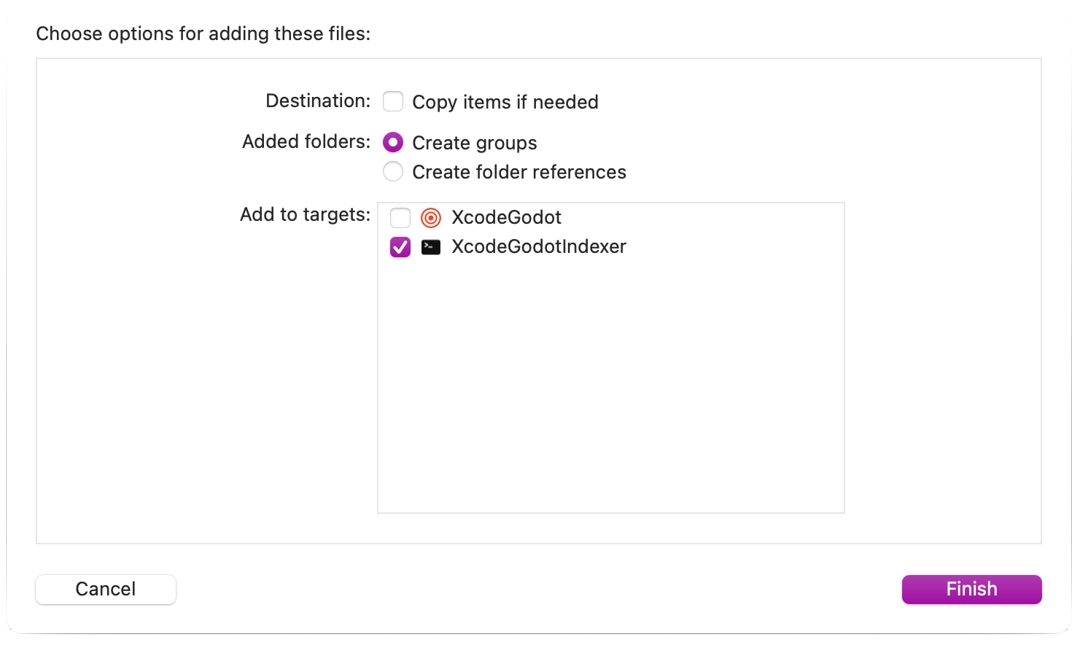
**,例如/Users/me/repos/godot-source/**)。將 Godot 原始碼資料夾拖曳進專案檔案瀏覽器,加入專案。
於 Added folders 選擇 Create groups,並於 Add to targets 僅勾選剛剛建立的命令列索引目標。
Xcode 會開始建立索引,過程可能需數分鐘。
索引完成後,即可享有跳至定義、自動補全與完整語法高亮等功能。
除錯專案
如要啟用除錯功能,需調整外部建置目標的建置與執行 scheme。
開啟外部建置目標的 scheme 編輯器。
找到 Build > Post Actions 區塊。
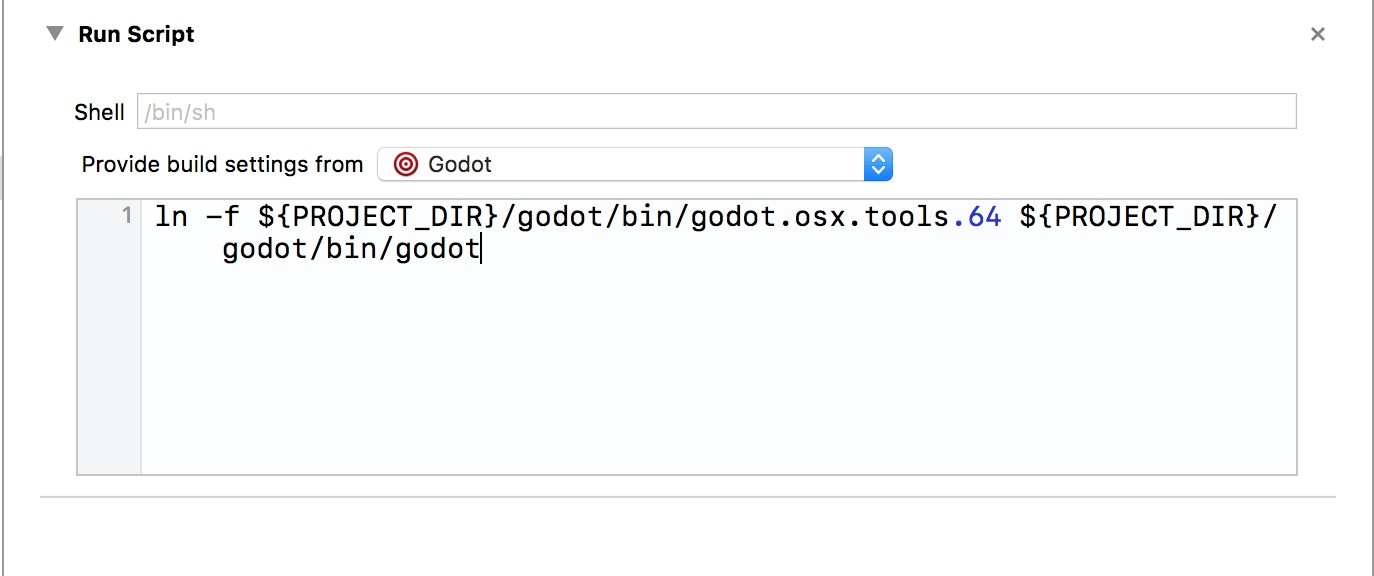
新增一個執行腳本的動作
於 Provide build settings from 選擇你的專案,以便腳本能參照專案目錄。
撰寫腳本,讓 Xcode 能以熟悉名稱找到編譯後的執行檔,例如:
ln -f ${PROJECT_DIR}/godot/bin/godot.macos.tools.64 ${PROJECT_DIR}/godot/bin/godot
建置外部建置目標。
再次開啟 scheme 編輯器,切換到 Run。
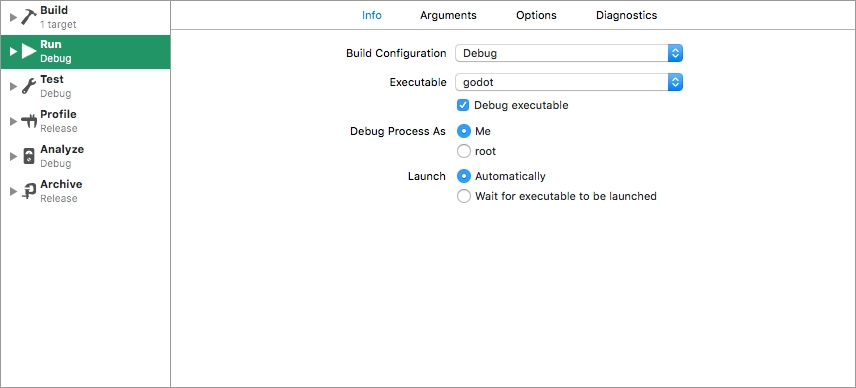
將 Executable 設為你在建置後腳本所建立的執行檔。
勾選 Debug executable。
於 Arguments 分頁可加入兩個參數:「-e」用於直接開啟編輯器,「--path」指定專案(必須為專案根目錄的*絕對路徑*,不是
project.godot檔案)。
要確認一切正常,請在 platform/macos/godot_main_macos.mm 設斷點並執行專案。
如遇問題,歡迎到 Godot 社群頻道 求助。