Attention: Here be dragons
This is the latest
(unstable) version of this documentation, which may document features
not available in or compatible with released stable versions of Godot.
Checking the stable version of the documentation...
為 iOS 匯出
也參考
這個頁面描述的是如何將 Godot 專案匯出到 iOS。如果你想要找的是從源碼編譯編輯器或匯出範本二進位檔案,請閱讀 為 iOS 編譯。
下列步驟為在 Xcode 中載入 Godot 專案的方法。這些步驟能用來建置與部署專案至 iOS 裝置上、為 App Store 建置發行版本,並可在 Xcode 中執行各種其他一般操作。
注意
自 Godot 4.2 起,C# 專案也可以匯出到 iOS,但目前仍屬實驗性支援,且 有部分限制。
系統需求
必須從有安裝 Xcode 的 macOS 電腦上為 iOS 匯出。
下載 Godot 匯出樣板。使用 Godot 選單:[編輯器] > [管理匯出樣板]
匯出 Godot 專案至 Xcode
在 Godot 編輯器中,打開 [專案] 選單中的 [匯出] 視窗。[匯出] 視窗開啟後,點擊 [新增...] 然後選擇 [iOS] 。
The App Store Team ID and (Bundle) Identifier options in the Application category are required. Leaving them blank will cause the exporter to throw an error. The bundle ID must be unique.
備註
A valid bundle ID can only contain alphanumeric characters, hyphens, and periods (A-Z, a-z, 0-9, -, and .).
Apple recommends using reverse-DNS format (e.g. com.example.your-game) of a domain you own, so that your bundle ID is guaranteed to be unique.
Bundle IDs are case-insensitive. See CFBundleIdentifier.
備註
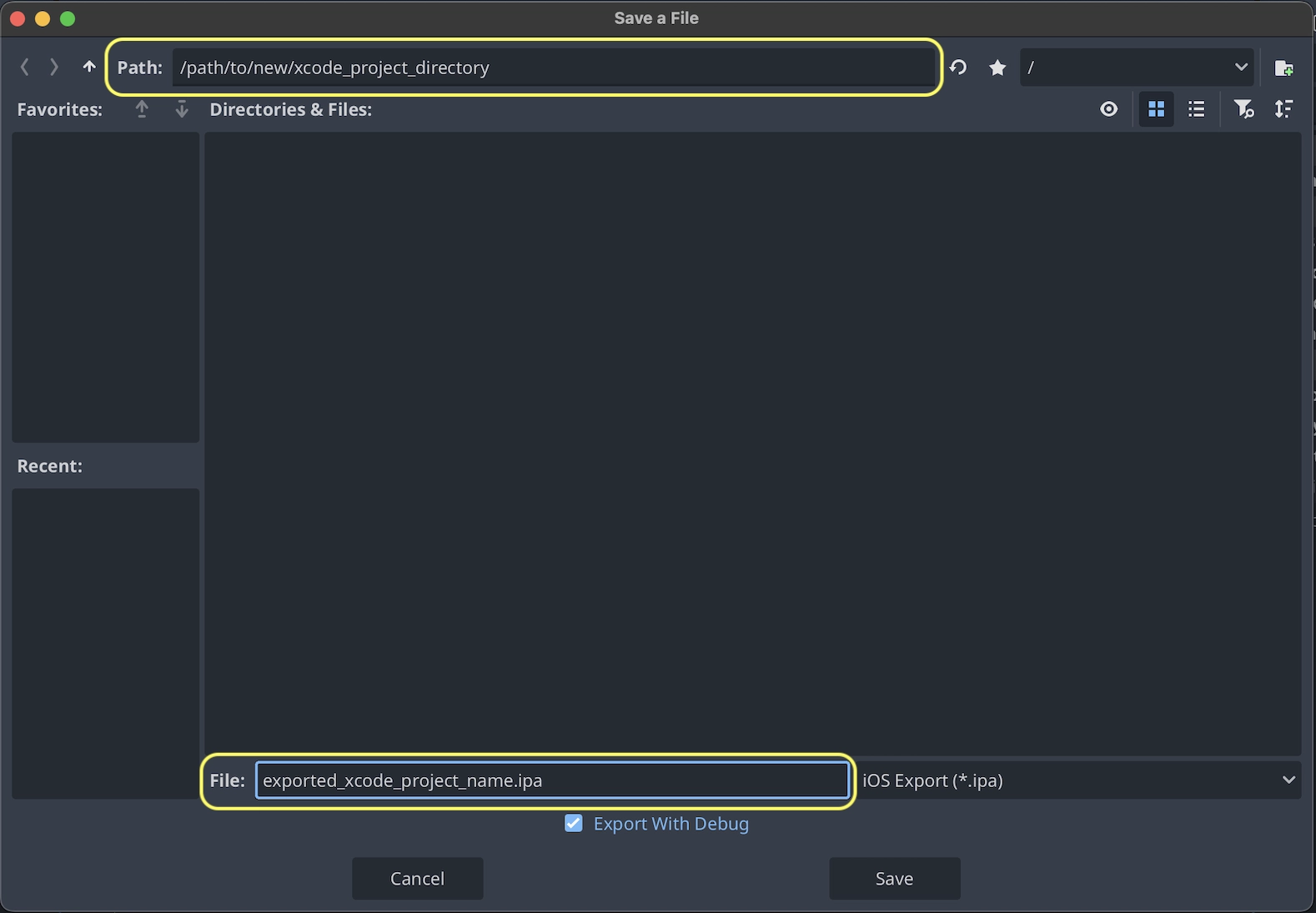
點擊 [匯出專案] 後,還有兩個重要的選項要填:
[路徑] 為一個空資料夾,會用來儲存匯出後的 Xcode 專案檔案。
[檔案] 為 Xcode 專案的名稱,以及各種專案特定檔案與資料夾的名稱。
備註
本教學使用 exported_xcode_project_name ,但實際應該使用專案名稱。在接下來的步驟看到 exported_xcode_project_name 時,請自行替換。
備註
選擇 exported_xcode_project_name 時請避免使用空格,可能會導致 Xcode 專案檔案出錯。
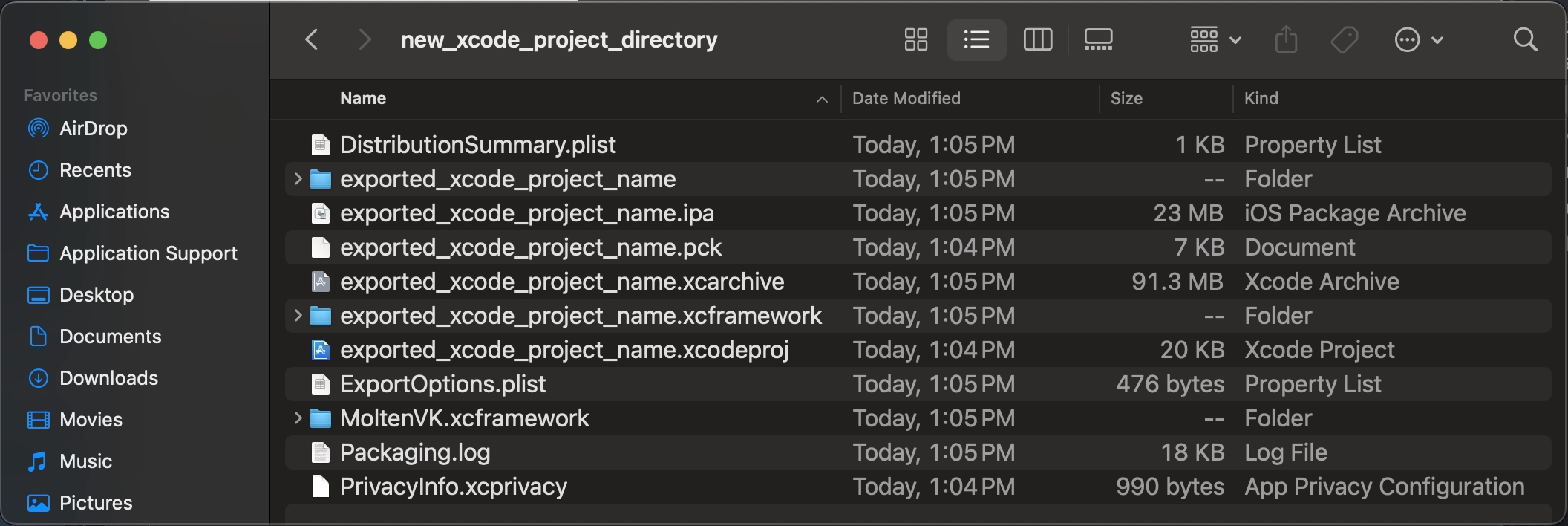
匯出完成後,輸出資料夾應該長得像這樣:
警告
The iOS simulator only supports the Compatibility renderer.
Apple Silicon Macs can run iOS apps natively, so you can run exported iOS projects directly on an Apple Silicon Mac without iOS simulator limitations.
開啟 exported_xcode_project_name.xcodeproj 即可像其他 iOS 應用程式一樣進行建置與部署。
活躍開發中的注意事項
上述方法能建立匯出專案,並用於建置發行版本,但每次於 Godot 中修改後都必須重新匯出。
開發時,可通過直接將 Godot 專案檔案串聯到應用程式中來加速這個過程。
在下方範例中:
exported_xcode_project_name 為匯出的 iOS 應用程式名稱 (如上)。
godot_project_to_export 為 Godot 專案名稱。
備註
godot_project_to_export 不可與 exported_xcode_project_name 相同,以避免 Xcode 上產生簽署問題。
將 Godot 專案資料夾串聯至 Xcode 的步驟
先從匯出的 iOS 專案開始 (依照上面的步驟)。
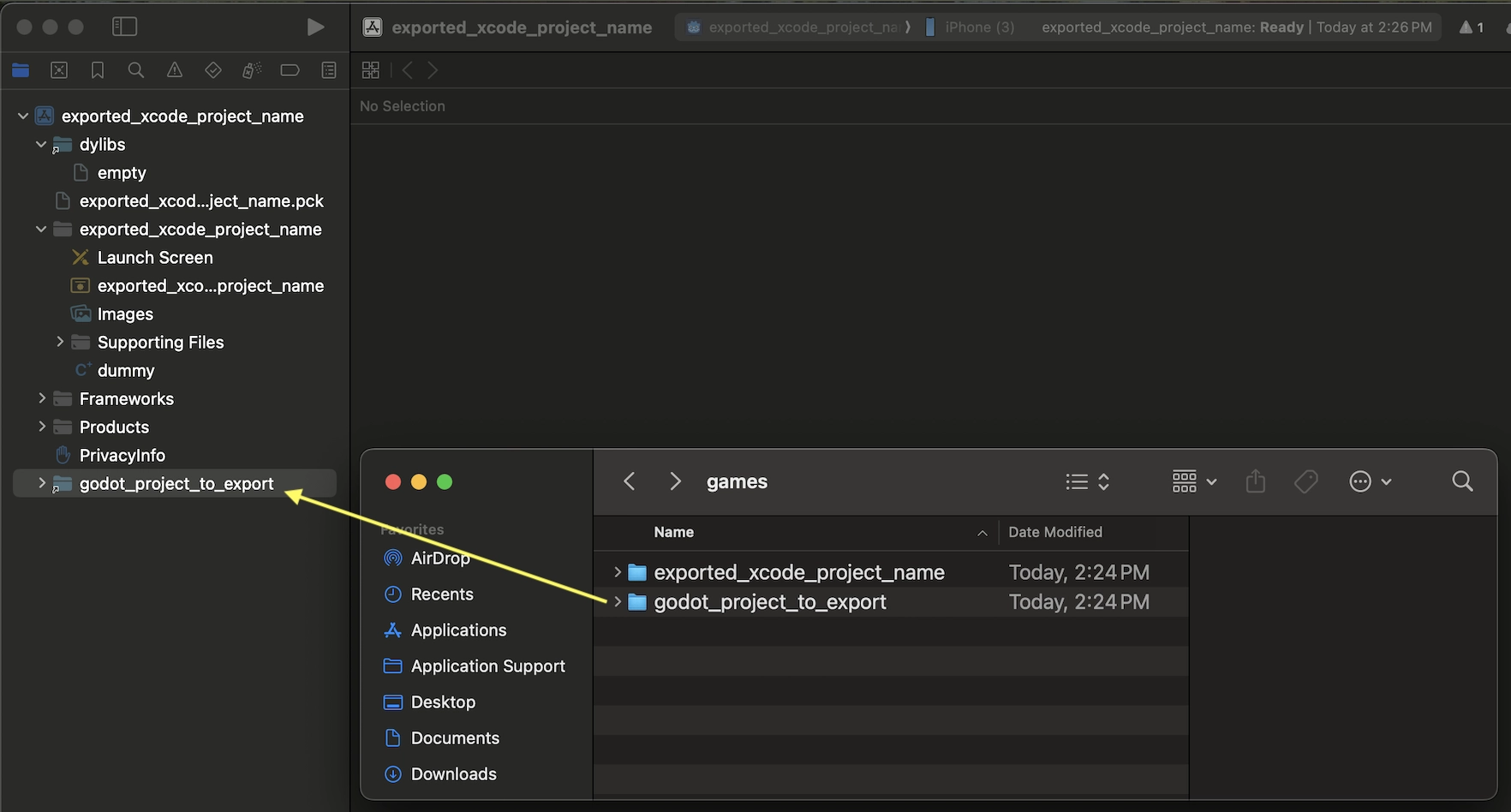
在 Finder 中,將 Godot 專案資料夾拖曳到 Xcode 檔案瀏覽器中。
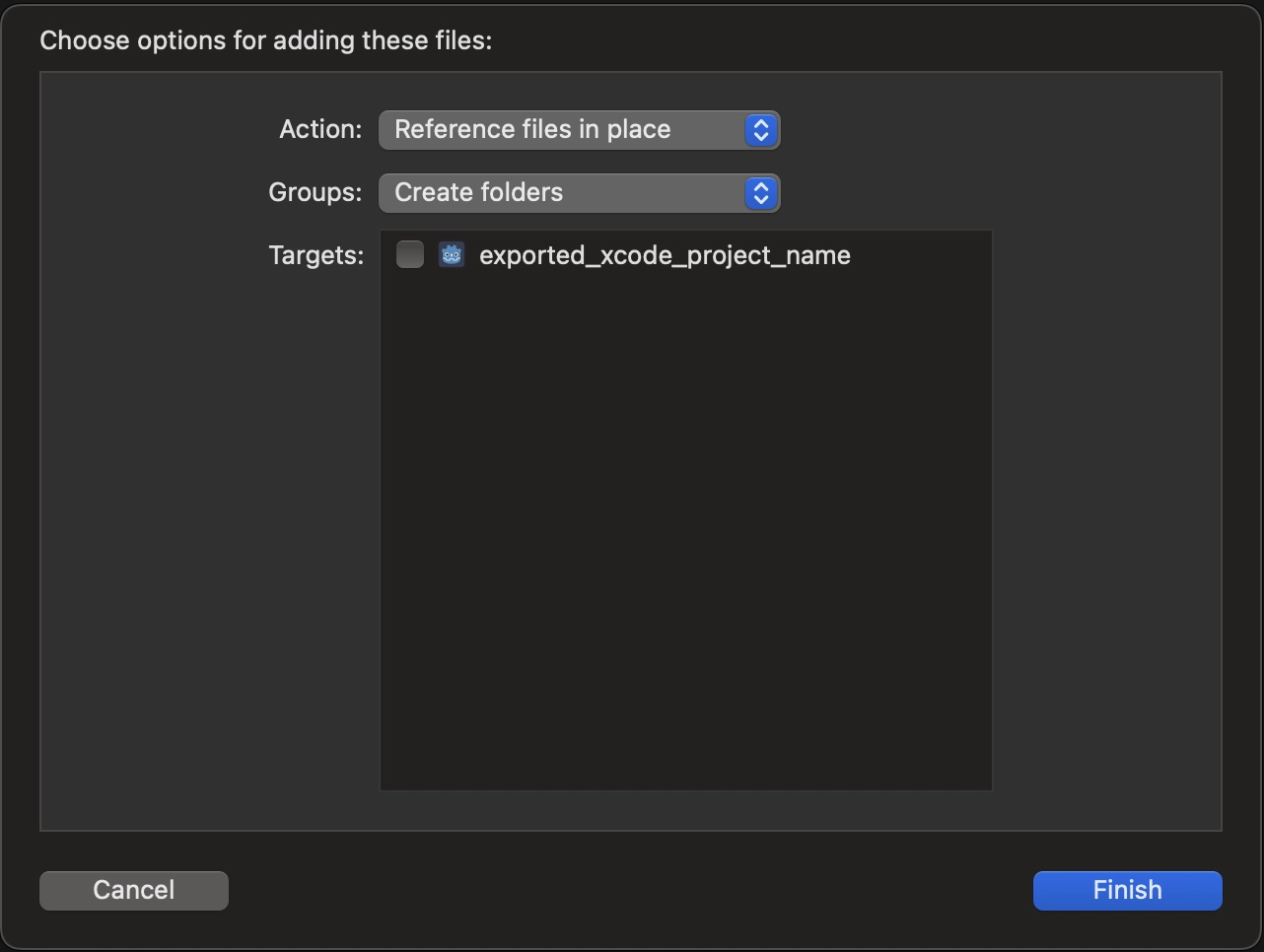
在對話方塊中,請確保選擇 Action:Reference files in place,以及 Groups:Create folders。取消勾選 Targets:exported_xcode_project_name。
在 Xcode 檔案瀏覽器中檢視 godot_project_to_export 資料夾。
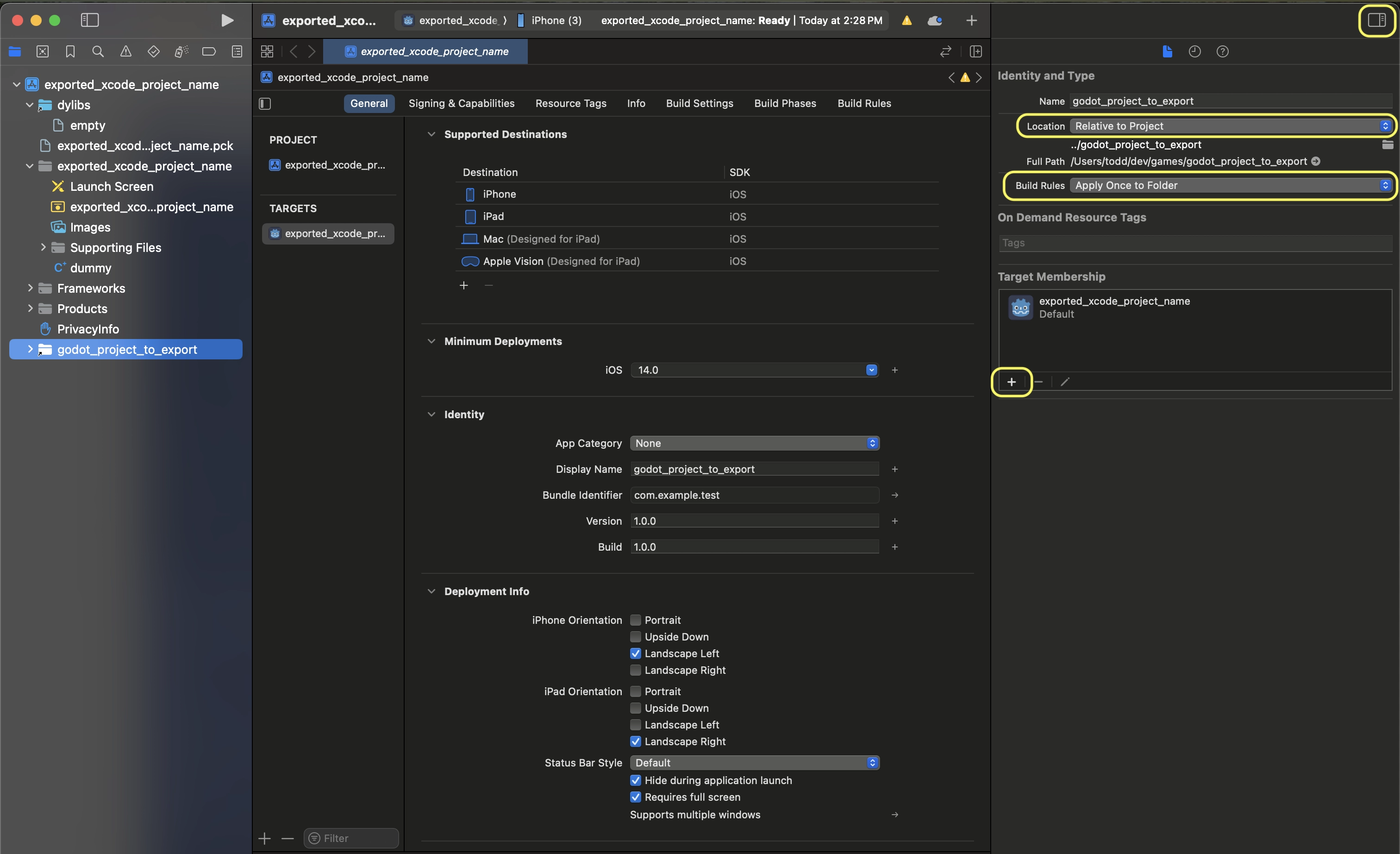
在 Project 導覽器中選取 godot 專案。接著在 Xcode 視窗右側的 File Inspector 中,做以下選擇:
Location:Relative to Project
Build Rules:Apply Once to Folder
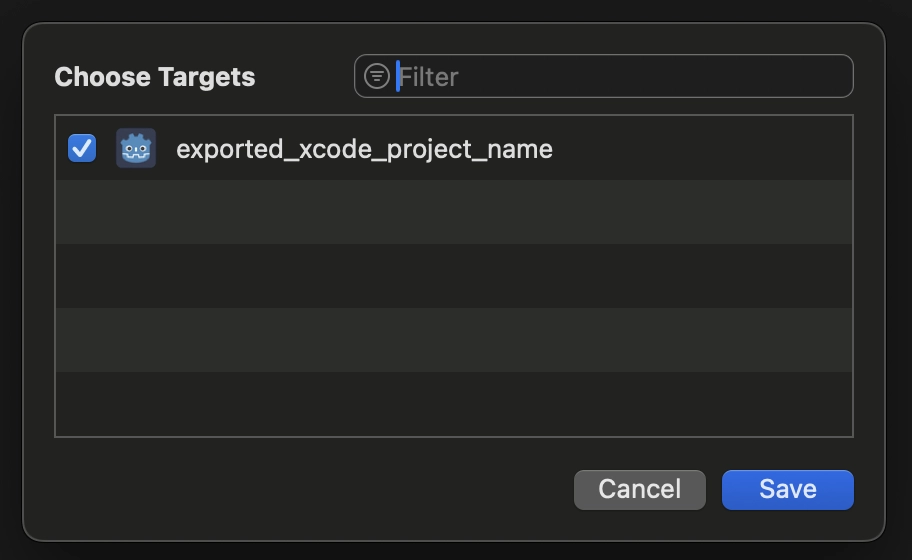
將你的專案加入 Target Membership
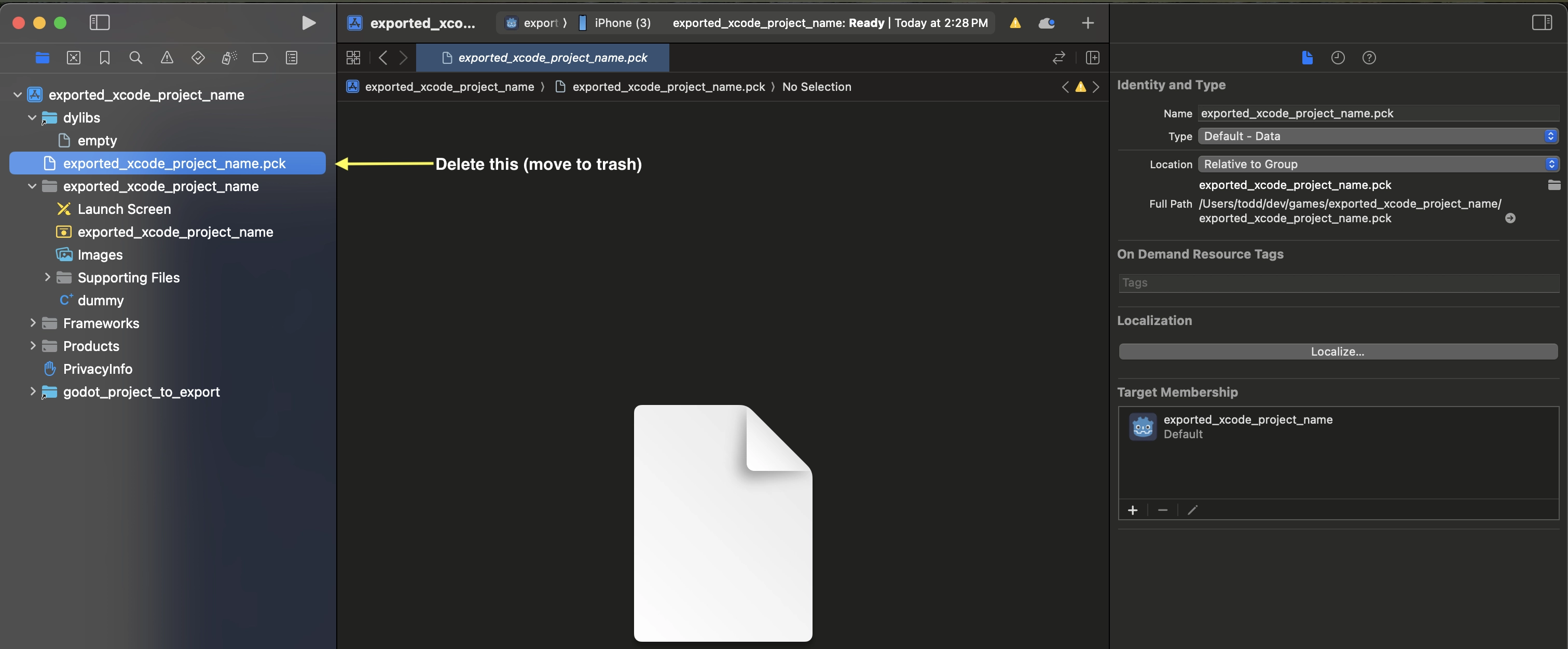
從 Project 導覽器中的 Xcode 專案刪除 exported_xcode_project_name.pck。
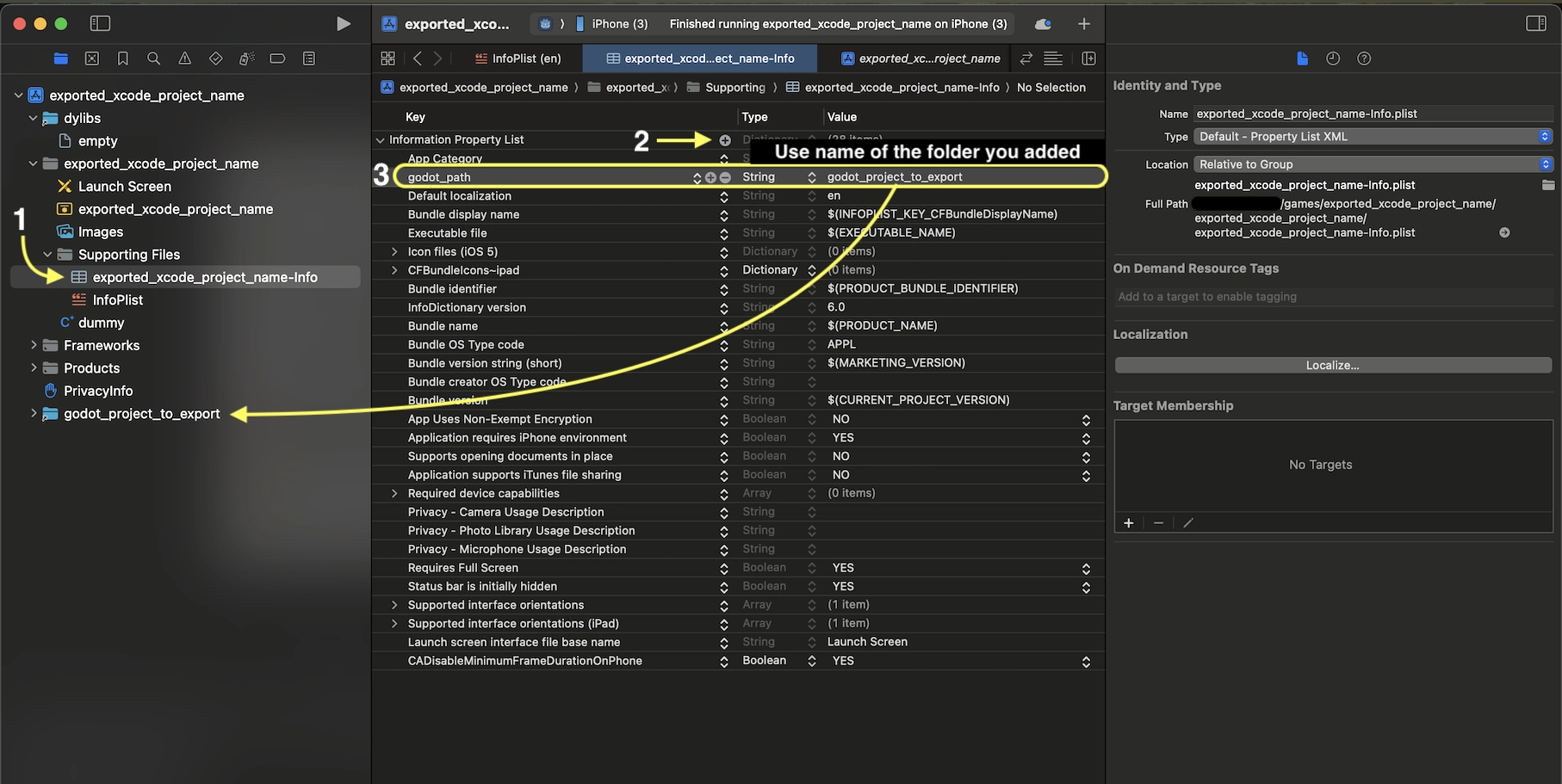
8. Open exported_xcode_project_name-Info.plist and add a string property named godot_path (this is the real key name) with a value godot_project_to_export (this is the name of your project)
就這樣!現在可以在 Godot 編輯器中編輯專案並於準備好在裝置上執行時於 Xcode 中進行建置。
iOS 外掛程式
Special iOS plugins can be used in Godot. Check out the 建立 iOS 外掛程式 page.
環境變數
您可以使用下列環境變數在編輯器外部設定匯出選項。在匯出過程中,這些值會覆寫您在匯出選單中設定的值。
匯出選項 |
環境變數 |
|---|---|
加密/加密金鑰 |
|
選項/應用程式/設定檔 UUID 偵錯 |
|
選項/應用程式/設定檔 UUID 發布 |
|
疑難排解
xcode-select 指向錯誤的 SDK 位置
xcode-select 是隨 Xcode 附帶的工具,負責指向你電腦上的 iOS SDK 位置。如果你已經安裝並開啟過 Xcode,接受了授權條款,並且安裝了命令列工具,xcode-select 應該會指向正確的 iPhone SDK 位置。如果沒有,Godot 匯出到 iOS 時會出現像這樣的錯誤:
MSB3073: The command ""clang" <LOTS OF PATHS AND COMMAND LINE ARGUMENTS HERE>
"/Library/Developer/CommandLineTools/Platforms/iPhoneOS.platform/Developer/SDKs/iPhoneOS.sdk"" exited with code 1.
在這種情況下,Godot 會嘗試在 /Library/Developer/CommandLineTools/ 資料夾下尋找包含 iPhone SDK 的 Platforms 資料夾,但實際上該資料夾應位於 /Applications/Xcode.app/Contents/Developer。你可以打開終端機,執行下列指令來確認 xcode-select 目前指向的位置:
xcode-select -p
若要修正 xcode-select 指向錯誤位置,在終端機輸入下方指令:
sudo xcode-select -switch /Applications/Xcode.app
執行完上述指令後,Godot 應該就能順利匯出到 iOS。
匯出選項
完整的可用匯出選項列表請見 EditorExportPlatformIOS 類別參考。