Attention: Here be dragons
This is the latest
(unstable) version of this documentation, which may document features
not available in or compatible with released stable versions of Godot.
Checking the stable version of the documentation...
Qt Creator
Qt Creator 是免費、開放原始碼,支援所有桌面平台的 IDE。
匯入專案
在 Qt Creator 主畫面選擇 New Project > Import Project > Import Existing Project。
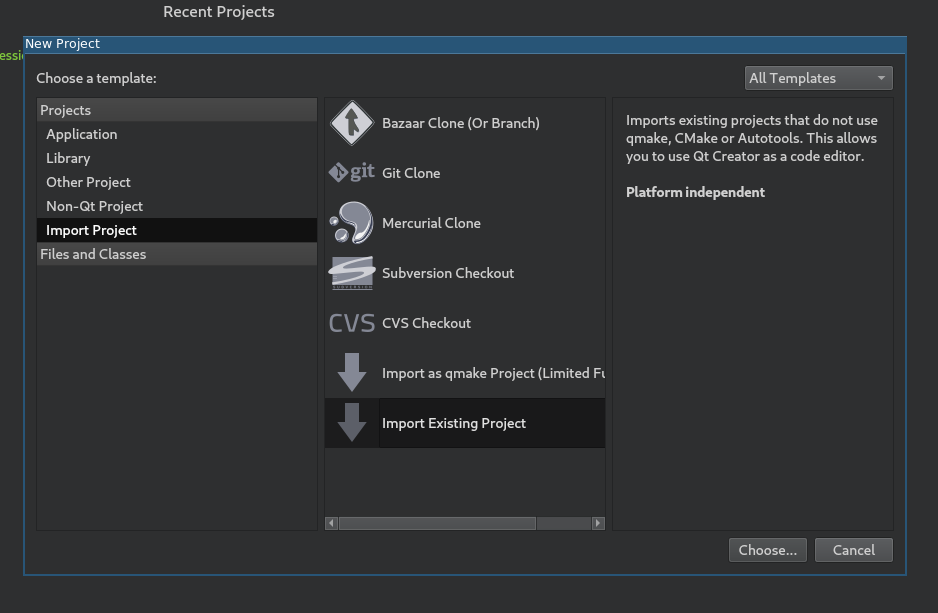
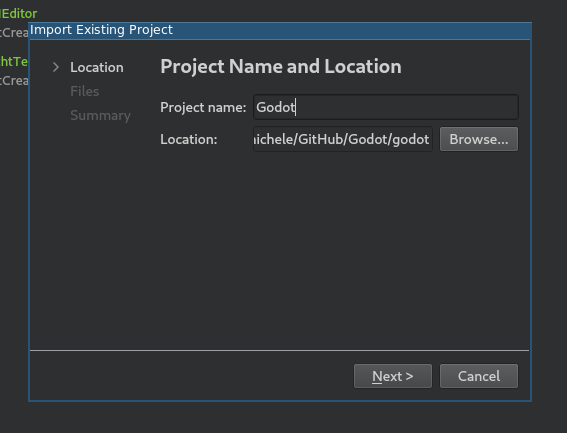
於 Location 選擇 Godot 根目錄。
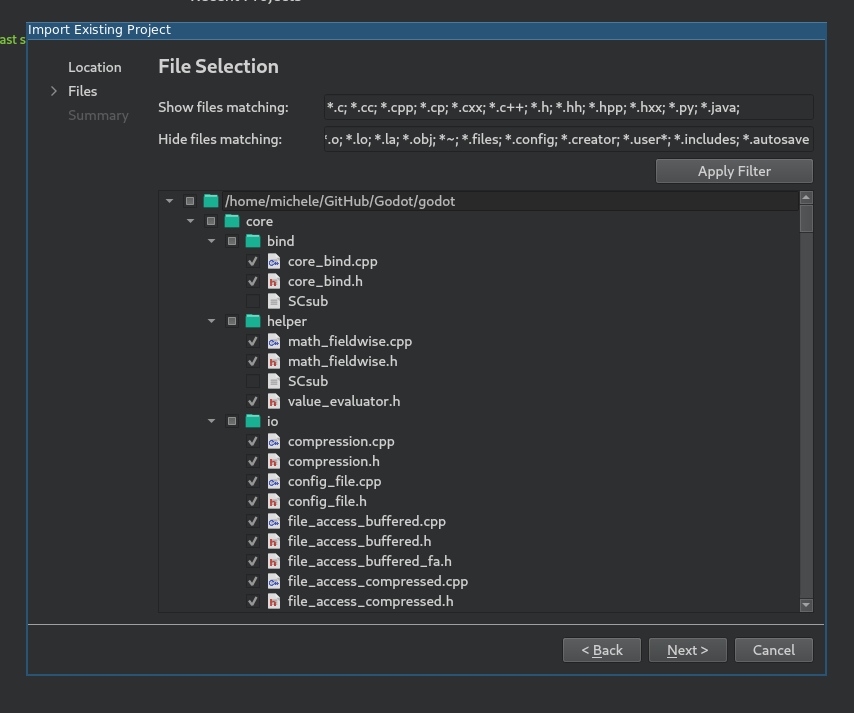
接下來你可以選擇要讓哪些資料夾與檔案在專案中可見。C/C++ 檔案會自動加入,也可考慮加入其它副檔名如:著色器檔案
*.glsl、建置系統*.py、Android 平台用*.java、macOS 平台用*.mm等。
備註
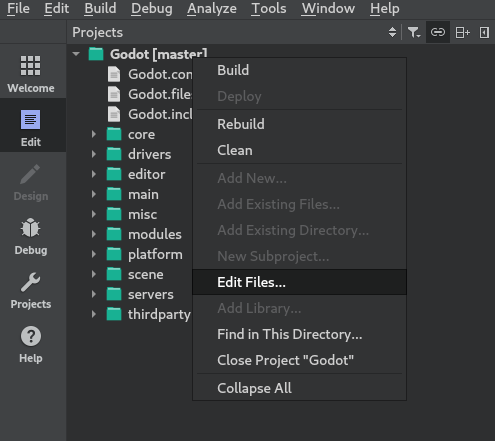
日後可在專案上點右鍵,選擇 Edit Files... 來調整這些設定。
完成匯入。
打開
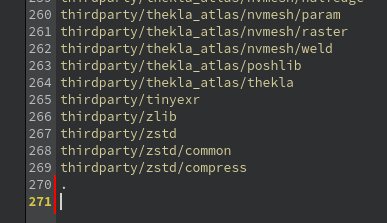
project_name.includes檔案,加入一行.以正確啟用程式碼補全。
於左側選單選擇 Projects,並切到 Build 分頁。
刪除預設的
make建置步驟。
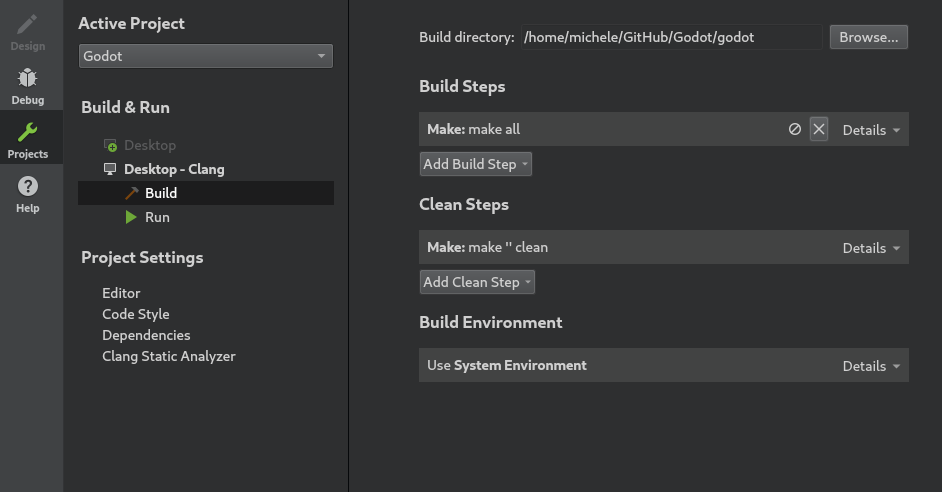
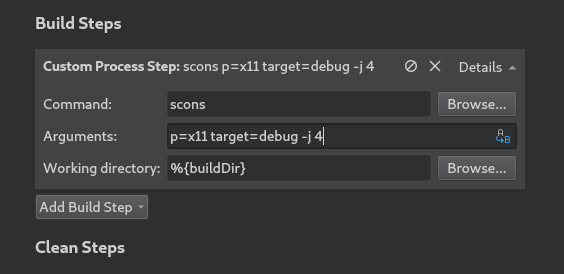
點擊 Add Build Step > Custom Process Step 新增建置步驟,內容如下:
命令
scons
參數
所有可用參數請見 建置系統介紹。
備註
如果出現 Could not start process "scons" 等錯誤,代表 scons 沒有在你的 PATH 環境變數中,請填入 SCons 執行檔的完整路徑。
除錯專案
於左側選單選擇 Projects,切到 Run 分頁。
於 Executable 欄位指定你在
<Godot 根目錄>/bin下的執行檔。檔名會依建置設定而異,例如 64 位元 LinuxBSD 編輯器開發版會是godot.linuxbsd.editor.dev.x86_64。你也可用%{buildDir}來參照專案根目錄,例如%{buildDir}/bin/godot.linuxbsd.editor.dev.x86_64。若要執行特定 Godot 專案,請在 Working directory 指定該專案資料夾。
若想啟動 Godot 編輯器,請在 Command line arguments 加入
-e。
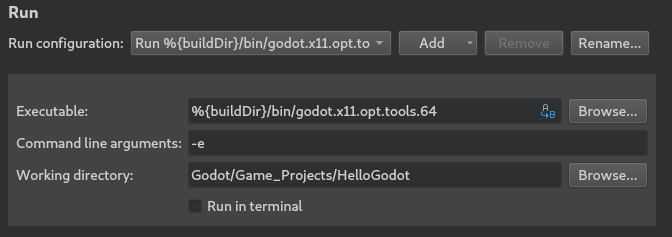
更多命令列參數資訊請參考 命令列教學。
程式碼風格設定
開發者必須遵循專案的 程式碼風格,IDE 應協助遵守該規範。Qt Creator 預設使用空白縮排,與 Godot 的規範不符。你可以在 Tools > Options > C++ 的 Code Style 中將其改為使用 Tab。
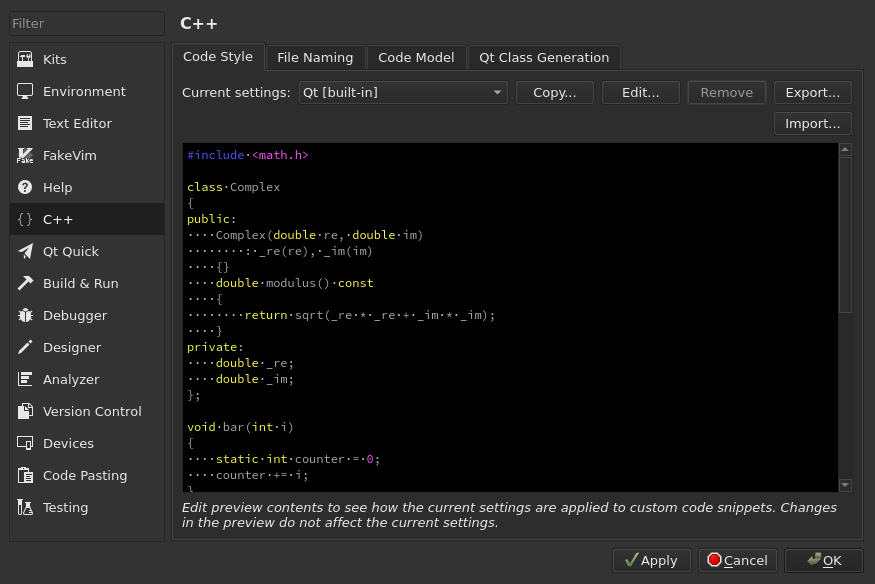
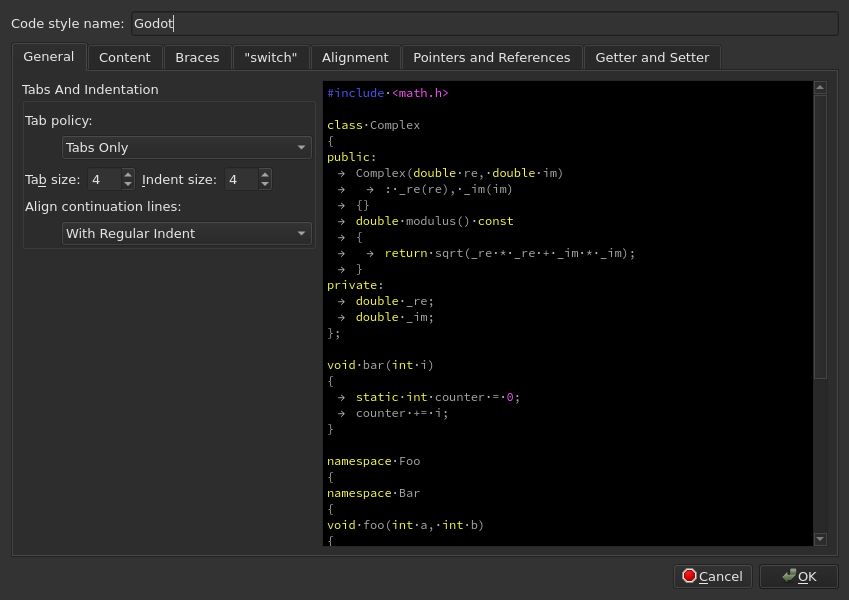
點選 Edit 編輯目前設定,按 Copy Built-in Code Style 建立新風格,命名(例如 Godot),將縮排類型(Tab policy)設為 Tabs Only。
如遇問題,歡迎到 Godot 社群頻道 求助。