Attention: Here be dragons
This is the latest
(unstable) version of this documentation, which may document features
not available in or compatible with released stable versions of Godot.
Checking the stable version of the documentation...
Using the Asset Store Website
總覽
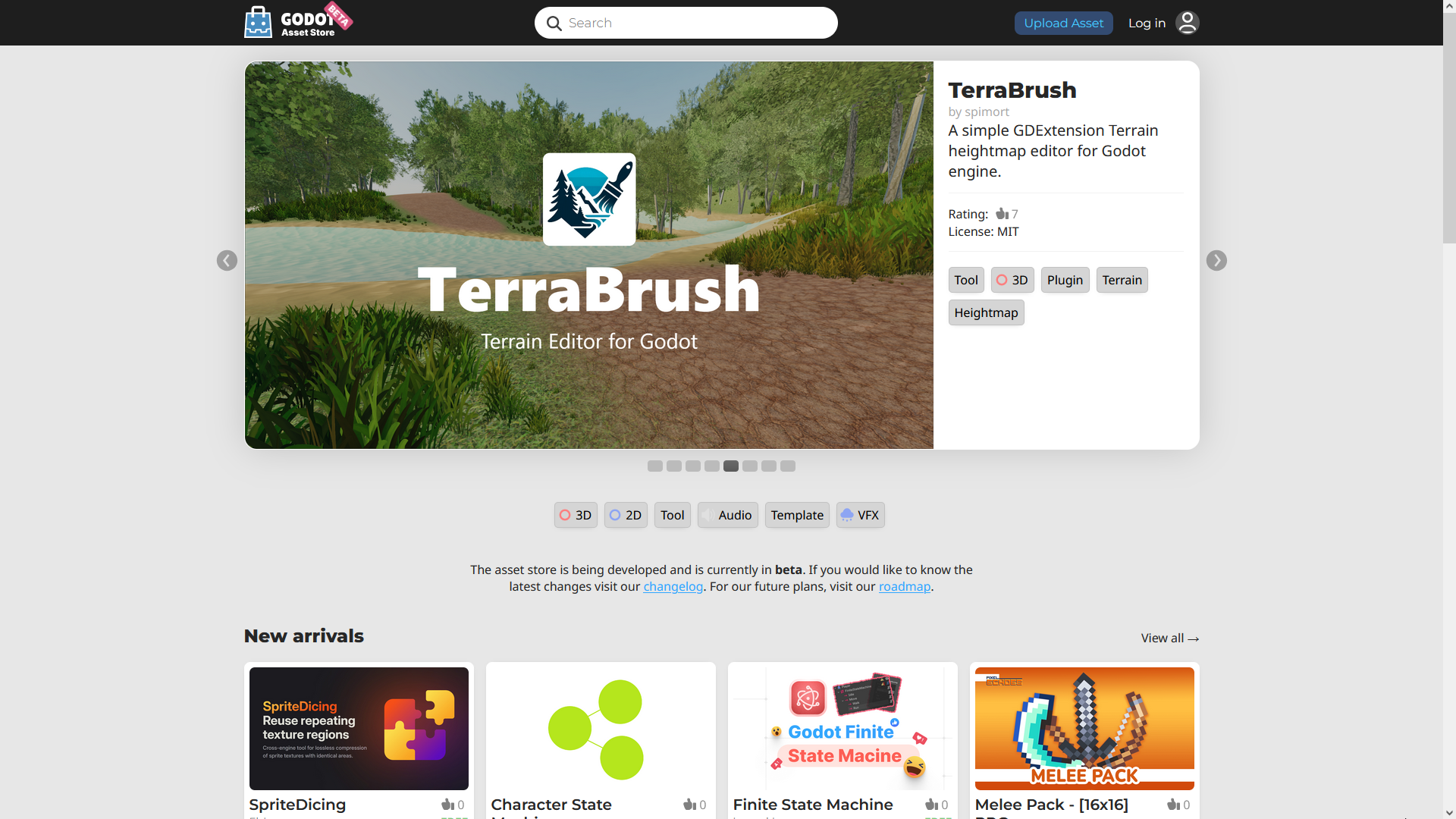
As mentioned before, you can access the web frontend of the Asset Store on Godot's official website. This is what it looks like when you first visit it:
搜尋
The search bar at the top of the page can be used to find assets. You can either
type in the name of something specific you're looking for, or a tag such as 2D.
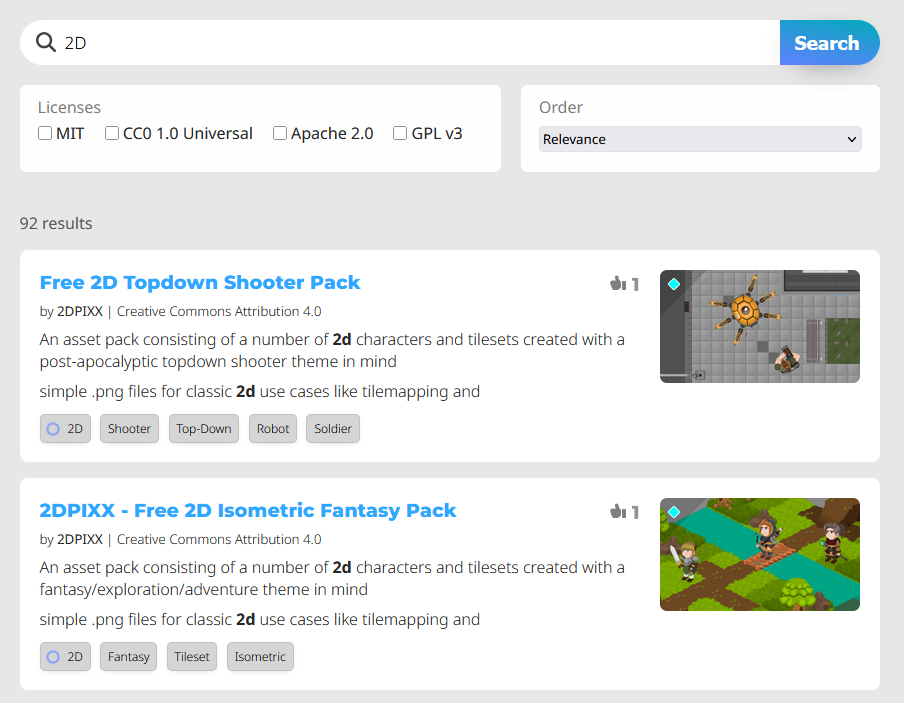
請注意,搜尋結果並不會即時更新,每次修改搜尋條件後都需要重新送出查詢。
You can also click on any tag a project has to pull up a search of other assets with that tag.
素材頁面介紹
接下來讓我們看看素材頁面長什麼樣子以及包含哪些資訊。
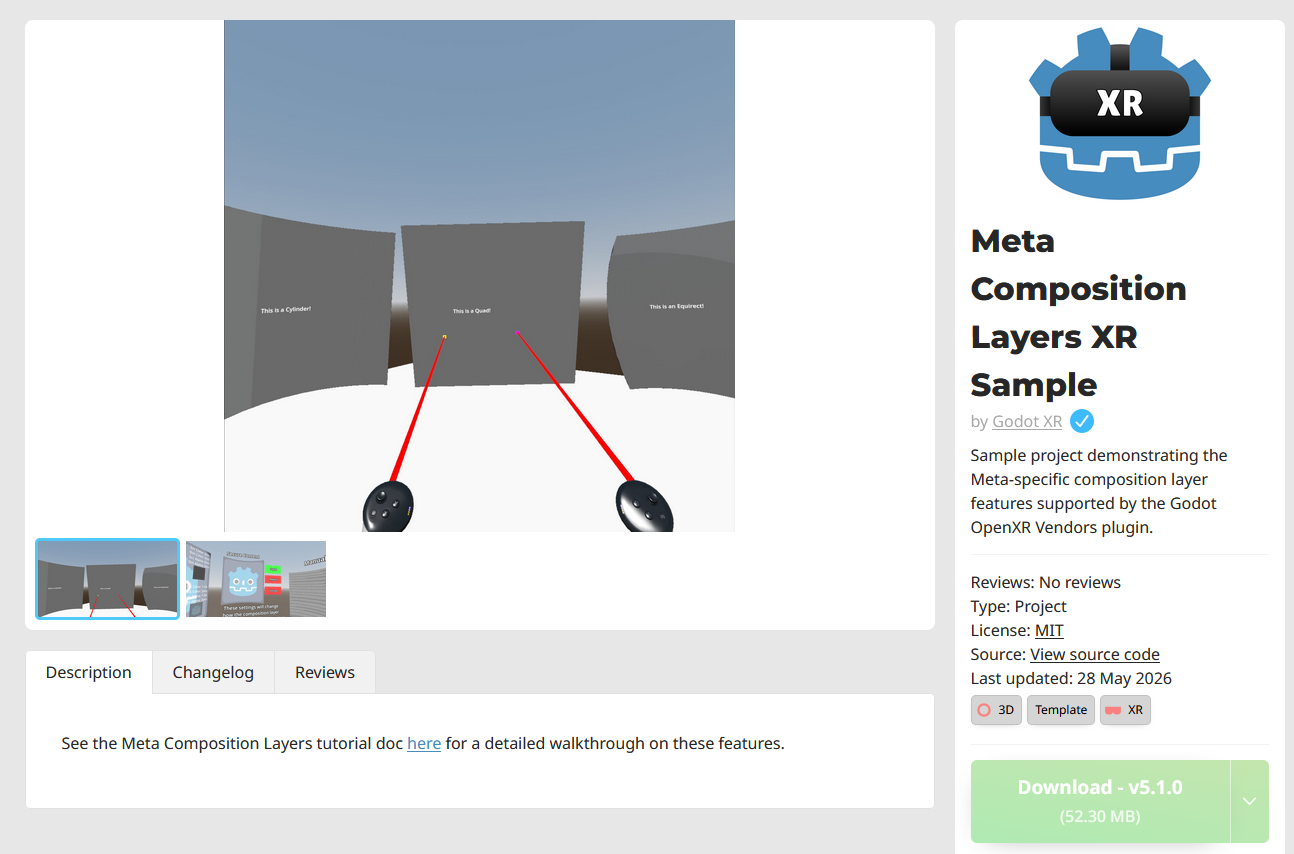
You'll immediately notice media showing off the asset in the center of the screen. Below that are 3 tabs, the description, changelog, and reviews.
The panel on the left is where you'll find the asset author, tags, license, source code link if applicable, download button, and the option to add it to your library if you're logged in.
If you are logged in, there will be a "Flag this Asset" button below this panel. Use this to report the asset if there's an issue that may warrant removal, such as copyright infringement, theft, or impersonation. This is not for bug reports for the asset itself.
註冊與登入
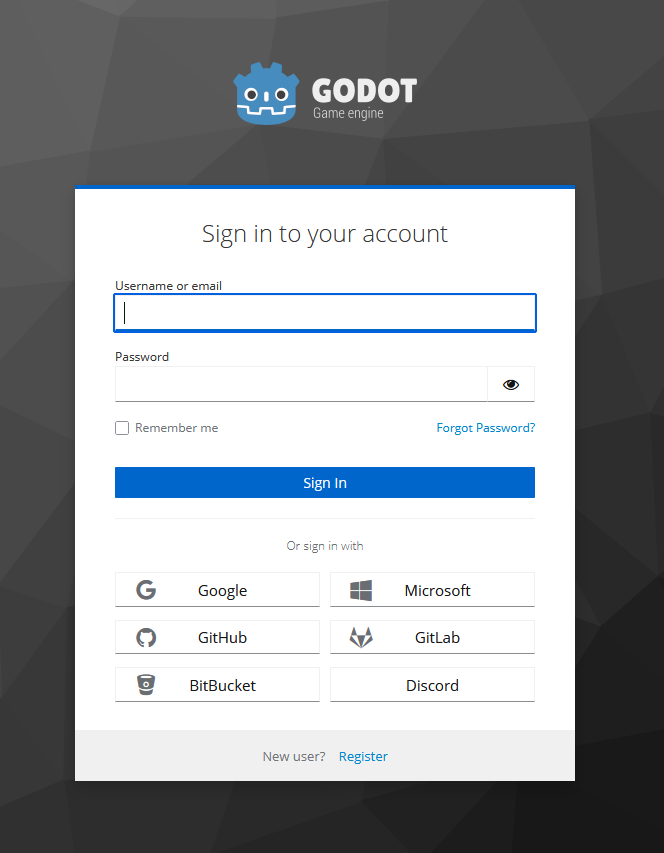
In order to upload assets to the Asset Store, leave reviews on assets, and report assets, you need to login. You do not need to be logged in to browse and download the assets.
The login/registration page can be accessed from any page, just click the button on the top right of the website, next to the "upload asset" button.

There are several options for logging in using other accounts you may already have, such as GitHub and GitLab, or you can create a new account specifically for the Asset Store.