Attention: Here be dragons
This is the latest
(unstable) version of this documentation, which may document features
not available in or compatible with released stable versions of Godot.
Checking the stable version of the documentation...
在编辑器中运行代码
@tool 是什么?
@tool 是一行强大的代码,添加到脚本的顶部后,脚本就会在编辑器中执行。你还可以决定脚本的哪些部分在编辑器中执行、哪些部分在游戏中执行、哪部分在两者中均执行。
你可以使用它来做很多事情,它在关卡设计中非常有用,可以直观地呈现难以预测的事物。以下是一些用例:
如果你有一门发射受物理(重力)影响的炮弹的火炮,你可以在编辑器中画出炮弹的轨迹,使关卡设计容易得多。
如果你有跳跃高度各异的跳台,你可以绘制玩家跳上去后能达到的最大跳跃高度,让关卡设计变得更容易。
如果你的玩家角色不使用精灵,而是使用代码来绘制,你可以在编辑器中执行该绘图代码以查看你的玩家角色。
危险
@tool 脚本在编辑器内运行,允许你访问当前编辑场景的场景树。这是一个强大的功能,但也有一些注意事项,因为编辑器不会对 @tool 脚本的潜在滥用进行保护。操作场景树时要极其小心,尤其是通过 Node.queue_free,因为如果你在编辑器运行涉及某节点的逻辑时将其释放,可能会导致崩溃。
如何使用 @tool
要把脚本变成工具脚本,请在代码顶部添加 @tool 注解。
要检查你当前是否在编辑器中,请使用:Engine.is_editor_hint()。
例如,如果你想只在编辑器中执行一些代码,可以使用:
if Engine.is_editor_hint():
    # Code to execute when in editor.
if (Engine.IsEditorHint())
{
    // Code to execute when in editor.
}
另一方面,如果你想只在游戏中执行代码,只需否定相同的语句:
if not Engine.is_editor_hint():
    # Code to execute when in game.
if (!Engine.IsEditorHint())
{
    // Code to execute when in game.
}
没有上述两个条件之一的代码片段将在编辑器和游戏中都运行。
以下是 _process() 函数的示例:
func _process(delta):
    if Engine.is_editor_hint():
        # Code to execute in editor.

    if not Engine.is_editor_hint():
        # Code to execute in game.

    # Code to execute both in editor and in game.
public override void _Process(double delta)
{
    if (Engine.IsEditorHint())
    {
        // Code to execute in editor.
    }

    if (!Engine.IsEditorHint())
    {
        // Code to execute in game.
    }

    // Code to execute both in editor and in game.
}
重要信息
基本原则是:工具脚本调用的其他 GDScript 也必须标记为工具脚本。编辑器无法实例化未添加 @tool 的 GDScript 文件,这意味着你无法调用其方法或访问成员变量。不过,由于静态方法、常量和枚举无需实例化即可使用,因此可以从 @tool 脚本中调用或引用非工具脚本中的这些元素。但静态变量是个例外——若尝试在不含 @tool 的脚本中读取静态变量,返回值始终为 null 且不会触发警告或报错。此限制不适用于静态方法,无论目标脚本是否为工具模式均可调用。
扩展一个 @tool 脚本不会自动使继承的脚本成为 @tool 脚本。如果继承的脚本省略了 @tool,则会禁用父类中的工具行为。因此继承的脚本也应该指定 @tool 注解。
编辑器中的修改是永久性的,无法撤销/重做。例如,在下一节中移除脚本时,节点将保持其旋转。要小心避免进行不必要的修改。可以考虑设置版本控制以免在出错时丢失工作。
调试
虽然调试器和断点不能直接用于工具脚本,但可以启动编辑器的新实例并从那里进行调试。为此,请前往调试 > 自定义运行实例...,并在主运行参数中指定 --editor。
更多信息请参阅调试工具概述。
此外,还可以使用打印语句来显示变量的内容。
试试 @tool
在场景中添加一个 Sprite2D 节点,并将纹理设置为 Godot 图标。附加并打开一个脚本,将其更改为:
@tool
extends Sprite2D

func _process(delta):
    rotation += PI * delta
using Godot;

[Tool]
public partial class MySprite : Sprite2D
{
    public override void _Process(double delta)
    {
        Rotation += Mathf.Pi * (float)delta;
    }
}
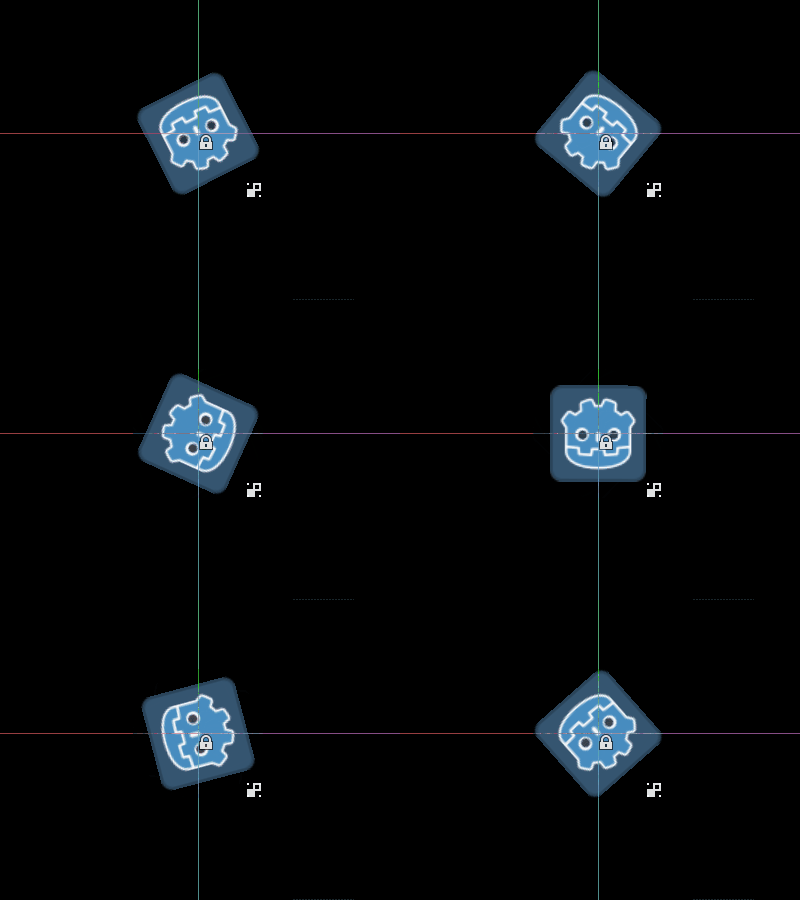
保存脚本并返回编辑器。现在你应该能看到你的对象在旋转。如果你运行游戏,它也会旋转。
警告
你可能需要重启编辑器。这是所有 Godot 4 版本中都存在的已知问题:GH-66381 。
备注
如果你没有看到变化,请重新加载场景(关闭它并再次打开)。
现在让我们选择何时运行代码。将 _process() 函数修改为:
func _process(delta):
    if Engine.is_editor_hint():
        rotation += PI * delta
    else:
        rotation -= PI * delta
public override void _Process(double delta)
{
    if (Engine.IsEditorHint())
    {
        Rotation += Mathf.Pi * (float)delta;
    }
    else
    {
        Rotation -= Mathf.Pi * (float)delta;
    }
}
保存脚本。现在,对象将在编辑器中顺时针旋转,但如果你运行游戏,它将逆时针旋转。
编辑变量
在脚本中添加并导出一个 speed 变量。要更新 speed 并重置旋转角度,请添加一个 setter set(new_speed),该函数会使用检查器输入执行。修改 _process() 以使用旋转速度。
@tool
extends Sprite2D


@export var speed = 1:
    # Update speed and reset the rotation.
    set(new_speed):
        speed = new_speed
        rotation = 0


func _process(delta):
    rotation += PI * delta * speed
using Godot;

[Tool]
public partial class MySprite : Sprite2D
{
    private float _speed = 1;

    [Export]
    public float Speed
    {
        get => _speed;
        set
        {
            // Update speed and reset the rotation.
            _speed = value;
            Rotation = 0;
        }
    }

    public override void _Process(double delta)
    {
        Rotation += Mathf.Pi * (float)delta * _speed;
    }
}
备注
其他节点的代码无法在编辑器中运行。你对其他节点的访问受到限制。你可以访问树和节点及其默认属性,但无法访问用户变量。如果要这样做,其他节点也必须在编辑器中运行。
在数组或字典发生变化时接收通知
你可以在 @export 变量中使用数组(Array)或字典(Dictionary)。在 @tool 脚本中,你可以通过使用设值函数(setter)来响应该集合的任何变化。通常情况下,在运行时(runtime),这种设值函数仅在你对变量进行赋值时被调用;但当你在检查器(Inspector)中修改数组或字典时,设值函数也同样会被调用。
@tool
class_name MyTool
extends Node

@export var my_array = []:
    set(new_array):
        my_array = new_array
        print("My array just changed!")

@export var my_dictionary = {}:
    set(new_dictionary):
        my_dictionary = new_dictionary
        print("My dictionary just changed!")
using Godot;

[Tool]
public partial class MyTool : Node
{
    private Array _myArray = new();
    private Dictionary _myDictionary = new();

    [Export]
    public Array MyArray
    {
        get => _myArray;
        set
        {
            _myArray = value;
            GD.Print("My array just changed!");
        }
    }

    [Export]
    public Dictionary MyDictionary
    {
        get => _myDictionary;
        set
        {
            _myDictionary = value;
            GD.Print("My dictionary just changed!");
        }
    }
}
资源变化时获取通知
有时你希望你的工具脚本使用资源。但是,当你在编辑器中更改该资源的属性时,不会调用工具脚本的 set() 方法。
@tool
class_name MyTool
extends Node

@export var resource: MyResource:
    set(new_resource):
        resource = new_resource
        _on_resource_set()

# This will only be called when you create, delete, or paste a resource.
# You will not get an update when tweaking properties of it.
func _on_resource_set():
    print("My resource was set!")
using Godot;

[Tool]
public partial class MyTool : Node
{
    private MyResource _resource;

    [Export]
    public MyResource Resource
    {
        get => _resource;
        set
        {
            _resource = value;
            OnResourceSet();
        }
    }

    // This will only be called when you create, delete, or paste a resource.
    // You will not get an update when tweaking properties of it.
    private void OnResourceSet()
    {
        GD.Print("My resource was set!");
    }
}
要解决这个问题,首先必须将资源变成一个工具脚本,并使其在设置属性时发出 changed 信号:
# Make Your Resource a tool.
@tool
class_name MyResource
extends Resource

@export var property = 1:
    set(new_setting):
        property = new_setting
        # Emit a signal when the property is changed.
        changed.emit()
using Godot;

[Tool]
public partial class MyResource : Resource
{
    private float _property = 1;

    [Export]
    public float Property
    {
        get => _property;
        set
        {
            _property = value;
            // Emit a signal when the property is changed.
            EmitChanged();
        }
    }
}
然后,你需要在设置新资源时连接该信号:
@tool
class_name MyTool
extends Node

@export var resource: MyResource:
    set(new_resource):
        resource = new_resource
        # Connect the changed signal as soon as a new resource is being added.
        if resource != null:
            resource.changed.connect(_on_resource_changed)

func _on_resource_changed():
    print("My resource just changed!")
using Godot;

[Tool]
public partial class MyTool : Node
{
    private MyResource _resource;

    [Export]
    public MyResource Resource
    {
        get => _resource;
        set
        {
            _resource = value;
            // Connect the changed signal as soon as a new resource is being added.
            if (_resource != null)
            {
                _resource.Changed += OnResourceChanged;
            }
        }
    }

    private void OnResourceChanged()
    {
        GD.Print("My resource just changed!");
    }
}
最后,记住断开信号,因为在其他地方使用和更改旧资源会导致不必要的更新。
@export var resource: MyResource:
    set(new_resource):
        # Disconnect the signal if the previous resource was not null.
        if resource != null:
            resource.changed.disconnect(_on_resource_changed)
        resource = new_resource
        if resource != null:
            resource.changed.connect(_on_resource_changed)
[Export]
public MyResource Resource
{
    get => _resource;
    set
    {
        // Disconnect the signal if the previous resource was not null.
        if (_resource != null)
        {
            _resource.Changed -= OnResourceChanged;
        }
        _resource = value;
        if (_resource != null)
        {
            _resource.Changed += OnResourceChanged;
        }
    }
}
报告节点配置警告
Godot 使用 节点配置警告 系统来警告用户有关配置错误的节点。当某个节点配置不正确时,场景面板中该节点名称旁边会出现黄色警告标志。当你悬停在该图标上或点击该图标时,会弹出警告消息。脚本中可以使用这一特性来帮助你和你的团队避免在设置场景过程中出现错误。
使用节点配置警告时,如果能够影响警告或移除警告的值发生了变化,那么你就需要调用 update_configuration_warnings。默认只会在关闭并重新打开场景时才会更新警告。
# Use setters to update the configuration warning automatically.
@export var title = "":
    set(p_title):
        if p_title != title:
            title = p_title
            update_configuration_warnings()

@export var description = "":
    set(p_description):
        if p_description != description:
            description = p_description
            update_configuration_warnings()


func _get_configuration_warnings():
    var warnings = []

    if title == "":
        warnings.append("Please set `title` to a non-empty value.")

    if description.length() >= 100:
        warnings.append("`description` should be less than 100 characters long.")

    # Returning an empty array means "no warning".
    return warnings
使用 EditorScript 运行一次性脚本
有时,你只需运行一次代码,以自动执行编辑器中未提供的特定任务。一些示例可能是:
无需运行项目即可用作 GDScript 或 C# 脚本的游乐场。
print()输出显示在编辑器输出面板中。缩放当前编辑的场景内的所有灯光节点,因为你可能会注意到在将灯光放置到所需位置后,关卡最终看起来过暗或过亮。
用场景实例替换复制粘贴的节点,以便以后更容易修改。
这可以在 Godot 内通过扩展脚本中的 EditorScript 来实现。这提供了一种在编辑器中运行单个脚本而无需创建编辑器插件的方法。
要创建一个 EditorScript,请右键单击文件系统面板中的文件夹或空白处,然后选择新建 > 脚本...。在脚本创建对话框中,点击树形图标以选择要扩展的对象(或直接在左侧字段中输入 EditorScript,但请注意区分大小写):
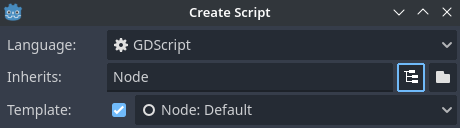
在脚本编辑器创建对话框中创建一个编辑器脚本
这将自动选择适合 EditorScript 的脚本模板,其中已插入 _run() 方法:
@tool
extends EditorScript

# Called when the script is executed (using File -> Run in Script Editor).
func _run():
    pass
using Godot;

[Tool]
public partial class MyEditorScript : EditorScript
{
    // Called when the script is executed (right-click on Script -> Run in FileSystem dock).
    public override void _Run()
    {
        // ...
    }
}
当你使用以下 4 种方法中的任意一种来运行 EditorScript 时,该 _run() 方法就会被执行:
在脚本编辑器顶部,当 EditorScript 处于当前选项卡时,使用 。
当 EditorScript 处于当前选项卡时,按下键盘快捷键t Ctrl + Shift + X 。该键盘快捷键仅在聚焦于脚本编辑器时有效。
在文件系统面板中右键点击该脚本,然后选择 。
在脚本顶部添加
class_name <name>,通过按下 Ctrl + Shift + P 调出命令面板,然后输入类名来运行它。该条目将根据类名进行命名,并自动应用首字母大写。
扩展 EditorScript 的脚本 必须 是 @tool 脚本才能运行。
备注
EditorScript(编辑器脚本)只能从 Godot 自带的脚本编辑器中运行。如果你正在使用外部编辑器,请使用最后两种方法中的任意一种来执行该脚本。
备注
C# EditorScripts 无法从脚本编辑器运行,因为它仅支持 GDScript。请参考上述替代方法来运行自定义的 C# EditorScripts。
请记住,C# 工具脚本只有在使用 GlobalClass 属性进行标记时,才会出现在命令面板中。
危险
EditorScript 没有撤消/重做功能,因此如果脚本旨在修改任何数据,请确保在运行之前保存场景。
要访问当前编辑场景中的节点,请使用 EditorInterface.get_edited_scene_root() 方法,该方法返回当前编辑场景的根节点。下面是一个示例,它递归地获取当前编辑场景中的所有节点,并将所有 OmniLight3D 节点的范围加倍:
@tool
# Thanks to the class name, we can run this script by bringing up
# the command palette and searching "Scale Omni Lights".
class_name ScaleOmniLights
extends EditorScript

func _run():
    for node in EditorInterface.get_edited_scene_root().find_children("", "OmniLight3D"):
        # Don't operate on instanced subscene children, as changes are lost
        # when reloading the scene.
        # See the "Instancing scenes" section below for a description of `owner`.
        var is_instanced_subscene_child = node != get_scene() and node.owner != get_scene()
        if not is_instanced_subscene_child:
            node.omni_range *= 2.0
            EditorInterface.mark_scene_as_unsaved()
using Godot;

[GlobalClass, Tool]
// Thanks to the GlobalClass attribute, we can run this script by bringing up
// the command palette and searching "Scale Omni Lights".
public partial class ScaleOmniLights : EditorScript
{
    public override void _Run()
    {
        var sceneNode = EditorInterface.Singleton.GetEditedSceneRoot();

        foreach (OmniLight3D node in sceneNode.FindChildren("", "OmniLight3D"))
        {
            // Don't operate on instanced subscene children, as changes are lost
            // when reloading the scene.
            // See the "Instancing scenes" section below for a description of `owner`.
            var isInstancedSubsceneChild = node != sceneNode && node.Owner != sceneNode;
            if (!isInstancedSubsceneChild)
            {
                node.OmniRange *= 2.0f;
                EditorInterface.Singleton.MarkSceneAsUnsaved();
            }
        }
    }
}
在上述示例中,每当进行影响场景状态的修改后,我们还会调用 EditorScript.mark_scene_as_unsaved()。这会通知编辑器将该场景显示为“未保存”状态(即在场景名称旁显示一个星号)。通过这种方式,当你尝试关闭包含未保存更改的场景时,编辑器也会弹出确认对话框以防止误操作。
小技巧
即使当前打开的是脚本(Script)视图,你依然可以在编辑器顶部切换当前正在编辑的场景。这会影响 EditorInterface.get_edited_scene_root 的返回值,因此在运行脚本之前,请务必确保你已经选中了打算进行操作(迭代)的那个场景。
实例化场景
在编辑器中,你可以正常实例化打包场景,并将它们添加到当前打开的场景中。默认情况下,使用 Node.add_child(node) 添加的节点或场景在场景树面板中是不可见的,也不会持久化到磁盘上。如果你希望节点和场景在场景树面板中可见,并在保存场景时持久化到磁盘上,则需要将这些子节点的 owner 属性设为当前编辑场景的根节点。
如果你使用的是 @tool:
func _ready():
    var node = Node3D.new()
    add_child(node) # Parent could be any node in the scene

    # The line below is required to make the node visible in the Scene tree dock
    # and persist changes made by the tool script to the saved scene file.
    node.owner = get_tree().edited_scene_root
public override void _Ready()
{
    var node = new Node3D();
    AddChild(node); // Parent could be any node in the scene

    // The line below is required to make the node visible in the Scene tree dock
    // and persist changes made by the tool script to the saved scene file.
    node.Owner = GetTree().EditedSceneRoot;
}
如果你正在使用 EditorScript (编辑器脚本):
func _run():
    # `parent` could be any node in the scene.
    var parent = get_scene().get_node("Parent")
    var node = Node3D.new()
    parent.add_child(node)

    # The line below is required to make the node visible in the Scene tree dock
    # and persist changes made by the tool script to the saved scene file.
    node.owner = get_scene()
public override void _Run()
{
    // `parent` could be any node in the scene.
    var parent = GetScene().GetNode("Parent");
    var node = new Node3D();
    parent.AddChild(node);

    // The line below is required to make the node visible in the Scene tree dock
    // and persist changes made by the tool script to the saved scene file.
    node.Owner = GetScene();
}
备注
工具脚本和 EditorScript 所做的更改(例如添加节点或修改属性) 不会 自动将场景标记为“未保存”。为了显示星号 (*) 并防止意外丢失数据,请在修改后调用 EditorInterface.mark_scene_as_unsaved(),或者使用 EditorUndoRedoManager 来支持撤销操作。
警告
不适当地使用 @tool 会产生许多错误。建议先按需要编写代码,然后再将 @tool 注解添加到顶部。此外,请确保将在编辑器中运行的代码与在游戏中运行的代码分开。这样,你可以更轻松地找到错误。