Visual Studio Code
Nota
This documentation is for contributions to the game engine, and not using Visual Studio Code as a C# or GDScript editor. To code C# or GDScript in an external editor, see the C# guide to configure an external editor or the GDScript guide to using an external text editor.
Visual Studio Code es un editor de código gratuito multiplataforma desarrollado por Microsoft (no confundir con Visual Studio).
Importando el proyecto
Asegúrate de tener instalada la extensión C/C++ en Visual Studio Code. Puedes encontrar instrucciones en la documentación oficial. Alternativamente, puedes usar clangd en su lugar.
Cuando uses la extensión clangd, ejecuta
scons compiledb=yes.Desde la pantalla principal de Visual Studio Code, abre la carpeta raíz de Godot con File > Open Folder....
Presiona Ctrl + Shift + P para abrir la ventana del símbolo de comando y escribe Configure Task.
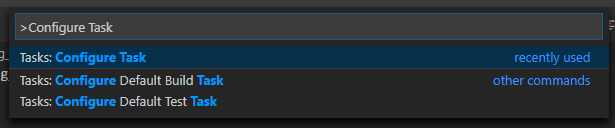
Selecciona la opción Create tasks.json file from template.

Luego selecciona Others.
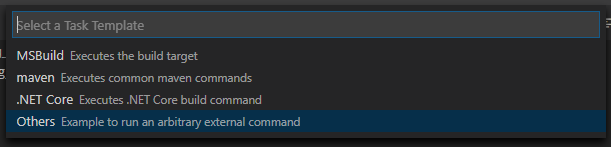
If there is no such option as Create tasks.json file from template available, either delete the file if it already exists in your folder or create a
.vscode/tasks.jsonfile manually. See Tasks in Visual Studio Code for more details on tasks.Dentro del archivo
tasks.json, busca el array"tasks"y agrega una nueva sección a él:.vscode/tasks.json{ "label": "build", "group": "build", "type": "shell", "command": "scons", "args": [ // enable for debugging with breakpoints "dev_build=yes", ], "problemMatcher": "$msCompile" }
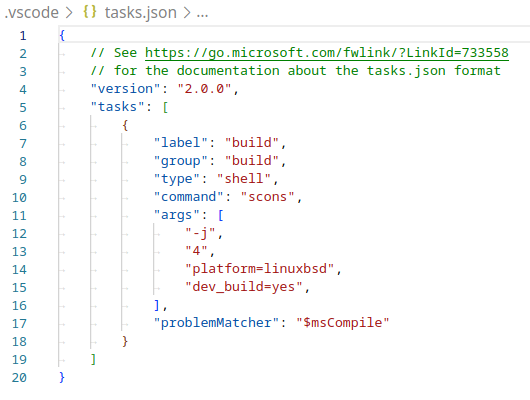
Un ejemplo de cómo podría quedar el archivo tasks.json.
Los parámetros pueden ser diferente según tu configuración y necesidades. Ver Introducción al sistema de compilación para una lista completa de parámetros.
Depurando el proyecto
Para ejecutar y depurar el proyecto, necesitas crear una nueva configuración en el archivo launch.json.
Presiona Ctrl + Shift + D para abrir el panel de ejecución (Run).
Si falta el archivo
launch.json, se te pedirá que crees uno nuevo.
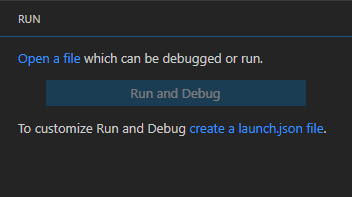
Select C++ (GDB/LLDB). There may be another platform-specific option here. If selected, adjust the configuration example provided accordingly.
Dentro del archivo
launch.json, encuentra la matriz"configurations"y agrega una nueva sección a la misma:
{
  "name": "Launch Project",
  "type": "lldb",
  "request": "launch",
  // Change to godot.linuxbsd.editor.dev.x86_64.llvm for llvm-based builds.
  "program": "${workspaceFolder}/bin/godot.linuxbsd.editor.dev.x86_64",
  // Change the arguments below for the project you want to test with.
  // To run the project instead of editing it, remove the "--editor" argument.
  "args": [ "--editor", "--path", "path-to-your-godot-project-folder" ],
  "stopAtEntry": false,
  "cwd": "${workspaceFolder}",
  "environment": [],
  "externalConsole": false,
  "preLaunchTask": "build"
}
{
  "name": "Launch Project",
  "type": "cppdbg",
  "request": "launch",
  // Change to godot.linuxbsd.editor.dev.x86_64.llvm for llvm-based builds.
  "program": "${workspaceFolder}/bin/godot.linuxbsd.editor.dev.x86_64",
  // Change the arguments below for the project you want to test with.
  // To run the project instead of editing it, remove the "--editor" argument.
  "args": [ "--editor", "--path", "path-to-your-godot-project-folder" ],
  "stopAtEntry": false,
  "cwd": "${workspaceFolder}",
  "environment": [],
  "externalConsole": false,
  "setupCommands":
  [
    {
      "description": "Enable pretty-printing for gdb",
      "text": "-enable-pretty-printing",
      "ignoreFailures": true
    },
    {
        "description": "Load custom pretty-printers for Godot types.",
        "text": "source ${workspaceRoot}/misc/utility/godot_gdb_pretty_print.py"
    }
  ],
  "preLaunchTask": "build"
}
{
  "name": "Launch Project",
  "type": "cppvsdbg",
  "request": "launch",
  "program": "${workspaceFolder}/bin/godot.windows.editor.dev.x86_64.exe",
  // Change the arguments below for the project you want to test with.
  // To run the project instead of editing it, remove the "--editor" argument.
  "args": [ "--editor", "--path", "path-to-your-godot-project-folder" ],
  "stopAtEntry": false,
  "cwd": "${workspaceFolder}",
  "environment": [],
  "console": "internalConsole",
  "visualizerFile": "${workspaceFolder}/platform/windows/godot.natvis",
  "preLaunchTask": "build"
}
{
  "name": "Launch Project",
  "type": "lldb",
  "request": "launch",
  "program": "${workspaceFolder}/bin/godot.macos.editor.x86_64",
  // Change the arguments below for the project you want to test with.
  // To run the project instead of editing it, remove the "--editor" argument.
  "args": ["--editor", "--path", "path-to-your-godot-project-folder"],
  "cwd": "${workspaceFolder}",
  "preLaunchTask": "build"
}
{
  "name": "Launch Project",
  "type": "lldb",
  "request": "launch",
  "program": "${workspaceFolder}/bin/godot.macos.editor.arm64",
  // Change the arguments below for the project you want to test with.
  // To run the project instead of editing it, remove the "--editor" argument.
  "args": ["--editor", "--path", "path-to-your-godot-project-folder"],
  "cwd": "${workspaceFolder}",
  "preLaunchTask": "build"
}
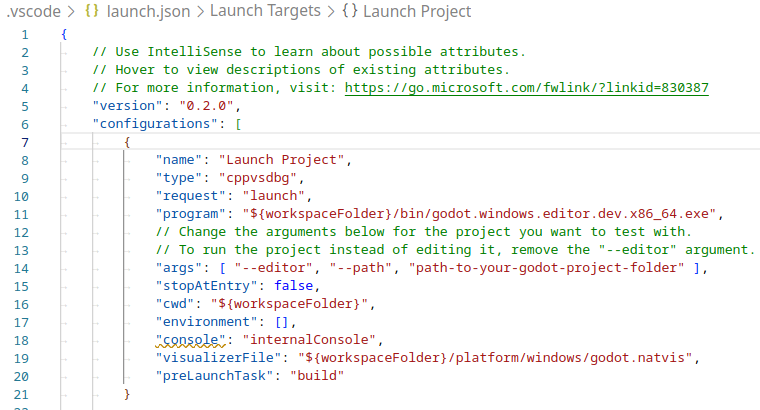
Un ejemplo de un archivo launch.json completo.
Nota
Due to sporadic performance issues, it is recommended to use LLDB over GDB on Unix-based systems. Make sure that the CodeLLDB extension is installed for configurations using lldb.
If you encounter issues with lldb, you may consider using gdb (see the LinuxBSD_gdb configuration).
Do note that lldb may work better with LLVM-based builds. See Compiling for Linux, *BSD for further information.
The name under program depends on your build configuration,
e.g. godot.linuxbsd.editor.dev.x86_64 for 64-bit LinuxBSD platform with
target=editor and dev_build=yes.
Configuring Intellisense
For the C/C++ extension:
To fix include errors you may be having, you need to configure some settings in the c_cpp_properties.json file.
First, make sure to build the project since some files need to be generated.
Edit the C/C++ Configuration file either with the UI or with text:

Add an include path for your platform, for example,
${workspaceFolder}/platform/windows.Add defines for the editor
TOOLS_ENABLED, debug buildsDEBUG_ENABLED, and testsTESTS_ENABLED.Make sure the compiler path is configured correctly to the compiler you are using. See Introducción al sistema de compilación for further information on your platform.
The
c_cpp_properties.jsonfile should look similar to this for Windows:.vscode/c_cpp_properties.json{ "configurations": [ { "name": "Win32", "includePath": [ "${workspaceFolder}/**", "${workspaceFolder}/platform/windows" ], "defines": [ "_DEBUG", "UNICODE", "_UNICODE", "TOOLS_ENABLED", "DEBUG_ENABLED", "TESTS_ENABLED" ], "windowsSdkVersion": "10.0.22621.0", "compilerPath": "C:/Program Files/Microsoft Visual Studio/2022/Community/VC/Tools/MSVC/14.39.33519/bin/Hostx64/x64/cl.exe", "cStandard": "c17", "cppStandard": "c++17", "intelliSenseMode": "windows-msvc-x64" } ], "version": 4 }
Alternatively, you can use the scons argument
compiledb=yesand set the compile commands settingcompileCommandstocompile_commands.json, found in the advanced section of the C/C++ Configuration UI.This argument can be added to your build task in
tasks.jsonsince it will need to be run whenever files are added or moved.
Si tienes algún problema, busca ayuda en alguno de los canales de la comunidad Godot.
Truco
To get linting on class reference XML files, install the vscode-xml extension.