Grupos
Los grupos en Godot funcionan como etiquetas en otros programas. Puedes agregar un nodo a tantos grupos como desees. Luego, en el código, puedes utilizar el SceneTree para:
Obtener una lista de nodos en un grupo.
Llamar a un método en todos los nodos de un grupo.
Enviar una notificación a todos los nodos de un grupo.
Esta es una característica útil para organizar escenas grandes y desacoplar el código.
Administrar grupos
Los grupos se crean agregando un nodo a un nuevo nombre de grupo, y de manera similar, se eliminan eliminando todos los nodos de un grupo dado.
Hay dos modos de agregar/remover grupos de nodos:
During design, by using the Node dock in the editor, or the Global Groups in project settings.
Durante la ejecución, llamando a Node.add_to_group() o Node.remove_from_group().
Usando el panel "Nodos"
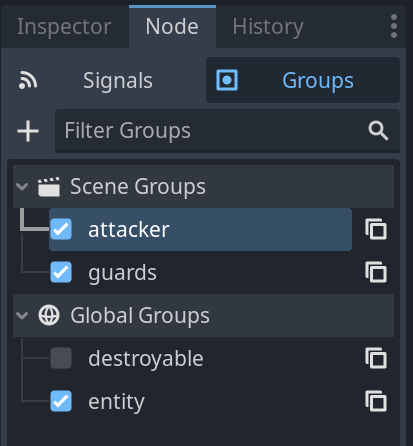
You can create new groups using the Groups tab in the Node dock.
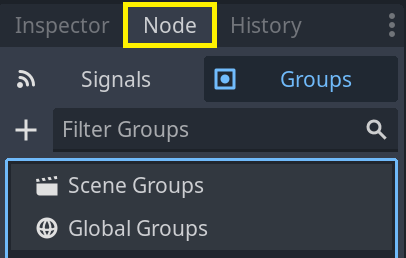
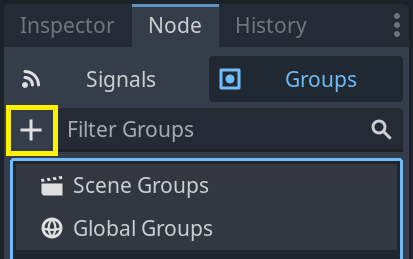
Select a node in the Scene dock then click the add button with the + symbol.
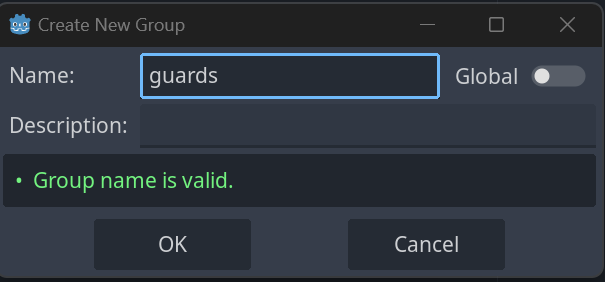
You should now see the Create New Group modal appear. Write the group name in the field.
You can optionally mark the option "Global", which will make the group visible project-wide, and able to be reused in any project scene. This will also allow you to give it a description.
When done, press Ok to create it.
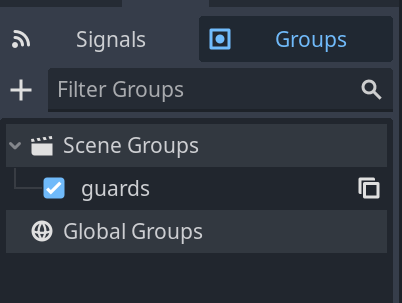
You should see the new groups appear in the Groups tab under Scene Groups if the Global option was unmarked, or under Global Groups if that option was marked.
A selected Node from the Scene dock can be added into groups by marking the checkbox on the left side of the groups in the Groups dock. The node you had selected when creating a new group will be automatically checked.
All groups present in the project that were marked as Global, created from any scene, will be visible under Global Groups.
Any other group derived from nodes in the current scene will appear under Scene Groups.
Advertencia
The same underlying logic is used for both Global and Scene groups. Groups with the same name are considered one and the same. This feature is purely organizational.
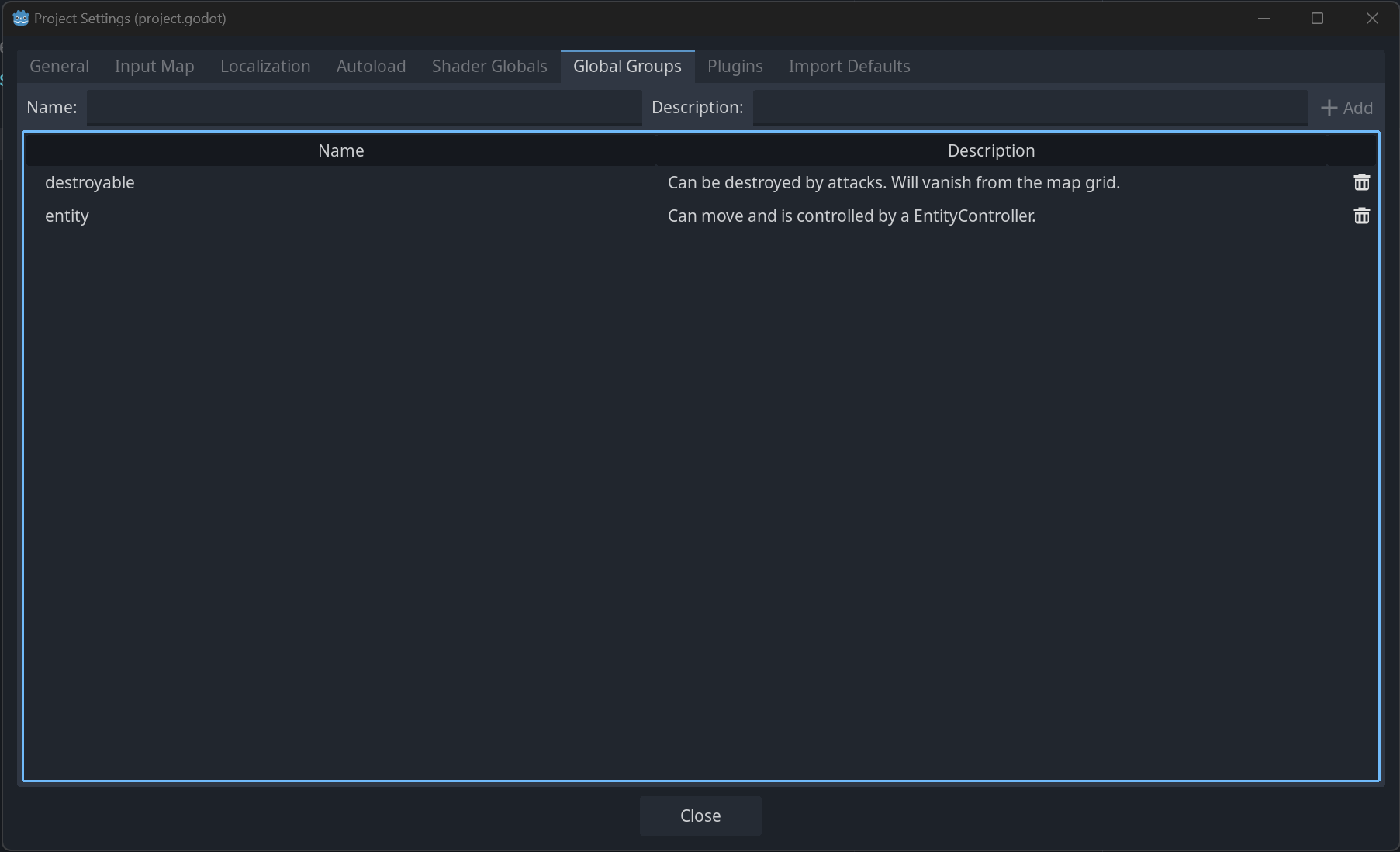
You can manage Global Groups in the Global Groups dock, inside Project Settings. There, you will be able to add new global groups, or change existing groups' names and descriptions.
Usando código
También puedes gestionar grupos desde scripts. El siguiente código agrega el nodo al que adjuntas el script al grupo guards tan pronto como entra en el árbol de escena.
func _ready():
    add_to_group("guards")
public override void _Ready()
{
    base._Ready();

    AddToGroup("guards");
}
Imagina que estás creando un juego de infiltración. Cuando un enemigo ve al jugador, quieres que todos los guardias y robots estén alerta.
En el ejemplo ficticio a continuación, usamos SceneTree.call_group() para alertar a todos los enemigos de que el jugador fue avistado.
func _on_player_spotted():
    get_tree().call_group("guards", "enter_alert_mode")
public void _OnPlayerDiscovered()
{
    GetTree().CallGroup("guards", "enter_alert_mode");
}
El código anterior llama a la función enter_alert_mode en cada miembro del grupo guards.
Para obtener la lista completa de nodos en el grupo guards como un arreglo, puedes llamar a SceneTree.get_nodes_in_group():
var guards = get_tree().get_nodes_in_group("guards")
var guards = GetTree().GetNodesInGroup("guards");
La clase SceneTree proporciona muchos métodos útiles para interactuar con escenas, su jerarquía de nodos y grupos. Permite cambiar escenas o recargarlas fácilmente, salir del juego o pausar y despausarlo. Incluso viene con señales útiles.