Using Voxel global illumination
VoxelGI is a form of fully real-time global illumination, intended to be used for small/medium-scale 3D scenes. VoxelGI is fairly demanding on the GPU, so it's best used when targeting dedicated graphics cards.
Importante
VoxelGI is only supported when using the Forward+ renderer, not the Mobile or Compatibility renderers.
Ver también
Not sure if VoxelGI is suited to your needs? See ¿Qué técnica de iluminación global debo utilizar? for a comparison of GI techniques available in Godot 4.
Comparaciones visuales
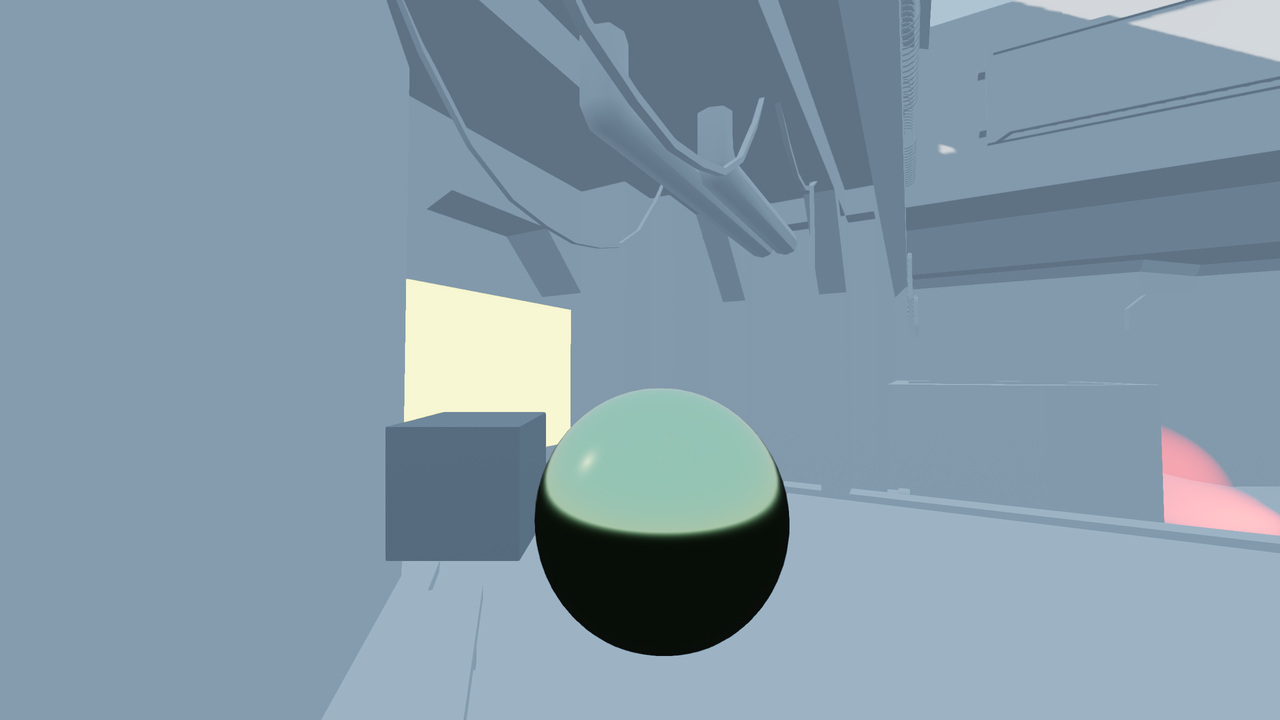
VoxelGI disabled.
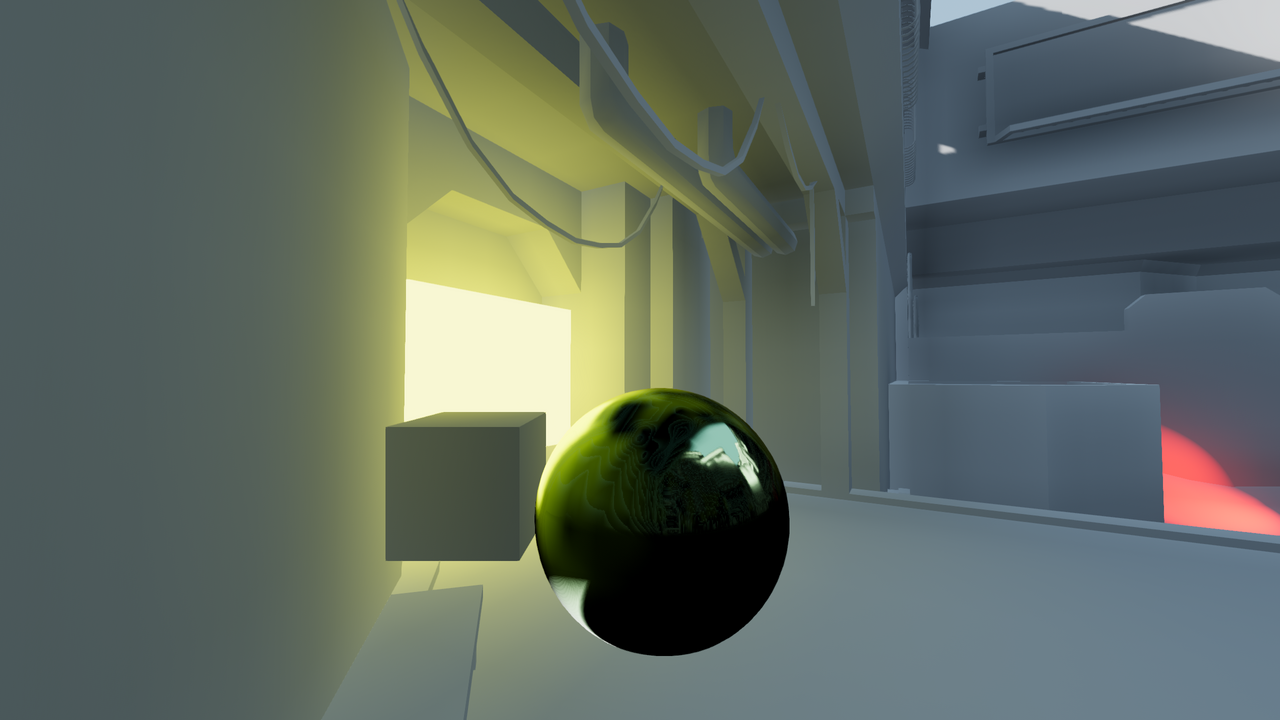
VoxelGI enabled.
Configurando VoxelGl
Make sure your static level geometry is imported with the Light Baking option set to Static or Static Lightmaps in the Import dock. For manually added MeshInstance3D nodes, make sure the Global Illumination > Mode property is set to Static in the inspector.
Create a VoxelGI node in the Scene tree dock.
Mueve el nodo VoxelGl al centro del área que quieras cubrir arrastrando el gizmo de manipulación en el viewport 3D. Entonces, ajusta los límites VoxelGl arrastrando los puntos rojos en el viewport 3D (o ajustando los valores en el inspector). Asegúrate de que los límites VoxelGl no son innecesariamente grandes, o la calidad sufrirá.
Selecciona el nodo VoxelGl y haz clic en el botón Bake, encima del viewport 3D del editor. Esto requerirá al menos un par de segundos (dependiendo en el número de subdivisiones VoxelGl y la complejidad de la escena).
Si al menos una malla contenida dentro de los límites VoxelGl tiene su modo de iluminación global configurado como Estático, deberías ver iluminación indirecta aparecer en la escena.
Nota
Para evitar sobrecargar los ficheros basados en texto de una escena con grandes cantidades de datos binarios, asegúrate de siempre guardar el recurso VoxelGlData a un fichero binario externo. Exte archivo debe ser guardado con extensión .res (Recurso binario) y NO con una extensión .tres (Recurso basado en texto). Usar un recurso binario externo para recursos VoxelGlData mantendrá tu escena basada en texto pequeña mientras asegura que es guardada y cargada rápidamente.
Propiedades del nodo VoxelGI
The following properties can be adjusted in the VoxelGI node inspector before baking:
Subdiv: Valores más altos resultarán en iluminación indirecta más precisa, al coste de un peor rendimiento, tiempos de bakeado más largos, y mayor coste de almacenamiento.
Extents: Representa el tamaño de la caja dentro de la que bakear iluminación indirecta. Estos límites están centrados en torno al nodo de origen VoxelGl.
Las propiedades siguientes pueden ser ajustadas en el recurso VoxelGlData que es contenido dentro de un nodo VoxelGl después de que haya sido bakeado:
Dynamic Range: The maximum brightness that can be represented in indirect lighting. Higher values make it possible to represent brighter indirect light, at the cost of lower precision (which can result in visible banding). If in doubt, leave this unchanged.
Energy: The indirect lighting's overall energy. This also effects the energy of direct lighting emitted by meshes with emissive materials.
Bias: Optional bias added to lookups into the voxel buffer at runtime. This helps avoid self-occlusion artifacts.
Normal Bias: Similar to Bias, but offsets the lookup into the voxel buffer by the surface normal. This also helps avoid self-occlusion artifacts. Higher values reduce self-reflections visible in non-rough materials, at the cost of more visible light leaking and flatter-looking indirect lighting. To prioritize hiding self-reflections over lighting quality, set Bias to
0.0and Normal Bias to a value between1.0and2.0.Propagation: The energy factor to use for bounced indirect lighting. Higher values will result in brighter, more diffuse lighting (which may end up looking too flat). When Use Two Bounces is enabled, you may want to decrease Propagation to compensate for the overall brighter indirect lighting.
Use Two Bounces: If enabled, lighting will bounce twice instead of just once. This results in more realistic-looking indirect lighting, and makes indirect lighting visible in reflections as well. Enabling this generally has no noticeable performance cost.
Interior: If enabled, environment sky lighting will not be taken into account by VoxelGI. This should be enabled in indoor scenes to avoid light leaking from the environment.
Interacción de VoxelGI con luces y objetos
To ensure correct visuals when using VoxelGI, you must configure your meshes and lights' global illumination properties according to their purpose in the scene (static or dynamic).
There are 3 global illumination modes available for meshes:
Disabled: The mesh won't be taken into account for VoxelGI baking. The mesh will receive indirect lighting from the scene, but it will not contribute indirect lighting to the scene.
Static (default): The mesh will be taken into account for VoxelGI baking. The mesh will both receive and contribute indirect lighting to the scene. If the mesh is changed in any way after baking, the VoxelGI node must be baked again. Otherwise, indirect lighting will look incorrect.
Dynamic: The mesh won't be taken into account for VoxelGI baking, but it will still receive and contribute indirect lighting to the scene in real-time. This option is much slower compared to Static. Only use the Dynamic global illumination mode on large meshes that will change significantly during gameplay.
Additionally, there are 3 bake modes available for lights (DirectionalLight3D, OmniLight3D and SpotLight3D):
Disabled: The light won't be taken into account for VoxelGI baking. The light won't contribute indirect lighting to the scene.
Static: The light will be taken into account for VoxelGI baking. The light will contribute indirect lighting to the scene. If the light is changed in any way after baking, the VoxelGI node must be baked again or indirect lighting will look incorrect. If in doubt, use this mode for level lighting.
Dynamic (default): The light won't be taken into account for VoxelGI baking, but it will still contribute indirect lighting to the scene in real-time. This option is slower compared to Static. Only use the Dynamic global illumination mode on lights that will change significantly during gameplay.
Nota
The amount of indirect energy emitted by a light depends on its color, energy and indirect energy properties. To make a specific light emit more or less indirect energy without affecting the amount of direct light emitted by the light, adjust the Indirect Energy property in the Light3D inspector.
Ver también
See Which global illumination mode should I use on meshes and lights? for general usage recommendations.
Adjusting VoxelGI performance and quality
Since VoxelGI is relatively demanding, it will perform best on systems with recent dedicated GPUs. On older dedicated GPUs and integrated graphics, tweaking the settings is necessary to achieve reasonable performance.
In the Project Settings' Rendering > Global Illumination section, VoxelGI quality can also be adjusted in two ways:
Voxel Gi > Quality: If set to Low instead of High, voxel cone tracing will only use 4 taps instead of 6. This speeds up rendering at the cost of less pronounced ambient occlusion.
Gi > Use Half Resolution: If enabled, both VoxelGI and SDFGI will have their GI buffer rendering at halved resolution. For instance, when rendering in 3840×2160, the GI buffer will be computed at a 1920×1080 resolution. Enabling this option saves a lot of GPU time, but it can introduce visible aliasing around thin details.
Note that the Advanced toggle must be enabled in the project settings dialog for the above settings to be visible.
Additionally, VoxelGI can be disabled entirely by hiding the VoxelGI node. This can be used for comparison purposes or to improve performance on low-end systems.
Reducing VoxelGI light leaks and artifacts
After baking VoxelGI, you may notice indirect light is leaking at some spots in your level geometry. This can be remedied in several ways:
For both light leaking and artifacts, try moving or rotating the VoxelGI node then bake it again.
To combat light leaking in general, ensure your level geometry is fully sealed. This is best done in the 3D modeling software used to design the level, but primitive MeshInstance3D nodes with their global illumination mode set to Static can also be used.
To combat light leaking with thin geometry, it's recommended to make the geometry in question thicker. If this is not possible, then add a primitive MeshInstance3D node with its global illumination mode set to Static. Bake VoxelGI again, then hide the primitive MeshInstance3D node (it will still be taken into account by VoxelGI). For optimal results, the MeshInstance3D should have a material whose color matches the original thin geometry.
To combat artifacts that can appear on reflective surfaces, try increasing Bias and/or Normal Bias in the VoxelGIData resource as described above. Do not increase these values too high, or light leaking will become more pronounced.
If you notice VoxelGI nodes popping in and out of existence as the camera moves, this is most likely because the engine is rendering too many VoxelGI instances at once. Godot is limited to rendering 8 VoxelGI nodes at once, which means up to 8 instances can be in the camera view before some of them will start flickering.
Additionally, for performance reasons, Godot can only blend between 2 VoxelGI nodes at a given pixel on the screen. If you have more than 2 VoxelGI nodes overlapping, global illumination may appear to flicker as the camera moves or rotates.