Attention: Here be dragons
This is the latest
(unstable) version of this documentation, which may document features
not available in or compatible with released stable versions of Godot.
Checking the stable version of the documentation...
Compilar para Windows
Ver también
Esta página describe cómo compilar el editor de Windows y las plantillas de exportación desde el código fuente. Si deseas exportar tu proyecto a Windows, lee Exportación para Windows.
Requerimientos
Para compilar en Windows, se requiere lo siguiente:
A C++ compiler. Use one of the following:
Visual Studio Community, version 2019 or later. Visual Studio 2022 is recommended. During installation make sure to select C++ in the list of workflows, and select the following individual components:
MSVC v142 - VS 2019 C++ {arch} build tools (Latest) for the target architectures.
Windows 11 SDK (10.0.22621.0) (exact version).
MSVC v143 - VS 2022 C++ {arch} build tools (Latest) for the target architectures.
Windows 11 SDK (10.0.22621.0) or newer.
MSVC Build Tools for {arch} (Latest) for the target architectures.
Windows 11 SDK (10.0.22621.0) or newer.
If you've already installed Visual Studio without C++ support for the target architecture, or without the Windows SDK, run the installer again; it should present you a Modify button. Supports
x86_64,x86_32, andarm64.MinGW-w64 with GCC can be used as an alternative to Visual Studio. Be sure to install/configure it to use the
posixthread model. Important: When using MinGW to compile themasterbranch, you need GCC 12 or later. Supportsx86_64andx86_32only.MinGW-LLVM with clang can be used as an alternative to Visual Studio and MinGW-w64. Important: When using MinGW to compile the
masterbranch, you need clang 14 or later. Supportsx86_64,x86_32, andarm64.
Python 3.9+. Make sure to enable the option to add Python to the
PATHin the installer.SCons 4.4+ build system. Using the latest release is recommended, especially for proper support of recent Visual Studio releases.
Direct3D 12 dependencies (can be skipped with the
d3d12=noSCons option if Direct3D 12 support is not desired).
Nota
If you have Scoop installed, you can easily install MinGW and other dependencies using the following command:
scoop install python mingw
Scons will still need to be installed via pip
Nota
If you have MSYS2 installed, you can easily install MinGW and other dependencies using the following command:
pacman -S mingw-w64-x86_64-gcc mingw-w64-i686-gcc make python-pip
Para cada subsistema de MSYS2 MinGW, debes ejecutar pip3 install scons en su shell.
Ver también
Para obtener el código fuente de Godot para compilarlo, consulta la sección Conseguir el código fuente.
Para obtener una visión general del uso de SCons para Godot, consulta la sección Introducción al sistema de compilación.
Configurar SCons
To install SCons, open the command prompt and run the following command:
python -m pip install scons
Si te aparece el mensaje Defaulting to user installation because normal site-packages is not writeable, es posible que debas ejecutar ese comando nuevamente con permisos elevados. Abre una nueva línea de comandos como administrador y luego ejecuta el comando nuevamente para asegurarte de que SCons esté disponible desde la variable de entorno PATH.
Para verificar si has instalado Python y SCons correctamente, puedes escribir python --version y scons --version en una ventana de comandos (cmd.exe).
Si los comandos anteriores no funcionan, asegúrate de agregar Python a la variable de entorno PATH después de instalarlo y luego verifica nuevamente. Puedes hacer esto ejecutando nuevamente el instalador de Python y habilitando la opción para agregar Python al PATH.
Si SCons no puede detectar tu instalación de Visual Studio, es posible que tu versión de SCons sea demasiado antigua. Actualízala a la última versión con el comando python -m pip install --upgrade scons.
Descargar el código fuente de Godot
Consulta la sección Conseguir el código fuente para obtener instrucciones detalladas.
El tutorial partirá de ahora bajo la suposición de que has colocado el código fuente en C:\godot.
Advertencia
Para evitar ralentizaciones causadas por el escaneo continuo de virus durante la compilación, agrega la carpeta de código fuente de Godot a la lista de excepciones en tu software antivirus.
For Windows Defender, hit the Windows key, type "Windows Security" then hit Enter. Click on Virus & threat protection on the left panel. Under Virus & threat protection settings click on Manage Settings and scroll down to Exclusions. Click Add or remove exclusions then add the Godot source folder.
Compilar
Seleccionando un compilador
SCons will automatically find and use an existing Visual Studio installation.
If you do not have Visual Studio installed, it will attempt to use
MinGW instead. If you already have Visual Studio installed and want to
use MinGW-w64, pass use_mingw=yes to the SCons command line. Note that MSVC
builds cannot be performed from the MSYS2 or MinGW shells. Use either
cmd.exe or PowerShell instead. If you are using MinGW-LLVM, pass both
use_mingw=yes and use_llvm=yes to the SCons command line.
Truco
During development, using the Visual Studio compiler is usually a better idea, as it links the Godot binary much faster than MinGW. However, MinGW can produce more optimized binaries using link-time optimization (see below), making it a better choice for production use. This is particularly the case for the GDScript VM which performs much better with MinGW compared to MSVC. Therefore, it's recommended to use MinGW to produce builds that you distribute to players.
Todos los binarios oficiales de Godot se construyen en contenedores personalizados usando MinGW.
Ejecutar SCons
After opening a command prompt, change to the root directory of
the engine source code (using cd) and type:
C:\godot> scons platform=windows
Nota
Cuando compiles con múltiples hilos de CPU, SCons puede mostrar un aviso sobre la falta de pywin32. Puedes ignorar este aviso de forma segura.
Truco
If you are compiling Godot to make changes or contribute to the engine,
you may want to use the SCons options dev_build=yes or dev_mode=yes.
See Development and production aliases
for more info.
If all goes well, the resulting binary executable will be placed in
C:\godot\bin\ with the name godot.windows.editor.x86_32.exe or
godot.windows.editor.x86_64.exe. By default, SCons will build a binary matching
your CPU architecture, but this can be overridden using arch=x86_64,
arch=x86_32, or arch=arm64.
Este archivo ejecutable contiene todo el motor y se ejecuta sin ninguna dependencia. Al ejecutarlo, se abrirá el Administrador de Proyectos.
Truco
If you are compiling Godot for production use, you can
make the final executable smaller and faster by adding the
SCons option production=yes. This enables additional compiler
optimizations and link-time optimization.
LTO takes some time to run and requires up to 30 GB of available RAM
while compiling (depending on toolchain). If you're running out of memory
with the above option, use production=yes lto=none or production=yes lto=thin
(LLVM only) for a lightweight but less effective form of LTO.
Nota
Si deseas utilizar configuraciones de editor separadas para tus propias compilaciones de Godot y las versiones oficiales, puedes habilitar Modo autónomo creando un archivo llamado ._sc_ o _sc_ en la carpeta bin/.
Instalar requisitos de Direct3D 12
By default, Windows builds of Godot contain support for the Direct3D 12 graphics
API. Compiling with Direct3D 12 support requires additional dependencies
to be installed. If you wish to skip this step, you can use the d3d12=no
SCons option; Vulkan and OpenGL support will remain available if you do so.
You can install the required dependencies by running
python misc/scripts/install_d3d12_sdk_windows.py
in the Godot source repository. After running this script, compile Godot as usual.
This will use the default paths for the various dependencies, which match the
ones used in the script.
Puedes encontrar los pasos detallados a continuación si deseas configurar las dependencias manualmente, pero el script anterior maneja todo por ti (incluidos los componentes opcionales PIX y Agility SDK).
Biblioteca godot-nir-static. Compilamos las bibliotecas Mesa que necesitarás en una biblioteca estática. Descárgala en cualquier lugar, descomprímela y recuerda la ruta a la carpeta descomprimida, la necesitarás a continuación.
Nota
Opcionalmente, puedes compilar las bibliotecas godot-nir-static con los siguientes pasos:
Instale el paquete Python mako que es necesario para generar algunos archivos.
Clone el directorio godot-nir-static y navegue hasta él.
Ejecuta lo siguiente:
git submodule update --init
./update_mesa.sh
scons
If you are building with MinGW-w64, add use_mingw=yes to the scons
command, you can also specify the build architecture using arch={architecture}.
If you are building with MinGW-LLVM, add both use_mingw=yes and
use_llvm=yes to the scons command.
If you are building with MinGW and the binaries are not located in
the PATH, add mingw_prefix="/path/to/mingw" to the scons
command.
The Mesa static library should be built using the same compiler and the same CRT (if you are building with MinGW) you are using for building Godot.
Opcionalmente, puedes compilar con lo siguiente para obtener funciones adicionales:
PIX es una aplicación de depuración y optimización del rendimiento para aplicaciones Direct3D12. Si su compilación le da soporte, puedes obtener información mucho más detallada a través de PIX que le ayudará a optimizar tu juego y solucionar errores gráficos. Para usarlo, descarge el paquete WinPixEventRuntime. Se le dirigirá a una página de paquetes NuGet donde puedes hacer clic en "Descargar paquete" para obtenerlo. Una vez descargado, cambie la extensión del archivo a .zip y descomprima el archivo en alguna ruta.
Agility SDK se puede utilizar para proporcionar acceso a las últimas características de Direct3D 12 sin depender de actualizaciones de controladores. Para usarlo, descargue el último paquete de Agility SDK. Se lo dirigirá a una página de paquetes NuGet donde puede hacer clic en "Descargar paquete" para obtenerlo. Una vez descargado, cambie la extensión del archivo a .zip y descomprima el archivo en alguna ruta.
Nota
Si usa una versión preliminar del Agility SDK, recuerda habilitar el modo de desarrollador en Windows; de lo contrario, no se utilizará.
Nota
If you want to use a PIX with MinGW build, navigate to PIX runtime directory and use the following commands to generate import library:
# For x86-64:
gendef ./bin/x64/WinPixEventRuntime.dll
dlltool --machine i386:x86-64 --no-leading-underscore -d WinPixEventRuntime.def -D WinPixEventRuntime.dll -l ./bin/x64/libWinPixEventRuntime.a

# For ARM64:
gendef ./bin/ARM64/WinPixEventRuntime.dll
dlltool --machine arm64 --no-leading-underscore -d WinPixEventRuntime.def -D WinPixEventRuntime.dll -l ./bin/ARM64/libWinPixEventRuntime.a
When building Godot, you will need to tell SCons where to look for the additional libraries:
C:\godot> scons platform=windows mesa_libs=<...>
O bien, con todas las opciones habilitadas:
C:\godot> scons platform=windows mesa_libs=<...> agility_sdk_path=<...> pix_path=<...>
Nota
PIX support is disabled by default, even if you have it installed.
To enable it, pass use_pix=yes to SCons.
Nota
For the Agility SDK's DLLs, you have to explicitly choose the kind of
workflow. Single-arch is the default (DLLs copied to bin/). If you pass
agility_sdk_multi_arch=yes to SCons, you'll opt-in for multi-arch.
DLLs will be copied to the appropriate bin/<arch>/ subdirectories
and at runtime, the right one will be loaded.
Compiling with AccessKit support
AccessKit provides support for screen readers.
Compiling with AccessKit requires additional dependencies to be installed.
If you wish to skip this step, you can use the accesskit=no SCons option.
You can install the required dependencies by running
python misc/scripts/install_accesskit.py
in the Godot source repository. After running this script, compile Godot as usual.
Nota
You can optionally build the AccessKit libraries yourself with the following steps:
Clone the godot-accesskit-c-static directory and navigate to it.
Run the following command:
cd accesskit-c
cmake -S . -B build -DCMAKE_BUILD_TYPE=Release
cmake --build build
cmake --install build
The AccessKit static library should be built using the same compiler and the same CRT (if you are building with MinGW) you are using for building Godot.
To compile Godot with a custom build of AccessKit, add accesskit_sdk_path={path} to
tell SCons where to look for the AccessKit libraries:
scons platform=windows accesskit_sdk_path=<...>
Compiling with WinRT support
WinRT provides support for OneCore TTS (accessing Windows 10+ voices), HDR color information monitoring, and emoji picker.
If you are building with MinGW, compiling with WinRT requires additional dependencies to be installed.
If you wish to skip this step, you can use the winrt=no SCons option.
You can install the required dependencies by running
python misc/scripts/install_winrt.py
in the Godot source repository. After running this script, compile Godot as usual.
Nota
You can optionally build the WinRT headers yourself with the following steps:
Clone the winrt-mingw directory and navigate to it.
Run the following command:
cmake -Bbuild -DCMAKE_BUILD_TYPE=Release -DCPPWINRT_BUILD_VERSION=2.0.250303.1 -DBUILD_TESTING=OFF cppwinrt/
echo "" > build/app.manifest.rc
cmake --build build
./build/cppwinrt.exe -input windows-rs/crates/libs/bindgen/default/ -output include/
To compile Godot with a custom build of WinRT, add winrt_path={path} to
tell SCons where to look for the AccessKit headers:
scons platform=windows winrt_path=<...>
Compilación con soporte ANGLE
ANGLE proporciona una capa de traducción de OpenGL ES 3.x a Direct3D 11 y se puede utilizar para mejorar el soporte del renderizador Compatibility en algunas GPU más antiguas con controladores OpenGL obsoletos y en Windows para ARM.
Compiling with ANGLE requires additional dependencies to be installed.
If you wish to skip this step, you can use the angle=no SCons option.
You can install the required dependencies by running
python misc/scripts/install_angle.py
in the Godot source repository. After running this script, compile Godot as usual.
Nota
Opcionalmente, puedes crear las bibliotecas godot-angle-static con los siguientes pasos:
Clone the godot-angle-static directory and navigate to it.
Run the following command:
git submodule update --init
./update_angle.sh
scons
If you are buildng with MinGW, add use_mingw=yes to the command,
you can also specify the build architecture using arch={architecture}.
If you are building with MinGW-LLVM, add both use_mingw=yes and
use_llvm=yes to the scons command.
If you are building with MinGW and the binaries are not located in
the PATH, add mingw_prefix="/path/to/mingw" to the scons
command.
The ANGLE static library should be built using the same compiler and the same CRT (if you are building with MinGW) you are using for building Godot.
To compile Godot with a custom build of ANGLE, add angle_libs={path} to
tell SCons where to look for the ANGLE libraries:
scons platform=windows angle_libs=<...>
Desarrollo en Visual Studio
No es necesario utilizar un IDE para compilar Godot, ya que SCons se encarga de todo. Sin embargo, si tienes la intención de desarrollar el motor o depurar el código C++ del motor, es posible que estés interesado en configurar un editor de código o un IDE.
Los editores basados en carpetas no requieren una configuración particular para empezar a trabajar con el código de Godot. Sin embargo, para editar proyectos con Visual Studio, necesitan ser configurados como una solución.
You can create a Visual Studio solution via SCons by running SCons with
the vsproj=yes parameter, like this:
scons platform=windows vsproj=yes
Ahora podrás abrir el código fuente de Godot en una solución de Visual Studio y compilar Godot usando el botón Build de Visual Studio.
Ver también
Véase Visual Studio para obtener más detalles.
Solución De Problemas
If you get a compilation failure when using MSVC, make sure to apply the latest updates. You can do so by starting the Visual Studio IDE and using , then in the menu bar at the top. Install all updates, then try compiling again.
Compilar para Windows desde otros sistemas operativos
If you are a Linux or macOS user, you need to install MinGW-w64, which typically comes in 32-bit and 64-bit variants, or MinGW-LLVM, which comes as a single archive for all target architectures. The package names may differ based on your distribution, here are some known ones:
Arch Linux |
pacman -S mingw-w64
|
Debian / Ubuntu |
apt install mingw-w64
|
Fedora |
dnf install mingw64-gcc-c++ mingw64-winpthreads-static \
            mingw32-gcc-c++ mingw32-winpthreads-static
|
macOS |
brew install mingw-w64
|
Mageia |
urpmi mingw64-gcc-c++ mingw64-winpthreads-static \
      mingw32-gcc-c++ mingw32-winpthreads-static
|
Before attempting the compilation, SCons will check for
the following binaries in your PATH environment variable:
# for MinGW-w64
i686-w64-mingw32-gcc
x86_64-w64-mingw32-gcc

# for MinGW-LLVM
aarch64-w64-mingw32-clang
i686-w64-mingw32-clang
x86_64-w64-mingw32-clang
If the binaries are not located in the PATH (e.g. /usr/bin),
you can define the following environment variable to give a hint to
the build system:
export MINGW_PREFIX="/path/to/mingw"
Donde /path/to/mingw es la ruta que contiene el directorio bin donde se encuentran i686-w64-mingw32-gcc y x86_64-w64-mingw32-gcc (por ejemplo, /opt/mingw-w64 si los binarios se encuentran en /opt/mingw-w64/bin).
To make sure you are doing things correctly, executing the following in the shell should result in a working compiler (the version output may differ based on your system):
${MINGW_PREFIX}/bin/x86_64-w64-mingw32-gcc --version
# x86_64-w64-mingw32-gcc (GCC) 13.2.0
Nota
If you are building with MinGW-LLVM, add use_llvm=yes to the scons command.
Nota
When cross-compiling for Windows using MinGW-w64, keep in mind only
x86_64 and x86_32 architectures are supported. MinGW-LLVM supports
arm64 as well. Be sure to specify the right arch= option when
invoking SCons if building from a different architecture.
Solución De Problemas
La compilación cruzada desde algunas versiones de Ubuntu puede dar lugar a este error, debido a una configuración predeterminada que no incluye soporte para el enhebrado POSIX.
You can change that configuration following those instructions, for 64-bit:
sudo update-alternatives --config x86_64-w64-mingw32-gcc
<choose x86_64-w64-mingw32-gcc-posix from the list>
sudo update-alternatives --config x86_64-w64-mingw32-g++
<choose x86_64-w64-mingw32-g++-posix from the list>
Y para 32-bits:
sudo update-alternatives --config i686-w64-mingw32-gcc
<choose i686-w64-mingw32-gcc-posix from the list>
sudo update-alternatives --config i686-w64-mingw32-g++
<choose i686-w64-mingw32-g++-posix from the list>
Para crear las plantillas de exportación para Windows
Windows export templates are created by compiling Godot without the editor, with the following flags:
C:\godot> scons platform=windows target=template_debug arch=x86_32
C:\godot> scons platform=windows target=template_release arch=x86_32
C:\godot> scons platform=windows target=template_debug arch=x86_64
C:\godot> scons platform=windows target=template_release arch=x86_64
C:\godot> scons platform=windows target=template_debug arch=arm64
C:\godot> scons platform=windows target=template_release arch=arm64
If you plan on replacing the standard export templates, copy these to the
following location, replacing <version> with the version identifier
(such as 4.2.1.stable or 4.3.dev):
%APPDATA%\Godot\export_templates\<version>\
Con los siguientes nombres:
windows_debug_x86_32_console.exe
windows_debug_x86_32.exe
windows_debug_x86_64_console.exe
windows_debug_x86_64.exe
windows_debug_arm64_console.exe
windows_debug_arm64.exe
windows_release_x86_32_console.exe
windows_release_x86_32.exe
windows_release_x86_64_console.exe
windows_release_x86_64.exe
windows_release_arm64_console.exe
windows_release_arm64.exe
Sin embargo, si estás utilizando módulos personalizados o código de motor personalizado, es posible que desees configurar tus binarios como plantillas de exportación personalizadas en el menú de exportación del proyecto. Debes tener las Opciones Avanzadas habilitadas para hacerlo.
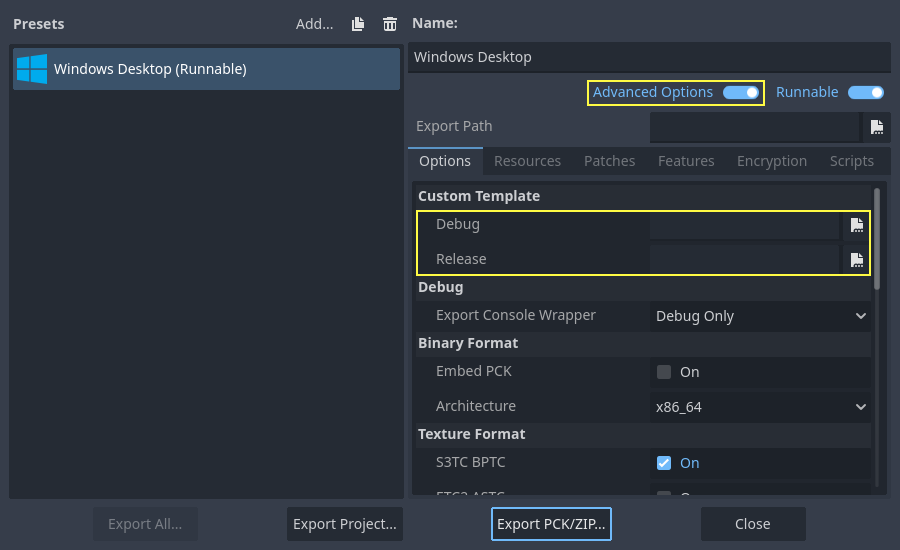
En este caso, no es necesario copiarlos; simplemente haz referencia a los archivos resultantes en el directorio bin\ de la carpeta de origen de Godot. De esta manera, la próxima vez que compiles, los tendrás automáticamente como plantillas personalizadas referenciadas.