Attention: Here be dragons
This is the latest
(unstable) version of this documentation, which may document features
not available in or compatible with released stable versions of Godot.
Checking the stable version of the documentation...
Visual Studio Code
备注
本文档主要针对的是为游戏引擎(本身)做贡献(比如参与引擎的 C++ 核心开发),而不是教你如何使用 Visual Studio Code 来编写 C# 或 GDScript 游戏脚本。如果你想在外部编辑器中编写 C# 或 GDScript 代码,请参见: the C# guide to configure an external editor 或 the GDScript guide to using an external text editor。
Visual Studio Code 是微软推出的免费跨平台代码编辑器(请勿与 Visual Studio 混淆)。
导入项目
使用 clangd 扩展时,请执行
scons compiledb=yes。在 Visual Studio Code 的主界面中,使用 File > Open Folder... 打开 Godot 根目录。
按 Ctrl + Shift + P 打开命令提示符窗口,然后输入 Configure Task。
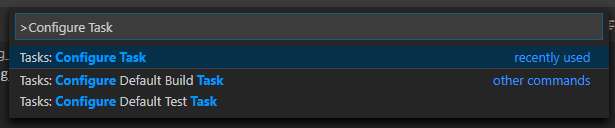
选择 Create tasks.json file from template 选项。

然后选择其他。
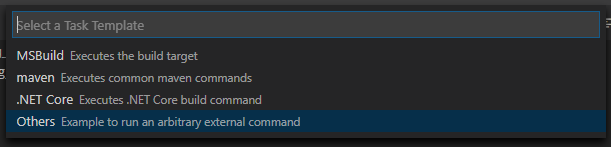
如果找不到 Create tasks.json file from template (从模板创建 tasks.json 文件)这个选项,你可以尝试删除文件夹里已有的同名文件,或者手动创建一个
.vscode/tasks.json文件。关于任务的更多详细信息,请参见 Tasks in Visual Studio Code 。在
tasks.json文件中找到"tasks"数组, 并在其中添加一个新部分:.vscode/tasks.json{ "label": "build", "group": "build", "type": "shell", "command": "scons", "args": [ // enable for debugging with breakpoints "dev_build=yes", ], "problemMatcher": "$msCompile" }
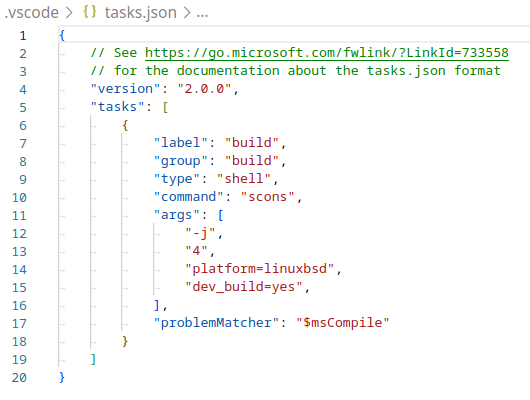
填好了 tasks.json 的一个例子.
参数可以根据你自己的设置和需要而不同. 参见 构建系统介绍 以获取完整的参数列表.
调试项目
为了构建项目, 我们需要配置文件 launch.json.
按 Ctrl + Shift + D 打开“运行”面板。
如果缺少
launch.json文件, 系统会提示你创建一个新的文件.
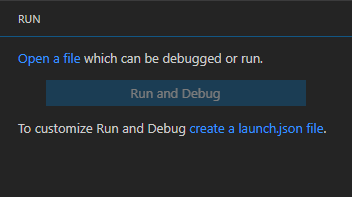
请选择 C++ (GDB/LLDB) 。这里可能还会出现另一个针对特定平台的选项。如果选了那个,请相应地调整系统提供的配置示例。
在
launch.json文件中找到"configurations"数组, 并添加一个新部分:
{
  "name": "Launch Project",
  "type": "lldb",
  "request": "launch",
  // Change to godot.linuxbsd.editor.dev.x86_64.llvm for llvm-based builds.
  "program": "${workspaceFolder}/bin/godot.linuxbsd.editor.dev.x86_64",
  // Change the arguments below for the project you want to test with.
  // To run the project instead of editing it, remove the "--editor" argument.
  "args": [ "--editor", "--path", "path-to-your-godot-project-folder" ],
  "stopAtEntry": false,
  "cwd": "${workspaceFolder}",
  "environment": [],
  "externalConsole": false,
  "preLaunchTask": "build"
}
{
  "name": "Launch Project",
  "type": "cppdbg",
  "request": "launch",
  // Change to godot.linuxbsd.editor.dev.x86_64.llvm for llvm-based builds.
  "program": "${workspaceFolder}/bin/godot.linuxbsd.editor.dev.x86_64",
  // Change the arguments below for the project you want to test with.
  // To run the project instead of editing it, remove the "--editor" argument.
  "args": [ "--editor", "--path", "path-to-your-godot-project-folder" ],
  "stopAtEntry": false,
  "cwd": "${workspaceFolder}",
  "environment": [],
  "externalConsole": false,
  "setupCommands":
  [
    {
      "description": "Enable pretty-printing for gdb",
      "text": "-enable-pretty-printing",
      "ignoreFailures": true
    },
    {
        "description": "Load custom pretty-printers for Godot types.",
        "text": "source ${workspaceRoot}/misc/utility/godot_gdb_pretty_print.py"
    }
  ],
  "preLaunchTask": "build"
}
{
  "name": "Launch Project",
  "type": "cppvsdbg",
  "request": "launch",
  "program": "${workspaceFolder}/bin/godot.windows.editor.dev.x86_64.exe",
  // Change the arguments below for the project you want to test with.
  // To run the project instead of editing it, remove the "--editor" argument.
  "args": [ "--editor", "--path", "path-to-your-godot-project-folder" ],
  "stopAtEntry": false,
  "cwd": "${workspaceFolder}",
  "environment": [],
  "console": "internalConsole",
  "visualizerFile": "${workspaceFolder}/platform/windows/godot.natvis",
  "preLaunchTask": "build"
}
{
  "name": "Launch Project",
  "type": "lldb",
  "request": "launch",
  "program": "${workspaceFolder}/bin/godot.macos.editor.x86_64",
  // Change the arguments below for the project you want to test with.
  // To run the project instead of editing it, remove the "--editor" argument.
  "args": ["--editor", "--path", "path-to-your-godot-project-folder"],
  "cwd": "${workspaceFolder}",
  "preLaunchTask": "build"
}
{
  "name": "Launch Project",
  "type": "lldb",
  "request": "launch",
  "program": "${workspaceFolder}/bin/godot.macos.editor.arm64",
  // Change the arguments below for the project you want to test with.
  // To run the project instead of editing it, remove the "--editor" argument.
  "args": ["--editor", "--path", "path-to-your-godot-project-folder"],
  "cwd": "${workspaceFolder}",
  "preLaunchTask": "build"
}
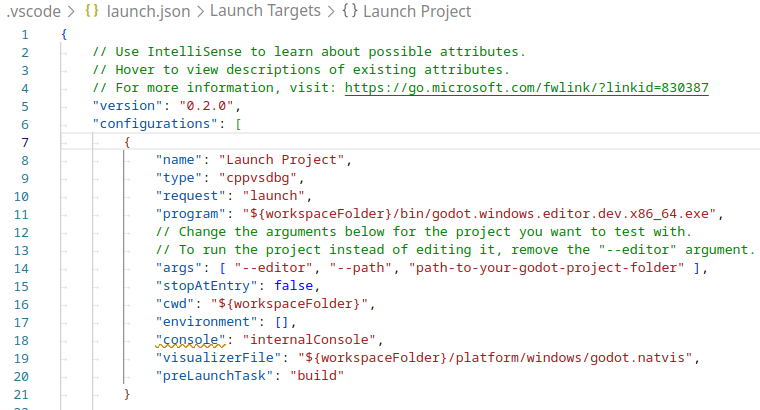
填写好的 launch.json 示例。
备注
由于 GDB 偶尔会出现性能问题,因此建议在基于 Unix 的系统上优先使用 LLDB 而不是 GDB。请确保在使用 lldb 的配置中,已经安装了 CodeLLDB extension 。
如果你在使用 lldb 时遇到了问题,可以考虑改用 gdb(具体可以查看 LinuxBSD_gdb 配置)。
请注意,lldb 调试器在使用基于 LLVM 的构建版本时,效果可能会更好。更多信息请参见 为 Linux、*BSD 平台编译 。
program 下面的名称取决于你的构建配置。例如,针对 64 位 LinuxBSD 平台,如果配置了 target=editor 和 dev_build=yes ,对应的名称就是 godot.linuxbsd.editor.dev.x86_64 。
配置 IntelliSense(智能感知)
对于 C/C++ 扩展:
如果你想修复可能遇到的 include(包含)错误,需要在 c_cpp_properties.json 文件里配置一些设置。
首先,请确保先构建(编译)一下项目,因为有些文件需要被自动生成出来。
你可以通过图形界面(UI)或者直接编辑文本的方式,来修改 C/C++ 配置文件:

为你的平台添加一个包含路径(include path),例如
${workspaceFolder}/platform/windows。添加以下宏定义:编辑器需要
TOOLS_ENABLED,调试构建需要DEBUG_ENABLED,测试需要TESTS_ENABLED。请确保编译器路径已正确配置为你正在使用的那个编译器。关于你所在平台的更多详细信息,请参见 构建系统介绍 。
c_cpp_properties.json文件在 Windows 系统下应该类似于这样:.vscode/c_cpp_properties.json{ "configurations": [ { "name": "Win32", "includePath": [ "${workspaceFolder}/**", "${workspaceFolder}/platform/windows" ], "defines": [ "_DEBUG", "UNICODE", "_UNICODE", "TOOLS_ENABLED", "DEBUG_ENABLED", "TESTS_ENABLED" ], "windowsSdkVersion": "10.0.22621.0", "compilerPath": "C:/Program Files/Microsoft Visual Studio/2022/Community/VC/Tools/MSVC/14.39.33519/bin/Hostx64/x64/cl.exe", "cStandard": "c17", "cppStandard": "c++17", "intelliSenseMode": "windows-msvc-x64" } ], "version": 4 }
你也可以使用 scons 参数
compiledb=yes并将编译命令设置compileCommands设置为compile_commands.json,该设置可以在 C/C++ 配置界面的高级部分找到。这个参数可以添加到你
tasks.json文件里的 build task(构建任务)中,因为每当你添加或移动文件时,都需要重新运行它。
对类参考的 XML 文件进行代码检查(Linting)
想要对类参考的 XML 文件进行代码检查(linting),请安装 vscode-xml extension。
鼠标悬停时显示文档(注释)
通过安装 Godot Hover Docs extension,当你把鼠标悬停在 C++ 源文件或头文件中的符号上时,就可以直接弹出显示类参考文档。这些文档信息是直接从本地的 XML 文件中获取的,所以即使在没有网络(离线)的情况下也能正常使用。
备注
这仅对 class reference XML 中已记录的符号有效,也就是那些暴露给脚本 API 的符号。除非内部引擎符号在声明的正上方带有注释,否则在鼠标悬停时是不会显示文档提示的。
故障排除
如果遇到问题, 也可在 Godot 社区论坛 中寻求帮助.