Attention: Here be dragons
This is the latest
(unstable) version of this documentation, which may document features
not available in or compatible with released stable versions of Godot.
Checking the stable version of the documentation...
Texture streaming
Warning
Texture streaming is experimental. Its project settings, import options, and API may change in future Godot releases.
Texture streaming lets Godot keep only the mipmap levels a texture actually needs in VRAM, and load or unload the remaining ones while the game runs. A 4096×4096 albedo texture that only ever covers a few dozen pixels on screen does not need its full-resolution mipmap resident, and a texture that is not visible at all does not need much of anything.
This makes it possible to use high-resolution textures without the VRAM cost of having them all loaded.
Streaming is most useful for projects that are VRAM-bound: large 3D scenes with many unique high-resolution materials. Projects that already fit in VRAM will not gain anything from it and should leave it disabled.
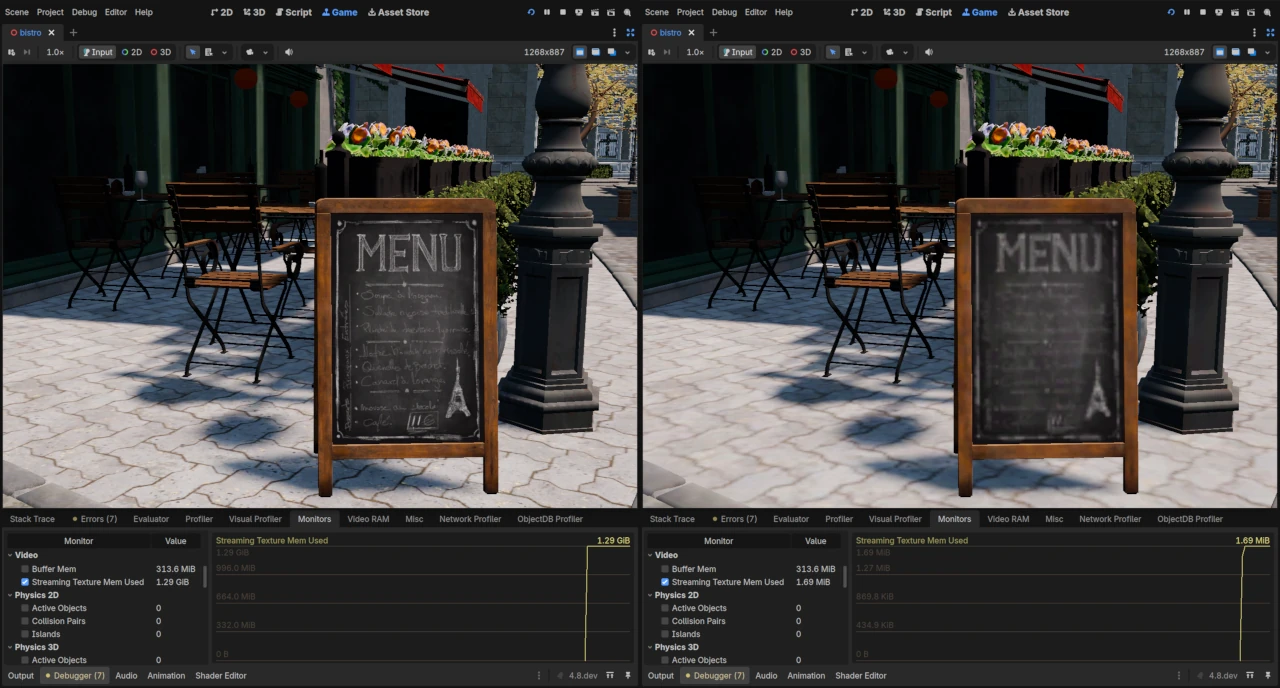
The same scene with texture streaming forced to max quality (left) and
an aggressive Min LOD (right), with the video/streaming_texture_mem_used
monitor showing the difference in VRAM usage.
Note
Texture streaming only works for textures used in 3D rendering, and requires the Forward+ or Mobile renderer. It has no effect with the Compatibility renderer, which prints a warning at startup when streaming is enabled.
Textures used only in 2D or in the UI produce no streaming feedback and would remain at their lowest allowed quality. Keep using the regular Texture2D importer for those.
How it works
Streaming is driven by feedback from the rendering itself, rather than by distance heuristics or manually authored LOD levels:
While rendering, the fragment shader computes the mipmap level that the material's textures would need. Each material using streamed textures writes the highest quality level it needs into a feedback buffer.
The feedback buffer is read back periodically and processed. The requested level is clamped to the allowed LOD range. If a memory budget is set, the level is adjusted so all streamed textures fit inside that budget.
Textures that were not requested for a while slowly decay towards lower quality, so memory is reclaimed from things that went off-screen.
Whenever a texture's target level differs from the level currently in VRAM, a reload is queued on an I/O thread, which reads the required mipmaps from the imported
.stexfile and replaces the texture. The number of these operations per second can be throttled via settings.
Because feedback is gathered per material, all streamed textures used by one material share the same decision. This works well for the usual case where a material's albedo, normal, and roughness maps have the same UV scale.
LOD levels
Everything in the streaming system is expressed in mipmap levels, where 0 is the full-resolution image and each level above that halves the resolution. For example, for a 4096x4096 texture:
LOD level |
Size of a 4096² texture |
|---|---|
0 |
4096×4096 |
1 |
2048×2048 |
2 |
1024×1024 |
3 |
512×512 |
4 |
256×256 |
… |
… |
13 |
1×1 (lowest supported) |
Two limits control the range a texture may use:
Min LOD is the best quality a texture is allowed to reach.
0allows full resolution. Raising it caps the resolution of every streamed texture, which is a cheap way to offer a "texture quality" option on lower-end hardware.Max LOD is the worst quality a texture may fall back to, and also the level a texture is first loaded at. For example, with a max LOD level of
3, a 4096x4096 texture never drops below 512×512.
The values are always clamped so that Min LOD <= Max LOD.
The gap between Min LOD and Max LOD should be kept as small as memory allows: textures start at Max LOD and decay back towards it, so the wider the gap, the more levels a texture climbs through and the more noticeable the sharpening becomes. A gap just big enough for your textures to fit keeps transitions short and subtle.
Setting Min LOD and Max LOD to the same value pins every streamed texture to that level: quality stays constant and no streaming transitions occur, while the sharper mipmap levels are never loaded. This can be used to implement a "texture quality" setting.
Generally, the Min LOD and Max LOD are configured globally for all textures. However, these can also be overridden on a per-texture basis. Some textures may require a Max LOD setting that prevents it from losing important detail like alpha channels used for alpha scissors, or other fine details like an atlas.
Enabling streaming
Streaming has two requirements: it has to be enabled in the project settings, and textures have to be imported into a streamable format.
Enable Rendering > Textures > Streaming > Enabled in the Project Settings (advanced settings must be turned on to see it). This setting requires a restart to take effect.
Import the textures you want to stream with the Texture2D Streamed importer, as described below.
Textures that are not imported as streamed textures behave as before: they stay in VRAM. Streaming can be adopted gradually, starting with the largest textures in the project.
Importing streamed textures
Select one or more images in the FileSystem dock, open the Import dock,
and set Importer to Texture2D Streamed, then click . The
images are imported to Godot's .stex format, which stores each mipmap
level so that individual levels can be read on demand, and loading them
produces a
StreamedTexture2D instead of a
CompressedTexture2D.
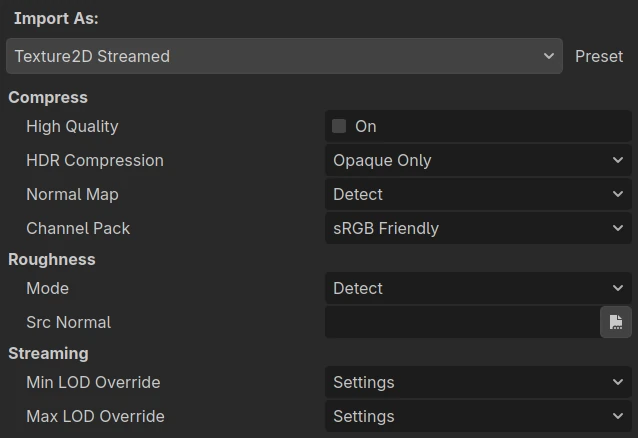
Import options shown after setting the importer to Texture2D Streamed
The compression options (High Quality, HDR Compression, Normal Map, Channel Pack) and the roughness options behave the same as in the regular Texture2D importer. One of the Import S3TC BPTC or Import ETC2 ASTC project settings should be enabled.
Two options are specific to streaming: Streaming > Min LOD Override and Streaming > Max LOD Override replace the project-wide LOD limits for this texture only. Settings (the default) keeps using the project settings; otherwise, pick an explicit LOD level. Use this for textures that need to be sharper than the project default (a hero asset seen up close) or that never need to be sharp (a large ground texture only seen from far away).
The same two limits are also exposed on the loaded resource as StreamedTexture2D.min_lod_override and StreamedTexture2D.max_lod_override, which can be changed from a script.
DDS and KTX files currently cannot be imported as streamed textures.
Note
Only 2D textures are streamable. Texture arrays, cubemaps, and 3D textures (ResourceImporterLayeredTexture) are not part of the streaming system.
Project settings
All settings live under Rendering > Textures > Streaming and are visible with advanced settings enabled:
Enabled (default
false): Global feature toggle. Requires a restart when changed.Min LOD (default
0): The best quality any streamed texture may reach.Max LOD (default
3): The worst quality a streamed texture may fall back to, and the level textures are first loaded at.Memory Budget Enabled (default
false): Enables the video RAM budget setting below.Memory Budget Mb (default
512): The video RAM budget for all streamed textures together, in MB.Max Ops Per Second (default
200): Throttle on mipmap operations. Higher values adapt faster but do more I/O and texture work per frame.Inactivity Decay Rate Ms (default
5000): Time per LOD level of quality decay for textures that stop being requested.
The memory budget
When a memory budget is set and enabled, the streaming system will not simply give every texture the resolution it asked for. If the total exceeds the budget, it starts reducing textures until the total fits, preferring, in order, textures that currently have more resolution than they asked for, textures that have not been requested for the longest, and textures that would free the most memory.
The budget only covers streamed textures. Render targets, meshes, shadow atlases, and non-streamed textures are not counted, so the budget must be set well below the total VRAM you expect to have available.
A budget is not required. Without a budget, each texture simply gets what the feedback asks for within its LOD range, which already avoids keeping full-resolution mipmaps around for distant or off-screen surfaces.
Tuning streaming in the editor
When streaming is enabled, the 3D viewport toolbar enables a button. It opens a panel with quality presets (Very Low to Max), sliders for Min LOD and Max LOD, and a Limit Maximum Texture Memory Budget checkbox with a budget slider.
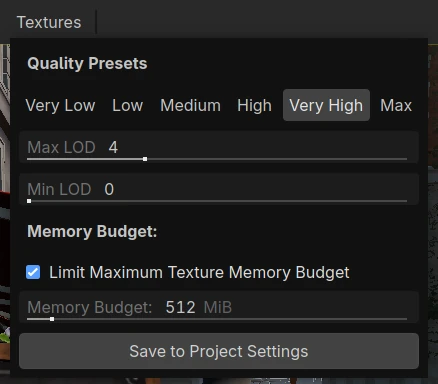
The Textures panel in the 3D viewport toolbar.
Changes are applied immediately as runtime overrides so you can see their effect in the viewport. This provides a good way to find the LOD range and budget your project can live with. Press to save the current values to the project settings.
Controlling streaming at runtime
The TextureStreaming singleton exposes the same options to scripts, which can be used to implement a graphics quality option in your game:
# Cap texture quality: no texture is loaded above 1/4 of its resolution.
TextureStreaming.min_lod_override = 2
# Never let textures drop below 1/32 resolution.
TextureStreaming.max_lod_override = 5
# Limit streamed textures to 256 MB of VRAM.
TextureStreaming.memory_budget_mb_override = 256
These overrides take precedence over the project settings. Setting an LOD
override above 13, or the budget override to 2**32 - 1, clears the
override and returns to the project setting.
Hiding streaming during loading screens
Streaming reacts to what has already been rendered, so right after a scene load or a teleport within a scene, textures are still at low resolution and increase in quality over the next frames. To minimize visual disruptions, you can call flush_texture_streaming() to complete all pending streaming work immediately, ignoring any throttling. It then emits flush_completed when every texture has reached its target resolution.
func _ready() -> void:
    TextureStreaming.flush_completed.connect(_on_streaming_flushed)

func finish_level_load() -> void:
    # Keep the loading screen visible until textures are resident.
    TextureStreaming.flush_texture_streaming()

func _on_streaming_flushed() -> void:
    loading_screen.hide()
Monitoring VRAM usage
TextureStreaming.get_memory_budget_bytes_used()
returns how much VRAM the streamed textures currently take. The same value is available as the
video/streaming_texture_mem_used monitor in the editor's Debugger >
Monitors tab, and through
Performance.get_monitor() with
Performance.RENDER_STREAMING_TEXTURE_MEM_USED.
Custom shaders
Feedback is generated automatically for spatial shaders that use UV, which
covers BaseMaterial3D and most custom shaders. If a
shader samples its streamed textures with coordinates that are not UV (for
instance, a triplanar or world-space projection), write the coordinates the
textures are actually sampled with to the STREAMING_UV built-in in
fragment(), and the streaming system will use those instead:
shader_type spatial;

uniform sampler2D albedo_texture;
uniform float scale = 0.25;

void fragment() {
    vec2 world_uv = (MODEL_MATRIX * vec4(VERTEX, 1.0)).xz * scale;
    ALBEDO = texture(albedo_texture, world_uv).rgb;
    // Tell the streaming system which coordinates were sampled.
    STREAMING_UV = world_uv;
}
Without this, a shader that only uses non-UV coordinates produces no
feedback, and its textures decay to Max LOD. Shaders that write no UVs at
all and do not use streamed textures are unaffected.
Limitations
Streaming requires the Forward+ or Mobile renderer. The Compatibility renderer ignores it.
Feedback comes from 3D (spatial) rendering only. A streamed texture used exclusively in 2D, in the UI, or in a shader that produces no feedback gets no requests, and therefore settles at Max LOD. Use the regular Texture2D importer for those textures.
Depth-only passes (shadow maps, depth prepass) do not contribute feedback.
Feedback is per material, not per texture, so textures used by the same material with very different UV scales all follow the same decision.
A texture always reports its full dimensions (Texture2D.get_width() and Texture2D.get_height()) even while a lower mipmap is resident, and Texture2D.get_image() always reads the full-resolution image from disk.
Streaming reads from the imported
.stexfiles during gameplay, so it trades VRAM for disk I/O. On storage with high latency (such as mechanical hard drives), expect textures to take longer to sharpen.
See also
Importing images covers the regular, non-streamed texture import workflow and the compression options in more detail.