Attention: Here be dragons
This is the latest
(unstable) version of this documentation, which may document features
not available in or compatible with released stable versions of Godot.
Checking the stable version of the documentation...
Android Studio
Android Studio è un IDE gratuito per lo sviluppo su Android creato da Google e JetBrains. È basato su IntelliJ IDEA e dispone di un editor ricco di funzionalità che supporta Java e C/C++. Si può utilizzare per lavorare sia sul motore principale di Godot, sia sul codice base della piattaforma Android.
Importare il progetto
Dalla finestra di benvenuto di Android Studio seleziona Open.
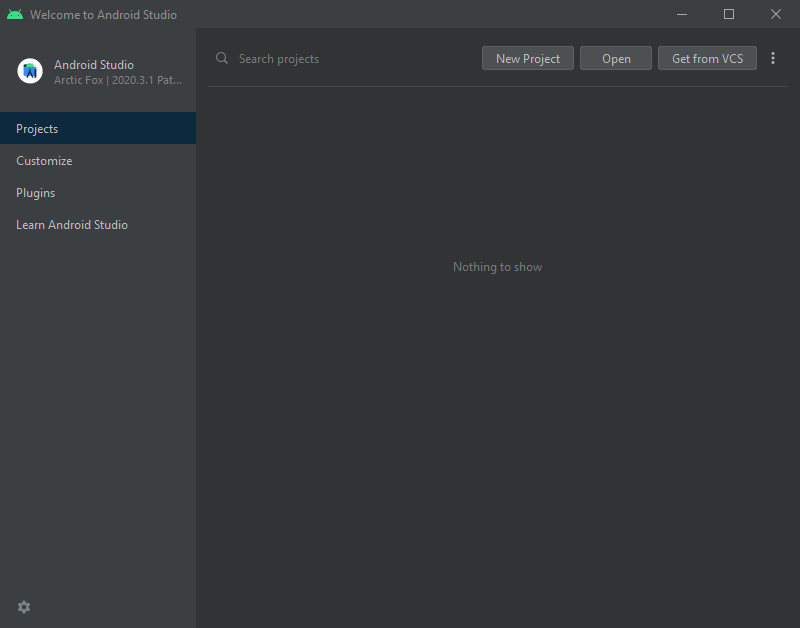
Finestra di benvenuto di Android Studio.
Navigare a
<cartella radice di Godot>/platform/android/javae selezionare il filesettings.gradle.Android Studio importerà e indicizzerà il progetto.
Disposizione del progetto in Android Studio
Il progetto è organizzato attraverso i moduli di Android Studio:
Modulo lib:
Situato nella cartella
<cartella radice Godot>/platform/android/java/lib, questo è un modulo di libreria che organizza il codice Java e nativo di Godot e lo rende disponibile come una libreria Android riutilizzabile.La libreria Godot per Android generata è resa disponibile per altri moduli/progetti Android tramite MavenCentral, insieme alla sua documentazione.
Modulo editor:
Situato in
<cartella radice di Godot>/platform/android/java/editor, questo è un modulo di applicazione che contiene il codice sorgente per le versioni Android e XR dell'editor Godot.Questo modulo ha una dipendenza dal modulo lib.
Modulo app:
Situato in
<cartella radice di Godot>/platform/android/java/app, questo è un modulo di applicazione che contiene il codice sorgente per i modelli di compilazione Android.Questo modulo ha una dipendenza dal modulo lib.
Compilazione e debug del modulo editor
Per compilare il modulo
editor:Selezionare il menu a discesa Run/Debug Configurations e selezionare
editor.
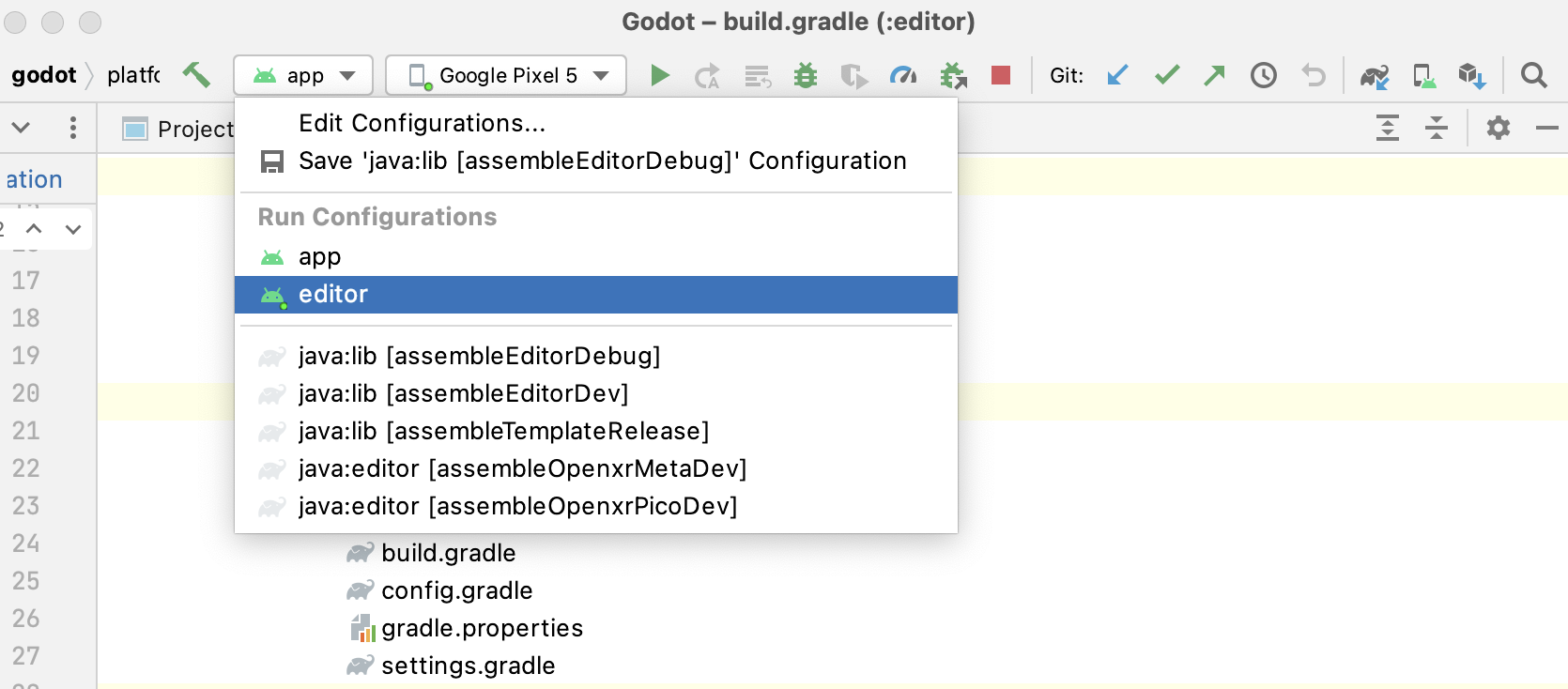
Selezionare Run > Run 'editor' dal menu in alto oppure cliccare sull'icona Esegui.
Per effettuare il debug del modulo
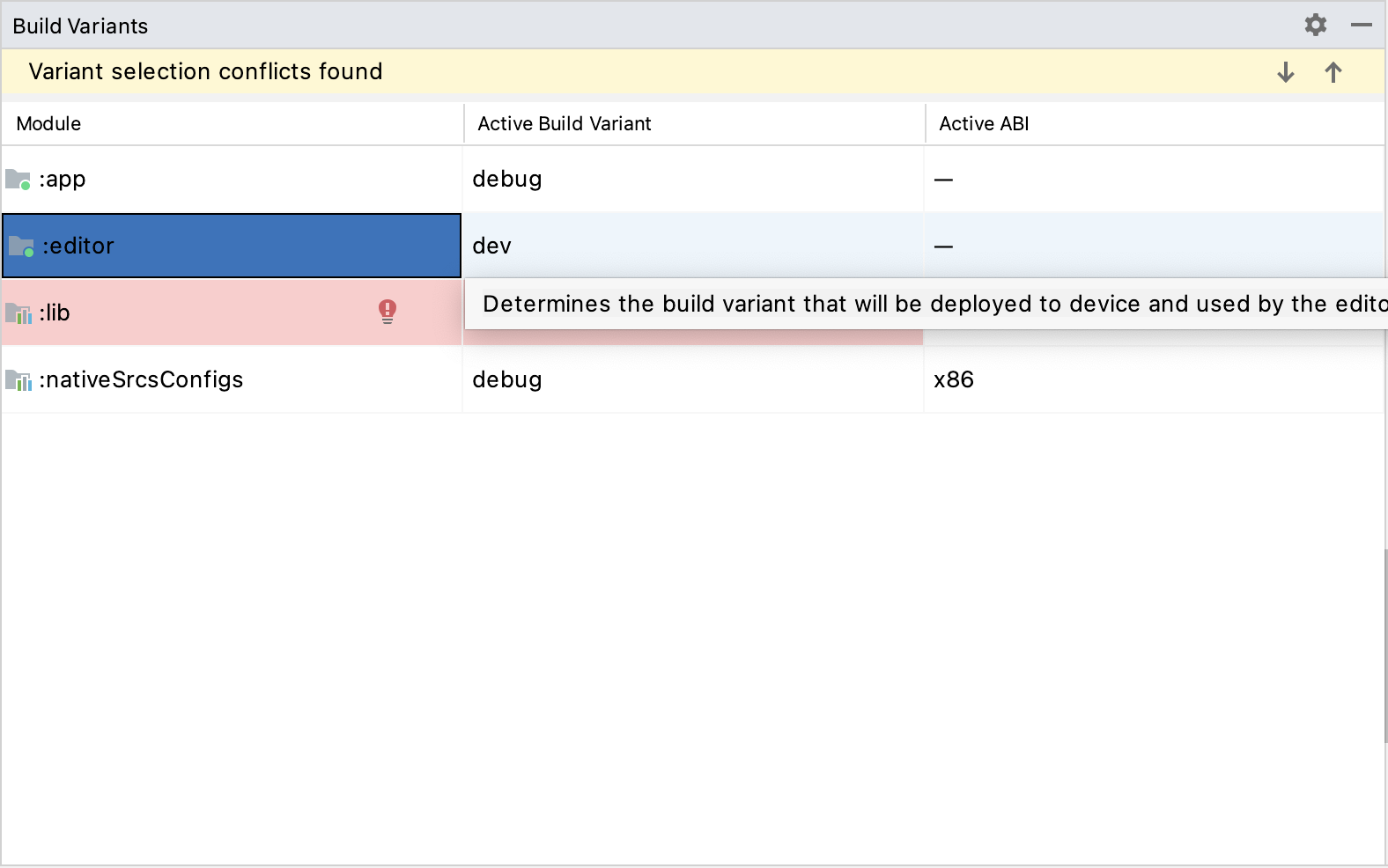
editor:Aprire la finestra Build Variants attraverso View > Tools Windows > Build Variants dal menu in alto.
Nella finestra Build Variants, assicurarsi che nella colonna Active Build Variant la voce
:editorsia impostata su una delle varianti Debug.
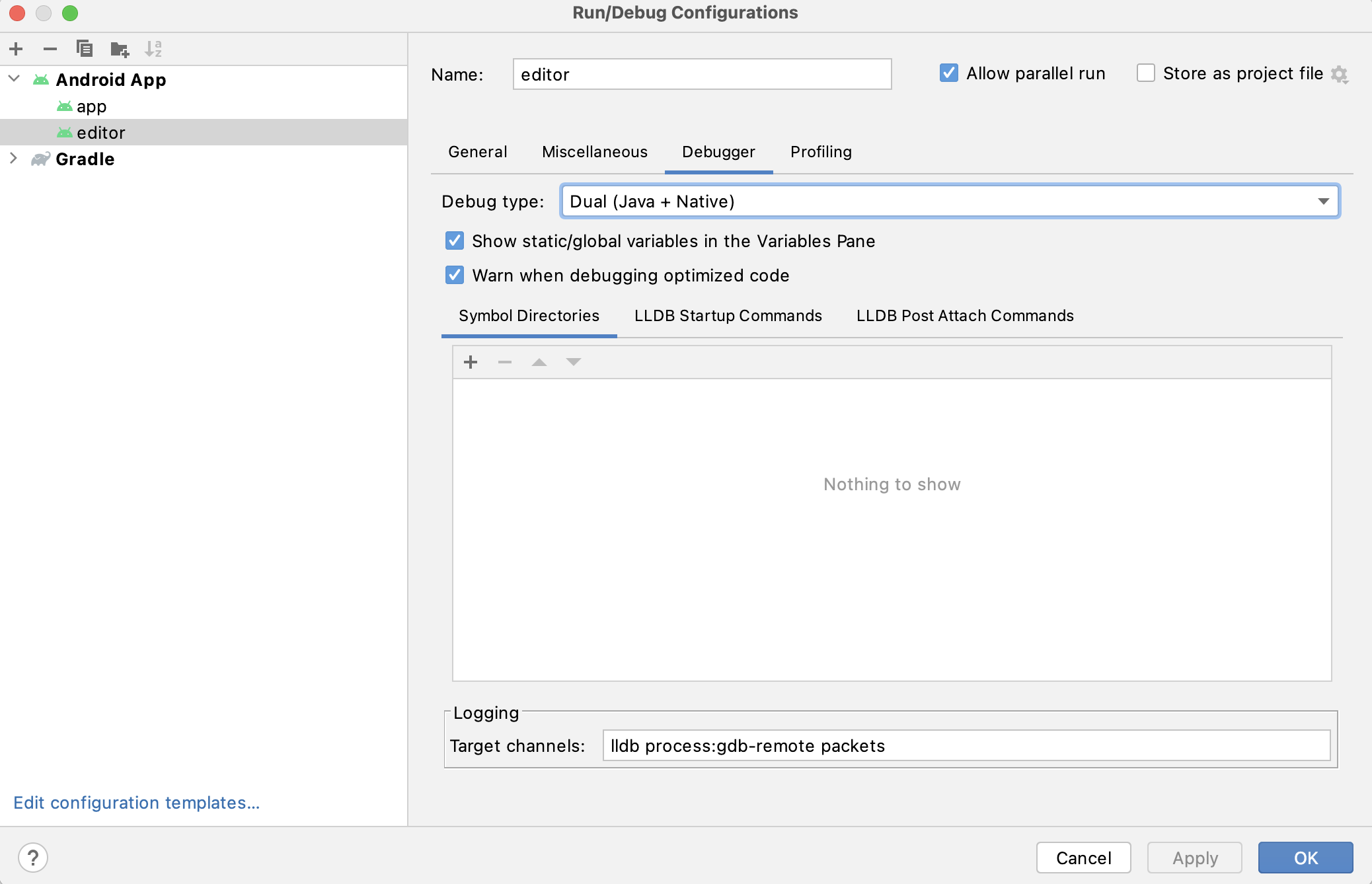
Aprire la finestra Run/Debug Configurations cliccando su Run > Edit Configurations... nel menu in alto.
Nella finestra Run/Debug Configurations , selezionare la voce
editore in Debugger assicurarsi che Debug Type sia impostato suDual (Java + Native)Cliccare sul segno
+nella sezione Symbol Directories e aggiungere la cartellaplatform/android/java/lib/libs/tools/debug.
Selezionare Run > Debug 'editor' dal menu in alto oppure cliccare sull'icona Debug.
Compilazione e debug del modulo app
Il modulo app richiede la presenza di un progetto Godot nella sua cartella assets (<cartella radice di Godot>/platform/android/java/app/assets) per essere eseguito. Questa operazione è solitamente gestita dall'editor Godot durante il processo di esportazione. Durante lo sviluppo in Android Studio, è necessario aggiungere manualmente un progetto Godot in questa cartella per replicare il processo di esportazione. Una volta fatto, si possono seguire le istruzioni seguenti per l'esecuzione o il debug del modulo app:
Per compilare il modulo
app:Selezionare il menu a discesa Run/Debug Configurations e selezionare
app.
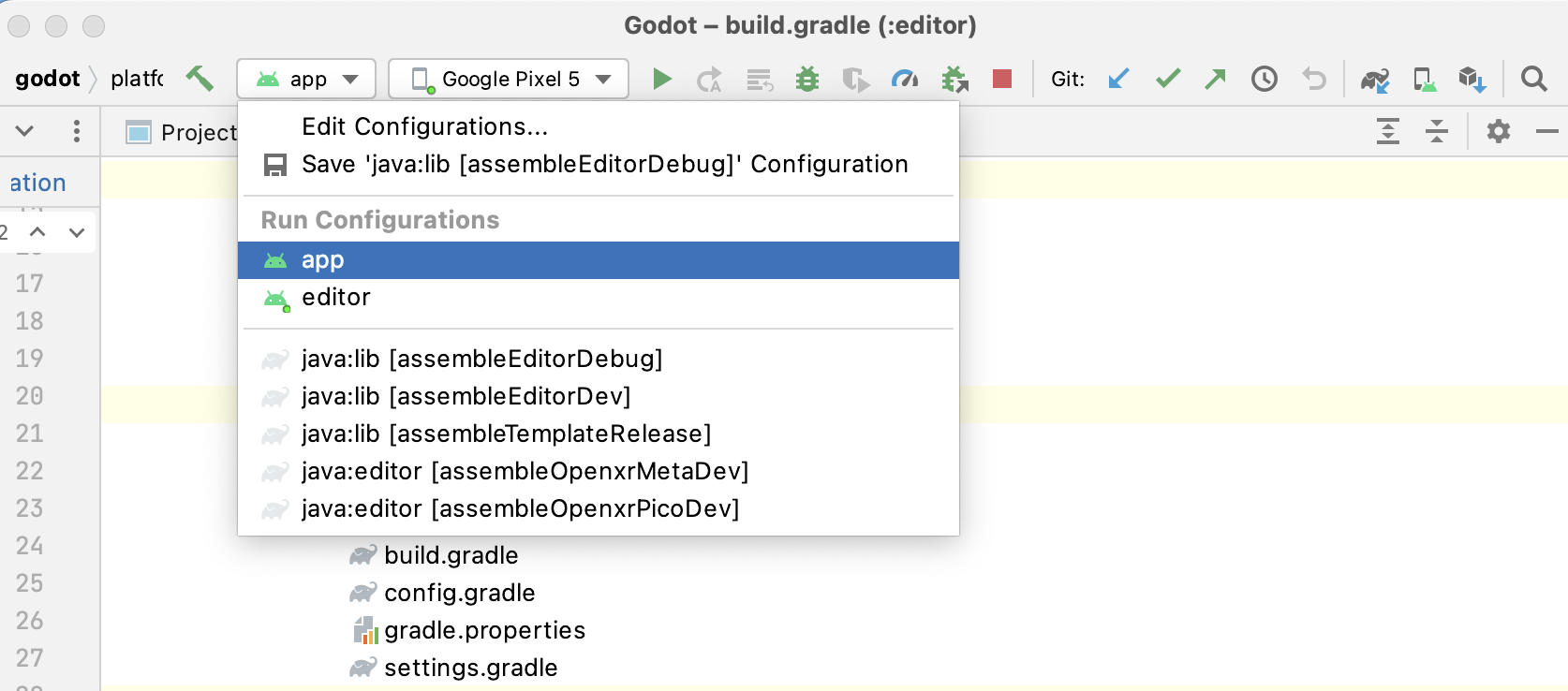
Selezionare Run > Run 'app' dal menu in alto oppure cliccare sull'icona Esegui.
Per effettuare il debug del modulo
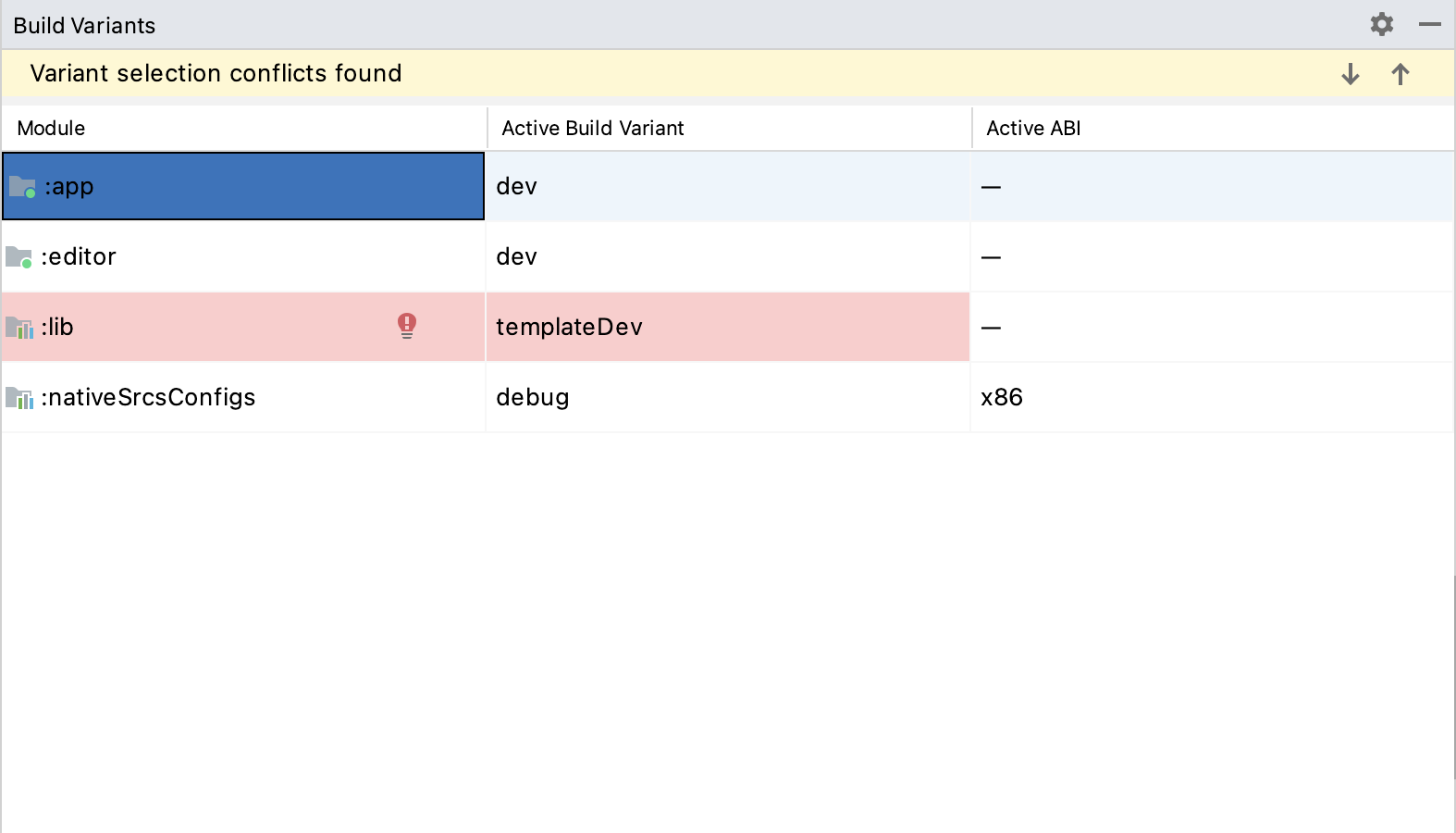
app:Aprire la finestra Build Variants attraverso View > Tools Windows > Build Variants dal menu in alto.
Nella finestra Build Variants, assicurarsi che nella colonna Active Build Variant la voce
:appsia impostata su una delle varianti Debug.
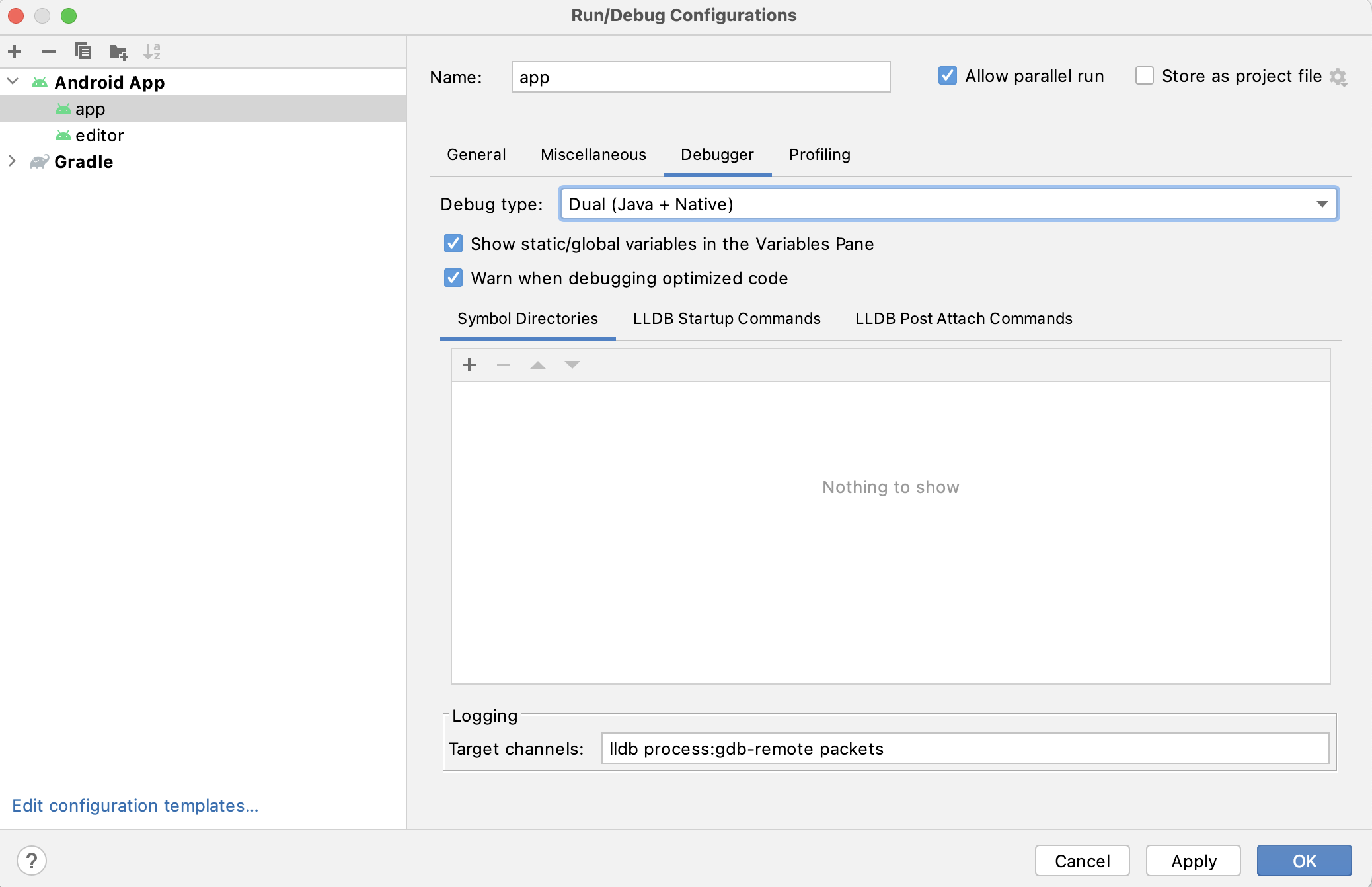
Aprire la finestra Run/Debug Configurations cliccando su Run > Edit Configurations... nel menu in alto.
Nella finestra Run/Debug Configurations, selezionare la voce
appe in Debugger assicurarsi che Debug Type sia impostato suDual (Java + Native)Cliccare sul segno
+nella sezione Symbol Directories e aggiungere la cartellaplatform/android/java/lib/libs/debug.
Selezionare Run > Debug 'app' dal menu in alto oppure cliccare sull'icona Debug.
Se ci si imbatte in qualsiasi problema, chiedere aiuto in uno dei canali di sviluppo per Android di Godot.