Attention: Here be dragons
This is the latest
(unstable) version of this documentation, which may document features
not available in or compatible with released stable versions of Godot.
Checking the stable version of the documentation...
Antialiasing 3D
Vedi anche
Godot supporta anche l'antialiasing nel rendering 2D. Questo è trattato nella pagina Antialiasing 2D.
Introduzione
A causa della loro risoluzione limitata, le scene renderizzate in 3D possono presentare artefatti di aliasing. Questi artefatti si manifestano comunemente come un effetto "a gradini" sui bordi delle superfici (aliasing dei bordi) e come sfarfallio e/o scintillii sulle superfici riflettenti (aliasing speculare).
In the example below, you can notice how edges have a blocky appearance. The vegetation is also flickering in and out, and thin lines on top of the box have almost disappeared:
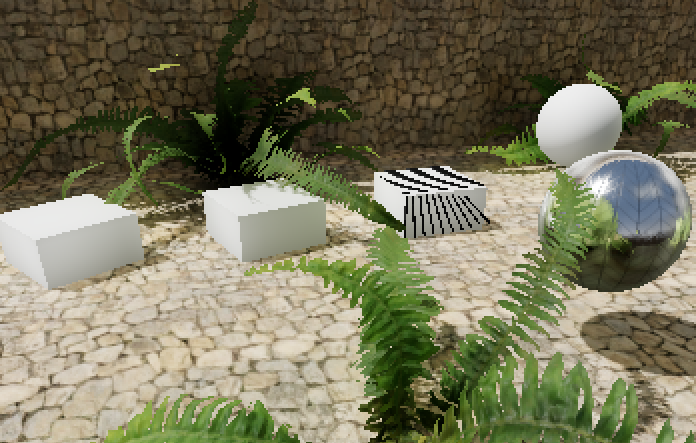
L'immagine è ingrandita di 2 volte con il filtro vicino più ravvicinato per rendere più evidente l'aliasing.
To combat this, various antialiasing techniques can be used in Godot. These are detailed below.
Vedi anche
È possibile confrontare gli algoritmi di antialiasing in azione attraverso il progetto demo 3D Antialiasing.
Antialiasing multicampione (MSAA)
Questo è disponibile in tutti i renderer.
Questa tecnica è il metodo "tradizionale" per gestire l'aliasing. L'MSAA è molto efficace sui bordi delle geometrie (soprattutto ai livelli più elevati). L'MSAA non introduce alcuna sfocatura.
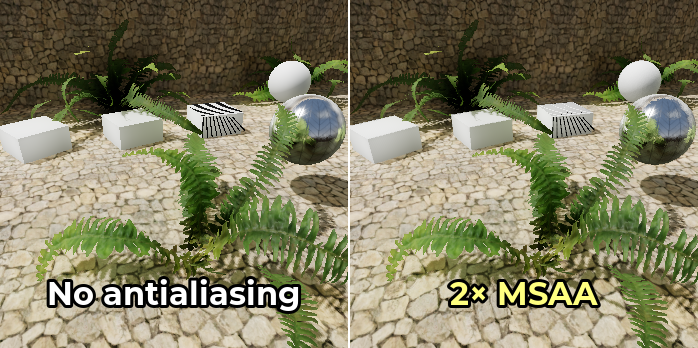
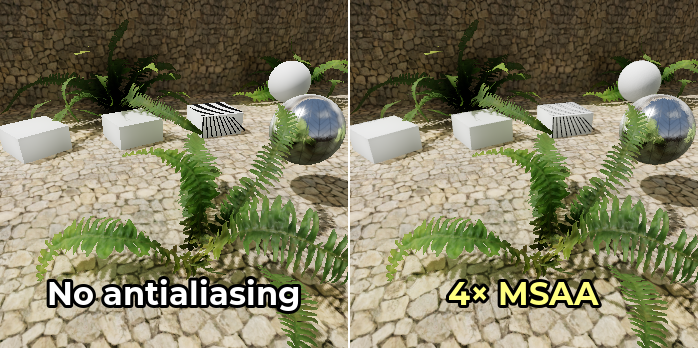
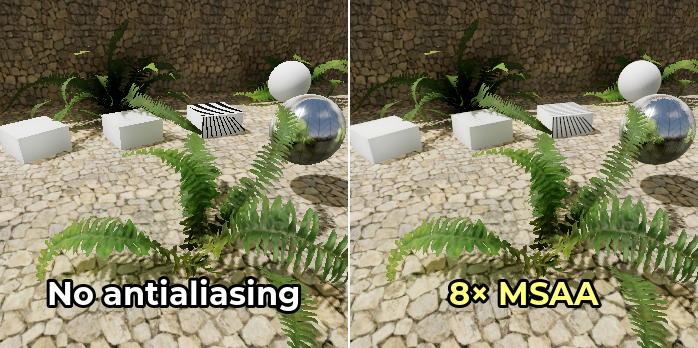
L'MSAA è disponibile in 3 livelli: 2×, 4× e 8×. I livelli più alti sono più efficaci nell'antialiasing sui bordi, ma sono significativamente più impegnativi sulle prestazioni. Nei giochi con grafica moderna, si consiglia vivamente di utilizzare l'MSAA 2× o 4×, poiché l'MSAA 8× è solitamente troppo impegnativo.
Lo svantaggio dell'MSAA è che agisce solo sui bordi. Questo perché l'MSAA aumenta il numero di campioni di copertura, ma non il numero di campioni di colore. Tuttavia, poiché il numero di campioni di colore non aumenta, gli shader di frammento si eseguono comunque per ogni pixel una sola volta. Pertanto, l'MSAA non riduce l'aliasing della trasparenza per i materiali che utilizzano la modalità di trasparenza Alpha Scissor (trasparenza a 1 bit). L'MSAA è inoltre inefficace sull'aliasing speculare.
Per attenuare l'aliasing sui materiali con trasparenza alfa, è possibile abilitare l'antialiasing alfa (anche detto alfa a copertura) su materiali specifici nelle proprietà di StandardMaterial3D o ORMMaterial3D. L'alfa a copertura ha un impatto moderato sulle prestazioni, ma è efficace nel ridurre l'aliasing sui materiali trasparenti senza introdurre alcuna sfocatura.
Per rendere meno evidente l'aliasing speculare, usa il Limitatore di rugosità nello spazio dello schermo, che è abilitato come predefinito.
È possibile abilitare l'MSAA nelle Impostazioni del progetto cambiando il valore dell'impostazione Rendering > Anti Aliasing > Quality > MSAA 3D. È importante cambiare il valore dell'impostazione MSAA 3D e non MSAA 2D, poiché sono impostazioni totalmente separate.
Confronto tra nessun antialiasing (a sinistra) e vari livelli di MSAA (a destra). Da notare che l'antialiasing alfa non è utilizzato qui:
Antialiasing temporale (TAA)
Disponibile solo nel renderer Forward+, non nei renderer Mobile o Compatibilità.
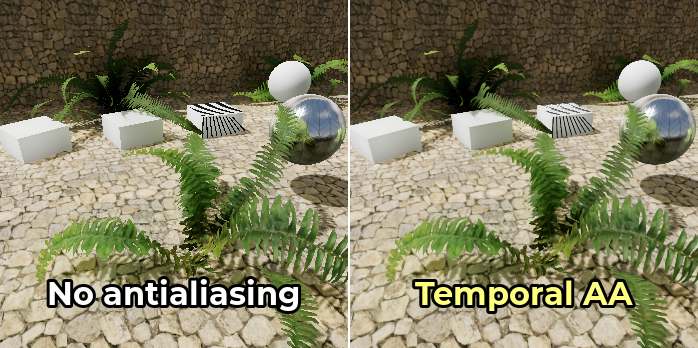
L'antialiasing temporale funziona convergendo il risultato dei frame precedentemente renderizzati in un singolo frame di alta qualità. È un processo continuo che funziona tremolando leggermente la posizione di tutti i vertici della scena a ogni frame. Il tremolio serve a catturare dettagli tra i sub-pixel e dovrebbe essere impercettibile, tranne in casi estremi.
Questa tecnica è comunemente utilizzata nei giochi moderni, poiché offre la forma più efficace di antialiasing contro l'aliasing speculare e altri artefatti indotti dagli shader. Il TAA offre inoltre il supporto completo per l'antialiasing della trasparenza.
Il TAA introduce una leggera sfocatura quando è abilitato nelle scene statiche, ma questo effetto di sfocatura diventa più pronunciato quando la telecamera è in movimento. Un altro svantaggio del TAA è che può presentare artefatti fantasma dietro gli oggetti in movimento. Renderizzare a una frequenza più alta consentirà al TAA di convergere più rapidamente, rendendo quindi questi artefatti fantasma meno evidenti.
È possibile abilitare l'antialiasing temporale nelle Impostazioni del progetto cambiando il valore dell'impostazione Rendering > Anti Aliasing > Quality > TAA.
Confronto tra nessun antialiasing (a sinistra) e TAA (a destra):
AMD FidelityFX Super Resolution 2.2 (FSR2)
Disponibile solo nel renderer Forward+, non nei renderer Mobile o Compatibilità.
A partire da Godot 4.2, è integrato il supporto per AMD FidelityFX Super Resolution 2.2. Questo è un metodo di upscaling compatibile con tutte le GPU recenti di qualsiasi produttore. FSR2 è generalmente progettato per migliorare le prestazioni riducendo la risoluzione interna di rendering 3D, poi effettuando l'upscaling alla risoluzione di output.
Tuttavia, a differenza di FSR1, FSR2 offre anche l'antialiasing temporale. Ciò significa che è possibile utilizzare l'FSR2 alla risoluzione nativa per un antialiasing di alta qualità, con la risoluzione di input uguale alla risoluzione di output. In questa situazione, abilitare l'FSR2 in realtà ridurrà le prestazioni, ma migliorerà notevolmente la qualità del rendering.
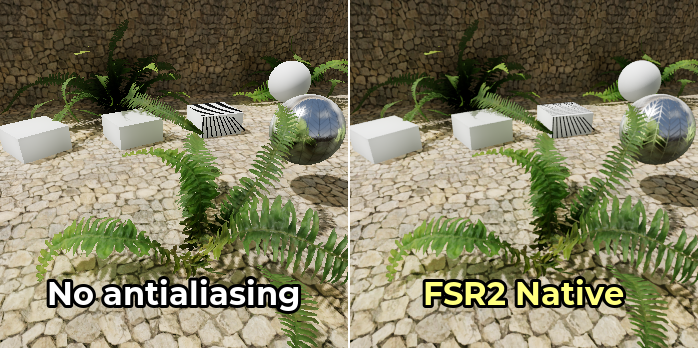
Utilizzare l'FSR2 alla risoluzione nativa è più impegnativo rispetto al TAA alla risoluzione nativa, quindi si consiglia utilizzarlo solo se c'è un margine enorme di potenza sulla GPU. Il vantaggio dell'FSR2 è che offre una migliore copertura dell'antialiasing con una minore sfocatura rispetto al TAA, soprattutto in movimento.
Confronto tra nessun antialiasing (a sinistra) e FSR2 a risoluzione nativa (a destra):
Nota
Normalmente, l'impostazione del progetto FSR Sharpness è impostata su 0.2 (valori più alti risulteranno in meno nitidezza). Per motivi di confronto, la nitidezza dell'FSR è stata disabilitata impostandola su 2.0 nello screenshot precedente.
Antialiasing approssimativo rapido (FXAA)
Questo è disponibile solo nei renderer Forward+ e Mobile, non nel renderer Compatibilità.
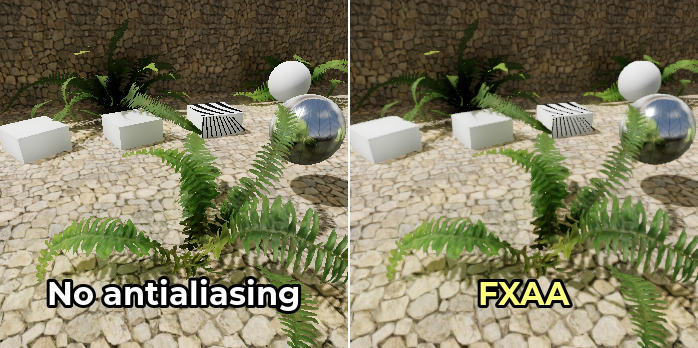
L'antialiasing approssimato veloce è una soluzione di antialiasing di post-elaborazione. È più veloce di qualsiasi altra tecnica di antialiasing e supporta anche l'antialiasing della trasparenza. Tuttavia, poiché non ha informazioni temporali, non farà molto contro l'aliasing speculare.
Questa tecnica è ancora talvolta utilizzata nei giochi per dispositivi mobili. Tuttavia, sulle piattaforme desktop, l'FXAA è generalmente diventato fuori moda, a favore dell'antialiasing temporale, che è molto più efficace contro l'aliasing speculare. Ciononostante, rendere disponibile l'FXAA come opzione di gioco potrebbe comunque valerne la pena per i giocatori con GPU di fascia bassa.
L'FXAA introduce una moderata quantità di sfocatura quando è abilitato (più del TAA quando l'immagine è statica, ma meno del TAA quando la telecamera è in movimento).
È possibile abilitare l'FXAA nelle Impostazioni del progetto cambiando il valore dell'impostazione Rendering > Anti Aliasing > Quality > Screen Space AA su FXAA.
Confronto tra niente antialiasing (a sinistra) e FXAA (a destra):
Antialiasing morfologico subpixel (SMAA 1x)
Questo è disponibile solo nei renderer Forward+ e Mobile, non nel renderer Compatibilità.
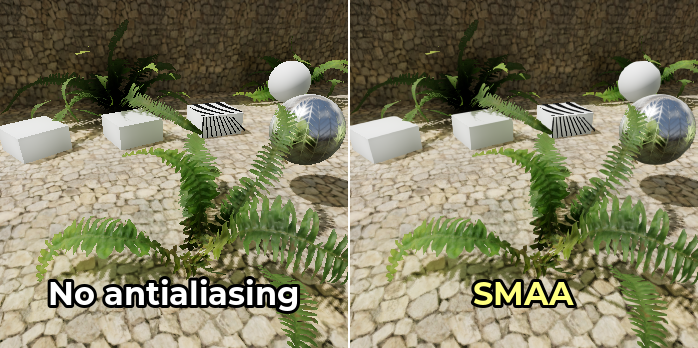
L'antialiasing morfologico sub-pixel (SMAA) è una soluzione di antialiasing applicata in post-elaborazione. È leggermente più lento dell'FXAA, ma produce meno sfocature. È molto utile quando la risoluzione dello schermo è pari o inferiore a 1080p. Proprio come l'FXAA, l'SMAA 1x non ha informazioni temporali e pertanto non farà molto contro l'aliasing speculare.
Usa l'SMAA 1x Se ci si può permettere l'MSAA, ma si ritiene che l'FXAA sia troppo sfocato.
Combinarlo con il TAA, o anche con l'FSR2, per massimizzare l'antialiasing a un impatto più elevato sulla GPU e aggiungere un po' di sfocatura. Questo è particolarmente utile nelle scene in rapido movimento o subito dopo un cambio di telecamera, soprattutto a FPS bassi.
È possibile abilitare l'SMAA 1x nelle Impostazioni del progetto cambiando il valore dell'impostazione Rendering > Anti Aliasing > Quality > Screen Space AA su SMAA.
Confronto tra niente antialiasing (a sinistra) e SMAA 1x (a destra):
Antialiasing supercampione (SSAA)
Questo è disponibile in tutti i renderer.
Il sovracampionamento fornisce la massima qualità di antialiasing possibile, ma è anche il più costoso. Funziona ombreggiando più volte ogni pixel della scena. Questo consente all'SSAA di applicare contemporaneamente l'antialiasing ai bordi, alla trasparenza e all'aliasing speculare, senza introdurre eventuali artefatti di ghosting.
Lo svantaggio dell'SSAA è il suo impatto estremamente elevato. Questo impatto rende generalmente l'SSAA difficile da usare per i videogiochi, ma il sovracampionamento potrebbe comunque essere utile per il rendering offline.
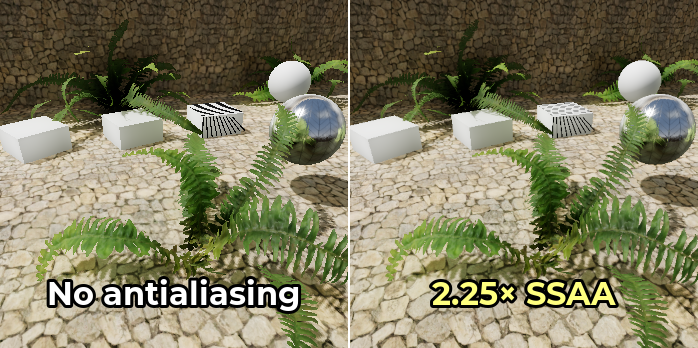
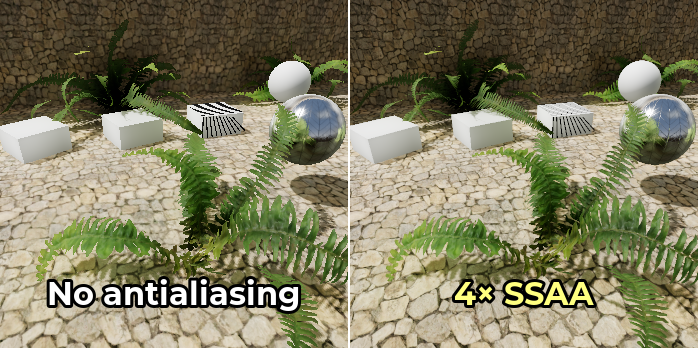
L'antialiasing con sovracampionamento si ottiene aumentando l'impostazione avanzata del progetto Rendering > Scaling 3D > Scale oltre 1.0, assicurandosi che Rendering > Scaling 3D > Mode sia impostato su Bilinear (il valore predefinito). Poiché il fattore di scala è definito per asse, un fattore di scala di 1.5 risulterà in un SSAA 2.25× mentre un fattore di scala di 2.0 risulterà in un SSAA 4×. Poiché Godot utilizza il filtro bilineare dell'hardware per effettuare il sottocampionamento, il risultato apparirà più nitido con fattori interi di scala (ovvero, 2.0).
Confronto tra nessun antialiasing (a sinistra) e vari livelli di SSAA (a destra):
Avvertimento
Il sovracampionamento richiede anche un'elevata quantità di RAM video, poiché deve renderizzare alla risoluzione di destinazione e poi ridimensionarla alle dimensioni della finestra. Ad esempio, visualizzare un progetto a 3840×2160 (risoluzione 4K) con SSAA 4× richiederà di renderizzare la scena a 7680×4320 (risoluzione 8K), ovvero 4 volte più pixel.
If you are using a high window size such as 4K, you may find that increasing the resolution scale past a certain value will cause a heavy slowdown (or even a crash) due to running out of VRAM.
Limitatore di rugosità nello spazio dello schermo
Questo è disponibile solo nei renderer Forward+ e Mobile, non nel renderer Compatibilità.
Questo non è un metodo di antialiasing sui bordi, ma un modo per ridurre l'aliasing speculare in 3D.
Il limitatore di rugosità nello spazio dello schermo funziona al meglio su geometrie dettagliate. Sebbene influisca sul rendering della mappa di rugosità stessa, il suo impatto è limitato lì.
Il limitatore di rugosità nello spazio dello schermo è normalmente abilitato e non richiede alcuna configurazione manuale. Ha un impatto minimo sulle prestazioni, quindi si consiglia di disabilitarlo se il progetto non risente molto dell'aliasing speculare. È possibile disabilitarlo tramite l'impostazione del progetto Rendering > Quality > Screen Space Filters > Screen Space Roughness Limiter.
Limitatore di rugosità di texture all'importazione
Come il limitatore di rugosità nello spazio dello schermo, questo non è un metodo di antialiasing sui bordi, ma un modo per ridurre l'aliasing speculare in 3D.
La limitazione della rugosità all'importazione funziona specificando una mappa normale da utilizzare come guida per limitare la rugosità. Per farlo, seleziona la mappa di rugosità nel pannello Filesystem, vai al pannello Importazione e imposta Rugosità > Modalità sul canale di colore in cui è memorizzata la mappa di rugosità (in genere Verde), poi imposta il percorso della mappa normale del materiale. Ricorda di cliccare su Reimporta in fondo al pannello Importazione dopo aver impostato il percorso della mappa normale.
Poiché questa elaborazione avviene esclusivamente in fase di importazione, non ha alcun impatto sulle prestazioni. Tuttavia, il suo impatto visivo è limitato. Limitare la rugosità in fase di importazione aiuta a ridurre solo l'aliasing speculare dentro la texture, non l'aliasing che avviene sui bordi geometrici nelle mesh dettagliate.
Quale tecnica di antialiasing dovrei usare?
Non esiste una tecnica di antialiasing "taglia unica". Poiché l'antialiasing spesso è molto impegnativo per la GPU o può introdurre sfocatura indesiderata, è consigliabile aggiungere un'impostazione che permetta ai giocatori di disabilitarlo.
Per progetti con una direzione artistica fotorealistica, il TAA è generalmente l'opzione più adatta. Sebbene il TAA possa introdurre artefatti di ghosting, non esiste altra tecnica che contrasti l'aliasing speculare altrettanto bene. Il limitatore di rugosità nello spazio dello schermo aiuta un po', ma è molto meno efficace contro l'aliasing speculare in generale. Se la propria GPU è abbastanza potente, è possibile utilizzare l'FSR2 alla risoluzione nativa per una forma di antialiasing temporale dall'aspetto migliore rispetto al TAA standard.
Per progetti con un basso numero di superfici riflettenti (come nello stile grafico dei cartoni animati), l'MSAA può funzionare bene. L'MSAA è anche una buona opzione se è importante evitare sfocature e artefatti temporali, come nei giochi competitivi.
Quando si prendono di mira piattaforme di fascia bassa come quelle dei dispositivi mobili o con grafica integrata, l'FXAA è solitamente l'unica opzione praticabile. L'MSAA 2× potrebbe andare bene in alcune circostanze, ma i livelli di MSAA più alti difficilmente funzioneranno senza problemi sulle GPU dei dispositivi mobili.
Godot permette di usare più tecniche di antialiasing allo stesso tempo. Solitamente non è necessario, ma può fornire una migliore resa visiva su GPU di fascia alta o per renderizzare non in tempo reale. Ad esempio, per migliorare l'aspetto dei bordi in movimento quando il TAA è abilitato, è possibile abilitare anche l'MSAA allo stesso tempo.
Confronto tra antialiasing
Funzionalità |
MSAA |
TAA |
FSR2 |
FXAA |
SMAA 1x |
SSAA |
SSRL |
|---|---|---|---|---|---|---|---|
Antialiasing sui bordi |
🟢 Sì |
🟢 Sì |
🟢 Sì |
🟢 Sì |
🟢 Sì |
🟢 Sì |
🔴 No |
Antialiasing speculare |
🟡 In parte |
🟢 Sì |
🟢 Sì |
🟡 In parte |
🟡 In parte |
🟢 Sì |
🟢 Sì |
Antialiasing di trasparenza |
🟡 In parte [1] |
🟢 Si [2] |
🟢 Si [2] |
🟢 Sì |
🟢 Sì |
🟢 Sì |
🔴 No |
Sfocatura aggiunta |
🟢 Nessuno |
🟡 In parte |
🟡 In parte |
🟡 In parte |
🟢 Basso |
🟡 In parte [3] |
🟢 Nessuno |
Artefatti di ghosting |
🟢 Nessuno |
🔴 Si |
🔴 Si |
🟢 Nessuno |
🟢 Nessuno |
🟢 Nessuno |
🟢 Nessuno |
Impatto sulle prestazioni |
🟡 Medio |
🟡 Medio |
🔴 Alto |
🟢 Molto basso |
🟢 Basso |
🔴 Molto alto |
🟢 Basso |
Forward+ |
✔️ Si |
✔️ Si |
✔️ Si |
✔️ Si |
✔️ Si |
✔️ Si |
✔️ Si |
Mobile |
✔️ Si |
❌ No |
❌ No |
✔️ Si |
✔️ Si |
✔️ Si |
✔️ Si |
Compatibilità |
✔️ Si |
❌ No |
❌ No |
❌ No |
❌ No |
✔️ Si |
❌ No |