Attention: Here be dragons
This is the latest
(unstable) version of this documentation, which may document features
not available in or compatible with released stable versions of Godot.
Checking the stable version of the documentation...
Canvas layers
Viewport and Canvas items
CanvasItem è la base per tutti i nodi 2D, siano essi nodi 2D regolari, come Node2D, o Control. Entrambi ereditano da CanvasItem. È possibile organizzare gli elementi canvas in alberi. Ogni elemento erediterà la trasformazione del suo genitore: quando il genitore si muove, si muovono anche i suoi figli.
I nodi CanvasItem e i nodi che ereditano da essi sono figli diretti o indiretti di una Viewport, che li visualizza.
La proprietà Viewport.canvas_transform della Viewport consente di applicare una trasformazione Transform2D personalizzata alla gerarchia CanvasItem che contiene. Nodi come Camera2D funzionano modificando tale trasformazione.
Per ottenere effetti come lo scorrimento, manipolare la proprietà di trasformazione del canvas è più efficiente che spostare l'elemento radice del canvas e l'intera scena con esso.
Solitamente, però, non vogliamo che tutto nel gioco o nell'applicazione sia soggetto alla trasformazione del canvas. Ad esempio:
Sfondi parallasse: sfondi che si muovono più lentamente rispetto al resto dello scenario.
Interfaccia utente: immaginate un'interfaccia utente (UI) o un display head-up (HUD) sovrapposto alla nostra visuale del mondo di gioco. Vogliamo che il contatore delle vite, il punteggio e altri elementi mantengano la loro posizione sullo schermo anche quando cambia la nostra visuale.
Transizioni: potremmo voler che gli effetti visivi utilizzati per le transizioni (dissolvenze, sfumature) rimangano in una posizione fissa sullo schermo.
Come risolvere questi problemi in un singolo albero di scene?
CanvasLayers
La risposta è CanvasLayer, che è un nodo che aggiunge un livello di rendering 2D separato per tutti i suoi figli e discendenti. I figli della viewport disegneranno, come valore predefinito, al livello "0", mentre un CanvasLayer disegnerà a qualsiasi livello numerico. I livelli con un numero maggiore saranno disegnati sopra quelli con un numero minore. I CanvasLayer hanno anche una propria trasformazione e non dipendono dalla trasformazione di altri livelli. Ciò consente all'interfaccia utente di rimanere fissa nello spazio dello schermo mentre la nostra visuale sul mondo di gioco cambia.
Un esempio di questo è la creazione di uno sfondo parallasse. Lo si può fare con un CanvasLayer al livello "-1". Anche la schermata con il punteggio, il contatore delle vite e il pulsante di pausa si potrebbe creare al livello "1".
Ecco un diagramma di come apparirebbe:
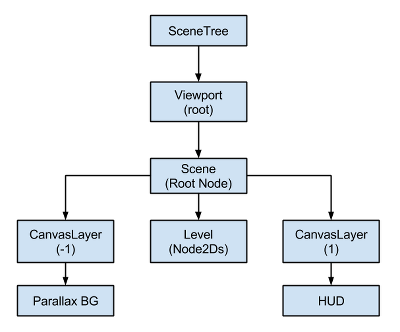
I CanvasLayer sono indipendenti dall'ordine nell'albero e dipendono solo dal loro numero di livello, quindi possono essere istanziati quando necessario.
Nota
I CanvasLayer non sono necessari per controllare l'ordine di disegno dei nodi. Il metodo tipico per garantire che un nodo sia disegnato correttamente "davanti" o "dietro" agli altri consiste nel manipolare l'ordine dei nodi nel pannello della scena. Forse in modo controintuitivo, i nodi più in alto nel pannello della scena sono disegnati dietro a quelli più in basso nella viewport. I nodi 2D hanno anche la proprietà CanvasItem.z_index per controllare il loro ordine di disegno.