Attention: Here be dragons
This is the latest
(unstable) version of this documentation, which may document features
not available in or compatible with released stable versions of Godot.
Checking the stable version of the documentation...
Utilizzare l'illuminazione globale con lightmap
Le lightmap precalcolate sono una procedura per aggiungere illuminazione indiretta (o completamente precalcolata) a una scena. A differenza degli approcci VoxelGI e SDFGI, le lightmap precalcolate funzionano bene anche su PC di fascia bassa e dispositivi mobili, poiché consumano pochissime risorse in fase di esecuzione. Inoltre, a differenza di VoxelGI e SDFGI, le lightmap precalcolate si possono utilizzare, facoltativamente, per memorizzare l'illuminazione diretta, il che offre ulteriori miglioramenti sulle prestazioni.
A differenza di VoxelGI e SDFGI, le lightmap precalcolate sono completamente statiche. Una volta preparate, non è possibile modificarle in alcun modo. Inoltre, non forniscono riflessi alla scena, quindi usare Sonde di riflessi insieme ad esse negli interni (o usare uno Sky negli esterni) è un requisito per ottenere una buona qualità.
Essendo precalcolate, soffrono meno da perdite di luce rispetto a VoxelGI e SDFGI, e l'illuminazione indiretta appare spesso migliore. Lo svantaggio è che la preparazione delle lightmap richiede più tempo rispetto alla preparazione di VoxelGI. Mentre la preparazione di VoxelGI può essere completata in pochi secondi, quella delle lightmap può richiedere diversi minuti, se non di più. Questo può rallentare notevolmente la velocità di iterazione, quindi si consiglia di generare le lightmap solo quando è effettivamente necessario vedere cambiamenti nell'illuminazione. Le lightmap sono preparate sulla GPU, il che rende la preparazione più veloce se si dispone di una GPU dedicata di fascia media o alta.
La preparazione delle lightmap riserva anche lo slot UV2 dei materiali, il che significa che non si potrà più utilizzare per altri motivi nei materiali (né nel Standard Material 3D and ORM Material 3D integrato né negli shader personalizzati).
Nonostante la loro scarsa flessibilità, le lightmap precalcolate offrono in genere la migliore qualità e le migliori prestazioni allo stesso tempo nelle scene (perlopiù) statiche. Questo rende le lightmap ancora popolari nello sviluppo di giochi, nonostante siano la tecnica più antica per l'illuminazione globale nei videogiochi.
Vedi anche
Non sai se LightmapGI è adatto alle tue esigenze? Consulta Quale tecnica di illuminazione globale dovrei utilizzare? per un confronto tra le tecniche di illuminazione globale disponibili in Godot 4.
Confronto visivo
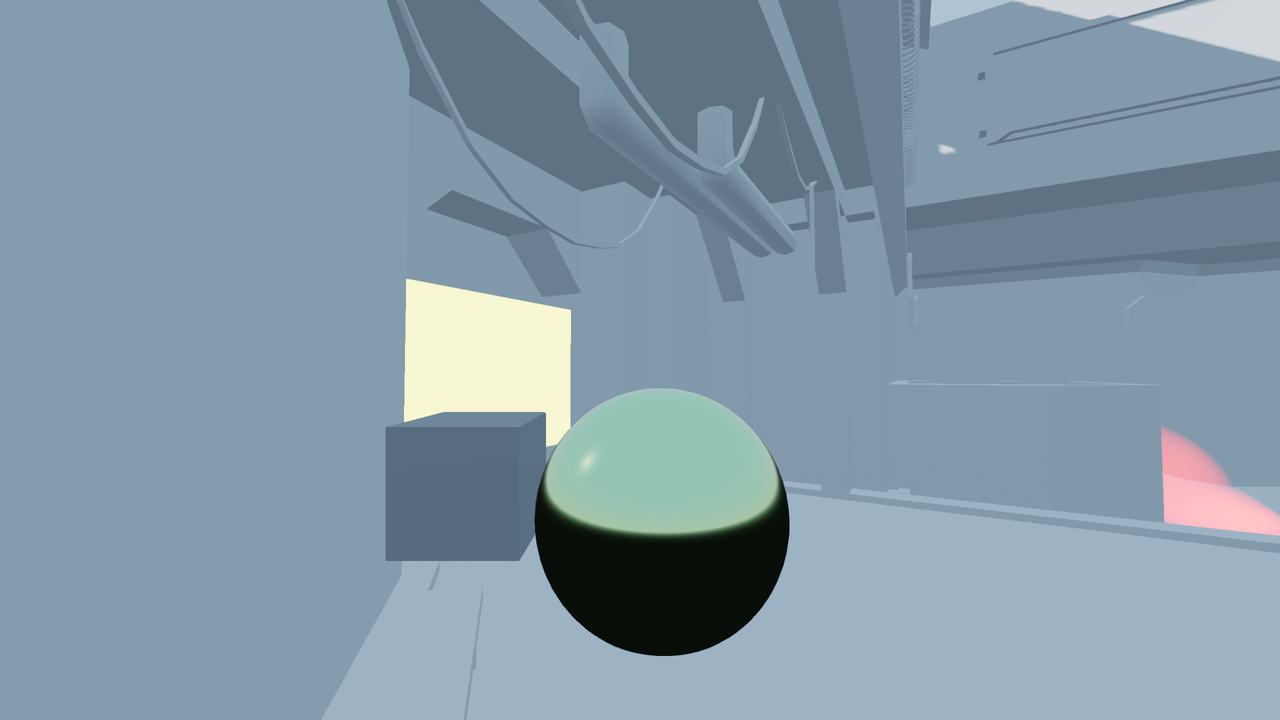
LightmapGI disabilitato.
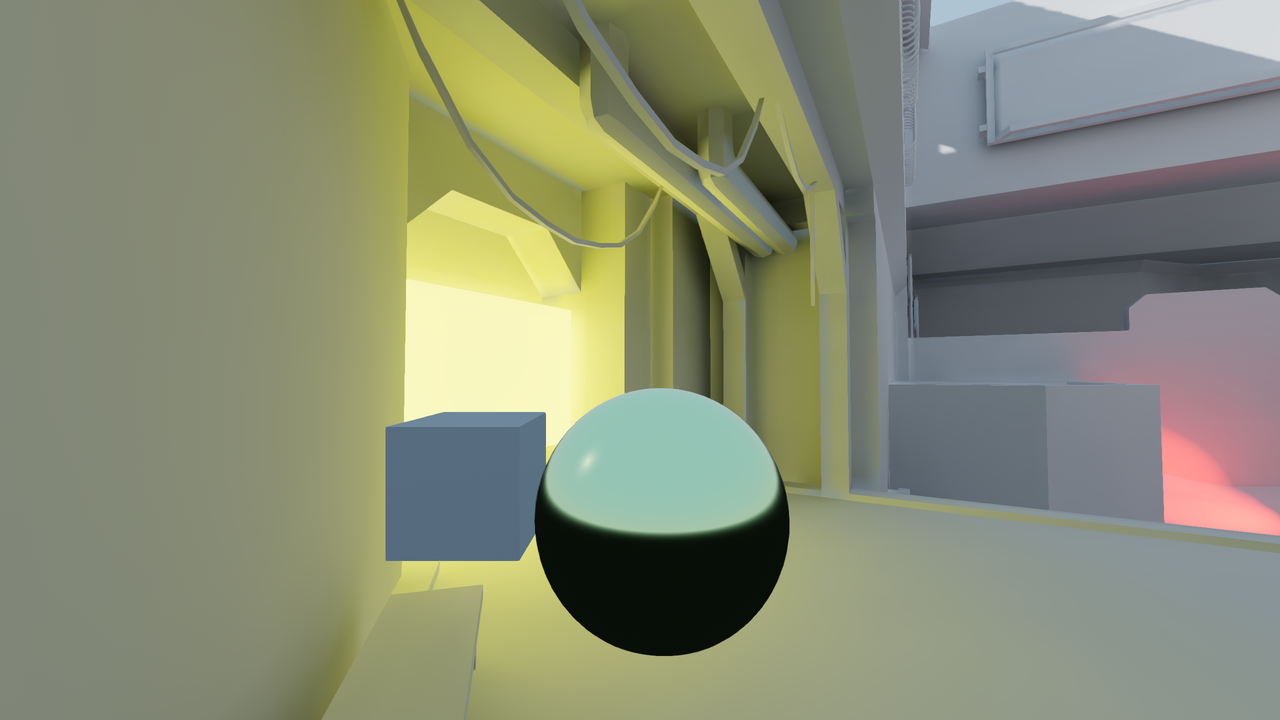
LightmapGI abilitato (solo con illuminazione indiretta precalcolata). L'illuminazione diretta rimane in tempo reale, consentendo lievi modifiche durante il gioco.
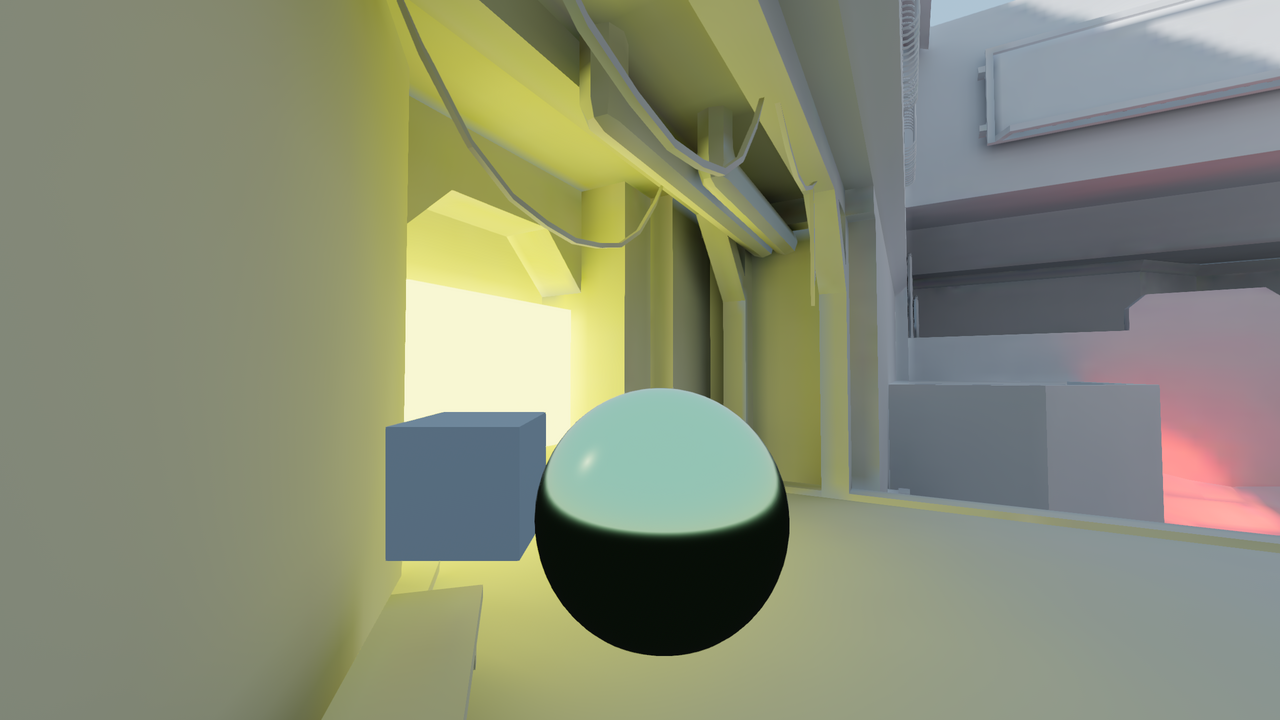
LightmapGI abilitato (con illuminazione diretta e indiretta precalcolata). Prestazioni migliori, ma qualità visiva inferiore. Notare l'ombra del sole più sfocata nell'angolo in alto a destra.
Ecco alcuni confronti tra l'aspetto di LightmapGI e VoxelGI. Si noti che le lightmap sono più precise, ma soffrono anche del fatto che l'illuminazione è applicata a una texture non mappata, quindi le transizioni e la risoluzione potrebbero non essere così buone. VoxelGI appare meno preciso (essendo un'approssimazione), ma nel complesso più fluido.
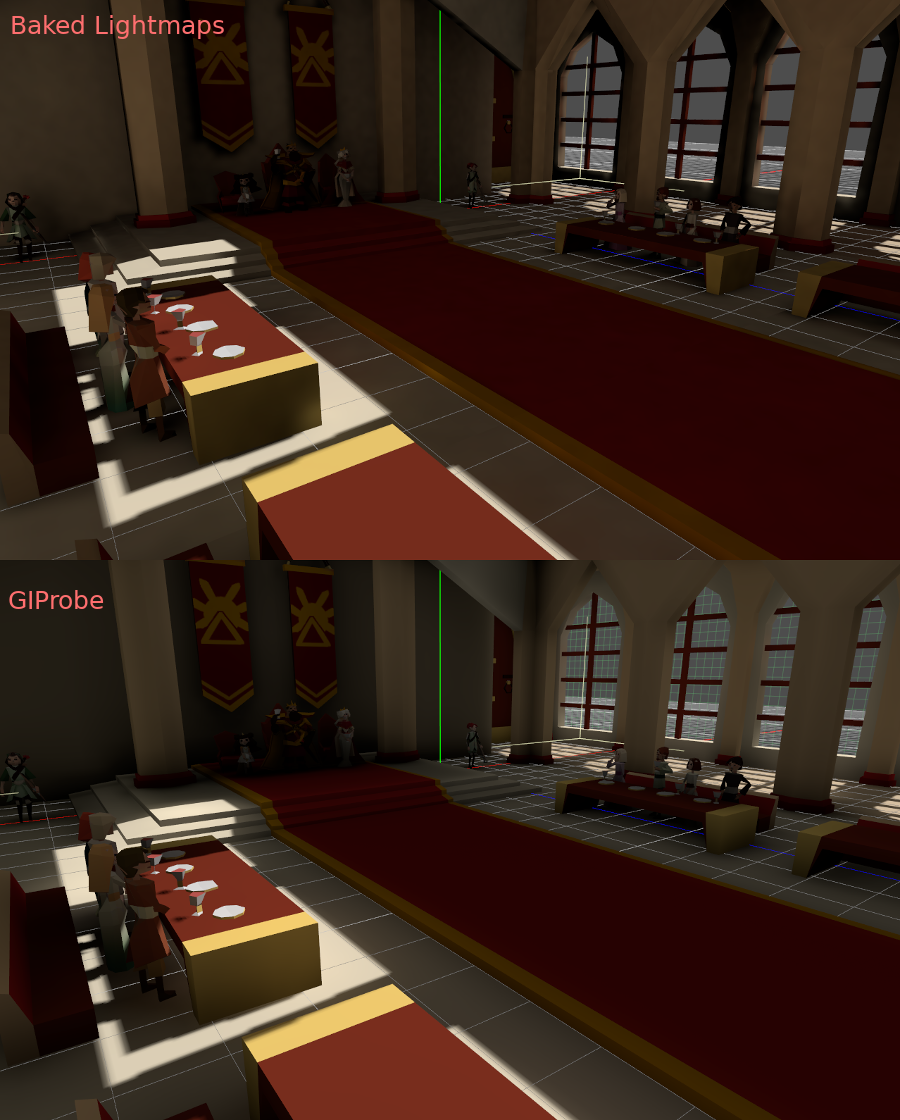
SDFGI è anche meno preciso rispetto a LightmapGI. Tuttavia, SDFGI è in grado di supportare grandi mondi aperti senza bisogno di preparazione.
Configurazione
Avvertimento
La preparazione automatica di lightmap negli editor web non è supportata a causa delle limitazioni dell'API grafica. Sulla piattaforma web, è supportato solo il rendering di lightmap preparate su una piattaforma diversa.
Nota
Il nodo LightmapGI prepara solo i nodi che si trovano allo stesso livello del nodo LightmapGI (nodi fratelli) o i nodi che sono figli del nodo LightmapGI. Questo permette di utilizzare più nodi LightmapGI per preparare diverse parti della scena, in modo indipendente l'una dall'altra.
Innanzitutto, prima che il lightmapper possa fare qualcosa, gli oggetti da renderizzare necessitano di un livello UV2 e di una dimensione della texture. Un livello UV2 è un insieme di coordinate secondarie di texture che garantisce che ogni faccia dell'oggetto abbia un proprio posto nella mappa UV. Le facce non devono condividere pixel nella texture.
Ci sono diversi modi per garantire che un oggetto abbia un livello UV2 univoco e una dimensione di texture:
Srotola all'importazione della scena (consigliato)
Nella maggior parte degli scenari, questo è l'approccio migliore da utilizzare. L'unica pecca è che, sui modelli grandi, lo srotolamento può richiedere un bel po' di tempo durante l'importazione. Nonostante ciò, Godot memorizzerà nella cache l'UV2 tra più reimportazioni, quindi verrà rigenerato solo quando necessario.
Seleziona la scena importata nel pannello Filesystem, poi vai al pannello Importazione. Lì, puoi modificare la seguente opzione:
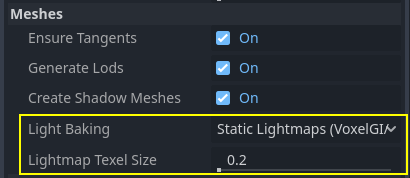
L'opzione Mesh > Precalcolo della luce deve essere impostata su Static Lightmaps (VoxelGI/SDFGI/LightmapGI):
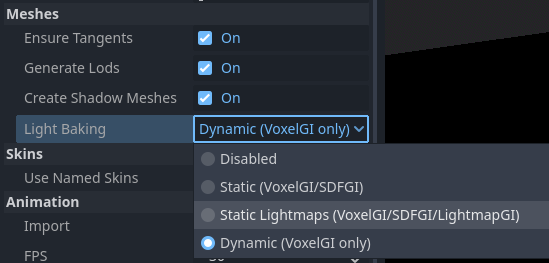
Nello srotolamento durante l'importazione, è possibile regolare la dimensione della texture tramite l'opzione Mesh > Dimensione dei texel delle lightmap. Valori più bassi produrranno lightmap più dettagliate, con una possibile maggiore qualità visiva, a scapito di tempi di preparazione più lunghi e file lightmap più grandi. Il valore predefinito di 0.2 è adatto a scene di piccole/medie dimensioni, ma potrebbe essere opportuno aumentarlo a 0.5 o anche di più per scene più grandi. Questo è particolarmente importante se si prepara solo l'illuminazione indiretta, poiché la luce indiretta è costituita da dati a bassa frequenza (il che significa che non necessita di texture ad alta risoluzione per poterla rappresentare accuratamente).
L'effetto di impostare questa opzione è che tutte le mesh all'interno della scena avranno le loro mappe UV2 generate adeguatamente.
Avvertimento
When reusing a mesh within a scene, keep in mind that UVs will be generated for the first instance found. If the mesh is reused with different scales (and the scales are wildly different, more than half or twice), this will result in inefficient lightmaps. To avoid this, adjust the Lightmap Scale property in the GeometryInstance3D section of a MeshInstance3D node. This lets you increase the level of lightmap detail for specific MeshInstance3D nodes (but not decrease it).
Inoltre, i file *.unwrap_cache non si dovrebbero ignorare nel controllo versioni, poiché garantiscono che le reimportazioni degli UV2 siano coerenti tra piattaforme e versioni del motore.
Srotola dall'interno di Godot
Avvertimento
Se si utilizza questa operazione del menu Mesh su una scena 3D importata, gli UV2 generati andranno persi al ricaricamento della scena.
Godot offre la possibilità di srotolare le mesh e visualizzare i canali UV. Dopo aver selezionato un nodo MeshInstance3D, lo si può trovare nel menu Mesh in cima la viewport dell'editor 3D:
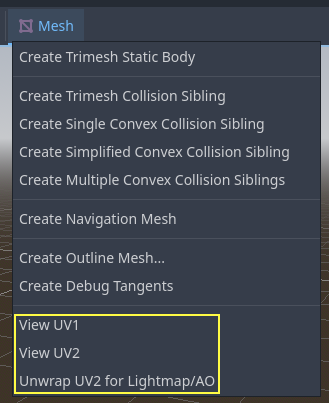
Questo genererà un secondo insieme di coordinate UV2 che si potranno utilizzate per la preparazione. Imposterà anche le dimensioni della texture automaticamente.
Srotola dal software di modellazione 3D
L'ultima opzione è quella di farlo attraverso la tua applicazione 3D preferita. Questo approccio è generalmente sconsigliato, ma viene spiegato per farti sapere che esiste. Il vantaggio principale è che, su oggetti complessi che potresti voler reimportare spesso, il processo di generazione delle texture all'interno di Godot può essere piuttosto impegnativo, quindi avere la mappatura UV prima dell'importazione potrebbe essere più veloce.
Basta srotolare sul secondo livello UV2.
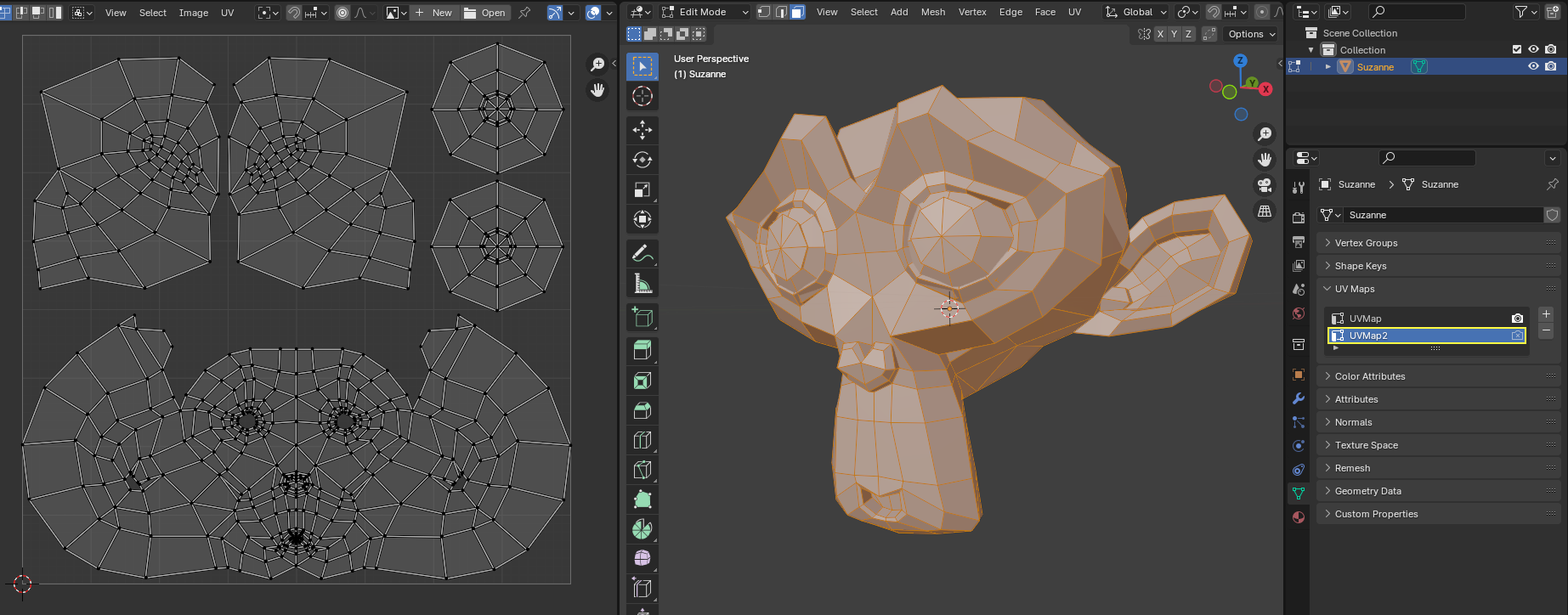
Dopodiché, importa la scena 3D normalmente. Ricorda che dovrai impostare la dimensione della texture sulla mesh dopo l'importazione.
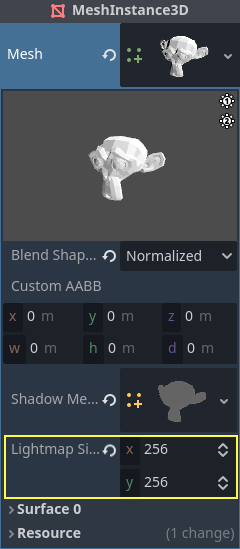
Se si utilizzano mesh esterne all'importazione, le dimensioni verranno mantenute. Tieni presente che la maggior parte degli strumenti di mappatura UV nei software di modellazione 3D non danno priorità alla qualità, poiché sono progettati per essere veloci. Perlopiù delle volte, sarà necessario utilizzare cuciture o altre tecniche per ottenere una mappatura UV migliore.
Generare UV2 per le mesh primitive
Nota
Questa opzione è disponibile solo per mesh primitive come BoxMesh, CylinderMesh, PlaneMesh, ecc.
Abilitando UV2 sulle mesh primitive le consente di ricevere e contribuire all'illuminazione precalcolata. Questa funzionalità può servire in alcune configurazioni di illuminazione. Ad esempio, è possibile nascondere un toro con un materiale emissivo dopo aver precalcolato le lightmap per creare una luce ad area che segua la forma di un toro.
Normalmente, le mesh primitive non generano UV2 per risparmiare risorse (poiché queste mesh si potrebbero creare durante il gioco). È possibile modificare una mesh primitiva nell'ispettore e abilitare Aggiungi UV2 per fare in modo che il motore generi proceduralmente UV2 per una mesh primitiva. Il valore predefinito di Padding UV2 è ottimizzato per evitare la maggiorità delle sbavature nella lightmap, senza sprecare troppo spazio sui bordi. Se si nota una sbavatura nella lightmap solo su una specifica mesh primitiva, potrebbe essere necessario aumentare Padding UV2.
Lightmap Size Hint rappresenta la dimensione occupata da una singola mesh sulla texture della lightmap, che varia a seconda delle proprietà di dimensione della mesh e del valore di UV2 Padding. Lightmap Size Hint non si dovrebbe modificare manualmente, poiché qualsiasi modifica andrà persa ricaricando la scena.
Generazione di UV2 per i nodi CSG
Da Godot 4.4 in poi, è possibile convertire un nodo CSG e i suoi figli in un MeshInstance3D. Ciò può servire per preparare lightmap su un nodo CSG seguendo questi passaggi:
Seleziona il nodo CSG radice e scegli CSG > Prepara istanza di mesh in cima la viewport dell'editor 3D.
Nascondi il nodo CSG radice appena preparato (non viene nascosto automaticamente).
Seleziona il nodo MeshInstance3D appena creato e scegli Mesh > Unwrap UV2 per Lightmap/AO.
Prepara le lightmap.
Suggerimento
Ricorda di mantenere il nodo CSG originale nell'albero di scene, così da poter apportare modifiche alla geometria più tardi, se necessario. Per apportare modifiche alla geometria, rimuovi il nodo MeshInstance3D e rendi nuovamente visibile il nodo CSG radice.
Verifica degli UV2
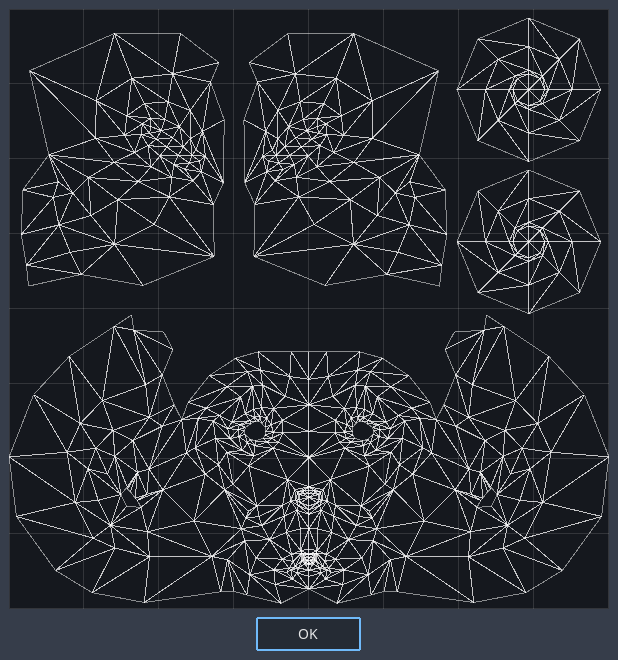
Nel menu Mesh menzionato prima, è possibile visualizzare le coordinate UV2 delle texture. Se qualcosa non funziona bene, verifica meglio che le mesh abbiano queste coordinate UV2:
Configurare la scena
Before anything is done, a LightmapGI node needs to be added to a scene. This will enable light baking on all nodes (and sub-nodes) in that scene, even on instantiated scenes.
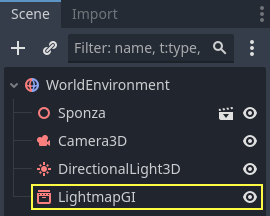
A sub-scene can be instantiated several times, as this is supported by the baker. Each instance will be assigned a lightmap of its own. To avoid issues with inconsistent lightmap texel scaling, make sure to respect the rule about mesh scaling mentioned before.
Configurare le mesh
Affinché un nodo MeshInstance3D faccia parte del processo di precalcolo, bisogna impostare la sua modalità di precalcolo su Static. Le mesh con la loro modalità di precalcolo impostata su Disabled o Dynamic saranno ignorate dal lightmapper.
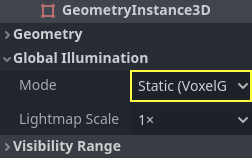
Quando si generano automaticamente le lightmap durante l'importazione della scena, questa opzione è abilitata automaticamente.
Configurare le luci
Normalmente le luci vengono preparate solo con luce indiretta. Ciò significa che la mappatura delle ombre e l'illuminazione rimangono dinamiche e influenzano gli oggetti in movimento, ma i riflessi di luce provenienti da tali luci saranno preparati.
Le luci possono essere disabilitate (nessun precalcolo) o precalcolate completamente (diretta e indiretta). Lo si può controllare dal menu Modo di precalcolo delle luci:
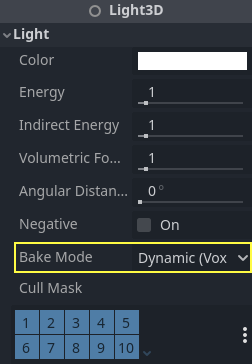
Le modalità sono:
Disabilitata
La luce è ignorata durante la preparazione delle lightmap. Questa è la modalità da utilizzare per effetti di illuminazione dinamici come esplosioni ed effetti delle armi.
Avvertimento
Nascondere una luce non ha alcun effetto sul precalcolo risultante della lightmap. Ciò significa che è necessario utilizzare la modalità di precalcolo Disabled anziché nascondere il nodo Luce disabilitandone la proprietà Visible.
Dinamica
Questa è la modalità predefinita, ed è un compromesso tra prestazioni e compatibilità in tempo reale. Solo l'illuminazione indiretta verrà precalcolata. La luce diretta e le ombre rimangono in tempo reale, come lo sarebbero senza LightmapGI.
Questa modalità consente di apportare lievi cambiamenti al colore, all'energia e alla posizione di una luce, mantenendo comunque un aspetto abbastanza corretto. Ad esempio, è possibile usarla per creare torce statiche tremolanti che hanno una luce indiretta precalcolata.
A seconda del valore di Shadowmask Mode, è possibile ottenere ombre precalcolate distanti per DirectionalLight3D. Ciò consente alle ombre vicine di essere in tempo reale e di mostrare oggetti dinamici, permettendo comunque agli oggetti statici in lontananza di proiettare ombre.
Statica
Sia l'illuminazione indiretta sia quella diretta verranno precalcolate. Poiché le superfici statiche possono saltare completamente i calcoli di illuminazione e ombre, questa modalità offre le migliori prestazioni, insieme a ombre uniformi che non svaniscono in base alla distanza. La luce in tempo reale non influenzerà più le superfici precalcolate, ma continuerà a influenzare gli oggetti dinamici. Utilizzando la modalità di precalcolo All su una luce, gli oggetti dinamici non proietteranno ombre in tempo reale sulle superfici elaborate, quindi bisogna utilizzare un approccio diverso, come le ombre a blob. È possibile implementare le ombre a blob tramite un nodo Decal.
La luce non sarà regolabile in alcun modo durante il gioco. Spostare la luce o cambiarne il colore (o l'intensità) non avrà alcun effetto sulle superfici statiche.
Poiché le modalità di precalcolo si possono regolare per ogni singola luce, è possibile creare configurazioni di illuminazione ibride. Un'opzione comune consiste nell'utilizzare una luce direzionale in tempo reale con la modalità di precalcolo impostata su Dynamic e la modalità Static per le luci omnidirezionali e spot. Questo fornisce buone prestazioni, consentendo al contempo agli oggetti dinamici di proiettare ombre in tempo reale negli ambienti esterni.
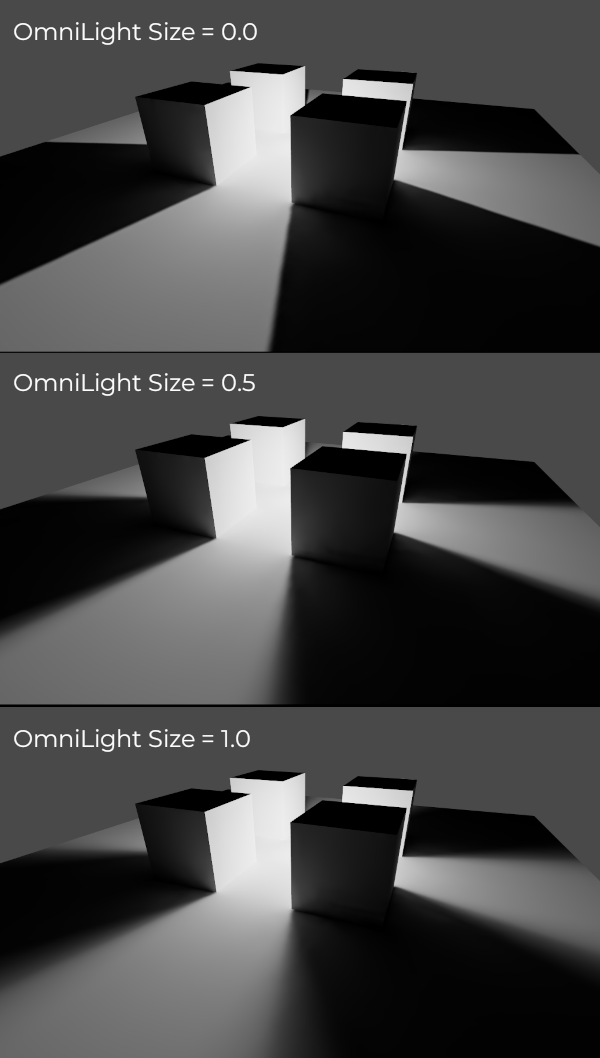
Le luci precalcolate possono anche utilizzare le proprietà Size (omni/spot) o Angular Distance (direzionale) dei nodi luce. Ciò consente di ottenere ombre con una penombra realistica che cresce all'aumentare della distanza tra la sorgente luminosa e l'ombra. Questo approccio ha anche un impatto inferiore sulle prestazioni rispetto alle ombre PCSS in tempo reale, poiché solo gli oggetti dinamici hanno ombre renderizzate in tempo reale.
Preparazione (Baking)
Per avviare il processo di precalcolo, fai clic sul pulsante Precalcola le lightmap in cima la viewport dell'editor 3D dopo aver selezionato il nodo LightmapGI:

Questo può richiedere da pochi secondi a diversi minuti (o ore), a seconda delle dimensioni della scena, del metodo di precalcolo e della qualità selezionata.
Avvertimento
La preparazione delle lightmap è un processo che può richiedere molta memoria video, soprattutto se la texture risultante è bella grande. A causa di limitazioni interne, il motore potrebbe anche arrestarsi se le dimensioni della texture generata sono troppo grandi (anche su sistemi con molta memoria video).
Per evitare arresti anomali, assicurati che la dimensione dei texel delle lightmap nel pannello Importazione sia impostata su un valore abbastanza alto.
Ritocchi
Quality: sono disponibili quattro qualità di precalcolo: Low, Medium, High e Ultra. Una qualità più alta richiede più tempo, ma produce una lightmap dall'aspetto migliore e con meno rumore. La differenza è particolarmente evidente con materiali emissivi o aree che ricevono poca o nessuna illuminazione diretta. Ogni qualità di precalcolo si può ulteriormente regolare nelle Impostazioni del progetto.
Supersampling: questa crea la lightmap a una risoluzione più alta e poi la ridimensiona. Ciò riduce il rumore e le infiltrazioni di luce, producendo ombre migliori con dettagli su piccola scala. Tuttavia, aumenterà i tempi di precalcolo e l'utilizzo della memoria durante il precalcolo della lightmap. Il Supersampling Factor modifica le dimensioni con cui viene renderizzata la lightmap prima del sottocampionamento.
Bounces: il numero di rimbalzi da usare per l'illuminazione indiretta. Il valore predefinito (
3) è un buon compromesso tra tempi di rendering e qualità. Valori più alti faranno rimbalzare la luce più volte prima di fermarsi, il che rende l'illuminazione indiretta più uniforme (ma anche potenzialmente più luminosa a seconda dei materiali e della geometria).Bounce Indirect Energy: il moltiplicatore globale da usare per precalcolare l'energia indiretta delle luci. Questo moltiplica il valore di Indirect Energy di ciascuna luce. Valori diversi da
1.0non sono fisicamente accurati, ma sono utili per effetti artistici.Directional: se abilitata, memorizza le informazioni direzionali per le lightmap. Ciò migliora l'aspetto dei materiali con mappe normali per le superfici precalcolate, soprattutto con luci completamente precalcolate (poiché hanno anche la luce diretta precalcolata). Lo svantaggio è che le lightmap direzionali sono leggermente più costose da renderizzare. Richiedono anche più tempo da precalcolare e generano file di dimensioni maggiori.
Shadowmask Mode: se impostata su una modalità diversa da None, la prima DirectionalLight3D nella scena con la modalità di illuminazione globale Dynamic avrà le sue ombre statiche precalcolate in una texture separata chiamata maschera d'ombre. Può servire per consentire agli oggetti statici distanti di proiettare ombre su altri oggetti statici a prescindere dalla distanza dalla telecamera. Consultare la sezione sulla maschera d'ombre per ulteriori dettagli.
Interior: se abilitata, l'illuminazione ambientale non verrà considerata. Usala solo per scene in interni per evitare infiltrazioni di luce.
Use Texture for Bounces: se abilitata, sarà generata una texture con le informazioni di illuminazione per velocizzare la generazione dell'illuminazione indiretta, a scapito di una certa accuratezza. La geometria potrebbe mostrare infiltrazioni di luce in più con lightmap a bassa risoluzione o con UV che stirano molto la lightmap lungo le superfici. Lasciare questa opzione abilitata in caso di dubbi.
Use Denoiser: se abilitata, utilizza un algoritmo di riduzione del rumore per rendere la lightmap molto meno granulosa. Ciò aumenta i tempi di preparazione e può occasionalmente introdurre artefatti, ma il risultato spesso ne vale la pena. Consulta Riduzione del rumore per ulteriori informazioni.
Intensità del denoiser: l'intensità della fase di riduzione del rumore applicata alle lightmap generate. Valori più alti sono più efficaci a rimuovere il rumore, ma possono ridurre i dettagli delle ombre statiche. Efficace solo se la riduzione è abilitata e il metodo di riduzione è JNLM (OIDN non ha un'impostazione per l'intensità del denoiser).
Bias: Il valore di deviazione da utilizzare per le ombre, in unità 3D. In genere non è necessario modificare questo valore, a meno che non ci siano sbavature di luce o punti scuri nella lightmap dopo la preparazione. Questa impostazione non influisce sulle ombre in tempo reale proiettate sulle superfici preparate (per le luci con modalità di preparazione Dynamic).
Max Texture Size: la dimensione massima della texture per l'atlante di texture generato. Valori più alti faranno generare meno sezioni, ma potrebbero non funzionare su tutti gli hardware a causa delle limitazioni hardware sulle dimensioni delle texture. Lascia il valore predefinito di
16384in caso di dubbi.Environment > Mode: controlla come derivare l'illuminazione ambientale durante il precalcolo delle lightmap. Il valore predefinito Scene è adatto a livelli con parti esterne visibili. Per scene puramente in interni, impostalo su Disabled per evitare infiltrazioni di luce e velocizzare il precalcolo. Si può anche impostare su Custom Sky o Custom Color per utilizzare un'illuminazione ambientale che è diversa dal cielo dell'ambiente nella scena.
Gen Probes > Subdiv: Consulta Oggetti dinamici.
Data > Light Data: Consulta Dati di lightmap.
Utilizzare la maschera d'ombra per le ombre direzionali distanti
Utilizzando una DirectionalLight3D, la distanza massima alla quale può disegnare ombre in tempo reale è limitata dalla sua proprietà Shadow Max Distance. Questo può essere un problema in scene grandi, poiché gli oggetti distanti non sembreranno avere ombre provenienti dalla DirectionalLight3D. Sebbene si possa rimediare usando la modalità di illuminazione globale Static sulla DirectionalLight3D, ciò ha diversi svantaggi:
Poiché sia la luce diretta sia quella indiretta sono precalcolate, non è impossibile che gli oggetti dinamici proiettino ombre su superfici statiche in modo realistico. Godot salta completamente il campionamento delle ombre In questo caso per evitare artefatti di "doppia illuminazione".
Le ombre statiche viste da vicino sono poco dettagliate, poiché dipendono solo sulla texture della lightmap e non sulle cascate di ombre in tempo reale.
We can avoid these downsides while still benefiting from distant shadows by using shadowmasking. While dynamic objects won't receive shadows from the shadowmask, it still greatly improves visuals since most scenes are primarily comprised of static objects.
Since the lightmap texture alone doesn't contain shadow information, we can bake this shadow information to a separate texture called a shadowmask.
Shadowmasking only affects the first DirectionalLight3D in the scene (determined by tree order) that has the Dynamic global illumination mode. It is not possible to use shadowmasking with the Static global illumination mode, as this mode skips shadow sampling on static objects entirely. This is because the Static global illumination mode bakes both direct and indirect light.
Sono disponibili tre modalità di shadowmasking:
None (predefinito): non precalcolare una texture di maschera d'ombra. Le ombre direzionali non saranno visibili fuori dalla portata specificata dalla proprietà Shadow Max Distance del DirectionalLight3D.
Replace: crea una texture di maschera d'ombra e la utilizza per disegnare ombre direzionali quando fuori dalla portata specificata dalla proprietà Shadow Max Distance del DirectionalLight3D. Le ombre entro questa portata rimangono completamente in tempo reale. Questa opzione è generalmente la più adatta per la maggior parte delle scene, in quanto gestisce bene gli oggetti statici che presentano un movimento sottile (ad esempio, le ombre del fogliame).
Overlay: crea una texture di maschera d'ombra e la utilizza per disegnare ombre direzionali a prescindere dalla distanza dalla telecamera. Le ombre entro la portata della proprietà Shadow Max Distance del DirectionalLight3D saranno sovrapposte con ombre in tempo reale. Questo può rendere la transizione tra ombre in tempo reale e ombre precalcolate meno brusca, a scapito di un effetto di "sbavatura" presente sulle ombre degli oggetti statici, a seconda della densità dei texel nella lightmap. Inoltre, questa modalità non gestisce altrettanto bene gli oggetti statici che presentano movimenti sottili (come il fogliame), poiché le ombre precalcolate non si possono animare nel tempo. Eppure, per le scene in cui la telecamera si muove rapidamente, questa potrebbe essere una scelta migliore rispetto a Replace.
Ecco un confronto visivo delle modalità di maschera d'ombre con una scena, in cui la Shadow Max Distance è stata impostata su un valore molto basso per confrontarle meglio. Le scatole blu sono gli oggetti dinamici, mentre il resto della scena è un oggetti statico. Nella scena c'è un solo oggetto DirectionalLight3D con la modalità di illuminazione globale Dynamic:
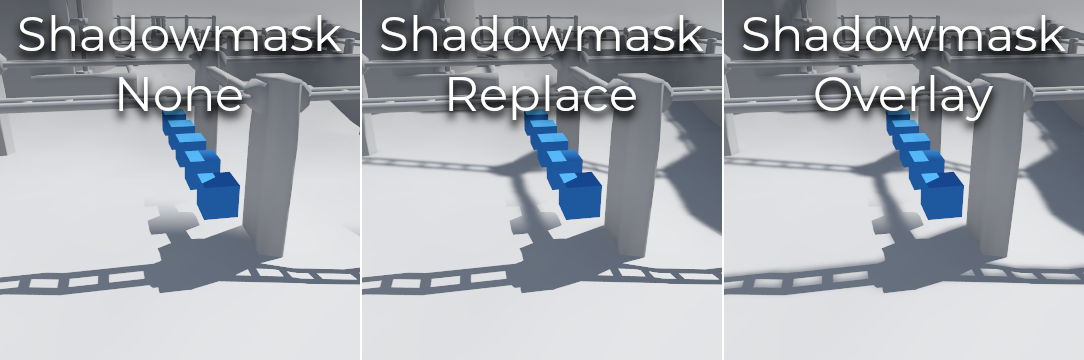
Confronto tra le modalità di maschera d'ombra
Nota
È possibile passare dalla modalità Replace alla modalità Overlay della maschera d'ombra senza dover ripreparare le lightmap.
Il giusto equilibrio tra tempi di preparazione e qualità
Poiché il precalcolo di alta qualità può richiedere molto tempo (fino a decine di minuti per scene grandi e complesse), si consiglia di usare impostazioni più basse di qualità all'inizio. Poi, una volta soddisfatti dell'illuminazione della scena, aumentare le impostazioni di qualità ed effettuare un precalcolo "finale" prima di esportare il progetto.
Ridurre la risoluzione della lightmap aumentando Lightmap Texel Size nelle scene 3D importate velocizzerà notevolmente il precalcolo. Tuttavia, ciò richiederà di reimportare tutte le scene 3D con lightmap prima di poterle precalcolare nuovamente.
Riduzione del rumore
Poiché il precalcolo delle lightmap si basa sul raytracing, ci sarà sempre rumore nella lightmap "grezza" risultante. Il rumore è particolarmente evidente nelle aree difficili da raggiungere con la luce riflessa, come ad esempio gli ambienti interni con piccole aperture da cui può penetrare la luce solare. Il rumore si può ridurre aumentando la qualità del precalcolo, ma facendolo aumenterà notevolmente i tempi di precalcolo.
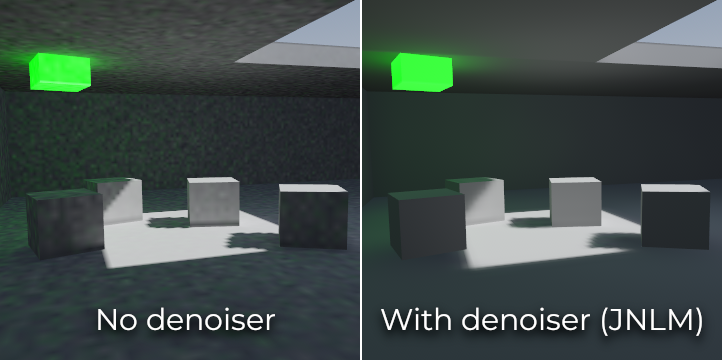
Confronto tra riduzione del rumore disabilitata e abilitata (con il denoiser JNLM predefinito).
Per contrastare il rumore senza aumentare eccessivamente i tempi di preparazione, è possibile utilizzare un denoiser. Un denoiser è un algoritmo per ridurre il rumore che è eseguito sulla lightmap preparata finale, rileva i pattern di rumore e li attenua cercando di preservare al meglio i dettagli. Godot offre due algoritmi di riduzione del rumore:
JNLM (Non-Local Means with Joint Filtering)
JNLM è il metodo di riduzione del rumore predefinito ed è incluso in Godot. Utilizza un algoritmo di riduzione semplice ma efficiente, noto come non-local means. JNLM è eseguito sulla GPU tramite uno shader di calcolo ed è compatibile con qualsiasi GPU in grado di eseguire i renderer basati su RenderingDevice di Godot 4. Non è richiesta alcuna configurazione in più.
È possibile regolare la riduzione del rumore di JNLM tramite la proprietà Denoiser Strength, visibile quando Use Denoiser è abilitata. Valori più alti possono essere più efficaci a rimuovere il rumore, a scapito di sopprimere i dettagli nelle ombre statiche.
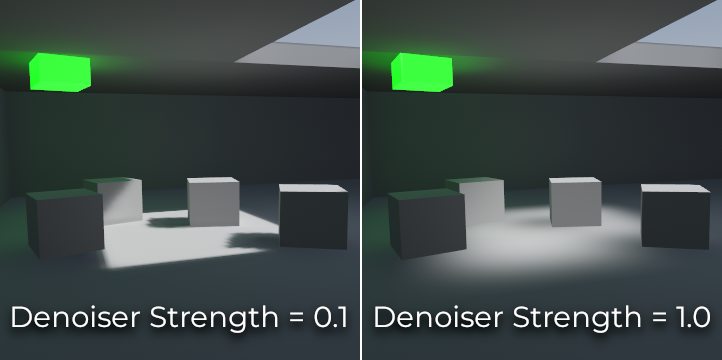
Confronto tra i valori di intensità del denoiser JNLM. Valori più alti potrebbero ridurre i dettagli.
OIDN (Open Image Denoise)
A differenza di JNLM, OIDN utilizza un approccio di apprendimento automatico per ridurre il rumore nelle lightmap. Offre un modello specificamente addestrato per rimuovere il rumore dalle lightmap, preservando al contempo più dettagli nelle ombre nella maggior parte delle scene, rispetto a JNLM.
È possibile eseguire OIDN sulla GPU se è configurata l'accelerazione hardware. Con una GPU moderna di fascia alta, questo può fornire un'accelerazione di oltre 50 volte rispetto alla riduzione del rumore basata su CPU:
Sulle GPU AMD, è necessario installare e configurare HIP.
Sulle GPU NVIDIA, CUDA deve essere installato e configurato. Il programma di installazione NVIDIA potrebbe farlo automaticamente, ma su Linux le librerie CUDA potrebbero non essere installate per impostazione predefinita. Verifica bene che i pacchetti CUDA della tua distribuzione Linux siano installati.
Sulle GPU Intel, SYCL deve essere installato e configurato.
Se l'accelerazione hardware non è disponibile, OIDN ricadrà alla riduzione del rumore multithread basata sulla CPU. Per confermare se la riduzione basata sulla GPU funziona, usa un monitor di utilizzo della GPU durante la preparazione delle lightmap e osserva la percentuale di utilizzo della GPU e della VRAM mentre la fase di riduzione del rumore è visualizzata nell'editor di Godot. Lo strumento da riga di comando nvidia-smi può essere utile a questo scopo.
OIDN non è incluso in Godot a causa delle sue dimensioni di download relativamente grandi. È possibile scaricare i pacchetti binari precompilati di OIDN dal suo sito web. Estrai il pacchetto in una cartella sul tuo PC, poi specifica il percorso dell'eseguibile oidnDenoise nelle impostazioni dell'editor (Filesystem > Strumenti > OIDN > Percorso OIDN Denoise). Questo eseguibile si trova nella cartella bin del pacchetto binario estratto.
Dopo aver specificato il percorso dell'eseguibile di OIDN, cambia il metodo di riduzione del rumore nelle impostazioni del progetto impostando Rendering > Lightmapping > Denoiser su OIDN. Ciò avrà effetto su tutte le lightmap preparate in questo progetto dopo aver cambiato l'impostazione.
Nota
Il metodo di riduzione del rumore è configurato nelle impostazioni del progetto anziché nelle impostazioni dell'editor. In questo modo, i diversi membri del team che lavorano sullo stesso progetto avranno la garanzia di utilizzare lo stesso metodo, ottenendo così risultati coerenti.
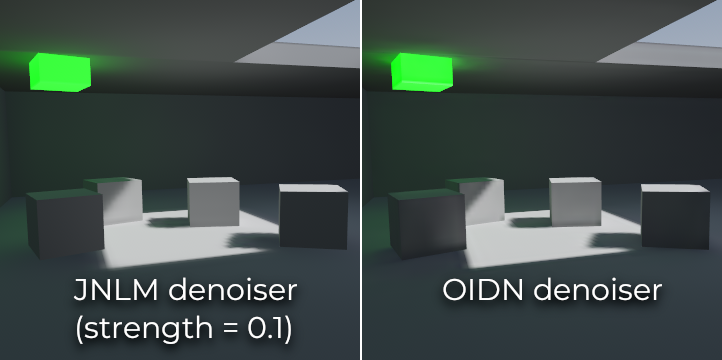
Confronto tra i denoiser JNLM e OIDN. Si noti come OIDN preservi meglio i dettagli e riduca le cuciture tra i diversi oggetti.
Oggetti dinamici
A differenza di VoxelGI e SDFGI, gli oggetti dinamici ricevono l'illuminazione indiretta diversamente rispetto agli oggetti statici. Questo perché il lightmapping è effettuato solo sugli oggetti statici.
Per visualizzare l'illuminazione indiretta sugli oggetti dinamici, viene utilizzato un sistema di sonde 3D, con sonde di luce distribuite in tutta la scena. Durante la preparazione delle lightmap, il lightmapper calcola la quantità di luce indiretta ricevuta dalla sonda. La luce diretta non è memorizzata nelle sonde luminose, nemmeno per le luci che hanno la modalità di precalcolo impostata su Static (poiché gli oggetti dinamici continuano a essere illuminati in tempo reale).
Esistono due modi per aggiungere sonde di luce a una scena:
Automatico: Imposta Gen Probes > Subdiv su un valore diverso da Disabled, poi prepara le lightmap. Il valore predefinito è
8, ma puoi scegliere un valore maggiore per migliorare la precisione a scapito di tempi di preparazione più lunghi e dimensioni più grandi del file risultante.Manuale: In aggiunta o in alternativa alla generazione automatica delle sonde, è possibile aggiungere manualmente sonde di luce inserendo nodi LightmapProbe nella scena. Può essere utile per migliorare i dettagli dell'illuminazione nelle aree frequentate spesso da oggetti dinamici. Dopo aver posizionato i nodi LightmapProbe nella scena, bisogna precalcolare nuovamente le lightmap affinché funzionino.
Nota
Dopo aver precalcolato le lightmap, noterai tante sfere bianche nella scena 3D che rappresentano come l'illuminazione precalcolata influirà sugli oggetti dinamici. Queste sfere non compaiono nel progetto in esecuzione.
Se desideri nascondere queste sfere nell'editor, cambia Vista > Gizmo > LightmapGI in cima all'editor 3D (un'icona a forma di "occhio chiuso" indica che il gizmo è nascosto).
Dati di lightmap
La proprietà Data > Light Data nel nodo LightmapGI contiene i dati della lightmap dopo la preparazione. Le texture sono salvate su disco, ma questo contiene anche i dati di cattura per gli oggetti dinamici, che potrebbero essere pesanti. Se si utilizza una scena in formato .tscn, è consigliabile salvare questa risorsa in un file binario .lmbake esterno per evitare di appesantire la scena .tscn con dati binari codificati in Base64.
Suggerimento
Il file EXR generato può essere visualizzato e persino modificato attraverso un editor di immagini per effettuare una post-elaborazione, se necessario. Tuttavia, tieni presente che le modifiche apportate al file EXR andranno perse quando si prepareranno nuovamente le lightmap.
Ridurre gli artefatti di LightmapGI
Se noti che i nodi LightmapGI compaiono e scompaiono mentre la telecamera si muove, molto probabilmente è perché il motore sta renderizzando troppe istanze di LightmapGI alla volta. Godot è limitato a renderizzare 8 nodi LightmapGI alla volta, il che significa che possono esserci fino a 8 istanze nell'inquadratura della telecamera prima che alcune di esse inizino a sfarfallare.