Attention: Here be dragons
This is the latest
(unstable) version of this documentation, which may document features
not available in or compatible with released stable versions of Godot.
Checking the stable version of the documentation...
Il Profiler
Avvii il gioco da Godot e sperimenti un po'. È divertente, il gioco sta diventando completo e senti che la data di rilascio è vicina.
But then, you open the skill tree, and it grinds to a halt as something snags in your code. Watching the skill tree scroll by like it's a slide show is unacceptable. What went wrong? Is it positioning the skill tree elements, the UI, or rendering?
You could try to optimize everything and run the game repeatedly, but you can be smarter about this and narrow down the possibilities. Enter Godot's profiler.
Una panoramica del profiler
Puoi aprire il profiler aprendo il pannello Debugger e cliccando sulla scheda Profiler.
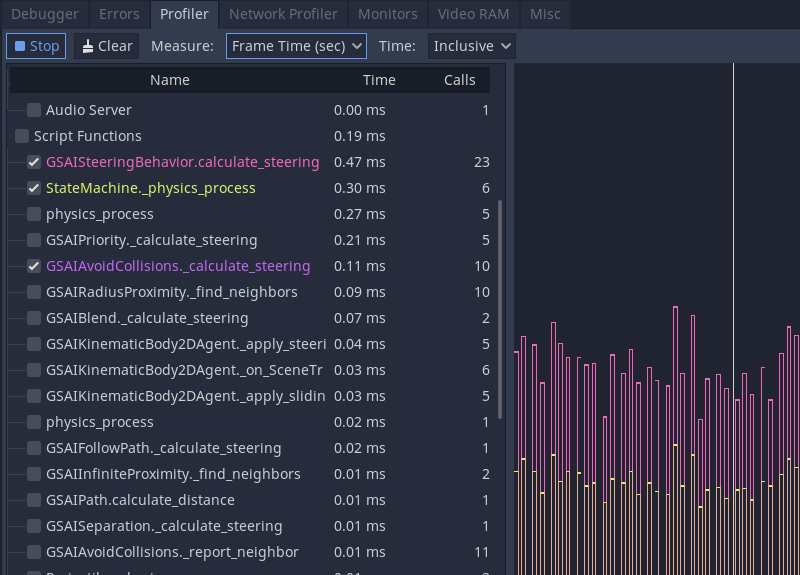
Godot's profiler does not automatically run because profiling is performance-intensive. It has to continually measure everything happening in the game and report back to the debugger, so it's off by default.
Per iniziare la profilazione, avvia il gioco e poi torna all'editor. Clicca sul pulsante Avvia nell'angolo superiore sinistro della scheda Profiler. Puoi anche selezionare Avvio automatico, che avvierà automaticamente il profiler alla prossima esecuzione del progetto. Tieni presente che lo stato della casella di spunta Avvio automatico non è mantenuto tra una sessione e l'altra dell'editor.
Nota
Il profiler attualmente non supporta gli script in C#. Gli script in C# si possono profilare tramite JetBrains Rider e JetBrains dotTrace con il plugin di supporto per Godot.
È possibile cancellare i dati facendo clic sul pulsante Cancella in qualsiasi momento. Acced al menu a tendina Misura per modificare il tipo di dati da misurare. Il pannello delle misurazioni e il grafico si aggiorneranno di conseguenza.
I dati misurati
L'interfaccia del profiler è divisa in due sezioni. A sinistra si trova un elenco di funzioni, mentre a destra si trova il grafico delle prestazioni.
The main measurements are frame time, physics frame, idle time, and physics time.
The frame time is the time it takes Godot to execute all the logic for an entire image, from physics to rendering.
Il frame di fisica è il tempo che Godot ha allocato tra gli aggiornamenti della fisica. In uno scenario ideale, il frame è quello che hai scelto: normalmente 16.66 millisecondi, che corrispondono a 60 FPS. È un frame di riferimento che puoi usare per tutto il resto.
Idle time is the time Godot took to update logic other than physics, such as code that lives in _process() or timers and cameras set to update on Idle.
Physics time is the time Godot took to update physics tasks, like _physics_process() and built-in nodes set to update on Physics.
Nota
Il tempo di frame include il tempo di rendering. Supponiamo che riscontri un picco misterioso di lag nel tuo gioco, ma la fisica e gli script funzionano tutti rapidamente. Il ritardo potrebbe essere dovuto alla comparsa di particelle o effetti visivi!
By default, Godot ticks on Frame Time and Physics Time. This gives you an overview of how long each frame takes relative to the allocated desired physics FPS. You can toggle functions on and off by clicking the checkboxes on the left. Other facilities make appearances as you go down the list, like Physics 2D, Physics, and Audio, before reaching Script functions, where your code appears.
If you click on the graph, you change which frame's information appears on the left. In the top right, there is also a frame counter where you can manually adjust the frame you are looking at more granularly.
Scope of measurement and measurement windows
You can change what measurement you are looking at using the Measure drop-down menu. By default, it starts with Frame Time and lists the time it takes to go through the frame in milliseconds. The average time is the average time any given function took when called more than once. For example, a function that took 0.05 milliseconds to run five times should give you an average of 0.01 milliseconds.
If accurate milliseconds count is not important, and you want to see proportions of time relative to the rest of the frame, use percentage measurements. Frame % is relative to Frame Time, and Physics % is relative to Physics Time.
L'ultima opzione è l'intervallo di tempo. Inclusivo misura il tempo impiegato da una funzione comprese eventuali chiamate a funzioni annidate. Ad esempio:
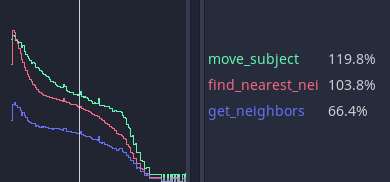
get_neighbors, find_nearest_neighbor, and move_subject all took a lot of
time. You could be fooled into thinking that this is because all three of them
are slow.
But when changed to Self, Godot measures the time spent in the function body without considering function calls it made itself.
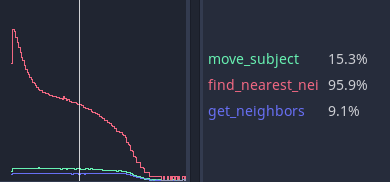
You can see that get_neighbors and move_subject have lost a lot of their
importance. In effect, that means that get_neighbors and move_subject have
spent more time waiting for some other function call to finish than not, and
find_nearest_neighbor is actually slow.
Debug del codice lento con il profiler
Finding slow code with the profiler boils down to running your game and watching the performance graph as it draws. When an unacceptable spike occurs in the frame time, you can click on the graph to pause your game and narrow the _Frame #_ to the spike's start. You may need to jump back and forth between frames and functions to find the root cause.
Under the Script functions, turn on the checkboxes for some functions to find which take time. These are the functions you need to review and optimize.
Misurare manualmente in microsecondi
If your function is complex, it could be challenging to figure out which part
needs optimization. Is it your math or the way you access other pieces of data
to do the math with? Is it the for loop? The if statements?
You can narrow down the measurement by manually counting ticks as the code runs
with some temporary functions. The two functions are part of the Time class
object. They are get_ticks_msec() and
get_ticks_usec(). The first measures in
milliseconds (1,000 per second), and the second measures in microseconds
(1,000,000 per second).
Entrambi restituiscono la quantità di tempo trascorso dall'avvio del motore di gioco nel loro rispettivo lasso di tempo.
Se racchiudi un frammento di codice con un conteggio di inizio e fine in microsecondi, la differenza tra i due è il tempo impiegato per eseguire quel frammento di codice.
# Measuring the time it takes for worker_function() to run
var start = Time.get_ticks_usec()
worker_function()
var end = Time.get_ticks_usec()
var worker_time = (end-start)/1000000.0

# Measuring the time spent running a calculation over each element of an array
start = Time.get_ticks_usec()
for calc in calculations:
    result = pow(2, calc.power) * calc.product
end = Time.get_ticks_usec()
var loop_time = (end-start)/1000000.0

print("Worker time: %s\nLoop time: %s" % [worker_time, loop_time])
Man mano che acquisisci esperienza come programmatore, questa tecnica diventa meno necessaria. Cominci a capire quali parti di un programma in esecuzione sono lente. Essere consapevoli che cicli e diramazioni possono essere lenti viene per esperienza, e la si ottiene misurando e facendo ricerche.
Ma tra il profiler e le funzioni di tick, dovresti avere abbastanza per cominciare a individuare quali parti del tuo codice hanno bisogno di ottimizzazioni.