Attention: Here be dragons
This is the latest
(unstable) version of this documentation, which may document features
not available in or compatible with released stable versions of Godot.
Checking the stable version of the documentation...
Navigazione e focus tramite tastiera/controller
È un requisito comune per un'interfaccia utente che offra il supporto completo per tastiera e controller per la navigazione e l'interazione. Ci sono due ragioni principali per cui questo è vantaggioso per i progetti: una migliore accessibilità (non tutti possono usare il mouse o i controlli touch per interagire) e la possibilità di preparare il progetto per le console (o per chi preferisce giocare con un controller su PC).
La navigazione tra gli elementi dell'interfaccia utente con la tastiera o con il controller avviene cambiando quale nodo è attivamente selezionato. Questa operazione si può anche dire cambiare il "focus" dell'interfaccia utente. Ogni nodo Control in Godot è capace di avere il focus. Come predefinito, alcuni nodi di controllo hanno la capacità di acquisire automaticamente il focus, reagendo ad azioni integrate dell'interfaccia utente come ui_up, ui_down, ui_focus_next, ecc. Queste azioni sono disponibili nelle impostazioni del progetto nella mappa di input e si possono modificare.
Avvertimento
Poiché queste azioni sono utilizzate per il focus, non si dovrebbero utilizzare in alcun codice di gioco.
Impostazioni dei nodi
Oltre alla logica integrata, è possibile definire i cosiddetti "vicini di focus" per ogni singolo nodo di controllo. Consentono di regolare con precisione il percorso che il focus dell'interfaccia utente segue in tutta l'interfaccia del progetto. Le impostazioni per i singoli nodi si trovano nel pannello Ispettore, nella categoria "Focus" della sezione "Control".
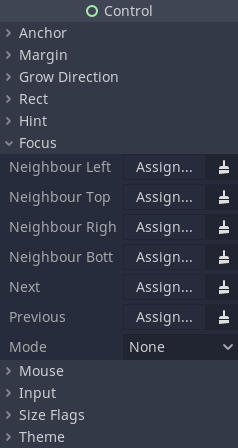
Le opzioni dei vicini servono per definire i nodi per la navigazione a 4 direzioni, ad esempio tramite tasti freccia o il D-pad di un controller. Ad esempio, il vicino inferiore verrà usato quando si naviga verso il basso premendo la freccia in basso o il tasto giù del D-pad. Le opzioni "Next" (Successivo) e "Previous" (Precedente) vengono usate con il tasto di spostamento del focus, come Tab sui sistemi operativi desktop.
Nota
Un nodo può perdere il focus se diventa nascosto.
L'impostazione della modalità definisce come un nodo può ottenere il focus. All significa che un nodo può ottenere il focus cliccandoci sopra con il mouse, oppure selezionandolo con la tastiera o un controller. Click significa che può ottenere il focus solo cliccandoci sopra. Infine, None significa che non può ottenere il focus in alcun modo. I diversi nodi di controllo hanno impostazioni predefinite diverse a seconda del loro tipico utilizzo; ad esempio, i nodi Label normalmente sono impostati su "None", mentre i nodi buttons sono impostati su "All".
Assicurati di configurare correttamente le tue scene per il focus e la navigazione. Se un nodo non ha un vicino di focus configurato, il motore tenterà di indovinare automaticamente il controllo successivo. Ciò potrebbe causare comportamenti indesiderati, soprattutto in un'interfaccia utente complessa che non ha un flusso di navigazione verticale o orizzontale ben definito.
Codice necessario
Affinché la navigazione tramite tastiera e controller funzioni correttamente, è necessario che un qualsiasi nodo abbia il focus tramite codice all'avvio della scena. Altrimenti, premere pulsanti o tasti non farà nulla.
È possibile usare il metodo Control.grab_focus() per assegnare il focus su un controllo. Ecco un semplice esempio di come assegnare il focus iniziale tramite codice:
func _ready():
    $StartButton.grab_focus.call_deferred()
public override void _Ready()
{
    GetNode<Button>("StartButton").GrabFocus.CallDeferred();
}
Ora, all'avvio della scena, il nodo "Star Button" avrà il focus e sarà possibile utilizzare la tastiera o un controller per navigare tra esso e gli altri elementi dell'interfaccia utente.