Attention: Here be dragons
This is the latest
(unstable) version of this documentation, which may document features
not available in or compatible with released stable versions of Godot.
Checking the stable version of the documentation...
Esportazione di pacchetti, patch e mod
Casi d'uso
Spesso si desidera aggiungere funzionalità al proprio gioco dopo averlo distribuito.
Esempi di questo includono...
Contenuti scaricabili: la possibilità di aggiungere funzionalità e contenuti al proprio gioco.
Patch: la possibilità di correggere un bug presente in un prodotto già distribuito.
Mod: permettono ad altre persone di creare contenuti per il proprio gioco.
Questi strumenti aiutano gli sviluppatori a estendere il loro sviluppo oltre il rilascio iniziale.
Panoramica dei file PCK/ZIP
Godot enables this via a feature called resource packs (PCK files,
with the .pck extension, or ZIP files).
Vantaggi:
aggiornamenti/patch incrementali
offre DLC
offre supporto alle mod
nessuna divulgazione del codice sorgente necessaria per le mod
struttura del progetto più modulare
gli utenti non devono sostituire l'intero gioco
La prima fase del loro utilizzo prevede l'esportazione e la distribuzione del progetto ai giocatori. Successivamente, quando si desidera aggiungere funzionalità o contenuti più tardi, basta distribuire gli aggiornamenti agli utenti tramite file PCK/ZIP.
PCK/ZIP files usually contain, but are not limited to:
script
scene
shader
modelli
texture
effetti sonori
musica
qualsiasi altra risorsa adatta da importare nel gioco
I file PCK/ZIP possono anche essere un progetto Godot completamente diverso, che il gioco originale carica in fase di esecuzione.
È possibile caricare i file PCK e ZIP come pacchetti aggiuntivi allo stesso tempo, Consultare Formati di file di pacchetto PCK control ZIP per un confronto tra i due formati.
Vedi anche
Se si desidera caricare file singoli in fase di esecuzione (non compressi in un PCK o ZIP da Godot), considera l'utilizzo di Caricamento e salvataggio dei file in fase di esecuzione. Questo è utile per caricare contenuti generati dagli utenti che non sono stati creati con Godot, senza obbligare gli utenti a impacchettare le proprie mod in un formato di file specifico.
Lo svantaggio di questo approccio è che risulta meno trasparente per la logica di gioco, in quanto non beneficia della stessa gestione delle risorse dei file PCK/ZIP.
Problemi di sicurezza
È importante notare che caricare file PCK per patch, mod o contenuti aggiuntivi come le espansioni, richiede di programmare un sistema per caricare automaticamente i file in base alla loro posizione e, possibilmente, al loro nome. Questa è una vulnerabilità di sicurezza in tre scenari. Primo, un utente scarica una mod con codice dannoso. Secondo, un programma dannoso è già presente sul PC dell'utente finale e ha sostituito il file PCK con una copia dannosa. Terzo, si distribuiscono file PCK di patch tramite un launcher di gioco e il sistema è stato compromesso.
Tieni conto di questo aspetto quando decidi come utilizzare i file PCK in un progetto. Nei casi in cui si utilizzi un sistema di patch tramite un launcher, si consiglia di utilizzare una crittografia asimmetrica. Potresti memorizzare la chiave pubblica nel file PCK principale e firmare i file PCK di patch o espansioni con la chiave privata. Consultate la classe Crypto per ulteriori informazioni.
Problemi di copyright
Se desideri utilizzare i file PCK per distribuire contenuti aggiuntivi a pagamento, come espansioni, tieni presente che Godot non offre alcun metodo predefinito per impedire a qualcuno di copiare il file PCK e collocarlo sul computer di un'altra persona. Qualsiasi tipo di sistema DRM è tua responsabilità da implementare se è quello che vuoi.
Generare file PCK
Per comprimere tutte le risorse di un progetto in un file PCK, apri il progetto e vai su , seleziona una preimpostazione di esportazione e clicca su .
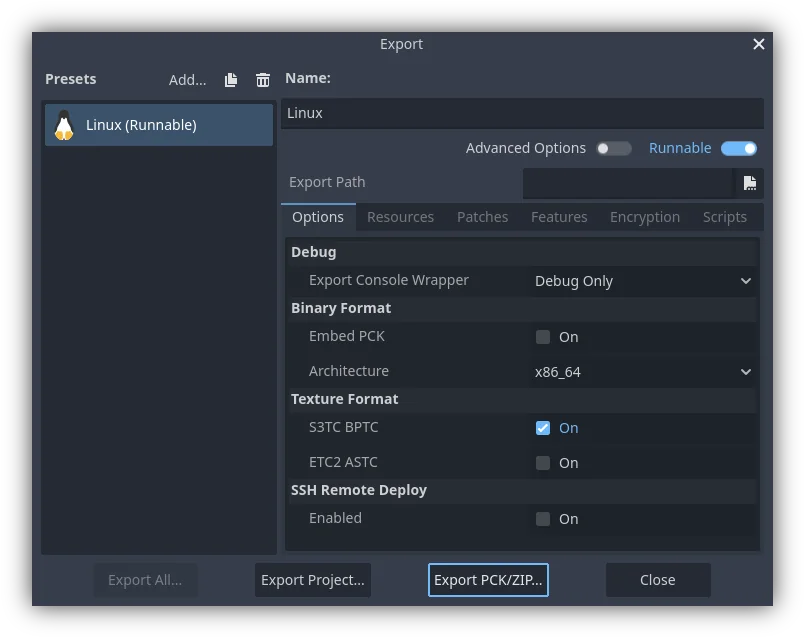
Another method would be to export from the command line
with --export-pack. The output file must with a .pck or .zip
file extension. The export process will build that type of file for the
chosen platform.
File PCK di patch
Generare file PCK di patch
Per creare un file PCK che contiene solo risorse non presenti nel rilascio originale di un progetto, creeresti un file PCK di patch. Questo può servire per patch, mod o espansioni. Affinché ciò funzioni, è necessario innanzitutto avere un file PCK per il progetto al momento del suo rilascio iniziale.
Per generare un file PCK di patch, nel menu di esportazione, con la preimpostazione desiderata selezionata, clicca sulla scheda . In fondo si trova la sezione Base Packs. Clicca sul pulsante , poi naviga fino al file PCK che hai esportato e che contiene tutto nel tuo progetto per il suo rilascio iniziale.
Ora, quando esporti nuovamente un file PCK del tuo progetto, se il pulsante è selezionato, soltanto le risorse che sono cambiate saranno esportate nel file PCK.
È inoltre possibile aggiungere ai pacchetti base le patch esportate per un uso futuro. Ad esempio, aggiungendo patch.pck si garantirà che patch2.pck non includa alcuna risorsa proveniente da quella prima patch.
Codifica delta
È possibile rimpicciolire i file PCK di patch attraverso la codifica delta. Con questa codifica vengono aggiornate solo le parti di un file che sono state modificate. Tuttavia, questo metodo presenta lo svantaggio di tempi di caricamento più lunghi per le risorse aggiornate, e ogni patch applicata a una risorsa ne aumenta cumulativamente il tempo di caricamento.
Oltre ai filtri, sono disponibili due impostazioni per la codifica delta:
Delta Encoding Compression Level: controlla quanta compressione è applicata ai file. Non consigliamo di superare il valore predefinito di 19. Oltre tale valore, serve più memoria per l'esportazione e importazione, con benefici notevolmente inferiori. Valori positivi avranno alla stessa velocità di decompressione, tuttavia l'esportazione richiederà più tempo, più il numero è alto. Valori negativi abilitano la modalità veloce, che produce file più grandi, ma con maggiore velocità di decompressione.
Delta Encoding Minimum Size Reduction: controlla la quantità minima di spazio che deve essere risparmiata affinché la compressione sia applicata a un singolo file. Ad esempio, con un livello del 10%, se la dimensione del file può essere ridotta solo del 5%, il file non utilizzerà la codifica delta.
Il livello di compressione predefinito, 19, è il livello più alto consigliato.
Per la dimensione più piccola possibile di patch, consigliamo di disattivare la compressione per tutte le risorse a cui si desidera applicare patch. Anche se i file PCK base erano compressi, ciò non dovrebbe causare problemi.
Esistono diversi punti in cui è possibile disabilitare la compressione per diverse risorse:
Impostazioni di importazione relative alla compressione per le singole risorse importate, come file di traduzione o modelli 3D
Compress Binary Resources nelle impostazioni dell'editor
GDScript Export Mode nella scheda di una preimpostazione di esportazione
Nota
Dopo aver disabilitato Compress Binary Resources, è necessario eliminare il contenuto della cartella .godot/imported/ del progetto, poi chiudere e riaprire il progetto per rigenerarlo.
È importante notare che quando si esporta una patch con codifica delta sopra le patch precedenti, i pacchetti elencati in Base Packs nella scheda devono essere esattamente gli stessi file caricati dal gioco in fase di esecuzione, nello stesso ordine in cui sono caricati. La riesportazione di versioni precedenti potrebbe risultare leggermente diversa, in quanto il processo di esportazione di Godot non è deterministico, il che potrebbe non far riuscire ad applicare la patch. Questo si applica solo alle patch con codifica delta; le patch normali non hanno questo problema.
Opening PCK or ZIP files at runtime
To load a PCK or ZIP file, one uses the ProjectSettings singleton. The following
example expects a mod.pck file in the directory of the game's executable.
The PCK or ZIP file contains a mod_scene.tscn test scene in its root.
func _your_function():
    # This could fail if, for example, mod.pck cannot be found.
    var success = ProjectSettings.load_resource_pack(OS.get_executable_path().get_base_dir().path_join("mod.pck"))

    if success:
        # Now one can use the assets as if they had them in the project from the start.
        var imported_scene = load("res://mod_scene.tscn")
private void YourFunction()
{
    // This could fail if, for example, mod.pck cannot be found.
    var success = ProjectSettings.LoadResourcePack(OS.GetExecutablePath().GetBaseDir().PathJoin("mod.pck"));

    if (success)
    {
        // Now one can use the assets as if they had them in the project from the start.
        var importedScene = (PackedScene)ResourceLoader.Load("res://mod_scene.tscn");
    }
}
Avvertimento
By default, if you import a file with the same file path/name as one you already have in your project, the imported one will replace it. This is something to watch out for when creating DLC or mods. You can solve this problem by using a tool that isolates mods to a specific mods subfolder.
However, it is also a way of creating patches for one's own game. A PCK/ZIP file of this kind can fix the content of a previously loaded PCK/ZIP (therefore, the order in which packs are loaded matters).
To opt out of this behavior, pass false as the second argument to
ProjectSettings.load_resource_pack().
Nota
For a C# project, you need to build the DLL and place it in the project directory first.
Then, before loading the resource pack, you need to load its DLL as follows:
Assembly.LoadFile("mod.dll")
Risoluzione dei problemi
If you are loading a resource pack and are not noticing any changes, it may be due to the pack being loaded too late. This is particularly the case with menu scenes that may preload other scenes using preload(). This means that loading a pack in the menu will not affect the other scene that was already preloaded.
To avoid this, you need to load the pack as early as possible.
To do so, create a new autoload script and
call ProjectSettings.load_resource_pack()
in the autoload script's _init() function, rather than _enter_tree()
or _ready().
Considerazioni sul modding
Se si desidera supportare le mod per il proprio gioco, sarà necessario che gli utenti creino file esportati similmente. Supponendo che il gioco originale si aspetti una certa struttura per le risorse del PCK e/o una certa interfaccia per i suoi script, allora è necessario fare una delle due cose seguenti.
- Lo sviluppatore deve documentare queste strutture previste/
interfacce previste, aspettarsi che i modder installino Godot Engine e che si conformino all'API definita nella documentazione durante la creazione dei contenuti delle mod per il gioco (affinché funzionino). Gli utenti utilizzeranno quindi gli strumenti di esportazione integrati di Godot per creare un file PCK, come descritto in precedenza.
- Lo sviluppatore utilizza Godot per creare uno strumento con GUI per aggiungere il loro contenuto API
desiderato a un progetto. Questo strumento Godot deve essere eseguito su una versione del motore con gli strumenti abilitati o avere accesso a una di esse (distribuita insieme o eventualmente nei file del gioco originale). Lo strumento può quindi utilizzare l'eseguibile di Godot per esportare un file PCK dalla riga di comando con OS.execute(). Il gioco stesso non dovrebbe utilizzare una versione del motore con gli strumenti abilitati (per motivi di sicurezza), quindi è meglio mantenere separati lo strumento di modding e il gioco.