Attention: Here be dragons
This is the latest
(unstable) version of this documentation, which may document features
not available in or compatible with released stable versions of Godot.
Checking the stable version of the documentation...
Impostazioni OpenXR
OpenXR ha un proprio insieme di impostazioni che sono applicate all'avvio. Sebbene sia possibile che le estensioni di OpenXR implementate tramite le estensioni di Godot aggiungano ulteriori impostazioni, qui discuteremo solo delle impostazioni del core di Godot.
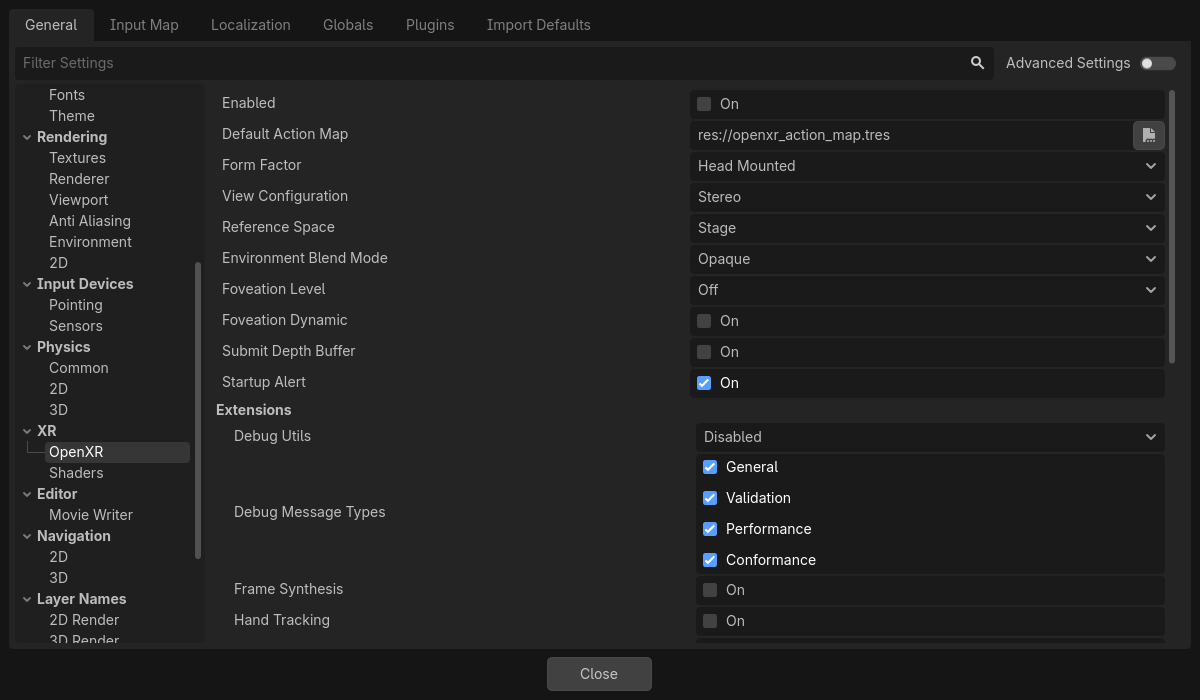
Impostazioni generali
Abilitato
Questa impostazione abilita il modulo OpenXR all'avvio di Godot. È necessaria quando si utilizza il backend Vulkan. Per altri backend è possibile abilitare OpenXR in qualsiasi momento chiamando initialize su OpenXRInterface.
È necessario abilitare questa opzione anche per accedere all'editor della mappa di azioni.
È possibile usare l'opzione della riga di comando --xr-mode on per forzarla abilitata.
Mappa di azioni predefinita
Specifica il percorso del file della mappa di azioni che OpenXR caricherà e comunicherà al runtime XR.
Fattore forma
Specifica se il tuo gioco è progettato per:
Dispositivi
Head Mounted(montati sulla testa) come Meta Quest, Valve Index o Magic Leap,Dispositivi
Handheld(portatili) come i telefoni.
Se il dispositivo su cui esegui il gioco non corrisponde alla selezione qui, OpenXR non riuscirà a inizializzarsi.
Configurazione di vista
Specifica la configurazione della vista per cui è progettato il tuo gioco:
Mono, il tuo gioco fornisce un'unica immagine in uscita. Ad esempio, AR sui telefoni;Stereo, il tuo gioco fornisce un'immagine stereo in uscita. Ad esempio, dispositivi montati sulla testa.
Se il dispositivo su cui esegui il gioco non corrisponde alla selezione qui, OpenXR non riuscirà a inizializzarsi.
Nota
OpenXR offre ulteriori configurazioni della vista per dispositivi molto specifici che Godot non supporta ancora. Ad esempio, i visori Varjo hanno una configurazione a quattro viste che produce due insiemi di immagini stereo. Queste potrebbero essere supportate nel prossimo futuro.
Spazio di riferimento
In XR, tutti gli elementi, come la testa e le mani del giocatore, sono tracciati all'interno di un volume di tracciamento. Alla base di questo volume di tracciamento si trova il nostro punto di origine, che mappa il nostro spazio virtuale sullo spazio reale. Esistono tuttavia diversi scenari che collocano questo punto in posizioni diverse, a seconda del sistema XR utilizzato. In OpenXR, questi scenari sono ben definiti e selezionati impostando uno spazio di riferimento.
Locale
Lo spazio di riferimento locale posiziona il nostro punto di origine sulla testa del giocatore, come predefinito. Alcuni runtime XR lo faranno ogni volta che il gioco si avvia, altri faranno in modo che la posizione persista per più sessioni.
Questo spazio di riferimento, tuttavia, non impedisce all'utente di allontanarsi, quindi bisognerà rilevarlo se, ad esempio, l'utente non si dovrebbe allontanare dal veicolo che sta controllando, cosa che potrebbe potenzialmente compromettere il gioco.
Questo spazio di riferimento è l'opzione migliore per giochi come simulatori di volo o di corse, dove vogliamo posizionare il nodo XROrigin3D dove dovrebbe trovarsi la testa del giocatore.
Quando l'utente attiva l'opzione di ricentratura sul proprio visore, il cui metodo varia a seconda del runtime XR, il runtime XR sposterà il nodo XRCamera3D sul nodo XROrigin3D. Il nodo OpenXRInterface emetterà anche il segnale pose_recentered in modo che il gioco possa reagire di conseguenza.
Nota
Qualsiasi altro elemento XR tracciato, come controller o ancoraggi, verrà regolato di conseguenza.
Avvertimento
Non si dovrebbe chiamare center_on_hmd quando si utilizza questo spazio di riferimento.
Stage
Lo spazio di riferimento stage è il nostro spazio di riferimento predefinito e posiziona il nostro punto di origine al centro dello spazio di gioco. Per i runtime XR che consentono di disegnare un confine di protezione, questa posizione e il suo orientamento sono spesso impostati dall'utente. Altri runtime XR potrebbero decidere il posizionamento di questo punto in altri modi. È comunque un punto fisso nel mondo reale.
Questo spazio di riferimento è l'opzione migliore per i giochi room-scale in cui l'utente deve muoversi in uno spazio più ampio, o per i giochi in cui bisogna passare tra varie modalità di gioco. Consulta la sezione Room Scale per ulteriori informazioni.
Quando l'utente attiva l'opzione di ricentratura sul proprio visore, il cui metodo varia a seconda del runtime XR, il runtime XR non cambia il punto di origine. L'interfaccia OpenXRInterface emetterà il segnale pose_recentered e spetta al gioco reagire di conseguenza. Altrimenti, non sarà possibile accettare il gioco dai vari store.
In Godot, è possibile farlo chiamando la funzione center_on_hmd sull'XRServer:
Chiamando
XRServer.center_on_hmd(XRServer.RESET_BUT_KEEP_TILT, false)il nodo XRCamera3D verrà spostato sul nodo XROrigin3D, in modo simile allo spazio di riferimentoLocal(locale).Chiamando
XRServer.center_on_hmd(XRServer.RESET_BUT_KEEP_TILT, true)il nodo XRCamera3D verrà spostato sopra il nodo XROrigin3D mantenendo l'altezza del giocatore, in modo simile allo spazio di riferimentoLocal Floor(pavimento locale).
Nota
Qualsiasi altro elemento XR tracciato, come controller o ancoraggi, verrà regolato di conseguenza.
Pavimento locale
Lo spazio di riferimento locale del pavimento è simile allo spazio di riferimento locale, in quanto posiziona il punto di origine dove si trova il giocatore. In questa modalità, però, l'altezza del giocatore viene mantenuta. Come per lo spazio di riferimento locale, alcuni runtime XR manterranno questa posizione tra una sessione e l'altra.
Non è quindi garantito che il giocatore stia nel punto di origine; l'unica certezza è che sia stato lì quando l'utente ha effettuato l'ultimo ricentramento. Il giocatore è quindi libero di allontanarsi.
Questo spazio di riferimento è l'opzione migliore per i giochi in cui ci si aspetta che l'utente rimanga nella stessa posizione, o per i giochi AR in cui gli elementi dell'interfaccia utente sono vincolati al nodo di origine e vengono rapidamente posizionati nella posizione del giocatore quando ricentra.
Quando l'utente attiva l'opzione di ricentratura sul proprio visore, il cui metodo varia a seconda del runtime XR, il runtime XR sposterà il nodo XRCamera3D sopra il nodo XROrigin3D, ma mantenendo l'altezza del giocatore. Il nodo OpenXRInterface emetterà anche il segnale pose_recentered in modo che il gioco possa reagire di conseguenza.
Avvertimento
Fai attenzione a utilizzare questa modalità in combinazione con il movimento virtuale del giocatore. Il ricentramento dell'utente in questo scenario può essere imprevedibile a meno che non contrasti il movimento durante la gestione del segnale di ricentramento. Questo può persino rovinare il gioco, poiché in questo scenario il giocatore verrebbe teletrasportato in qualsiasi posizione astratta in cui è stato posizionato il punto di origine durante il movimento virtuale, inclusa la possibilità di teletrasportarsi in posizioni che dovrebbero essere fuori limite. È preferibile utilizzare la modalità Stage in questo scenario e limitare il ripristino dell'orientamento solo quando viene ricevuto un segnale pose_recentered.
Nota
Qualsiasi altro elemento XR tracciato, come controller o ancoraggi, verrà regolato di conseguenza.
Avvertimento
Non si dovrebbe chiamare center_on_hmd quando si utilizza questo spazio di riferimento.
Modalità di fusione dell'ambiente
La modalità di fusione dell'ambiente definisce come il risultato renderizzato è integrato nel "mondo reale", purché questa funzionalità sia supportata dal visore.
Opaquesignifica che il nostro risultato oscura il mondo reale, siamo in modalità VR.Additivesignifica che il nostro risultato viene aggiunto al mondo reale, questa è una modalità AR in cui l'ottica non ci permette di oscurare completamente il mondo reale (ad esempio HoloLens),Alphasignifica che il nostro risultato viene fuso con il mondo reale utilizzando il canale alfa (la viewport deve avere lo sfondo trasparente abilitato); è una modalità AR in cui l'ottica può oscurare completamente il mondo reale (Magic Leap, tutti i dispositivi con passthrough, ecc.).
Se si seleziona una modalità non supportata dal visore, sarà selezionata la prima modalità disponibile.
Nota
Alcuni dispositivi OpenXR hanno sistemi separati per abilitare/disabilitare il passthrough. A partire da Godot 4.3, selezionando la modalità di fusione alfa effettuerà anche questi passaggi in più. Ciò richiede l'installazione del plugin fornitore più recente.
Livello di foveazione
Imposta il livello di foveazione utilizzato durante il rendering, purché questa funzionalità sia supportata dall'hardware utilizzato. La foveazione è una tecnica per cui, più lontano dal centro della viewport si renderizza, minore sarà la risoluzione con la quale renderizza. I runtime XR perlopiù supportano soltanto la foveazione fissa, ma alcuni tengono conto del tracciamento oculare e utilizzano il punto focale per questo effetto.
Più alto è il livello, maggiori sono i miglioramenti sulle prestazioni, ma maggiore è anche la riduzione della qualità nella visione periferica dell'utente.
Nota
Solo per renderer Compatibilità, per i renderer Mobile e Forward+, impostare la proprietà vrs_mode della Viewport su VRS_XR.
Avvertimento
This feature is disabled if post effects are used such as glow, bloom, or DOF.
Foveazione dinamica
Quando abilitata, la foveazione sarà regolata automaticamente in base al carico attuale della GPU. Sarà regolata tra il livello minimo e il livello di foveazione selezionato nell'impostazione precedente. Pertanto, è consigliabile combinare questa impostazione con un livello di foveazione impostato su high (alto).
Nota
Solo per il renderer Compatibilità
Invia buffer di profondità
Se abilitata, durante il rendering sarà utilizzato un buffer di profondità fornito da OpenXR, che sarà inviato insieme all'immagine renderizzata. Il runtime XR può utilizzarlo per migliorare la riproiezione.
Nota
Abilitare questa funzionalità disabiliterà il supporto per lo stencil durante il rendering. Non molti runtime XR la utilizzano, pertanto si consiglia di lasciarla disattivata a meno che non offra vantaggi evidenti per il proprio caso d'uso.
Segnalazione all'avvio
Se abilitata, mostrerà un messaggio di avviso all'utente se OpenXR non riesce ad avviarsi. Non sempre riceviamo informazioni dal sistema XR sul motivo per cui l'avvio non riesce. Se possibile, le registriamo nella console. Le cause più comuni di errori sono:
Nessun runtime OpenXR è installato sul sistema host.
È attualmente attivo il runtime OpenXR WMR di Microsoft, che supporta solo DirectX e non funzionerà se si utilizza OpenGL o Vulkan.
Si utilizza SteamVR, ma nessun visore è collegato/acceso.
Disabilita questa opzione se il gioco supporta una modalità di riserva che consente di giocare in modalità desktop quando non è collegato alcun visore VR, oppure se gestisci autonomamente la condizione di errore verificando OpenXRInterface.is_initialized().
Estensioni
Questa sottosezione consente di abilitare diverse estensioni OpenXR opzionali. Tenere presente che le estensioni funzioneranno solo se il runtime OpenXR (SteamVR, Oculus, ecc.) con cui viene eseguito il progetto le supporta.
Utilità di debug
Abilitare questa opzione registrerà i messaggi di debug provenienti dal runtime XR.
Tipi di messaggi di debug
Questo permette di scegliere quali messaggi di debug sono registrati.
Sintesi di frame
Quando abilitata, purché sia supportata dal runtime XR, sono renderizzati e forniti al runtime XR vettori di movimento e buffer di profondità a risoluzione più bassa. Il runtime XR può quindi iniettare frame di riproiezione e compensare per il frame rate più basso.
Attualmente ha le seguenti limitazioni:
NON funziona nel renderer Forward+.
Funziona solo con il rendering stereoscopico.
Tracciamento delle mani
Questa abilita l'estensione di tracciamento delle mani, se supportata dal dispositivo utilizzato. È attiva come valore predefinito per motivi di retrocompatibità. L'estensione di tracciamento delle mano fornisce accesso ai dati che permettono di visualizzare le mani dell'utente, con la corretta posizione delle dita. A seconda delle capacità della piattaforma, i dati di tracciamento delle mani si possono dedurre dagli input del controller, provenire da guanti dati, da sensori ottici di tracciamento delle mani o da qualsiasi altra fonte applicabile.
Se il gioco supporta solo i controller, questa opzione dovrebbe essere disabilitata.
Consulta la pagina sul tracciamento delle mani per ulteriori dettagli.
Sorgente dei dati di tracciamento delle mani (non ostruito)
Abilitarla significa che il tracciamento delle mani può utilizzare la posizione esatta delle dita, solitamente quella vista dalla telecamera di un visore.
Sorgente dei dati di tracciamento delle mani (controller)
Abilitarla significa che il tracciamento delle mani può utilizzare il controller stesso e dedurre la posizione delle dita in base agli input del controller o ai sensori presenti sul controller.
Profilo di interazione delle mani
Abilitare questa estensione consente l'utilizzo di due nuove pose di tracciamento delle mani. La posa "pinch" (pizzico), che è il posto tra il pollice e l'indice e punta in avanti, e la posa "poke" (spinta), che si trova sulla punta dell'indice.
Consente anche altri 3 input basati sui gesti: "Pinch" (pizzicamento), quando l'utente unisce pollice e indice; "Aim activation" (attivazione della mira), quando l'indice è completamente esteso; e "Grasps" (presa), quando l'utente fa un pugno.
Quando si forniscono un profilo di interazione di mani e un profilo di interazione di controller, il runtime passerà da un profilo all'altro a seconda che sia utilizzato il tracciamento ottico o che l'utente stia mantenendo un controller.
Se si fornisce soltanto un profilo di interazione di mani, qualsiasi runtime dovrebbe utilizzare l'interazione delle mani anche se si sta mantenendo un controller.
Entità spaziali
Questa estensione e le sue impostazioni servono per ottenere e interagire con informazioni sull'ambiente reale dell'utente. Puoi trovare informazioni più dettagliate su come funziona nella pagina delle entità spaziali.
Interazione con lo sguardo degli occhi
Abilita l'estensione dell'interazione tramite sguardo, se supportata dal dispositivo utilizzato. Quando abilitata, riceveremo un informazioni dal tracciamento oculare attraverso una posa situata tra gli occhi dell'utente, orientata nella direzione in cui l'utente sta guardando. Questo sarà un orientamento unificato.
Per utilizzare questa funzionalità, bisogna modificare la mappa di azioni e aggiungere una nuova azione di posa, ad esempio eye_pose. Ora aggiungi un nuovo profilo di interazione per l'interazione dello sguardo e mappa eye_pose:
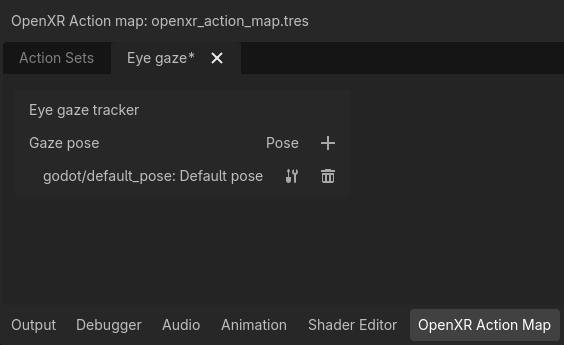
Non dimenticarti di salvare!
Poi aggiungi un nuovo nodo XRController3D al tuo nodo di origine e imposta la sua proprietà tracker su /user/eyes_ext e la sua proprietà pose su eye_pose.
Ora puoi aggiungere cose a questo nodo controller, come ad esempio un raycast, e controllare cose con i tuoi occhi.
Modelli di rendering
Questa estensione è utilizzata per interrogare il runtime XR per ottenere risorse 3D dell'hardware in uso, solitamente un controller, nonché la posizione di tale hardware. Puoi trovare una guida dettagliata su come utilizzarla qui.
Modificatori di associazioni
Questi parametri controllano se è possibile utilizzare o meno i modificatori di associazione. I modificatori di associazioni servono per applicare soglie o valori di offset. Puoi trovare informazioni su come utilizzarli e configurarli nella pagina della mappa di azioni XR qui.
Soglia analogica
Allow analog threshold binding modifiers.
Associazione del d-pad
Allow D-pad binding modifiers.