Attention: Here be dragons
This is the latest
(unstable) version of this documentation, which may document features
not available in or compatible with released stable versions of Godot.
Checking the stable version of the documentation...
Prototipazione dei livelli con CSG
CSG è l'acronimo di Constructive Solid Geometry ed è un mezzo che permette di combinare forme di base o mesh personalizzate per creare forme più complesse. Nei software di modellazione 3D, CSG è generalmente noto come "Operatori booleani".
La prototipazione dei livelli è uno degli usi principali di CSG in Godot. Questa tecnica permette agli utenti di creare le forme più comuni combinando primitive. Gli ambienti interni si possono creare usando primitive invertite.
Nota
I nodi CSG in Godot sono concepiti principalmente per la prototipazione. Non è previsto alcun supporto integrato per la mappatura UV o la modifica di poligoni 3D (sebbene sia possibile utilizzare poligoni 2D estrusi con il nodo CSGPolygon3D).
Se stai cercando uno strumento per progettare livelli facile da usare per un progetto, potresti voler usare FuncGodot o Cyclops Level Builder in alternativa.
Vedi anche
È possibile scoprire come utilizzare i nodi CSG per costruire varie forme (ad esempio scale o strade) attraverso il progetto demo Constructive Solid Geometry.
Introduzione ai nodi CSG
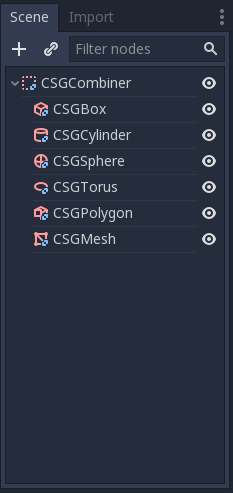
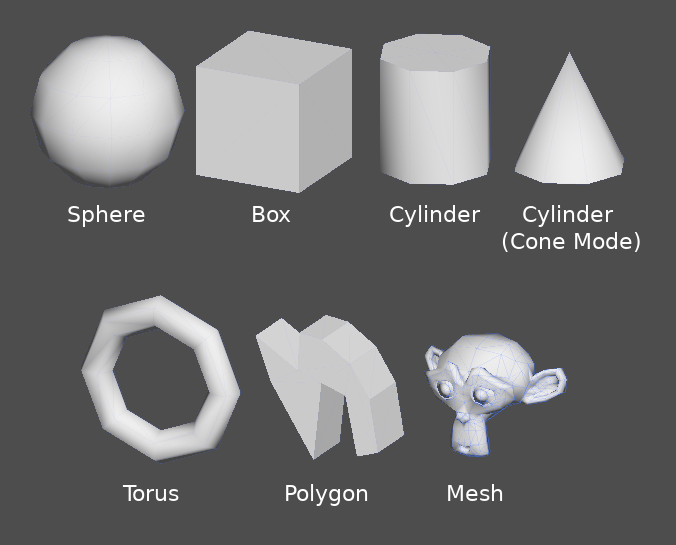
Come le altre funzionalità di Godot, il CSG è supportato tramite nodi. Questi sono i nodi CSG:
CSGCylinder3D (supporta anche il cono)
Funzionalità degli strumenti CSG
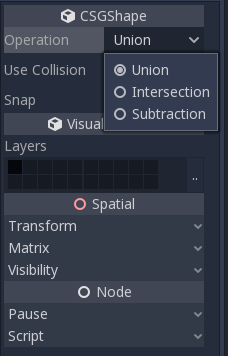
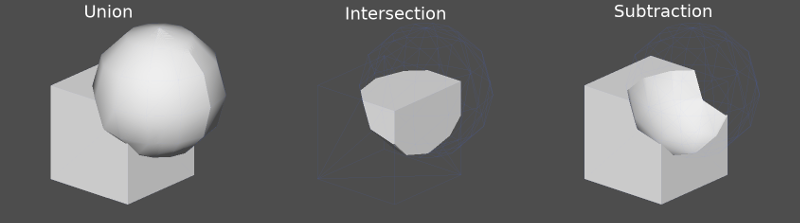
Ogni nodo CSG supporta 3 tipi di operazioni booleane:
Union: la geometria di entrambe le primitive è unita, la geometria intersecante è rimossa.
Intersection: solo la geometria intersecante rimane, il resto è rimosso.
Subtraction: la seconda forma è sottratta dalla prima, lasciando un'indentazione con la sua forma.
CSGPolygon
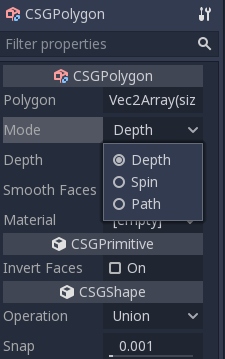
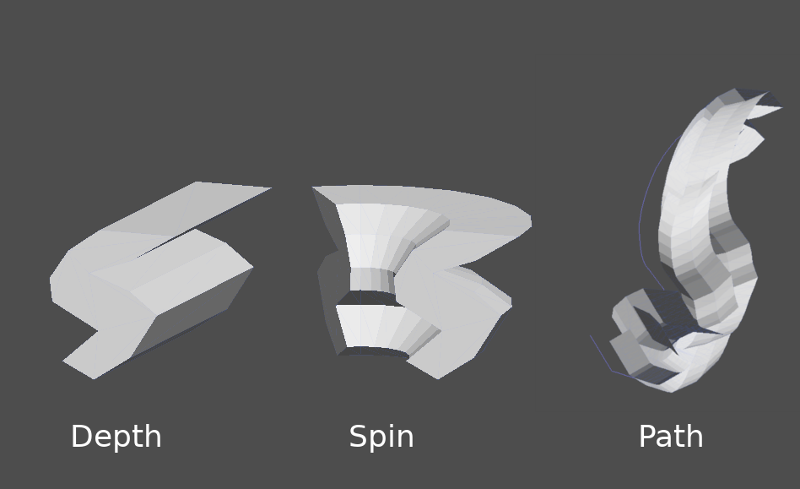
Il nodo CSGPolygon3D estrude lungo un poligono disegnato in 2D (nelle coordinate X, Y) nei seguenti modi:
Depth: estruso indietro di una quantità specificata.
Spin: estruso ruotando attorno la sua origine.
Path: estruso lungo un nodo Path. Questa operazione è comunemente detta "lofting".
Nota
La modalità Percorso deve essere fornita con un nodo Path3D per funzionare. Nel nodo Path, disegna il percorso e il poligono in CSGPolygon3D sarà estruso lungo il percorso specificato.
Mesh personalizzate
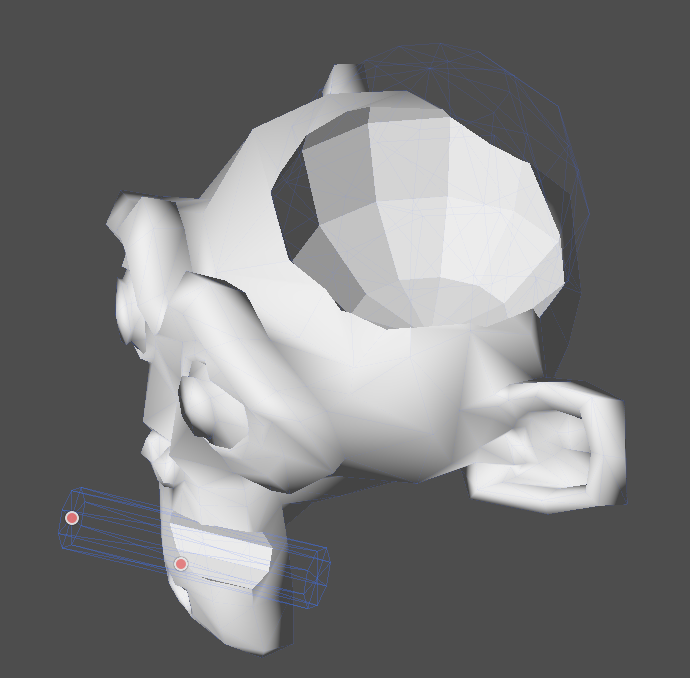
È possibile utilizzare mesh personalizzate per CSGMesh3D purché la mesh sia manifold. La mesh può essere modellata in altri software e importata in Godot. Sono supportati più materiali.
Affinché sia possibile utilizzare una mesh come mesh CSG, è necessario che:
sia chiusa
ogni bordo sia connesso a sole due facce
abbia volume
Si raccomanda inoltre di evitare:
un volume negativo
auto-intersezioni
Facce interiori
Godot usa la libreria manifold per implementare le mesh CSG. La definizione tecnica di "manifold" usata da Godot è la seguente, adattata dalla definizione di "manifold" di tale libreria:
Ogni bordo di ogni triangolo deve contenere gli stessi due vertici (per indice) di esattamente un altro bordo di triangolo, e i vertici iniziale e finale devono scambiarsi di posto tra questi due bordi. I vertici del triangolo devono apparire in senso orario se visti dall'esterno della mesh manifold del Godot Engine.
Rendere una mesh esistente manifold con Blender
Se hai una mesh esistente che non è già manifold, è possibile renderla manifold attraverso Blender.
In Blender, installa e abilita l'addon 3D Print Toolbox.
Seleziona la mesh che vuoi rendere manifold. Apri la barra laterale cliccando sulla freccia:

Nella scheda 3D Print, sotto Clean Up, clicca sul pulsante Make Manifold:

La mesh dovrebbe ora essere manifold, e si può usare come mesh personalizzata.
CSGCombiner3D
Il nodo CSGCombiner3D è una forma vuota usata per organizzazione. Combinerà solo i nodi figli.
Ordine di elaborazione
Ogni nodo CSG elaborerà prima i suoi nodi figli e le loro operazioni: unione, intersezione o sottrazione, in ordine ad albero, e le applicherà a se stesso una dopo l'altra.
Nota
Nell'interesse di ottimizzare le prestazioni, assicurati che la geometria CSG rimanga relativamente semplice, poiché per elaborare mesh complesse ci potrebbe volere un po'. Se unisci oggetti (come tavoli e stanze), creali come alberi CSG separati. Inserire troppi oggetti in un singolo albero finirà per influire sulle prestazioni. Usa le operazioni binarie solo quando sono effettivamente necessarie.
Prototipazione di un livello
Creeremo un prototipo di una stanza per mettere in pratica gli strumenti CSG.
Suggerimento
Lavorare nella proiezione ortogonale offre una vista migliore per combinare le forme CSG.
Il nostro livello conterrà questi oggetti:
una stanza,
un letto,
una lampada,
una scrivania,
una libreria.
Crea una scena con un nodo Node3D come nodo radice.
Suggerimento
L'illuminazione predefinita dell'ambiente non fornisce un'ombreggiatura chiara da alcune angolazioni. Cambia la modalità di visualizzazione tramite Display Overdraw nel menu della viewport 3D oppure aggiungi un nodo DirectionalLight per vedere meglio.
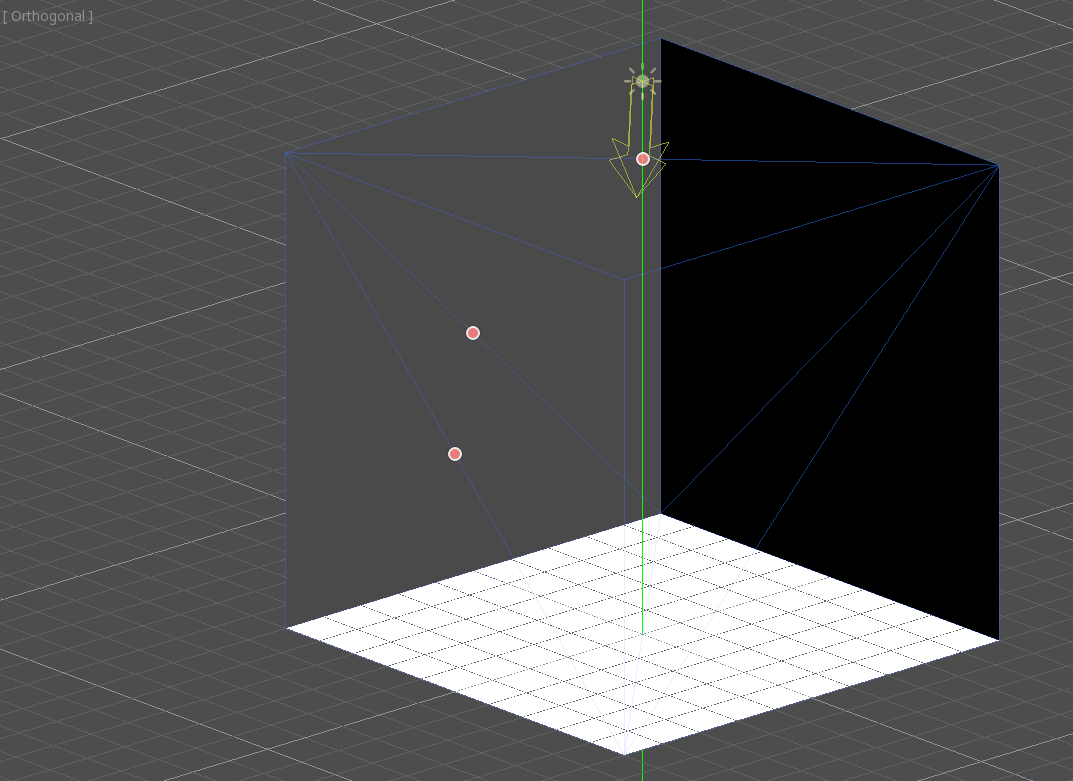
Crea un oggetto CSGBox3D e chiamalo room, abilita Invert Faces e cambia le dimensioni della stanza.
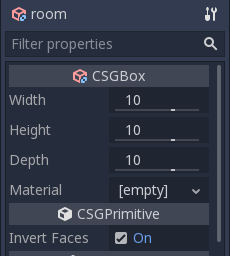
Successivamente, crea un CSGCombiner3D e dagli il nome desk.
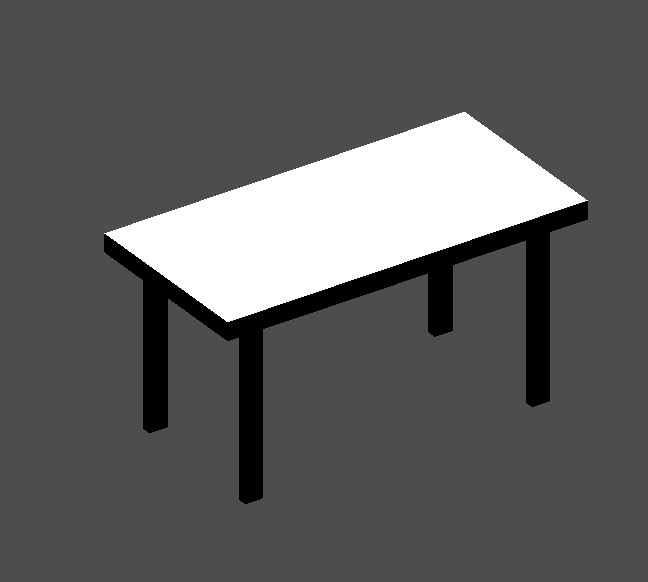
Una scrivania ha una superficie e 4 gambe:
Crea 1 nodo figlio CSGBox3D in modalità Union per la superficie e regola le dimensioni.
Crea 4 nodi figli CSGBox3D in modalità Union per le gambe e regola le dimensioni.
Regola la loro posizione per farli assomigliare a una scrivania.
Nota
I nodi CSG dentro un CSGCombiner3D elaboreranno le loro operazioni esclusivamente entro il combinatore. Pertanto, i CSGCombiner3D servono per organizzare i nodi CSG.
Crea un CSGCombiner3D e dagli il nome bed.
Il nostro letto è composto da 3 parti: il letto, il materasso e un cuscino. Crea un CSGBox3D e regola le sue dimensioni per il letto. Crea un altro CSGBox3D e regola le sue dimensioni per il materasso.
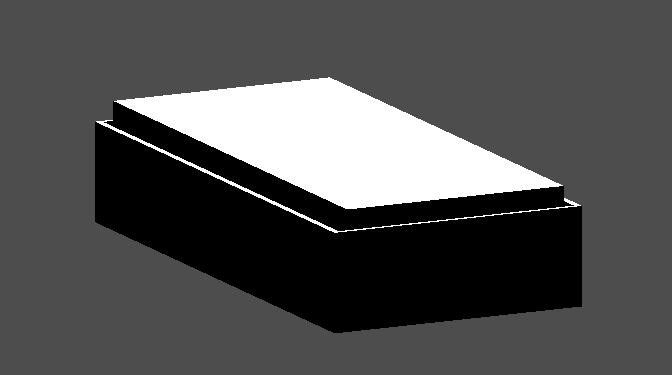
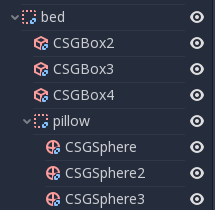
Creeremo un altro CSGCombiner3D con il nome pillow come figlio di bed. L'albero di scene dovrebbe apparire così:
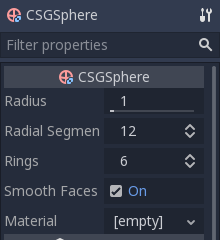
Combineremo 3 nodi CSGSphere3D in modalità Union per formare un cuscino. Scaleremo l'asse Y delle sfere e abiliteremo Smooth Faces.
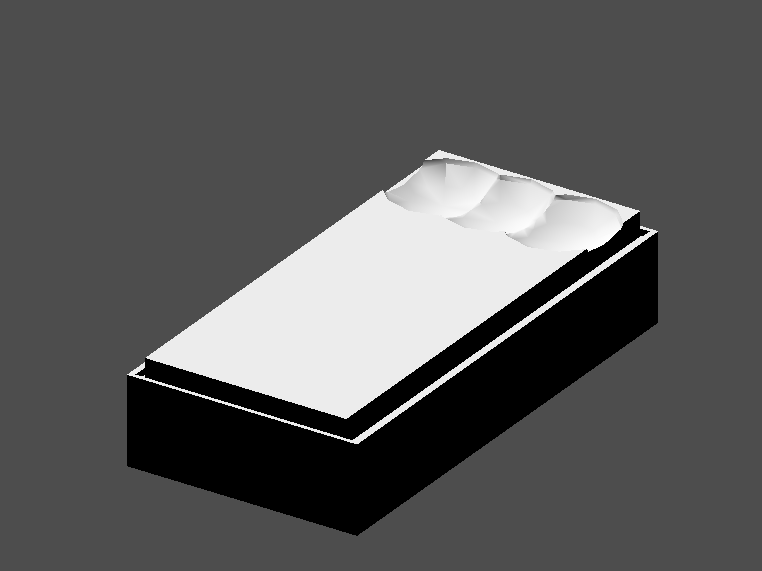
Seleziona il nodo pillow e cambia la modalità in Subtraction; le sfere combinate taglieranno un foro nel materasso.
Prova a riassegnare il nodo pillow come figlio del nodo radice Node3D; il buco scomparirà.
Nota
È per illustrare l'effetto dell'ordine di elaborazione di CSG. Poiché il nodo radice non è un nodo CSG, i nodi CSGCombiner3D sono la fine delle operazioni; ciò mostra l'uso di CSGCombiner3D per organizzare la scena CSG.
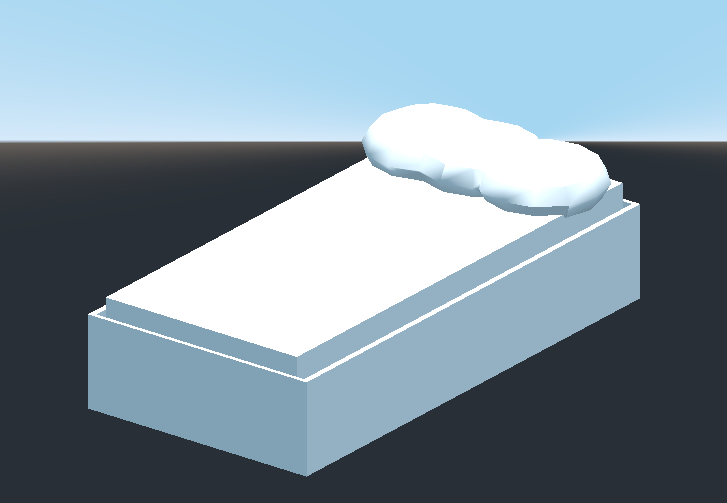
Annulla la riassegnazione dopo aver osservato l'effetto. Il letto che hai costruito dovrebbe apparire così:
Crea un CSGCombiner3D e dagli il nome lamp.
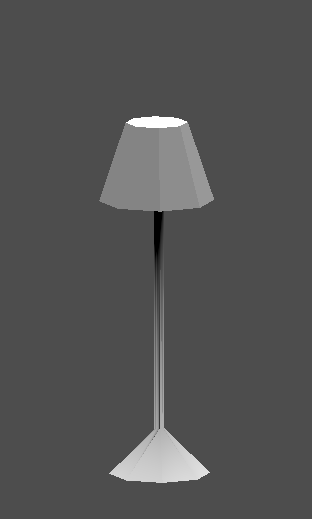
Una lampada è composta da 3 parti: la base, il palo e il paralume. Crea un oggetto CSGCylinder3D, abilita l'opzione Cone e rendilo la base. Crea un altro oggetto CSGCylinder3D e regola le dimensioni per usarlo come palo.
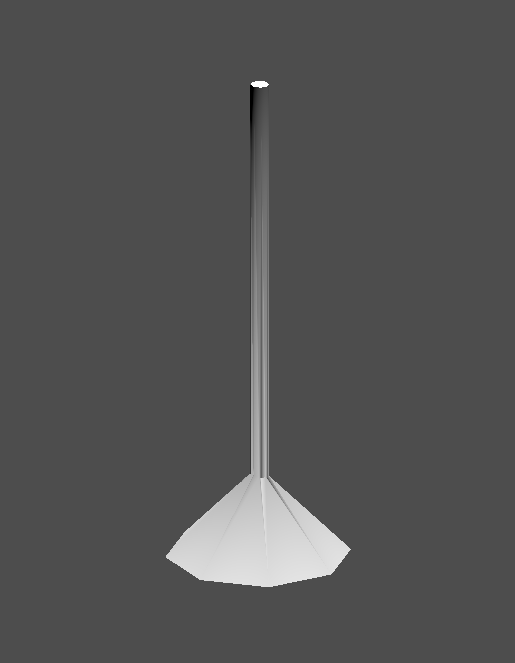
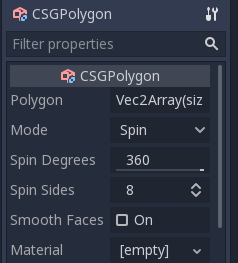
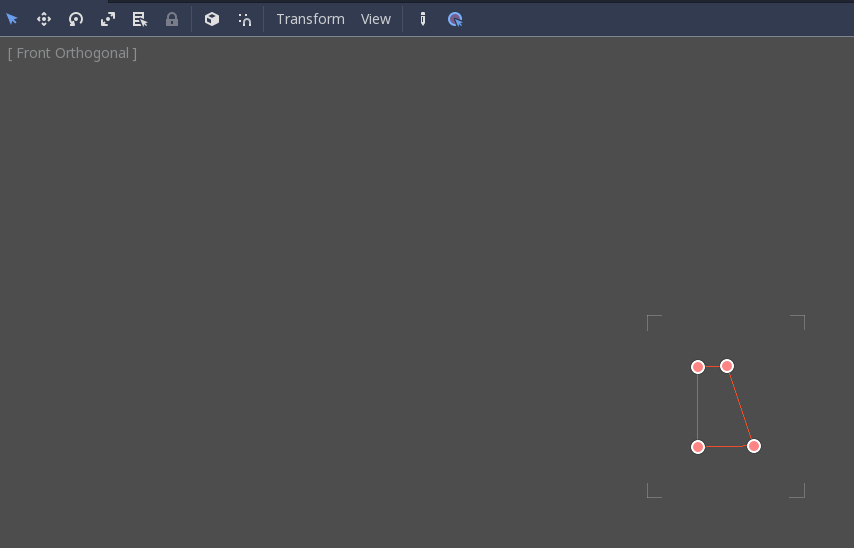
Useremo un CSGPolygon3D per il paralume. Usa la modalità Spin per il CSGPolygon3D e disegna un trapezio mentre sei in Vista frontale (tasto numerico 1); questa forma sarà estrusa attorno all'origine e formerà il paralume.
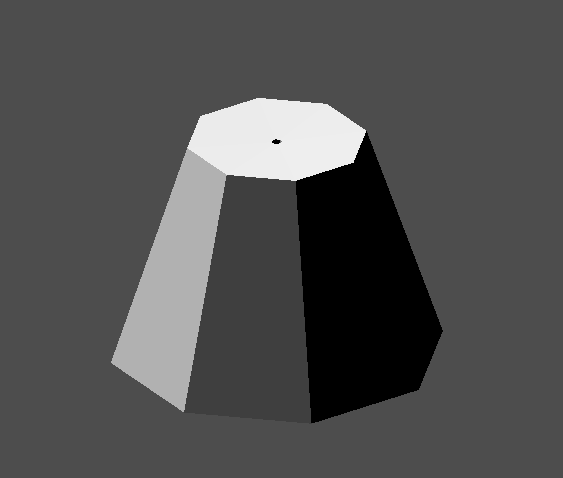
Aggiusta la disposizione delle 3 parti così da farle assomigliare a una lampada.
Crea un CSGCombiner3D e dagli il nome bookshelf.
Utilizzeremo 3 nodi CSGBox3D per la libreria. Crea un nodo CSGBox3D e regola le sue dimensioni; queste corrisponderanno alle dimensioni della libreria.
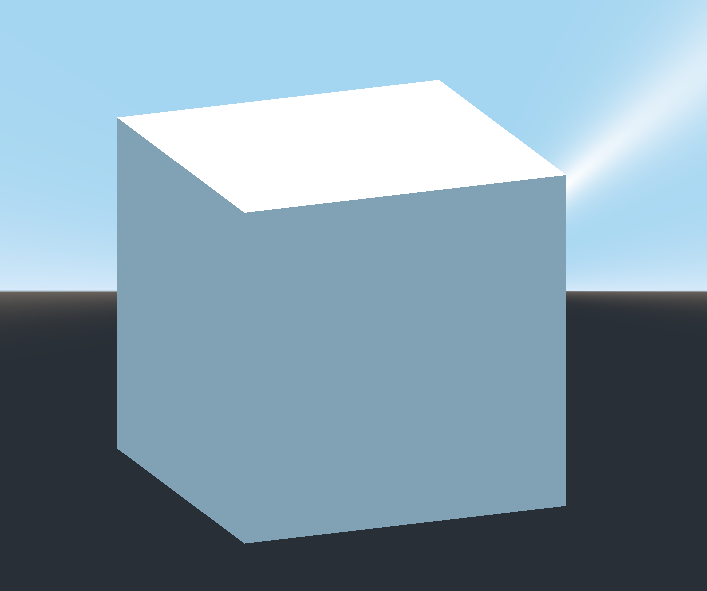
Duplica il CSGBox3D, riduci le dimensioni di ciascun asse e cambia la modalità in Subtraction.
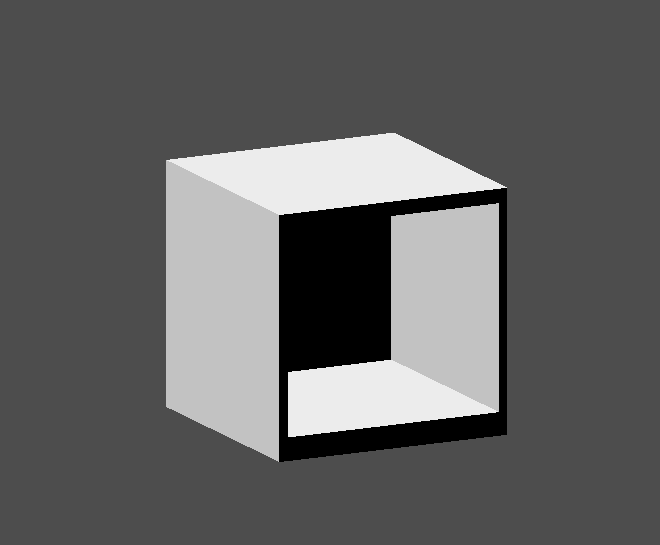
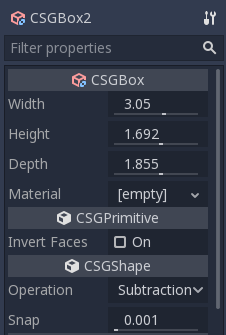
Hai quasi costruito una mensola. Crea un altro CSGBox3D per dividere la mensola in due livelli.
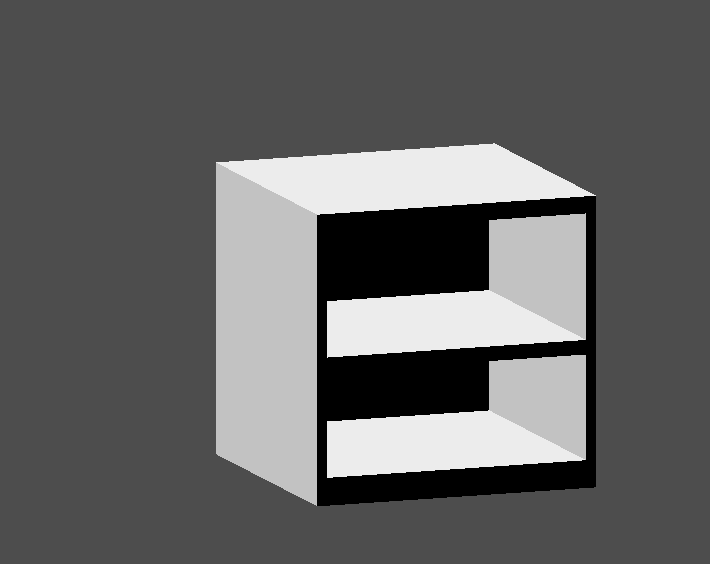
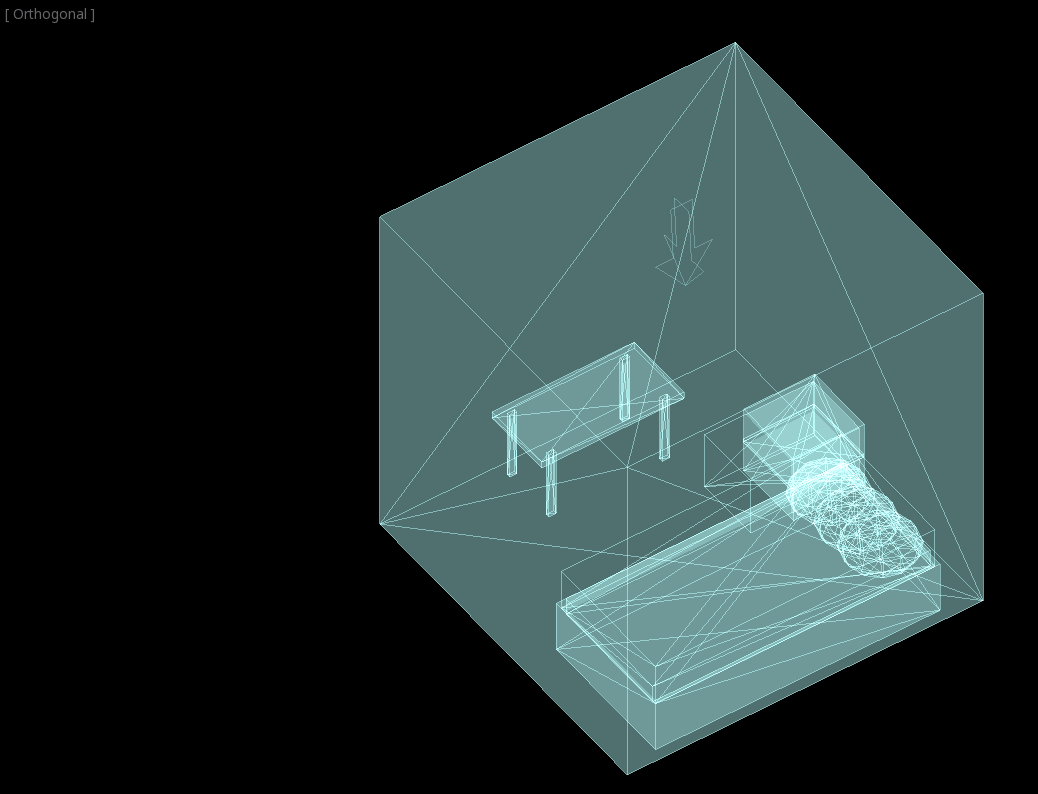
Disponi i mobili nella stanza come preferisci e la scena dovrebbe assomigliare a questa:
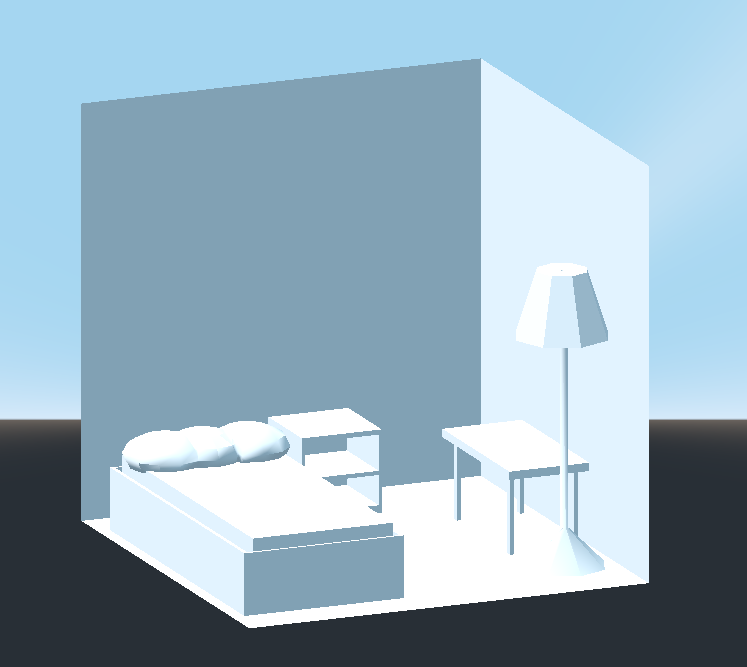
Sei riuscito a creare un prototipo di una stanza tramite gli strumenti CSG di Godot. Gli strumenti CSG possono servire per progettare livelli di ogni tipo, come labirinti o città; esplora i loro limiti durante la progettazione del tuo gioco.
Utilizzare texture prototipiche
Il Standard Material 3D and ORM Material 3D di Godot supporta la mappatura triplanare, che può servire per applicare automaticamente una texture a oggetti arbitrari senza distorsioni. È utile per CSG, poiché Godot non supporta ancora la modifica delle mappe UV sui nodi CSG. La mappatura triplanare è relativamente lenta, il che di solito ne limita l'uso a superfici organiche come il terreno. Nonostante ciò, in fase di prototipazione, può servire per applicare rapidamente texture a livelli basati su CSG.
Nota
Se hai bisogno di texture per la prototipazione, Kenney ha creato un insieme di texture prototipiche con licenza CC0.
Ci sono due modi per applicare un materiale a un nodo CSG:
Applicandolo a un nodo CSGCombiner3D come materiale sostitutivo (Geometry > Material Override nell'Ispettore). Questo influenzerà automaticamente i suoi figli, ma renderà impossibile cambiare il materiale nei singoli figli.
Applicando un materiale ai singoli nodi (Material nell'Ispettore). In questo modo, ogni nodo CSG può avere il proprio aspetto. I nodi CSG sottrattivi applicheranno il loro materiale ai nodi in cui "scavano".
Per applicare la mappatura triplanare a un nodo CSG, selezionalo, vai sull'Ispettore, clicca sul testo [vuoto] accanto a Material Override (o Material per i singoli nodi CSG). Scegli Nuovo StandardMaterial3D. Clicca sull'icona del materiale appena creato per modificarlo. Espandi la sezione Albedo e carica una texture nella proprietà Texture. Ora, espandi la sezione Uv1 e seleziona Triplanar. Puoi cambiare l'offset e la scala della texture su ciascun asse tramite le proprietà Scale e Offset appena sopra. Valori più alti nella proprietà Scale faranno ripetere la texture più spesso.
Suggerimento
È possibile copiare un StandardMaterial3D per riusarlo in diversi nodi CSG. Per farlo, clicca sulla freccia a discesa accanto alla proprietà del materiale nell'Ispettore e scegli Copia. Per incollarlo, seleziona il nodo a cui vuoi applicare il materiale, clicca sulla freccia a discesa accanto alla sua proprietà di materiale e scegli Incolla.
Convertire in MeshInstance3D
Dalla versione 4.4 di Godot, è possibile convertire un nodo CSG e i suoi figli in un nodo MeshInstance3D.
Ciò ha diversi vantaggi:
Preparare le lightmap, dato che è possibile generare le UV2 su un MeshInstance3D.
Precalcolare l'occlusion culling, poiché il precalcolo dell'occlusion culling prende in considerazione solo i MeshInstance3D.
Tempi di caricamento più rapidi, poiché la mesh CSG non si deve più ricostruire al caricamento della scena.
Prestazioni migliori quando si aggiorna la trasformazione del nodo se la mesh è utilizzata all'interno di un altro nodo CSG.
Per convertire un nodo CSG in un nodo MeshInstance3D, selezionalo e poi scegli CSG > Bake Mesh Instance nella barra degli strumenti. Il nodo MeshInstance3D verrà creato come nodo fratello. Tieni presente che il nodo CSG utilizzato per il precalcolo non viene nascosto automaticamente, quindi ricorda di nasconderlo manualmente per evitare che la sua geometria si sovrapponga al MeshInstance3D appena creato.
Puoi anche creare una forma di collisione trimesh tramite CSG > Bake Collision Shape. Il nodo CollisionShape3D generato deve essere un figlio di un nodo StaticBody3D o AnimatableBody3D per poter funzionare.
Suggerimento
Ricorda di mantenere il nodo CSG originale nell'albero di scene, così da poter apportare modifiche alla geometria più tardi, se necessario. Per apportare modifiche alla geometria, rimuovi il nodo MeshInstance3D e rendi nuovamente visibile il nodo CSG radice.
Esportare come glTF
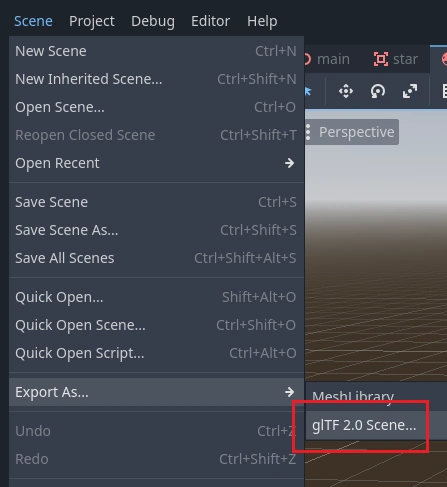
Può essere utile buttare giù idee per un livello tramite CSG, poi esportarlo come modello 3D per importarlo in un software di modellazione 3D. Puoi farlo selezionando Scena > Export as ... > glTF 2.0 Scene.