Attention: Here be dragons
This is the latest
(unstable) version of this documentation, which may document features
not available in or compatible with released stable versions of Godot.
Checking the stable version of the documentation...
Scaling della risoluzione
Perché utilizzare lo scaling della risoluzione?
Con la crescente complessità di rendering nei giochi moderni, renderizzare alla risoluzione nativa non è più sempre fattibile, soprattutto con le GPU di fascia bassa.
Lo scaling della risoluzione è uno dei metodi più diretti per influenzare i requisiti della GPU in una scena. Nelle scene limitate dalla GPU (piuttosto che dalla CPU), ridurre lo scaling della risoluzione può migliorare notevolmente le prestazioni. Lo scaling della risoluzione è particolarmente importante sulle GPU per i dispositivi mobili, dove le prestazioni e il consumo energetico sono limitati.
Sebbene lo scaling della risoluzione sia uno strumento importante, ricorda che non è pensata per sostituire la riduzione delle impostazioni grafiche su hardware di fascia bassa. Considera di rendere disponibili sia lo scaling della risoluzione sia le impostazioni grafiche nei menu di gioco.
Vedi anche
È possibile confrontare le modalità e i fattori di scaling della risoluzione in azione attraverso il progetto demo 3D Antialiasing.
Nota
Lo scaling della risoluzione non è attualmente disponibile per il rendering 2D, ma può essere simulata attraverso la modalità di estensione viewport. Consultare Risoluzioni multiple per ulteriori informazioni.
Opzioni di scaling della risoluzione
Nella sezione Rendering > Scaling 3D delle Impostazioni avanzate del progetto, puoi trovare diverse opzioni per lo scaling della risoluzione 3D:
Scaling mode
Bilinear: filtro bilineare standard (predefinito). È utilizzato come alternativa di riserva quando il renderer attuale non supporta l'FSR 1.0 o l'FSR 2.2. Disponibile in tutti i renderer.
FSR 1.0: AMD FidelityFX Super Resolution 1.0. Più lento, ma di qualità più alta rispetto allo scaling bilineare. Su GPU molto lente, il costo dell'FSR1 potrebbe essere troppo alto per giustificarne l'utilizzo rispetto allo scaling bilineare. Disponibile solo quando si utilizza il renderer Forward+.
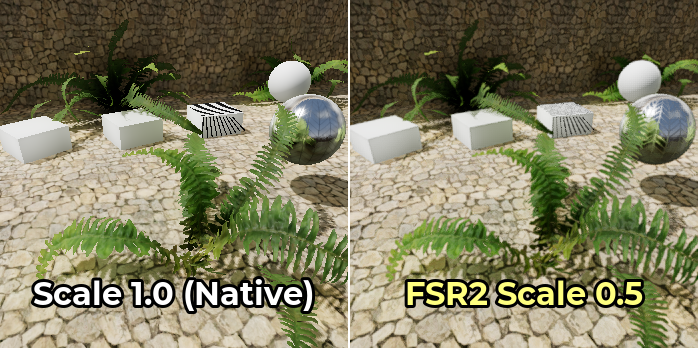
FSR 2.2: AMD FidelityFX Super Resolution 2.2 (a partire da Godot 4.2). Più lento, ma con una qualità ancora più alta rispetto a FSR1 e allo scaling bilineare. Su GPU lente, il costo di FSR2 potrebbe essere troppo alto per giustificarne l'utilizzo rispetto allo scaling bilineare o a FSR1. Per eguagliare le prestazioni dell'FSR2 con quelle dell'FSR1, è necessario utilizzare un fattore di scala inferiore per la risoluzione. Disponibile solo quando si utilizza il renderer Forward+.
Here are comparison images between native resolution, bilinear scaling with 50% resolution scale, FSR1, and FSR2 scaling with 50% resolution scale:
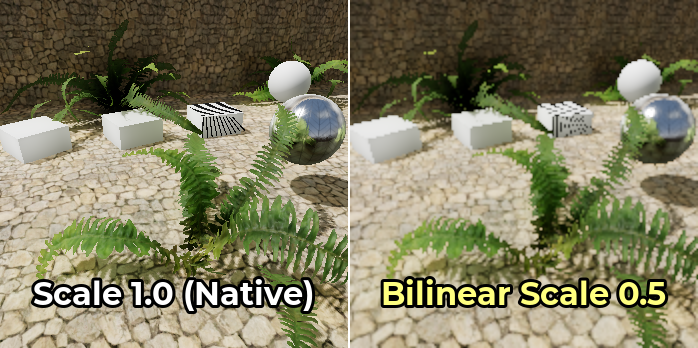
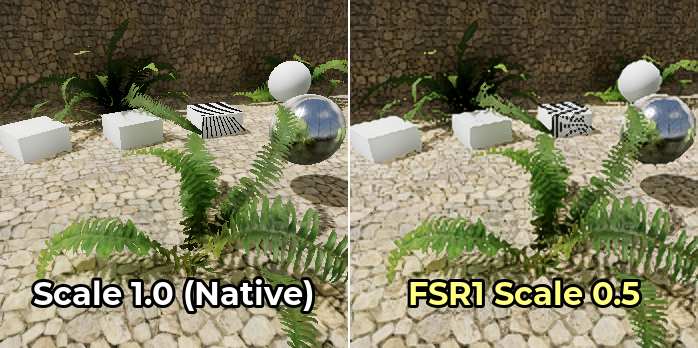
FSR1 upscaling works best when coupled with another form of antialiasing. Temporal antialiasing (TAA) or multisample antialiasing (MSAA) should preferably be used in this case, as FXAA does not add temporal information and introduces more blurring to the image.
On the other hand, FSR2 provides its own temporal antialiasing. This means you don't need to enable other antialiasing methods for the resulting image to look smooth. The Use TAA project setting is ignored when FSR2 is used as the 3D scaling method, since FSR2's temporal antialiasing takes priority.
Ecco lo stesso confronto, ma con MSAA 4× abilitato su tutte le immagini:
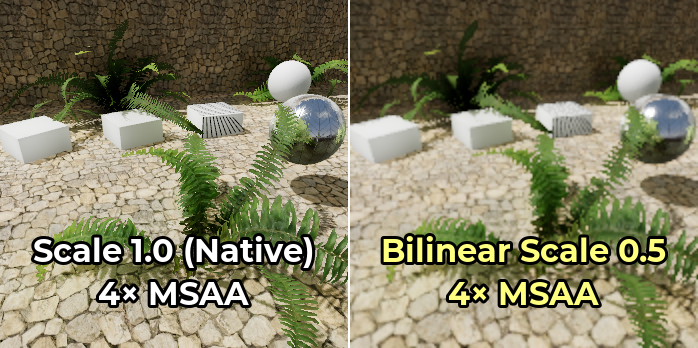
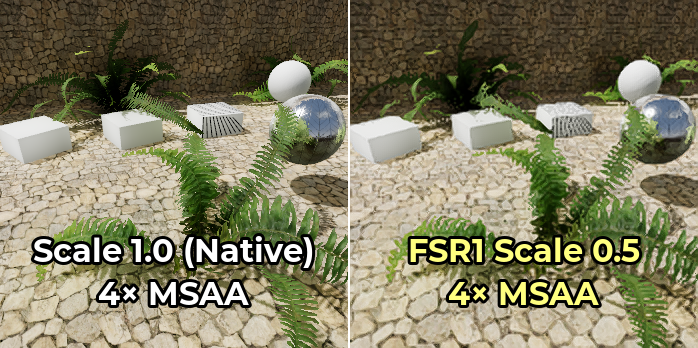
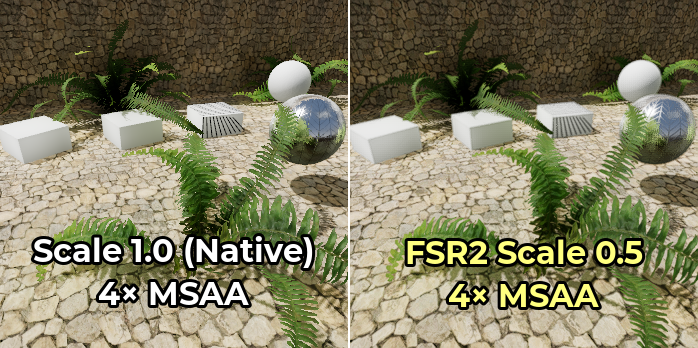
Notice how the edge upscaling of FSR1 becomes much more convincing once 4× MSAA is enabled. However, FSR2 doesn't benefit much from enabling MSAA since it already performs temporal antialiasing.
Scala di rendering
L'impostazione Rendering > Ridimensionamento 3D > Scala regola la scala della risoluzione. 1.0 rappresenta la scala di risoluzione completa, con la risoluzione di rendering 3D corrispondente alla risoluzione di rendering 2D. Le scale di risoluzione inferiori a 1.0 si possono utilizzare per velocizzare il rendering, a scapito di un'immagine finale più sfocata e di un maggiore aliasing.
È possibile regolare la scala di rendering in fase di esecuzione cambiando la proprietà scaling_3d_scale su un nodo Viewport.
Resolution scales above 1.0 can be used for supersample antialiasing
(SSAA). This will provide antialiasing at a very high performance cost, and is
not recommended for most use cases. See Antialiasing 3D for more
information.
Le tabelle seguenti elencano le risoluzioni dello schermo più comuni, la risoluzione di rendering 3D risultante e il numero di megapixel necessari per renderizzare ogni frame, a seconda dell'opzione di scala di rendering. Le righe di ciascuna tabella sono ordinate dalla più veloce alla più lenta.
Nota
La scala di risoluzione è definita per asse. Ad esempio, significa che dimezzando il fattore di scala della risoluzione, il numero di megapixel renderizzati per frame si ridurrà di un fattore 4, non 2. Pertanto, fattori di scala molto bassi o molto alti possono avere un impatto maggiore del previsto sulle prestazioni.
1920×1080 (Full HD)
Fattore di scala di risoluzione |
Risoluzione di rendering 3D |
Megapixel renderizzati per frame |
|---|---|---|
|
960×540 |
0.52 MPix |
|
1286×723 |
0.93 MPix |
|
1440×810 |
1.17 MPix |
|
1632×918 |
1.50 MPix |
|
1920×1080 |
2.07 MPix |
|
2553×1436 |
3.67 MPix |
|
2880×1620 |
4.67 MPix |
|
3840×2160 |
8.29 MPix |
2560×1440 (QHD)
Fattore di scala di risoluzione |
Risoluzione di rendering 3D |
Megapixel renderizzati per frame |
|---|---|---|
|
1280×720 |
0.92 MPix |
|
1715×964 |
1.65 MPix |
|
1920×1080 |
2.07 MPix |
|
2176×1224 |
2.66 MPix |
|
2560×1440 |
3.69 MPix |
|
3404×1915 |
6.52 MPix |
|
3840×2160 |
8.29 MPix |
|
5120×2880 |
14.75 MPix |
3840×2160 (Ultra HD "4K")
Fattore di scala di risoluzione |
Risoluzione di rendering 3D |
Megapixel renderizzati per frame |
|---|---|---|
|
1920×1080 |
2.07 MPix |
|
2572×1447 |
3.72 MPix |
|
2880×1620 |
4.67 MPix |
|
3264×1836 |
5.99 MPix |
|
3840×2160 |
8.29 MPix |
|
5107×2872 |
14.67 MPix |
|
5760×3240 |
18.66 MPix |
|
7680×4320 |
33.18 MPix |
Nitidezza di FSR
Disponibile solo nel renderer Forward+, non nei renderer Mobile o Compatibilità.
Quando si utilizzano le modalità di scaling FSR1 o FSR2, è possibile controllare la nitidezza tramite l'impostazione avanzata del progetto Rendering > Ridimensionamento 3D > Nitidezza FSR.
Rispetto alla gran parte degli altri slider di nitidezza, l'intensità è invertita: valori più bassi produrranno un'immagine finale più nitida, mentre valori più alti ridurranno l'impatto del filtro di nitidezza. 0.0 corrisponde alla massima nitidezza, mentre 2.0 alla minima. Il valore predefinito di 0.2 offre un buon compromesso tra mantenere la nitidezza dell'immagine originale ed evitare l'aliasing in più dovuto a un'eccessiva nitidezza.
Nota
If you wish to use sharpening when rendering at native resolution, Godot currently doesn't allow using the sharpening component of FSR1 (RCAS) independently from the upscaling component (EASU).
Come alternativa, è possibile impostare la scala di rendering 3D su 0.99, impostare la modalità di scaling su FSR 1.0 e poi regolare la nitidezza FSR secondo necessità. Ciò consente di utilizzare l'FSR1, allo stesso tempo renderizzando a una risoluzione vicina a quella nativa.
Alternativamente, è possibile impostare la modalità di scaling su FSR 2.2 con la scala di rendering 3D impostata su 1.0 se la propria GPU è abbastanza potente. Anche così si ottiene un antialiasing temporale di alta qualità. L'impostazione Nitidezza FSR funziona comunque.
Bias di mipmap
Questo è disponibile solo nei renderer Forward+ e Mobile, non nel renderer Compatibilità.
Godot utilizza automaticamente un bias negativo per le mipmap delle texture quando la scala di risoluzione 3D è impostata al di sotto di 1.0. Ciò consente di conservare meglio i dettagli delle texture, a scapito di un aspetto granuloso sulle texture dettagliate.
The texture LOD bias currently affects both 2D and 3D rendering in the same way. However, keep in mind it only has an effect on textures with mipmaps enabled. Textures used in 2D don't have mipmaps enabled by default, which means only 3D rendering is affected unless you enabled mipmaps on 2D textures in the Import dock.
La formula utilizzata per determinare il bias delle mipmap delle texture è: log2f(min(scaling_3d_scale, 1.0)) + custom_texture_mipmap_bias
Per contrastare la sfocatura introdotta da alcuni metodi di antialiasing, Godot aggiunge anche un offset di -0.25 quando l'FXAA è abilitato e un offset di -0.5 quando il TAA è abilitato. Se entrambi sono abilitati allo stesso tempo, è utilizzato un offset di -0.75. Questo offset di bias mipmap è applicato prima dell'offset di scaling della risoluzione, quindi non cambia in base alla scala della risoluzione.
È possibile regolare manualmente il bias LOD delle texture modificando l'impostazione avanzata del progetto Rendering > Texture > Filtri predefiniti > Bias delle mipmap delle texture. Si può anche regolare in fase di esecuzione sulle Viewport modificando la proprietà texture_mipmap_bias.
Avvertimento
In alcune situazioni può essere utile regolare manualmente il LOD bias delle mipmap, ma è necessario farlo con attenzione per evitare che l'immagine finale risulti sgranata in movimento.
Un bias LOD negativo per le mipmap può anche ridurre le prestazioni, poiché i mipmap ad alta risoluzione devono essere campionati da più lontano. I valori consigliati per una deviazione manuale sono compresi tra -0.5 e 0.0.
Un bias LOD positivo per le mipmap renderà le texture con mipmap più sfocate del previsto. Questo potrebbe migliorare leggermente le prestazioni, ma in generale non è consigliato poiché la perdita di qualità visiva non giustifica l'aumento delle prestazioni.
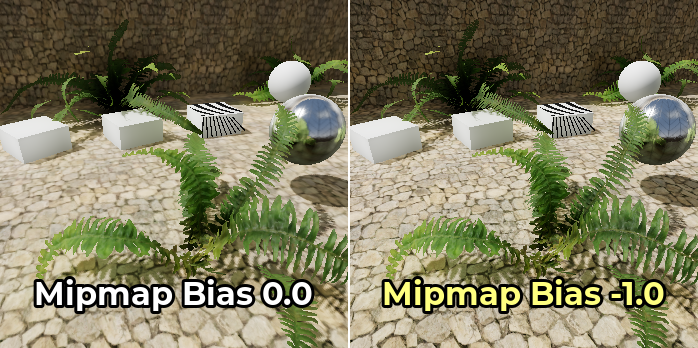
L'esempio seguente mostra un caso estremo, con un bias LOD per le mipmap di -1.0 e il filtro anisotropico disabilitato per rendere la differenza più evidente:
Risoluzione dei problemi
Le prestazioni non aumentano molto quando si diminuisce la scala di risoluzione
Se le prestazioni non migliorano molto riducendo la scala di risoluzione a un valore come 0.5, è probabile che il collo di bottiglia delle prestazioni si trovi altrove nella scena. Ad esempio, la scena potrebbe avere troppe chiamate di disegno, causando un collo di bottiglia sulla CPU. Allo stesso modo, potrebbero essere abilitati troppi effetti grafici da gestire sulla GPU (come SDFGI, SSAO o SSR).
Consulta i tutorial in Prestazioni per maggiori informazioni.