Attention: Here be dragons
This is the latest
(unstable) version of this documentation, which may document features
not available in or compatible with released stable versions of Godot.
Checking the stable version of the documentation...
Illuminazione globale con signed distance field (SDFGI)
L'illuminazione globale con signed distance field (SDFGI) è una nuova tecnica disponibile in Godot. Fornisce un'illuminazione globale semi-reale che si adatta a qualsiasi dimensione del mondo e funziona con livelli generati proceduralmente.
L'SDFGI supporta le luci dinamiche, ma non gli occlusori dinamici o le superfici emissive dinamiche. Pertanto, l'SDFGI offre una migliore capacità in tempo reale rispetto alle lightmap precalcolate, ma una peggiore capacità in tempo reale rispetto a VoxelGI.
Dal punto di vista delle prestazioni, l'SDFGI è una delle tecniche di illuminazione globale più impegnative in Godot. Come per VoxelGI, sono ancora disponibili molte impostazioni per ottimizzare i requisiti prestazionali a scapito della qualità.
Importante
L'SDFGI è supportato solo quando si utilizza il renderer Forward+, non i renderer Mobile o Compatibilità.
Vedi anche
Non sei sicuro che l'SDFGI sia adatto alle tue esigenze? Consulta Quale tecnica di illuminazione globale dovrei utilizzare? per un confronto tra le tecniche di illuminazione globale disponibili in Godot 4.
Confronto visivo
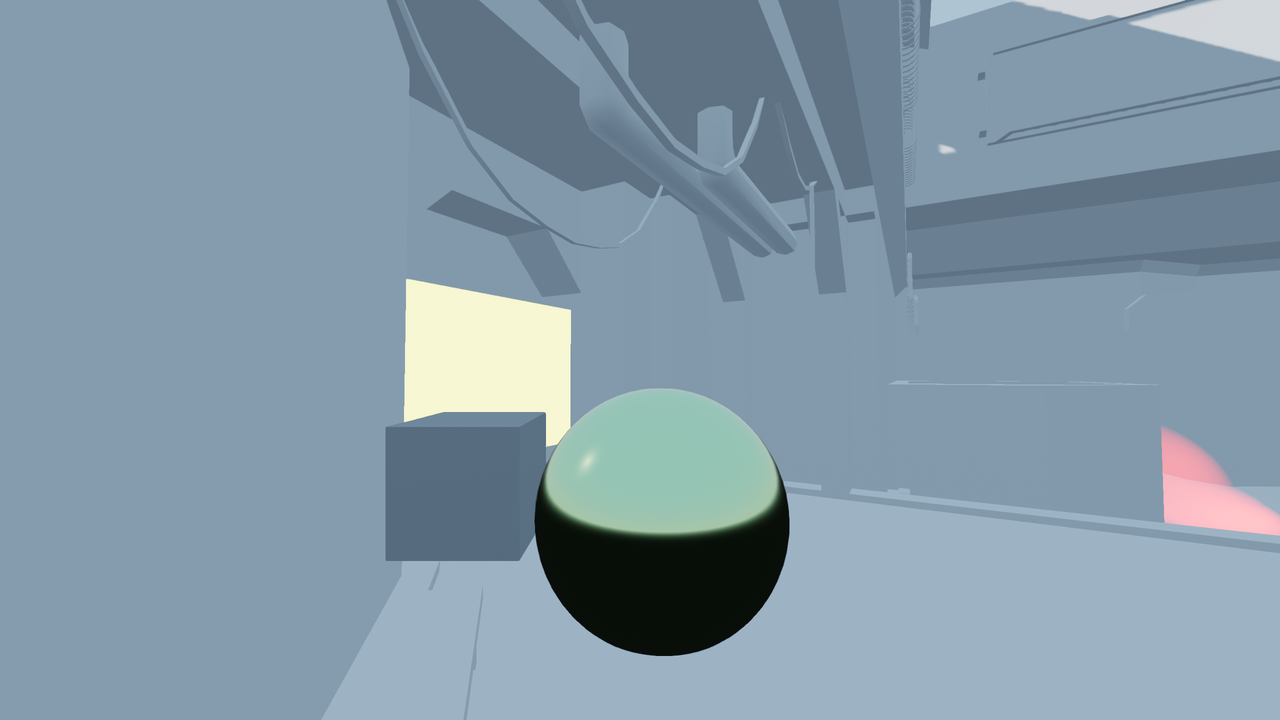
SDFGI disabilitato.
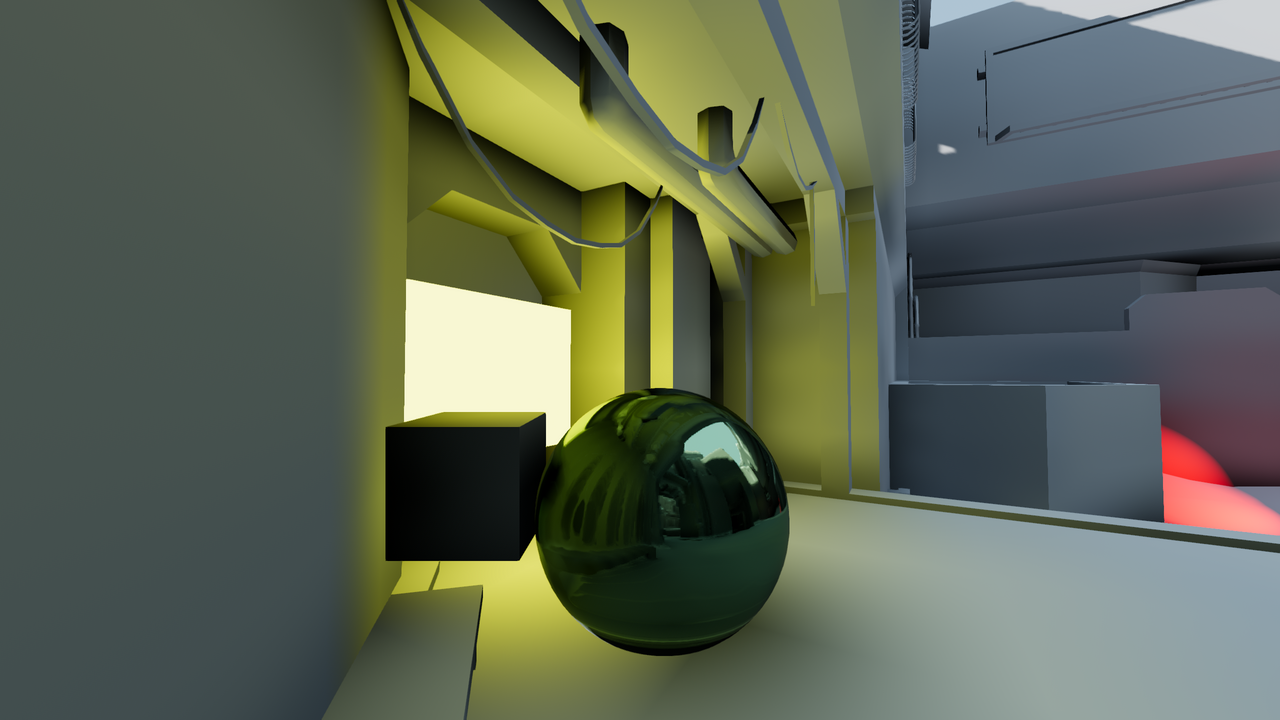
SDFGI abilitato.
Configurare SDFGI
In Godot, l'SDFGI è la tecnica di illuminazione globale che richiede il minor numero di passaggi per essere abilitata:
Assicurati che la proprietà Global Illumination> Mode dei tuoi nodi MeshInstance sia impostata su Static nell'ispettore.
Per le scene 3D importate, è possibile configurare la modalità di preparazione nel pannello Importazione dopo aver selezionato il file della scena 3D nel pannello Filesystem.
Aggiungi un nodo WorldEnvironment e crea una risorsa Environment per esso.
Modifica la risorsa Environment , scorri in basso fino alla sezione SDFGI ed espandila.
Abilita SDFGI > Enabled. L'SDFGI seguirà automaticamente la telecamera quando si muove, quindi non è necessario configurare extents (a differenza di VoxelGI).
Proprietà SDFGI di ambiente
Nella risorsa Environment sono disponibili diverse proprietà per regolare l'aspetto e la qualità dell'SDFGI:
Use Occlusion: se abilitata, L'SDFGI proietterà raggi in più per individuare e ridurre le perdite di luce. Ciò ha un impatto sulle prestazioni, quindi abilita questa proprietà solo se effettivamente necessaria.
Read Sky Light: se abilitata, l'illuminazione ambientale viene rappresentata nell'illuminazione globale. Questa opzione dovrebbe essere abilitata nelle scene all'aperto e disabilitata nelle scene completamente al coperto.
Bounce Feedback: come predefinito, l'illuminazione indiretta rimbalza una sola volta quando si utilizza l'SDFGI. Impostando questo valore su
0.0, l'SDFGI rimbalzerà più di una volta, ottenendo un'illuminazione indiretta più realistica a un impatto minimo sulle prestazioni. I valori più appropriati sono solitamente compresi tra0.3e1.0, a seconda della scena. Si noti che in alcune scene, valori superiori a0.5possono causare cicli di feedback infiniti, rendendo la scena estremamente luminosa in pochi secondi. Se l'illuminazione indiretta appare "a macchie", si consiglia di aumentare questo valore oltre0.0per ottenere un'illuminazione più uniforme. Se, di conseguenza, l'illuminazione risulta troppo brillante, si può ridurre Energy per compensare.Cascades: valori più alti risultano in informazioni di GI più dettagliate (e/o una maggiore distanza massima), ma hanno un impatto significativo sulle prestazioni della CPU e GPU. L'impatto di avere più cascate aumenta soprattutto quando la telecamera si muove velocemente, quindi si consiglia di ridurre questo valore a
4o meno se la telecamera si muove velocemente.Min Cell Size: la dimensione minima della celle SDFGI da utilizzare per la cascata più vicina e dettagliata. Valori inferiori risultano in un'illuminazione indiretta e una riflessione più accurate a scapito di prestazioni inferiori. Regolare questa impostazione influisce automaticamente anche su Cascade 0 Distance e Max Distance.
Cascade 0 Distance: la distanza alla quale termina la cascata più vicina e dettagliata. Valori più elevati rendono la transizione della cascata più vicina meno evidente, a scapito di ridurre il livello di dettaglio della cascata stessa. Regolare questa impostazione influisce automaticamente anche su Min Cell Size e Max Distance .
Max Distance: controlla la distanza massima a cui sarà calcolato il signed distance field (per la cascata meno dettagliata). L'SDFGI non avrà alcun effetto oltre questa distanza. Questo valore dovrebbe essere sempre impostato minore della proprietà "Far" della telecamera, poiché non vi è alcun vantaggio nel calcolare l'SDFGI oltre la distanza di visualizzazione. Regolare questa impostazione influisce automaticamente anche su *Min Cell Size e Cascade 0 Distance.
Y Scale: controlla la distanza verticale tra le sonde SDFGI. Come predefinito, la distanza verticale è uguale a quella orizzontale. Tuttavia, poiché la maggior parte delle scene di gioco non è molto verticale, impostare la Scala Y al
75%o anche al50%può fornire una qualità migliore e ridurre le infiltrazioni di luce senza influire sulle prestazioni.Energy: il moltiplicatore di luminosità per l'illuminazione indiretta dell'SDFGI.
Normal Bias: il bias normale da usare per i rimbalzi dei raggi delle sonde dell'SDFGI. A differenza di Probe Bias, questo valore aumenta solo in relazione alle normali della mesh. Ciò rende la regolazione del bias più precisa ed evita di aumentarlo eccessivamente senza motivo. Aumenta questo valore se noti artefatti a strisce nell'illuminazione indiretta o nei riflessi.
Probe Bias: il bias da usare per i rimbalzi dei raggi delle sonde dell'SDFGI. Aumenta questo valore se noti artefatti a strisce nell'illuminazione indiretta o nei riflessi.
Interazione di SDFGI con luci e oggetti
The amount of indirect energy emitted by a light is defined by its color, energy and indirect energy properties. To make a specific light emit more or less indirect energy without affecting the amount of direct light emitted by the light, adjust the Indirect Energy property in the Light3D inspector.
Per garantire un aspetto corretto quando si utilizza l'SDFGI, è necessario configurare le proprietà di illuminazione globale delle mesh e delle luci in base al loro scopo nella scena (statiche o dinamiche).
Sono disponibili 3 modalità di illuminazione globale per le mesh:
Disabled: la mesh non sarà presa in considerazione nella generazione dell'SDFGI. La mesh riceverà illuminazione indiretta dalla scena, ma non contribuirà all'illuminazione indiretta della scena.
Static (predefinita): la mesh sarà presa in considerazione nella generazione dell'SDFGI. La mesh riceverà e contribuirà all'illuminazione indiretta della scena. Se la mesh cambia in qualsiasi modo dopo aver generato l'SDFGI, la telecamera deve allontanarsi dall'oggetto e poi riavvicinarsi affinché l'SDFGI venga rigenerato. Alternativamente, è possibile disattivare e riattivare l'SDFGI. Se non si fa nessune delle due, l'illuminazione indiretta apparirà errata.
Dynamic (not supported with SDFGI): The mesh won't be taken into account in SDFGI generation. The mesh will receive indirect lighting from the scene, but it will not contribute indirect lighting to the scene. This acts identical to the Disabled bake mode when using SDFGI.
Additionally, there are 3 bake modes available for lights (DirectionalLight3D, OmniLight3D, SpotLight3D, and AreaLight3D):
Disabled: la luce non sarà presa in considerazione per la preparazione dell'SDFGI. La luce non contribuirà all'illuminazione indiretta della scena.
Static: The light will be taken into account for SDFGI baking. The light will contribute indirect lighting to the scene. If the light is changed in any way after baking, indirect lighting will look incorrect until the camera moves away from the light and back (which causes SDFGI to be baked again). If in doubt, use this mode for level lighting.
Dynamic (predefinita): la luce non sarà presa in considerazione per la preparazione dell'SDFGI, ma contribuirà comunque all'illuminazione indiretta della scena in tempo reale. Questa opzione è più lenta rispetto a Static. Usa la modalità di illuminazione globale Dynamic solo per le luci che cambieranno notevolmente durante il gioco.
Nota
La quantità di energia indiretta emessa da una luce dipende dal suo colore, dalla sua energia e dalle sue proprietà di energia indiretta. Per fare in modo che una luce specifica emetta più o meno energia indiretta, senza influenzare la quantità di luce diretta emessa dalla luce stessa, bisogna regolare la proprietà Indirect Energy nell'ispettore del Light3D.
Vedi anche
Consultare Quale modalità di illuminazione globale si dovrebbe usare su mesh e luci? per le raccomandazioni generali sull'utilizzo.
Regolare le prestazioni e la qualità dell'SDFGI
Poiché l'SDFGI è relativamente impegnativo, offre prestazioni ideali sui sistemi dotati di GPU dedicate recenti. Sulle GPU dedicate più datate e schede grafiche integrate, regolare le impostazioni è necessario per ottenere prestazioni accettabili.
Nella sezione Rendering > Illuminazione globale delle Impostazioni del progetto, è possibile regolare la qualità dell'SDFGI in diversi modi:
Sdfgi > Probe Ray Count: valori più alti risultano in una qualità migliore, a scapito di un maggiore utilizzo della GPU. Se questo valore è troppo basso, potrebbero comparire evidenti "macchie" di illuminazione indiretta sulle superfici, a causa del numero molto ridotto di raggi proiettati.
Sdfgi > Frames To Converge: valori più alti risultano in una qualità migliore, ma l'illuminazione globale impiegherà più tempo a convergere completamente. L'effetto di questa impostazione è particolarmente evidente al primo caricamento di una scena, o quando le luci con una modalità di precalcolo diversa da Disabled si muovono rapidamente. Se questo valore è troppo basso, potrebbero comparire evidenti "macchie" di illuminazione indiretta sulle superfici, a causa del numero molto basso di raggi proiettati. Se l'illuminazione della scena non include luci in rapido movimento che contribuiscono all'illuminazione globale, si consiglia di impostare questo valore su
30per migliorare la qualità senza compromettere le prestazioni.Sdfgi > Frames To Update Light: Valori più bassi risultano in una riflessione più rapida delle luci in movimento, a scapito di un maggiore utilizzo della GPU. Se l'illuminazione della scena non include luci in rapido movimento che contribuiscono all'illuminazione globale, si consiglia di impostare questo valore su
16per migliorare le prestazioni.Gi > Use Half Resolution: Se abilitata, entrambi SDFGI e VoxelGI renderizzeranno il buffer del GI a risoluzione dimezzata. Ad esempio, per renderizzare a 3840×2160, il buffer del GI verrà calcolato a una risoluzione di 1920×1080. Abilitare questa opzione risparmia molto tempo sulla GPU, ma può introdurre un aliasing evidente attorno ai dettagli più fini.
Le prestazioni per renderizzare l'SDFGI dipendono anche dal numero di cascate e dalla dimensione delle celle scelti nella risorsa Environment (vedi sopra).
Svantaggi di SDFGI
L'SDFGI ha alcuni svantaggi dovuti alla sua natura a cascata. Quando la telecamera si muove, i cambi delle cascate si potrebbero notare nell'illuminazione indiretta. Si possono attenuare regolando la dimensione delle cascate, ma anche aggiungendo una nebbia (che li renderà meno evidenti da lontano).
Inoltre, le prestazioni ne risentiranno se la telecamera si muove troppo velocemente. Si potrebbe risolvere in due modi:
Assicurandosi che la telecamera non si muova troppo velocemente in nessuna situazione.
Disabilitando temporaneamente l'SDFGI nella risorsa Environment se la telecamera si deve muovere molto velocemente, e poi riabilitando l'SDFGI quando la telecamera comincia a rallentare.
When SDFGI is enabled, it will also take some time for global illumination to be fully converged (30 frames by default). This can create a noticeable transition effect while GI is still converging. To hide this, you can use a ColorRect node that spans the whole viewport and fade it out when switching scenes using an AnimationPlayer node.
Il signed distance field viene aggiornato solo quando la telecamera entra ed esce da una cascata. Ciò significa che se la geometria viene modificata in lontananza, l'aspetto dell'illuminazione globale sarà corretto una volta che la telecamera si avvicina. Tuttavia, se un oggetto vicino con una modalità di precalcolo impostata su Static o Dynamic viene spostato (come una porta), l'illuminazione globale apparirà sbagliata finché la telecamera non si allontana dall'oggetto.
I riflessi nitidi dell'SDFGI sono visibili solo sui materiali opachi. I materiali trasparenti utilizzeranno solo riflessi approssimativi, anche se la rugosità del materiale è inferiore a 0.2.