Attention: Here be dragons
This is the latest
(unstable) version of this documentation, which may document features
not available in or compatible with released stable versions of Godot.
Checking the stable version of the documentation...
Singleton (Autoload)
Introduzione
Il sistema di scene di Godot, pur essendo potente e flessibile, ha un inconvenienza: non esiste un metodo per memorizzare informazioni (ad esempio, il punteggio o l'inventario di un giocatore) necessarie a più di una scena.
Ci sono diverse soluzioni per ovviare a questo problema, ma anche queste hanno le proprie limitazioni:
Potresti usare una scena "master" che carica e scarica altre scene come sue figlie. Tuttavia, ciò significa che non sarà più possibile eseguire tali scene singolarmente e aspettarsi che funzionino correttamente.
Si potrebbero memorizzare informazioni su disco in
user://e poi caricarle dalle scene che ne hanno bisogno, ma salvare e caricare frequentemente i dati è macchinoso e può risultare lento.
Il pattern Singleton è uno strumento utile per risolvere il caso d'uso comune in cui è necessario memorizzare informazioni persistenti tra scene. Nel nostro caso, è possibile riusare la stessa scena o classe per più singleton, purché abbiano nomi diversi.
Attraverso questo concetto, è possibile creare oggetti che:
Sono sempre caricati, a prescindere dalla scena attualmente in esecuzione.
Può memorizzare variabili globali come le informazioni del giocatore.
È in grado di gestire il cambio e le transizioni tra le scene.
Agisce come un singleton, poiché GDScript, di proposito, non supporta le variabili globali.
Autoloading nodes and scripts can give us these characteristics.
Nota
Godot won't make an Autoload a "true" singleton as per the singleton design pattern. It may still be instantiated more than once by the user if desired.
Suggerimento
Se stai creando un autoload come parte di un'estensione per l'editor, considera di registrarlo automaticamente nelle Impostazioni del progetto quando l'estensione è abilitata.
Autoload
È possibile creare un Autoload per caricare una scena o uno script che eredita da Node.
Nota
Caricando automaticamente uno script, sarà creato un Node e lo script viene allegato ad esso. Questo nodo sarà aggiunto alla viewport radice prima di caricare qualsiasi altra scena.
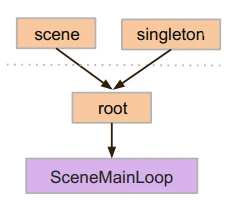
Per caricare automaticamente una scena o uno script, parti dal menu e vai su Progetto > Impostazioni del progetto > Globali > Autoload.
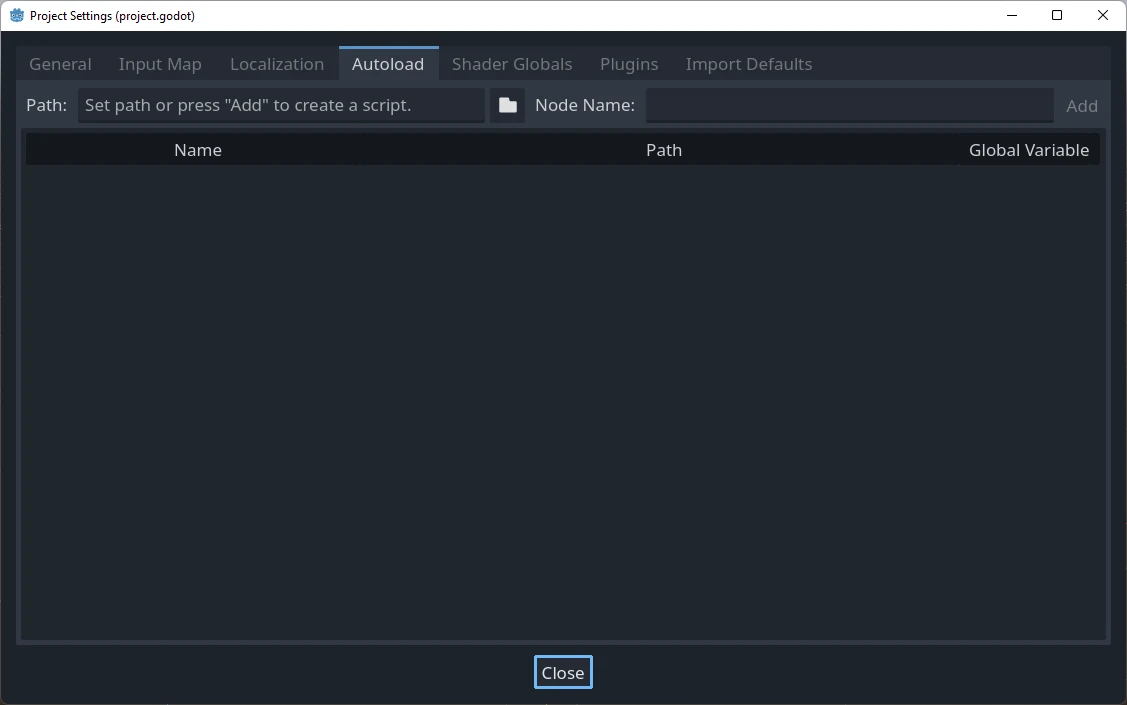
Qui è possibile aggiungere un numero qualsiasi di scene o script. Ogni voce nell'elenco richiede un nome, che viene assegnato come proprietà name del nodo. L'ordine delle voci man mano che vengono aggiunte all'albero di scene globale si può manipolare tramite i tasti freccia su/giù. Come per le scene normali, il motore leggerà questi nodi dall'alto verso il basso.
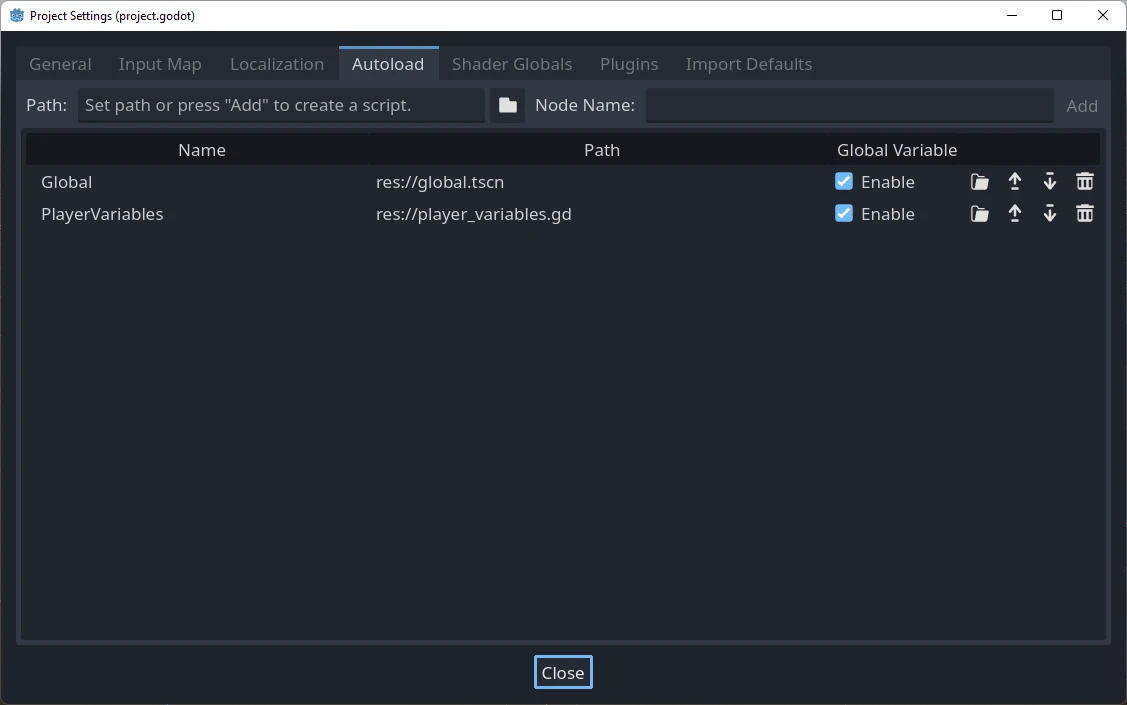
Se la colonna Abilita è spuntata (e lo è normalmente), è possibile accedere direttamente al singleton in GDScript:
PlayerVariables.health -= 10
La colonna Enable non ha alcun effetto nel codice C#. Tuttavia, se il singleton è uno script C#, è possibile ottenere un effetto simile includendo una proprietà statica chiamata Instance e assegnandole un valore in _Ready():
public partial class PlayerVariables : Node
{
    public static PlayerVariables Instance { get; private set; }

    public int Health { get; set; }

    public override void _Ready()
    {
        Instance = this;
    }
}
Ciò consente di accedere al singleton dal codice C# senza usare GetNode() e senza effettuare un cast di tipo:
PlayerVariables.Instance.Health -= 10;
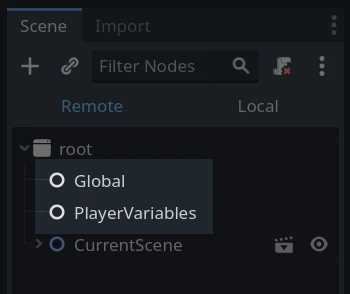
Tieni presente che gli oggetti caricati automaticamente (script e/o scene) sono accessibili come qualsiasi altro nodo nell'albero di scene. Infatti, se osservi l'albero di scene in esecuzione, vedrai comparire i nodi caricati automaticamente:
Avvertimento
Gli autoload non si devono rimuovere tramite free() o queue_free() in fase di esecuzione, altrimenti il motore si bloccherà.
Selettore di scene personalizzato
Questo tutorial dimostrerà come creare un selettore di scene grazie agli autoload. Per un cambio basilare di scene, è possibile usare il metodo SceneTree.change_scene_to_file() (vedi Utilizzo dello SceneTree per i dettagli). Tuttavia, se si desidera un comportamento più complesso durante il cambio di scena, questo metodo offre maggiori funzionalità.
Per cominciare, scarica il modello da qui: singleton_autoload_starter.zip e aprilo in Godot.
Potrebbe comparire una finestra che avvisa che il progetto è stato aperto l'ultima volta con una versione precedente di Godot; non preoccuparti, è normale. Clicca su Ok per aprire il progetto.
Il progetto contiene due scene: scene_1.tscn e scene_2.tscn. Ogni scena contiene un'etichetta che mostra il nome della scena e un pulsante con il suo segnale pressed() connesso. Quando si esegue il progetto, questo si avvia in scene_1.tscn. Tuttavia, premendo il pulsante non succede nulla.
Creare lo script
Apri la finestra Script e crea un nuovo script chiamato global.gd. Assicurati che erediti da Node:
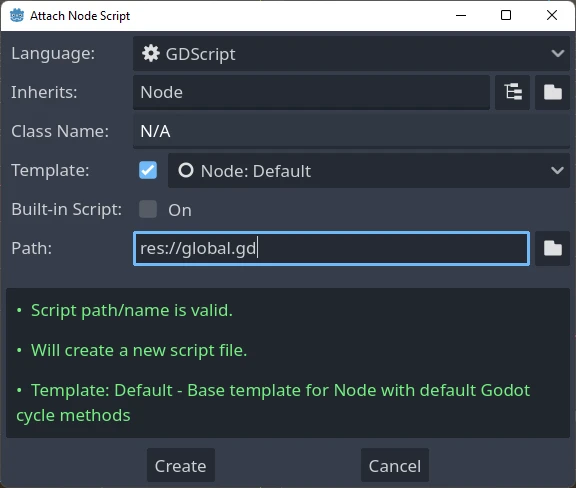
Il prossimo passo consiste nell'aggiungere questo script all'elenco degli autoload. Partendo dal menu, apri Progetto > Impostazioni del progetto > Globali > Autoload e seleziona lo script cliccando sul pulsante Sfoglia o digitandone il percorso: res://global.gd. Premi Aggiungi per aggiungerlo all'elenco degli autoload e rinominalo "Global", il che è necessario affinché gli script possano accedervi tramite il nome "Global":
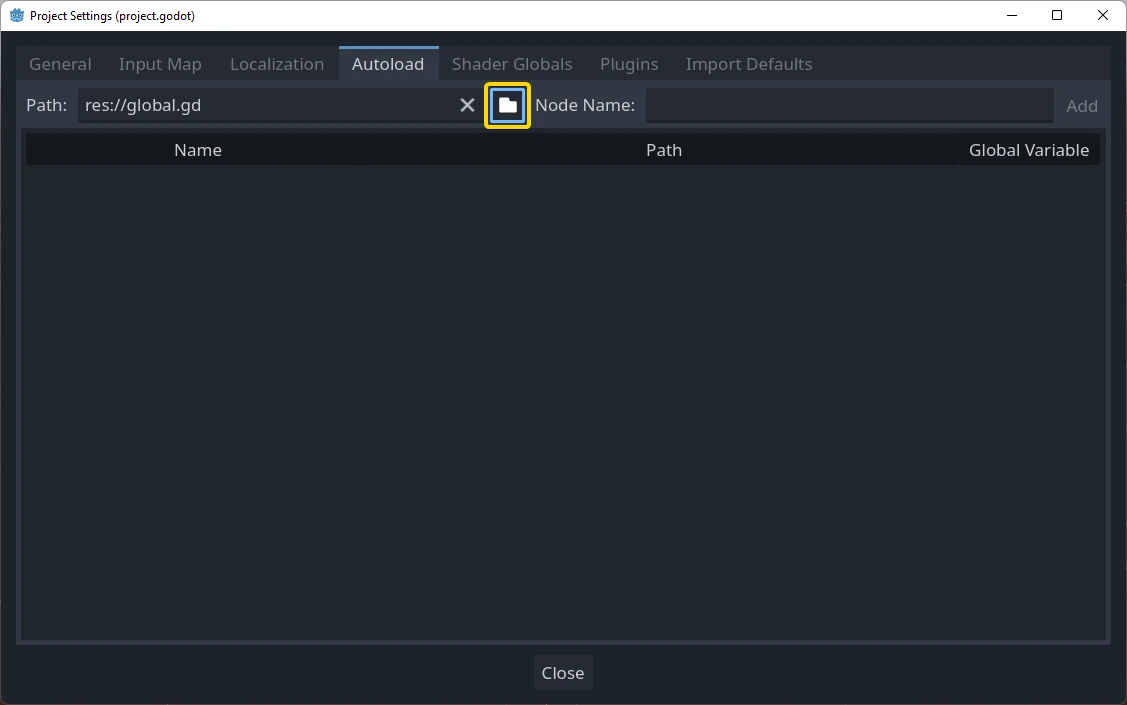
Ora, ogni volta che eseguiamo una scena nel progetto, questo script sarà sempre caricato.
Returning to the script, it needs to fetch the current scene in the
_ready() function. Both the current scene (the one with the button) and
global.gd are children of root, but autoloaded nodes are always first. This
means that the last child of root is always the loaded scene.
extends Node

var current_scene = null

func _ready():
    var root = get_tree().root
    # Using a negative index counts from the end, so this gets the last child node of `root`.
    current_scene = root.get_child(-1)
using Godot;

public partial class Global : Node
{
    public Node CurrentScene { get; set; }

    public override void _Ready()
    {
        Viewport root = GetTree().Root;
        // Using a negative index counts from the end, so this gets the last child node of `root`.
        CurrentScene = root.GetChild(-1);
    }
}
Ora ci serve una funzione per cambiare la scena. Questa funzione deve liberare la scena attuale e sostituirla con quella richiesta.
func goto_scene(path):
    # This function will usually be called from a signal callback,
    # or some other function in the current scene.
    # Deleting the current scene at this point is
    # a bad idea, because it may still be executing code.
    # This will result in a crash or unexpected behavior.

    # The solution is to defer the load to a later time, when
    # we can be sure that no code from the current scene is running:

    _deferred_goto_scene.call_deferred(path)


func _deferred_goto_scene(path):
    # It is now safe to remove the current scene.
    current_scene.free()

    # Load the new scene.
    var s = ResourceLoader.load(path)

    # Instantiate the new scene.
    current_scene = s.instantiate()

    # Add it to the active scene, as child of root.
    get_tree().root.add_child(current_scene)

    # Optionally, to make it compatible with the SceneTree.change_scene_to_file() API.
    get_tree().current_scene = current_scene
public void GotoScene(string path)
{
    // This function will usually be called from a signal callback,
    // or some other function from the current scene.
    // Deleting the current scene at this point is
    // a bad idea, because it may still be executing code.
    // This will result in a crash or unexpected behavior.

    // The solution is to defer the load to a later time, when
    // we can be sure that no code from the current scene is running:

    CallDeferred(MethodName.DeferredGotoScene, path);
}

public void DeferredGotoScene(string path)
{
    // It is now safe to remove the current scene.
    CurrentScene.Free();

    // Load a new scene.
    var nextScene = GD.Load<PackedScene>(path);

    // Instantiate the new scene.
    CurrentScene = nextScene.Instantiate();

    // Add it to the active scene, as child of root.
    GetTree().Root.AddChild(CurrentScene);

    // Optionally, to make it compatible with the SceneTree.change_scene_to_file() API.
    GetTree().CurrentScene = CurrentScene;
}
Usando Object.call_deferred(), la seconda funzione verrà eseguita solo dopo che tutto il codice della scena attuale sarà stato completato. Pertanto, la scena attuale non verrà rimossa finché è ancora in uso (ovvero, finché il suo codice è ancora in esecuzione).
Infine, dobbiamo riempire le funzioni di callback vuote nelle due scene:
# Add to 'scene_1.gd'.

func _on_button_pressed():
    Global.goto_scene("res://scene_2.tscn")
// Add to 'Scene1.cs'.

private void OnButtonPressed()
{
    var global = GetNode<Global>("/root/Global");
    global.GotoScene("res://Scene2.tscn");
}
e
# Add to 'scene_2.gd'.

func _on_button_pressed():
    Global.goto_scene("res://scene_1.tscn")
// Add to 'Scene2.cs'.

private void OnButtonPressed()
{
    var global = GetNode<Global>("/root/Global");
    global.GotoScene("res://Scene1.tscn");
}
Esegui il progetto e verifica di poter passare da una scena all'altra premendo il pulsante.
Nota
Quando le scene sono piccole, la transizione è istantanea. Tuttavia, se le scene sono più complesse, potrebbero volerci un bel po' di tempo per caricarle. Per imparare a gestirlo, consulta il prossimo tutorial: Caricamento nello sfondo.
Alternativamente, se il tempo di caricamento è relativamente breve (meno di 3 secondi circa), potresti visualizzare un "indicatore di caricamento" mostrando qualche tipo di elemento 2D poco prima di cambiare la scena. Poi lo puoi nascondere subito dopo aver cambiato la scena. Può servire per indicare al giocatore che si sta caricando una scena.