Плагіни Inspector
Панель інспектора дозволяє створювати власні віджети для редагування властивостей за допомогою плагінів. Це може бути корисним під час роботи з настроюваними типами даних і ресурсами, хоча ви можете використовувати цю функцію, щоб змінити віджети інспектора для вбудованих типів. Ви можете створювати спеціальні елементи керування для певних властивостей, цілих об’єктів і навіть окремих елементів керування, пов’язаних із певними типами даних.
У цьому посібнику пояснюється, як використовувати класи EditorInspectorPlugin і EditorProperty для створення спеціального інтерфейсу для цілих чисел, замінюючи стандартну поведінку кнопкою, яка генерує випадкові значення від 0 до 99.
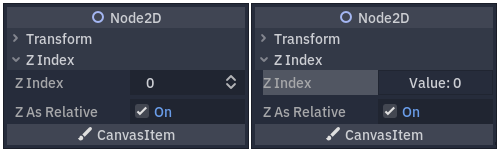
Поведінка за замовчуванням ліворуч і кінцевий результат праворуч.
Налаштування плагіна
Щоб почати, створіть новий порожній плагін.
Дивись також
Перегляньте Створення додатків посібник, щоб налаштувати ваш новий плагін.
Припустімо, що ви назвали папку плагіна my_inspector_plugin. Якщо так, у вас має бути нова папка addons/my_inspector_plugin, яка містить два файли: plugin.cfg і plugin.gd.
Як і раніше, plugin.gd — це скрипт, що розширює EditorPlugin, і вам потрібно ввести новий код для його методів _enter_tree і _exit_tree. Щоб налаштувати плагін інспектора, ви повинні завантажити його скрипт, а потім створити та додати екземпляр, викликавши add_inspector_plugin(). Якщо плагін вимкнено, ви повинні видалити екземпляр, який ви додали, викликавши remove_inspector_plugin().
Примітка
Тут ви завантажуєте скрипт, а не упаковану сцену. Тому вам слід використовувати new() замість instantiate().
# plugin.gd
@tool
extends EditorPlugin

var plugin


func _enter_tree():
    plugin = preload("res://addons/my_inspector_plugin/my_inspector_plugin.gd").new()
    add_inspector_plugin(plugin)


func _exit_tree():
    remove_inspector_plugin(plugin)
// Plugin.cs
#if TOOLS
using Godot;

[Tool]
public partial class Plugin : EditorPlugin
{
    private MyInspectorPlugin _plugin;

    public override void _EnterTree()
    {
        _plugin = new MyInspectorPlugin();
        AddInspectorPlugin(_plugin);
    }

    public override void _ExitTree()
    {
        RemoveInspectorPlugin(_plugin);
    }
}
#endif
Взаємодія з інспектором
Щоб взаємодіяти з доком інспектора, ваш скрипт my_inspector_plugin.gd має розширювати клас EditorInspectorPlugin. Цей клас надає кілька віртуальних методів, які впливають на те, як інспектор обробляє властивості.
Щоб мати будь-який ефект, скрипт повинен реалізувати метод _can_handle(). Ця функція викликається для кожного відредагованого Object і має повертати true, якщо цей плагін має обробляти об’єкт або його властивості.
Примітка
Це включає будь-який Resource, приєднаний до об’єкта.
Ви можете реалізувати чотири інші методи, щоб додати елементи керування до інспектора на певних позиціях. Методи _parse_begin() і _parse_end() викликаються лише один раз на початку та в кінці аналізу для кожного об’єкта відповідно. Вони можуть додавати елементи керування вгорі чи внизу макета інспектора, викликаючи add_custom_control()`.
Коли редактор аналізує об’єкт, він викликає методи _parse_category() і _parse_property(). Там, окрім add_custom_control(), ви можете викликати як add_property_editor(), так і add_property_editor_for_multiple_properties(). Використовуйте останні два методи, щоб спеціально додати елементи керування на основі EditorProperty.
# my_inspector_plugin.gd
extends EditorInspectorPlugin

var RandomIntEditor = preload("res://addons/my_inspector_plugin/random_int_editor.gd")


func _can_handle(object):
    # We support all objects in this example.
    return true


func _parse_property(object, type, name, hint_type, hint_string, usage_flags, wide):
    # We handle properties of type integer.
    if type == TYPE_INT:
        # Create an instance of the custom property editor and register
        # it to a specific property path.
        add_property_editor(name, RandomIntEditor.new())
        # Inform the editor to remove the default property editor for
        # this property type.
        return true
    else:
        return false
// MyInspectorPlugin.cs
#if TOOLS
using Godot;

public partial class MyInspectorPlugin : EditorInspectorPlugin
{
    public override bool _CanHandle(GodotObject @object)
    {
        // We support all objects in this example.
        return true;
    }

    public override bool _ParseProperty(GodotObject @object, Variant.Type type,
        string name, PropertyHint hintType, string hintString,
        PropertyUsageFlags usageFlags, bool wide)
    {
        // We handle properties of type integer.
        if (type == Variant.Type.Int)
        {
            // Create an instance of the custom property editor and register
            // it to a specific property path.
            AddPropertyEditor(name, new RandomIntEditor());
            // Inform the editor to remove the default property editor for
            // this property type.
            return true;
        }

        return false;
    }
}
#endif
Додавання інтерфейсу для редагування властивостей
Клас EditorProperty — це особливий тип Control, який може взаємодіяти з відредагованими об’єктами дока інспектора. Він нічого не відображає, але може розміщувати будь-які інші вузли керування, включаючи складні сцени.
Є три основні частини сценарію, що розширює EditorProperty:
Ви повинні визначити метод
_init(), щоб налаштувати структуру вузлів керування.Ви повинні застосувати
_update_property()для обробки змін даних ззовні.Сигнал повинен бути виданий в якийсь момент, щоб повідомити інспектору про те, що елемент керування змінив властивість за допомогою
emit_changed.
Ви можете відобразити свій настроюваний віджет двома способами. Використовуйте метод за замовчуванням add_child() для відображення праворуч від назви властивості та використовуйте add_child() із наступним set_bottom_editor() щоб розташувати його під назвою.
# random_int_editor.gd
extends EditorProperty


# The main control for editing the property.
var property_control = Button.new()
# An internal value of the property.
var current_value = 0
# A guard against internal changes when the property is updated.
var updating = false


func _init():
    # Add the control as a direct child of EditorProperty node.
    add_child(property_control)
    # Make sure the control is able to retain the focus.
    add_focusable(property_control)
    # Setup the initial state and connect to the signal to track changes.
    refresh_control_text()
    property_control.pressed.connect(_on_button_pressed)


func _on_button_pressed():
    # Ignore the signal if the property is currently being updated.
    if (updating):
        return

    # Generate a new random integer between 0 and 99.
    current_value = randi() % 100
    refresh_control_text()
    emit_changed(get_edited_property(), current_value)


func _update_property():
    # Read the current value from the property.
    var new_value = get_edited_object()[get_edited_property()]
    if (new_value == current_value):
        return

    # Update the control with the new value.
    updating = true
    current_value = new_value
    refresh_control_text()
    updating = false

func refresh_control_text():
    property_control.text = "Value: " + str(current_value)
// RandomIntEditor.cs
#if TOOLS
using Godot;

public partial class RandomIntEditor : EditorProperty
{
    // The main control for editing the property.
    private Button _propertyControl = new Button();
    // An internal value of the property.
    private int _currentValue = 0;
    // A guard against internal changes when the property is updated.
    private bool _updating = false;

    public RandomIntEditor()
    {
        // Add the control as a direct child of EditorProperty node.
        AddChild(_propertyControl);
        // Make sure the control is able to retain the focus.
        AddFocusable(_propertyControl);
        // Setup the initial state and connect to the signal to track changes.
        RefreshControlText();
        _propertyControl.Pressed += OnButtonPressed;
    }

    private void OnButtonPressed()
    {
        // Ignore the signal if the property is currently being updated.
        if (_updating)
        {
            return;
        }

        // Generate a new random integer between 0 and 99.
        _currentValue = (int)GD.Randi() % 100;
        RefreshControlText();
        EmitChanged(GetEditedProperty(), _currentValue);
    }

    public override void _UpdateProperty()
    {
        // Read the current value from the property.
        var newValue = (int)GetEditedObject().Get(GetEditedProperty());
        if (newValue == _currentValue)
        {
            return;
        }

        // Update the control with the new value.
        _updating = true;
        _currentValue = newValue;
        RefreshControlText();
        _updating = false;
    }

    private void RefreshControlText()
    {
        _propertyControl.Text = $"Value: {_currentValue}";
    }
}
#endif
Використовуючи наведений вище приклад коду, ви зможете створити спеціальний віджет, який замінює стандартний елемент керування SpinBox для цілих чисел на Button, який генерує випадкові значення.